

This article covers how to perform bulk actions on fixed assets in iplicit's Fixed Assets module. Rather than processing assets one at a time, you can select multiple assets and apply the same action to all of them at once. The available bulk actions are submit, capitalise, uncapitalise and write-off.
The only requirement is that all selected assets must be in the correct status for the action you are applying. iplicit will only process assets that are in a valid state for the chosen action – attempting a bulk action on assets in the wrong status will prevent the action button from appearing.
Asset status requirements for bulk actions in Fixed Assets
Each bulk action requires assets to be in a specific status:
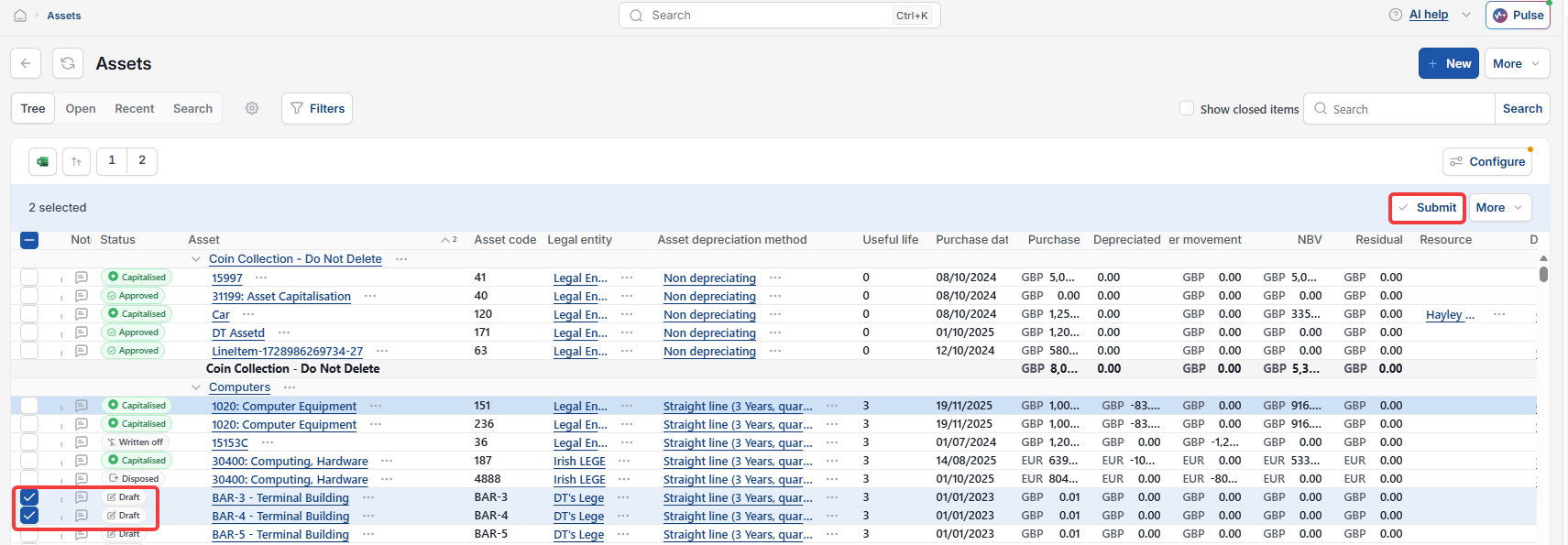
- Submit – assets must be in 'Draft' status
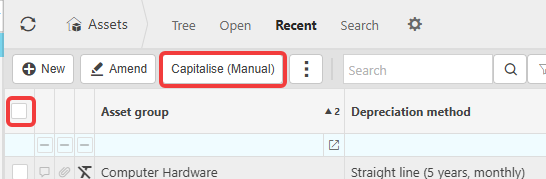
- Capitalise – assets must be in 'Approved' status
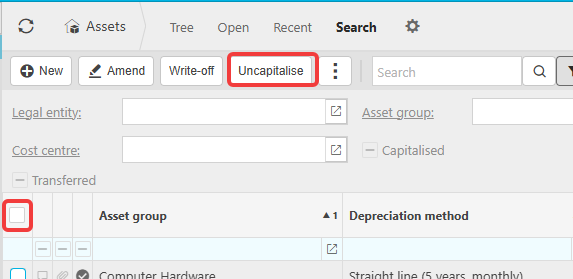
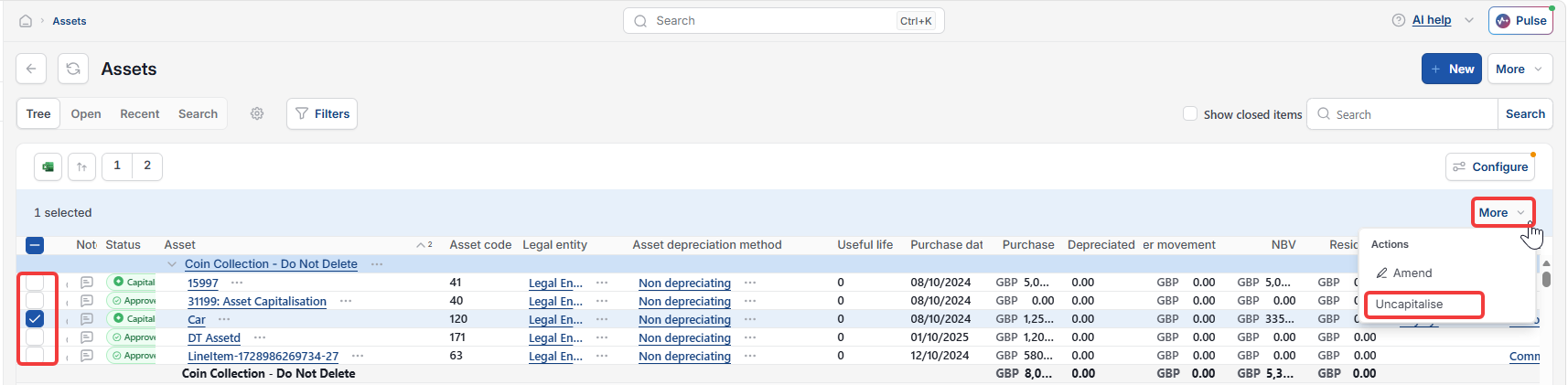
- Uncapitalise – assets must be in 'Capitalised' status
- Write-off – assets must be in 'Capitalised' status.
How to perform a bulk action on fixed assets
The steps are the same for all bulk actions – only the button you select differs.
- Select 'Assets' from the main menu, or enter 'Assets' in the quick search (Ctrl + K)
- Select the 'Open' tab to view assets, or use the 'Search' tab to filter for the specific assets you need
- Select the relevant assets using the checkboxes – confirm all selected assets are in the correct status for the action you are applying
- Select the relevant bulk action button – 'Submit', 'Capitalise', 'Uncapitalise' or 'Write-off'.
iplicit processes all selected assets in the correct status. Assets not in the required status for the chosen action will not be processed.
Bulk movement in assets
Uncapitalise multiple assets
Mass uncapitalise
Bulk reverse asset capitalise
Bulk asset action