

This article covers how to add a Custom Data Access Control (CDAC) attribute (Department or Cost centre) to the header of a document, using a purchase invoice with a Department attribute as the example. CDAC is configured in Environment Defaults and applies to the document types you select in the CDAC scope.
Configure the CDAC attribute in Environment Defaults
The CDAC attribute (sometimes called a custom field, header field, or custom dimension) is the value that appears on the document header, for example Department or Cost centre on a purchase invoice. The CDAC scope controls which document types the attribute appears on.
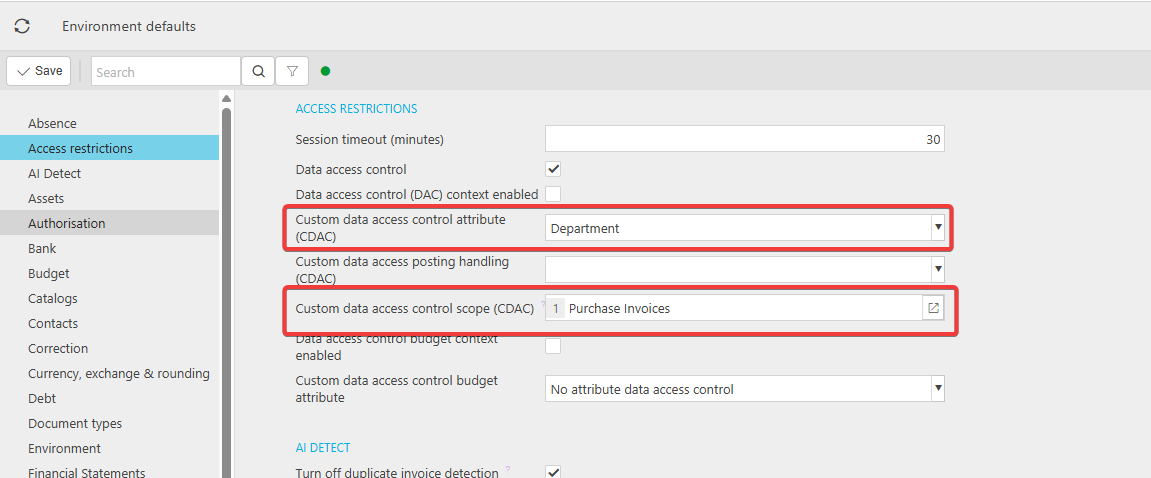
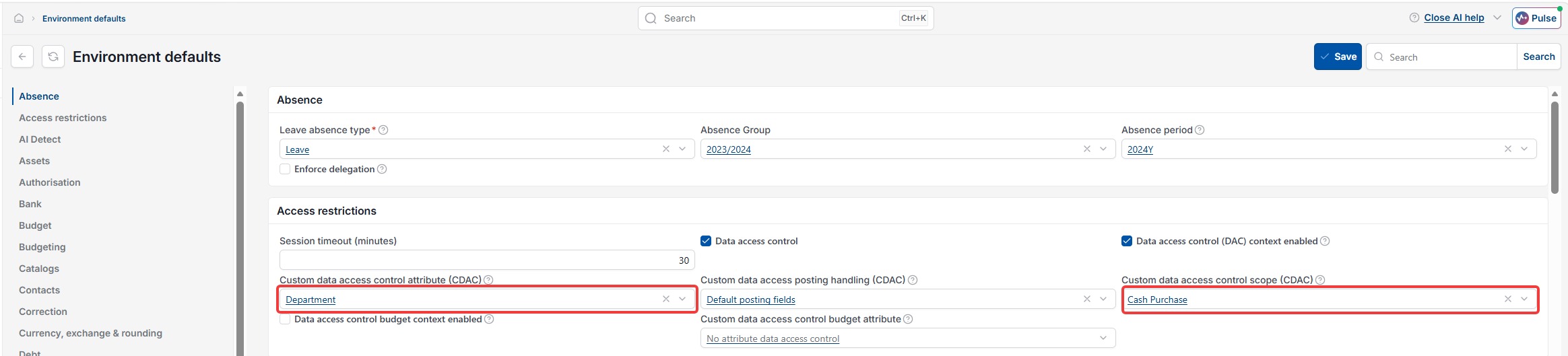
- Go to Environment defaults
- Select Access restrictions from the left-hand menu
- In the Custom data access control attribute (CDAC) field, select the attribute you want to appear on the document header, for example 'Department' or 'Cost centre'
- In the Custom data access control scope (CDAC) field, select the document types the attribute should apply to, for example 'Purchase Invoices'
- Select 'Save'
Make sure users can see and select the attribute
Configuring the attribute in Environment Defaults makes the field appear on the document, including within the CDAC scope settings, but it does not give users access to it. Every user who works with documents in the CDAC scope, purchase invoices in this example, must also be assigned to a Data Access Control record that covers the attribute, either a Department DAC or a Cost centre DAC, before they can see the documents and select values for the attribute.
A user not assigned to a matching DAC will not be able to view documents or select a department when creating the document within the CDAC scope.
For full setup instructions, see the Data Access Control section of the iplicit user guide: 'Data Control Access'
Add attribute to invoice header
CDAC attribute
Department on invoice
Cost centre on invoice
Attribute on document