

This article covers how to dispose of a fixed asset in iplicit's Fixed Assets module using the 'Dispose (Debtor)' movement. Disposal is used when an asset is sold and a debtor needs to be raised for the sale proceeds. The process creates a disposal journal that removes the asset's cost and accumulated depreciation from the Balance Sheet.
Note: the disposal function in iplicit does not create a sales invoice. The sales invoice must be raised separately as a standalone transaction.
Partial disposal is not available in iplicit. If you need to reduce the value of an asset without fully disposing of it, use the 'Impair' movement instead. See 'How to impair a fixed asset in iplicit'. If multiple assets have been recorded as a single asset record and you need to dispose of part of them, split the assets into separate records first and dispose of the relevant one individually.
For assets being removed with no sale proceeds, see 'How to write off a fixed asset in iplicit'.
Before disposing of a fixed asset
The following must be in place before a disposal can be processed. If any of these steps have not been completed, set them up first before returning to this article.
Account defaults
The asset group must have a disposal account default configured:
- 'Disposal' – Balance Sheet account; removes the asset value from the Balance Sheet on disposal.
Without this in place, iplicit cannot post the disposal journal to the correct GL account. See 'How to configure account defaults for fixed assets in iplicit'.
Document types and series
The 'Asset Dispose (Debtor)' (ASSDISPDEBTOR) document type must be unlocked and a document series must be active, unlocked and dated before the disposal date. Without both in place, iplicit cannot number or post the disposal journal. See 'How to set up document types and series for fixed assets in iplicit'.
Asset status
The asset must be capitalised before it can be disposed of. The 'Dispose (Debtor)' option only appears on capitalised assets. See 'How to capitalise a fixed asset in iplicit' if the asset has not yet been capitalised.
Step one: record the fixed asset disposal
- Select 'Assets' from the main menu, or enter 'Assets' in the quick search (Ctrl + K)
- Open the relevant asset
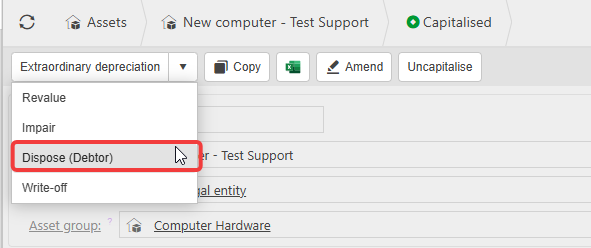
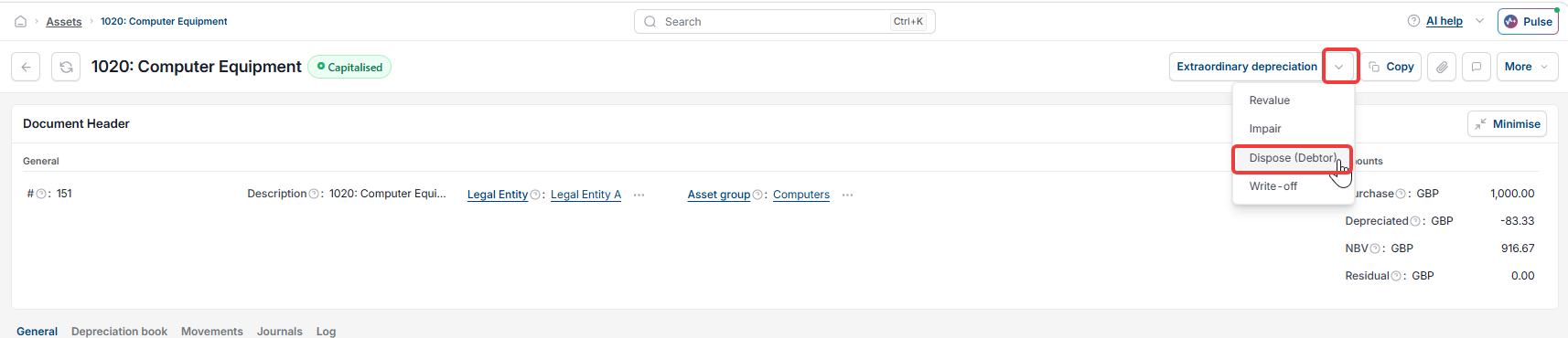
- Select the drop-down arrow next to the movement options
- Select 'Dispose (Debtor)'
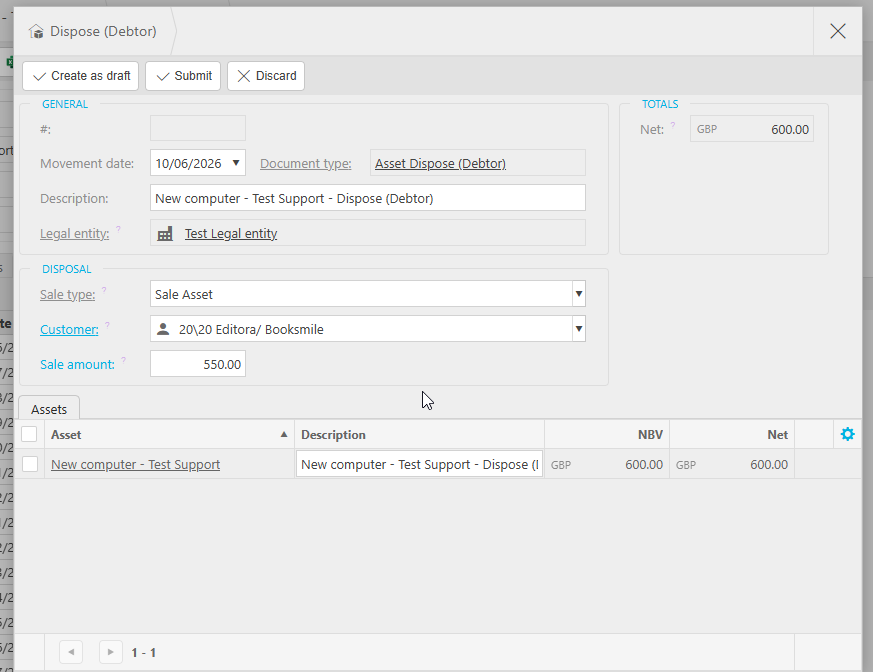
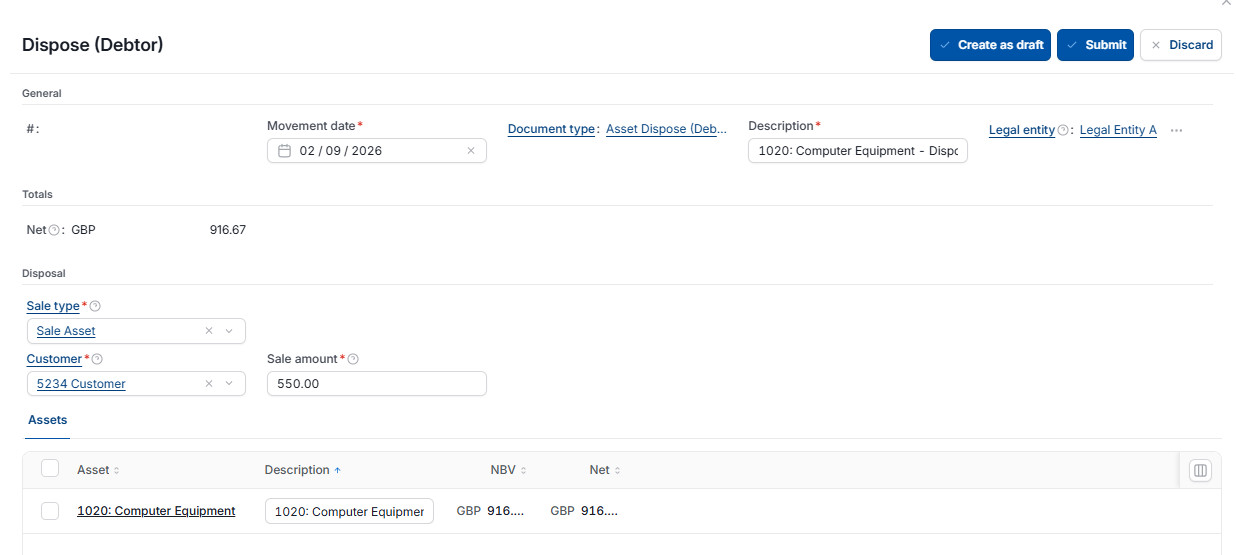
- Enter the disposal date
- Enter any required details
- Submit the disposal.
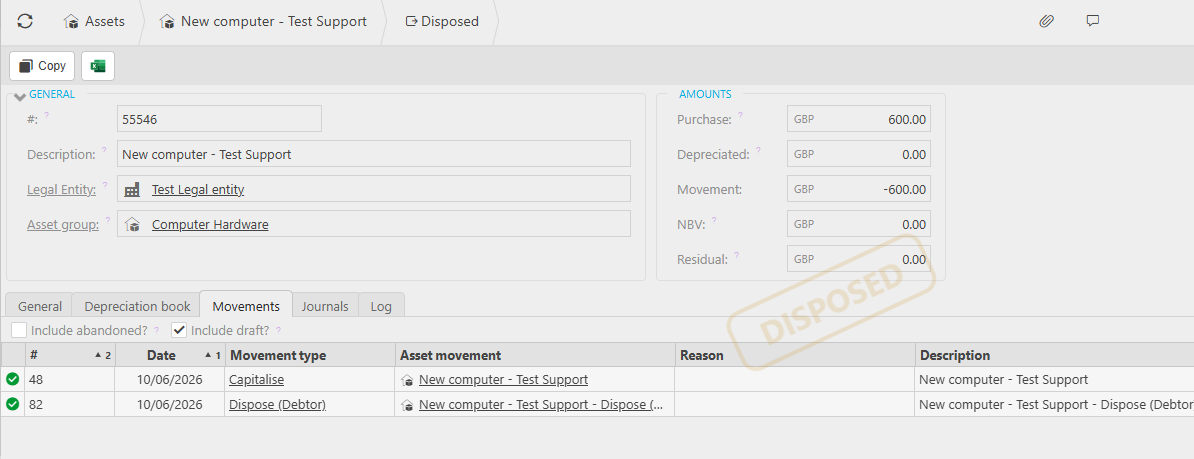
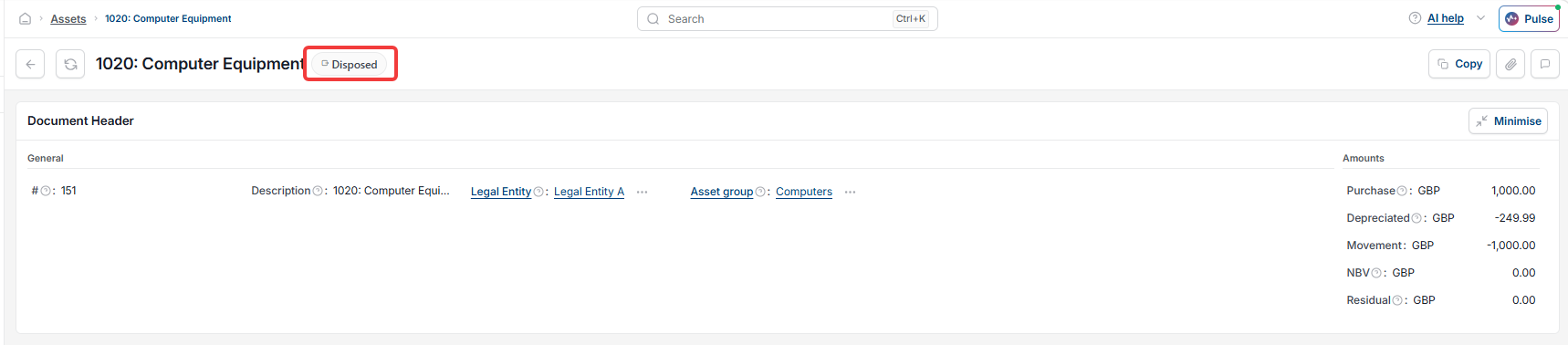
iplicit creates a journal that removes the asset's original cost and accumulated depreciation from the Balance Sheet. The asset status updates to reflect it has been disposed of.
Step two: raise a sales invoice for the disposal proceeds
The disposal journal does not record the cash or income from the sale, and iplicit does not create a sales invoice automatically as part of the disposal process. The sales invoice is a separate transaction and does not link back to the asset record.
- Navigate to 'Sales Invoices'
- Create a new sales invoice for the buyer
- Post the invoice to the appropriate disposal proceeds account.
Viewing the disposal on the fixed asset record
Once processed, the disposal movement and its associated journal are visible on the asset record under the 'Movements' tab and the 'Journals' tab respectively.
Dispose a fixed asset
Asset disposal
Sold an asset
Asset balance sheet removal
Remove asset from register