

This article covers how to manually add a missing transaction to an existing bank statement in iplicit, so it appears in your bank reconciliation. Bank statements are populated automatically when you use a bank feed, but if a transaction is missing you can add it directly to the statement.
Before adding a transaction manually, check whether the bank feed connection is working correctly. The recommended approach is to fix the feed so missing transactions pull through automatically, otherwise you risk duplicates appearing when the feed catches up. Only add the transaction manually if the feed cannot be fixed in time, or if the transaction will never come through the feed (for example, a one-off adjustment from the bank).
This article does not cover creating a brand-new manual bank statement from scratch, or adding a ledger-side transaction (such as a payment or receipt) that does not yet exist in iplicit.
Why a transaction might be missing from the bank statement
A bank feed in iplicit populates the bank statement automatically with transactions from your connected bank account. A transaction may be missing from the statement if:
- The bank feed has not yet pulled it through (timing or pending status at the bank)
- The transaction sits outside the statement date range
- The feed failed, was paused, or needs re-authenticating on the day the transaction cleared
- The bank feed connection has been disconnected
When this happens, the missing transaction will not appear on the bank reconciliation either, because the reconciliation reads from the statement.
The recommended fix is to restore the bank feed connection so the missing transaction pulls through automatically. This avoids the risk of duplicate entries later. For guidance on reconnecting or troubleshooting a bank feed, see the Bank Feeds folder for related articles. Manually adding the line is a workaround for when the feed cannot be fixed quickly, or for transactions the feed will never deliver.
How to manually add a transaction to a bank statement
- Navigate to the bank statement screen
- Open the bank statement that is missing the transaction
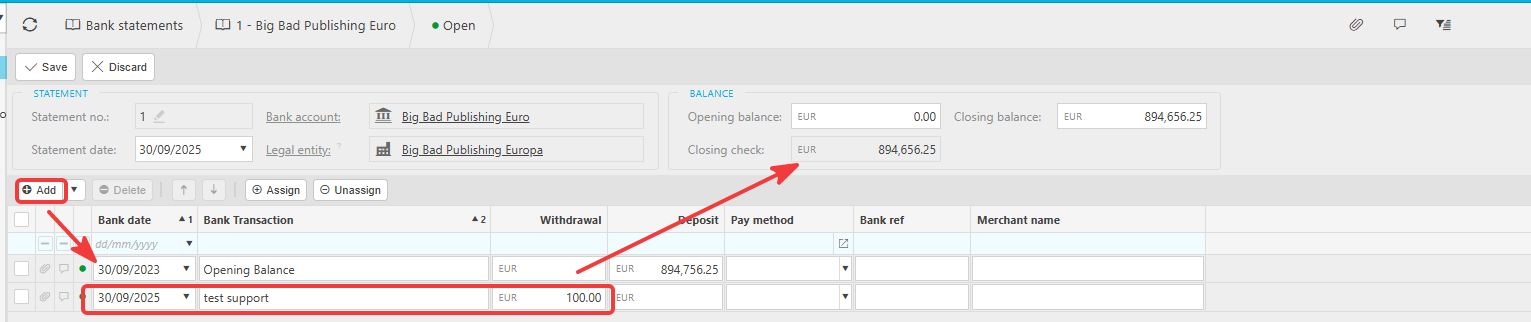
- Check the 'Statement date' at the top of the screen – the transaction date you want to add must be on or before this date, otherwise the line cannot be saved
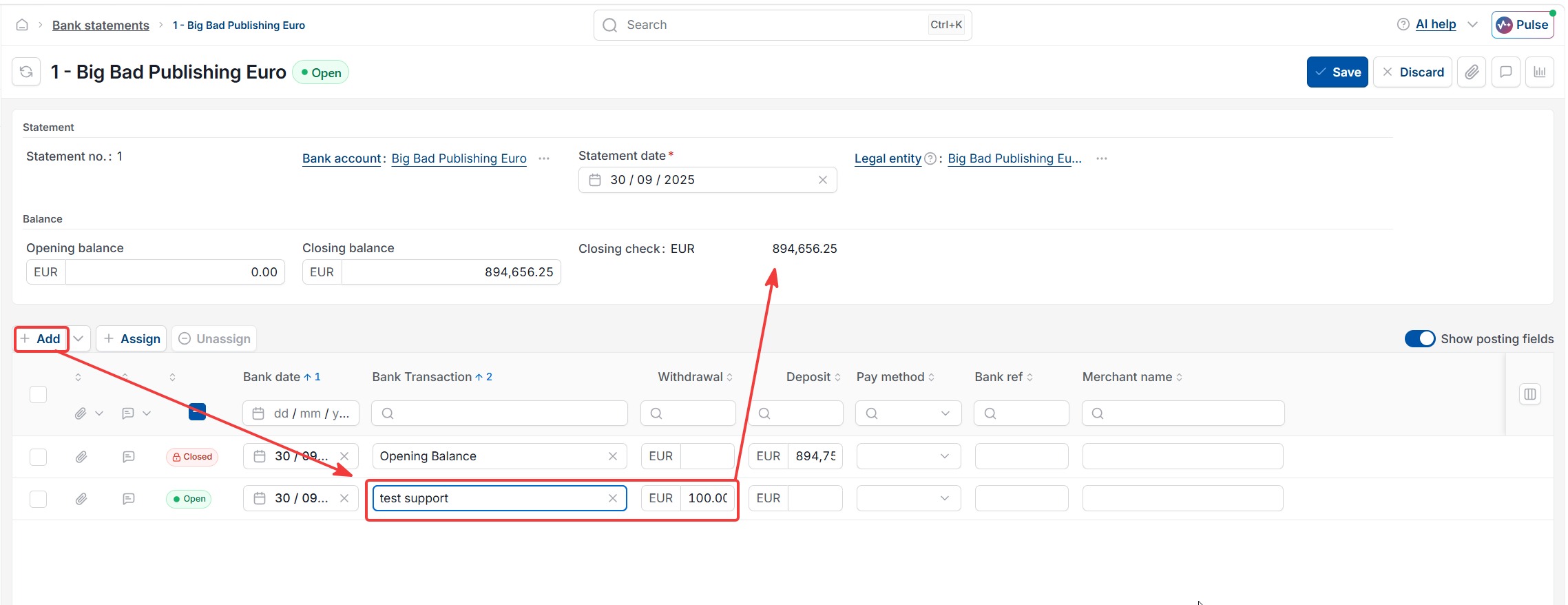
- Select the 'Add' button to insert a new blank row
- Fill in the mandatory fields on the new row:
- 'Date' – the date the transaction cleared the bank
- 'Description' – the description as it appears on the bank
- 'Withdrawal' or 'Deposit' – enter the amount in the correct column depending on whether money left or entered the account
- Check the 'Closing Check' figure at the top of the statement still matches the 'Closing Balance' from the bank, so you know the line has been entered correctly
- Select 'Save'
The new line is now part of the bank statement and will appear in the bank reconciliation for matching.
Avoiding duplicates when the bank feed catches up
If you manually add a transaction to a bank statement and the bank feed later pulls the same transaction through, you will have two lines for the same item on the statement. To avoid this:
- Fix the bank feed connection first wherever possible, rather than adding lines manually
- If you do add a line manually, make a note of it so you can delete the manual line when the feed catches up. See 'Why can I see duplicate lines on the bank side of the unmatched tab?' for correcting duplicates
- After the feed next runs, check the statement for any duplicate lines and remove the manual entry
How to see the added transaction on the bank reconciliation
- Navigate to the Bank reconciliation screen
- Open the active reconciliation for the same bank account
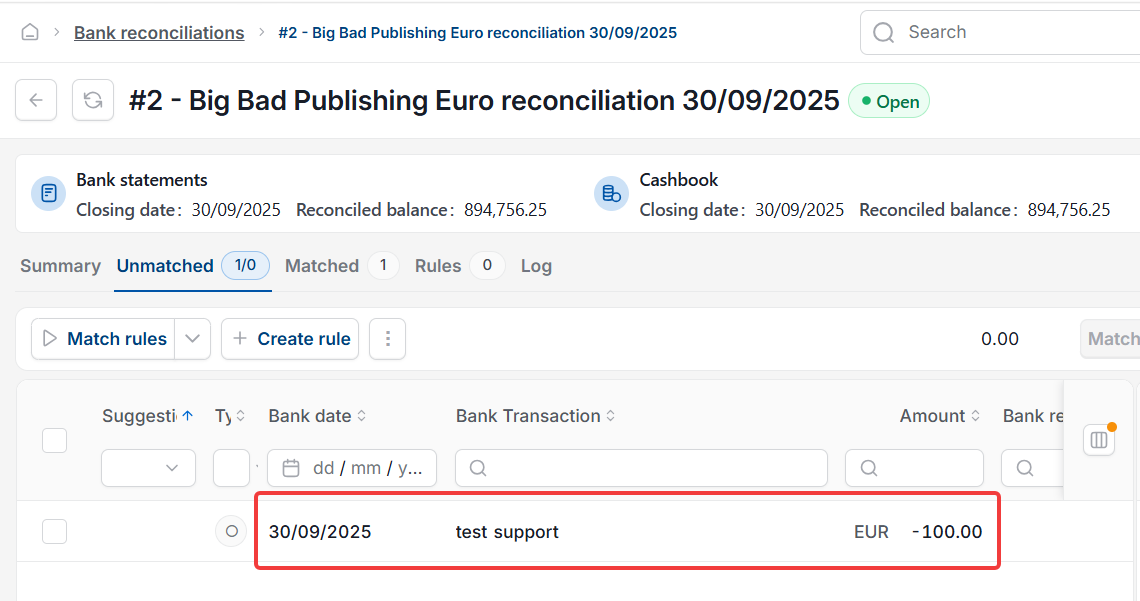
- Go to the 'Unmatched' tab – the line you added to the bank statement now appears here
- Match it against the corresponding cash book entry as normal
If the line still does not appear, check that the transaction date on the statement line falls within the reconciliation's date range.

Editing or removing a manually added line
A manually added line on a bank statement can be edited or deleted at any time, provided it has not yet been matched on a bank reconciliation. If the line has been matched, a padlock icon appears next to it. To edit or remove a matched line, first unmatch it on the bank
Missing bank transaction
Manually enter bank transaction for the rec
Adding transactions
Edit statement