

This article explains what asset groups are in iplicit's Fixed Assets module and how to structure them effectively. Every fixed asset in iplicit must be assigned to an asset group. The group determines how the asset is classified, how it depreciates, and which GL accounts are used when posting asset journals. Getting your asset group structure right at the start makes the rest of your fixed asset setup significantly easier.
What an asset group does in Fixed Assets
An asset group applies a common set of rules to all assets within it. When you assign an asset to a group, it inherits:
- The asset type (tangible, intangible, non-capital or non-depreciating)
- The depreciation method
- The GL account defaults for capitalisation, depreciation and other movements.
Think of asset groups as categories that tell iplicit how to treat each type of asset financially. A computer and a building are both fixed assets, but they are treated very differently – different depreciation methods, different useful lives, different accounts. Asset groups are how you define those differences once and apply them consistently across every asset in the category.
How to structure your asset groups
The most effective way to structure asset groups in iplicit is by combining asset type with depreciation method. This means each group has a single, consistent set of accounting rules and there is no ambiguity about how any asset in the group is treated.
For example:
- Tangible assets depreciating on a straight line basis – one group per category (computers, office equipment, motor vehicles)
- Intangible assets subject to amortisation – one group per category (software licences, intellectual property)
- Non-depreciating assets such as freehold land – a separate group with a non-depreciating method assigned.
Avoid combining assets with different depreciation methods or different useful lives into a single group. Doing so forces compromises on the depreciation settings that will not be correct for all assets in the group.
Asset types available in iplicit
iplicit has four predefined asset types:
- Tangible – physical assets that can be touched, such as computers, vehicles and buildings; these undergo depreciation
- Intangible – non-physical assets such as software licences, trademarks and patents; these are subject to amortisation rather than depreciation
- Non-capital – items recorded in the asset register but not capitalised on the Balance Sheet; typically low-value items above your tracking threshold but below your capitalisation threshold
- Non-depreciating – tangible or intangible assets that do not lose value over time, such as freehold land.
Depreciation methods on asset groups
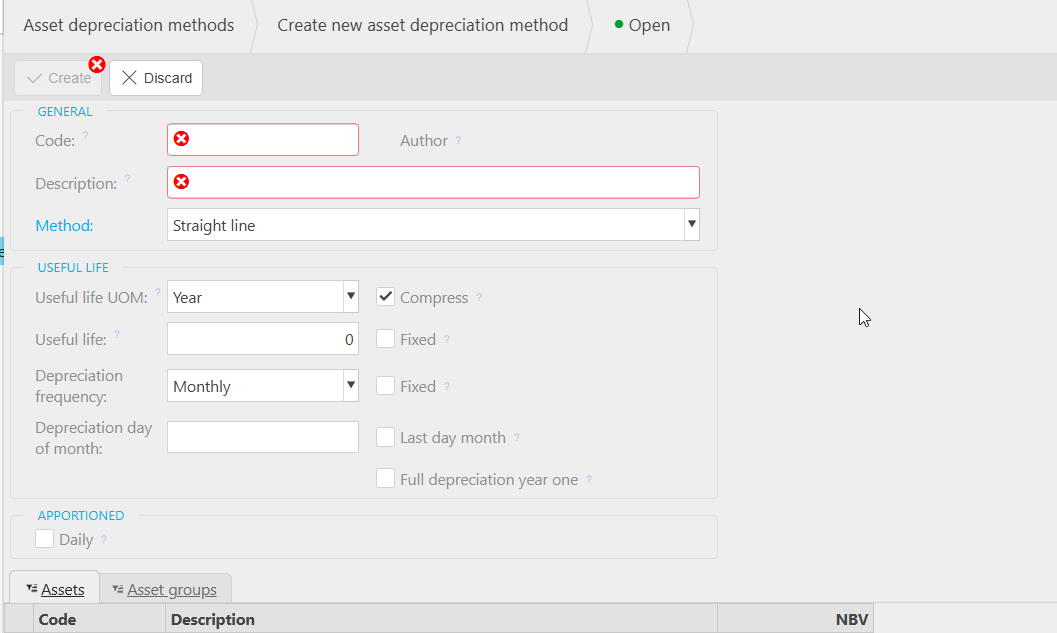
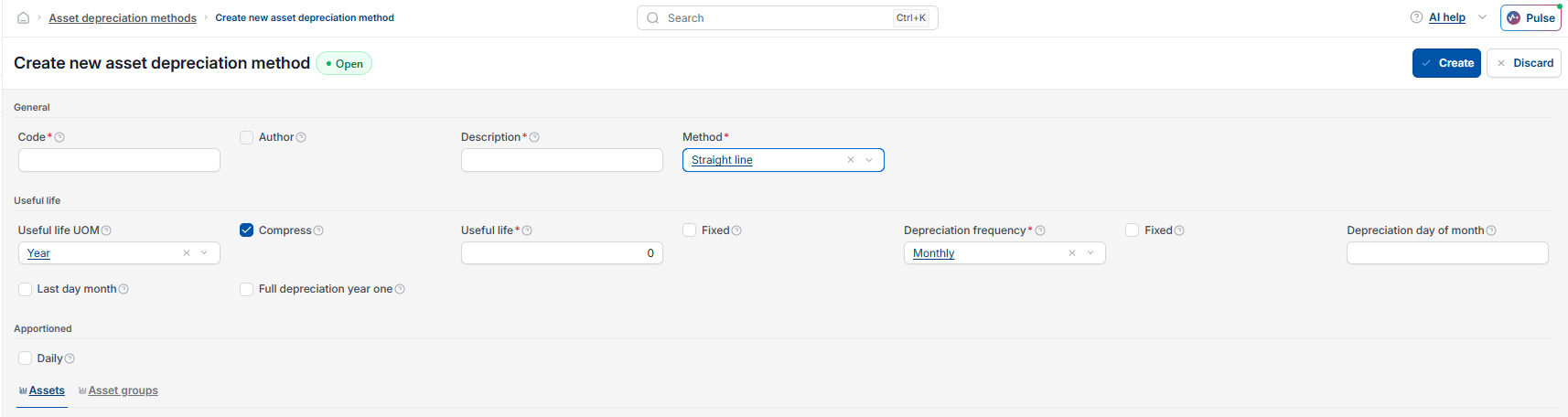
iplicit includes a predefined set of depreciation methods covering straight line, reducing balance and double declining, among others. If your organisation has a specific requirement not covered by the defaults, additional custom depreciation methods can be created from the 'Asset Depreciation Methods' screen. Depreciation methods are assigned at the asset group level. The method set on the group applies to all assets within it unless overridden on the individual asset record. See 'How to create a fixed asset manually in iplicit' for detail on how the depreciation method is applied when creating an asset.
Asset tracking on asset groups
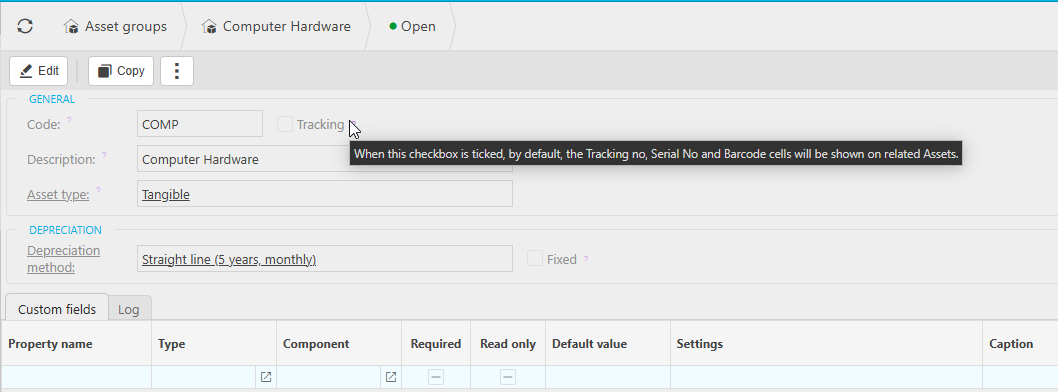
Asset groups can be configured to enable tracking via serial numbers or barcodes. When tracking is enabled on the group, the relevant tracking fields become available on every asset record within that group. This is useful for organisations that need to record the physical location or assignment of assets, for example tracking which member of staff holds a specific device.
Custom fields on asset groups
Custom fields can be added to asset groups to capture organisation-specific information not covered by the standard fields. Any custom field added to a group becomes available on every asset assigned to that group. Custom field codes cannot contain spaces – iplicit will return a warning and prevent saving if a space is included.
Creating an asset group
- Select 'Asset groups' from the pulse menu, or enter 'Asset groups' in the quick search (Ctrl + K)
- Select 'New'
- Enter a unique 'Code' and 'Description'
- Select the 'Asset type'
- Select the 'Depreciation method' – if double declining or reducing balance is selected, a 'Depreciation percentage' field will appear; enter the applicable rate
- Add any custom fields required under the 'Custom fields' tab
- Select 'Create' to save.
Once the group is saved, configure the GL account defaults for it before creating any assets. See 'How to configure account defaults for fixed assets in iplicit' for the next step.

Asset groups structure
Asset groups settings
Asset custom fields
Asset tracking
Defaults on asset groups