

This article covers how to unlock document types and set up a document series for fixed assets in iplicit. These two steps work together – document types must be unlocked before a series can be assigned to them, and a series must exist before iplicit can number the journals it creates for asset movements. Without both in place, iplicit cannot post transactions for capitalisation, depreciation, disposal or any other asset movement.
Step one: unlock the relevant document types for fixed assets
Each asset movement type in iplicit has its own document type. These must be unlocked before the associated movement can post. A locked document type will prevent the journal from completing even if a series is correctly configured.
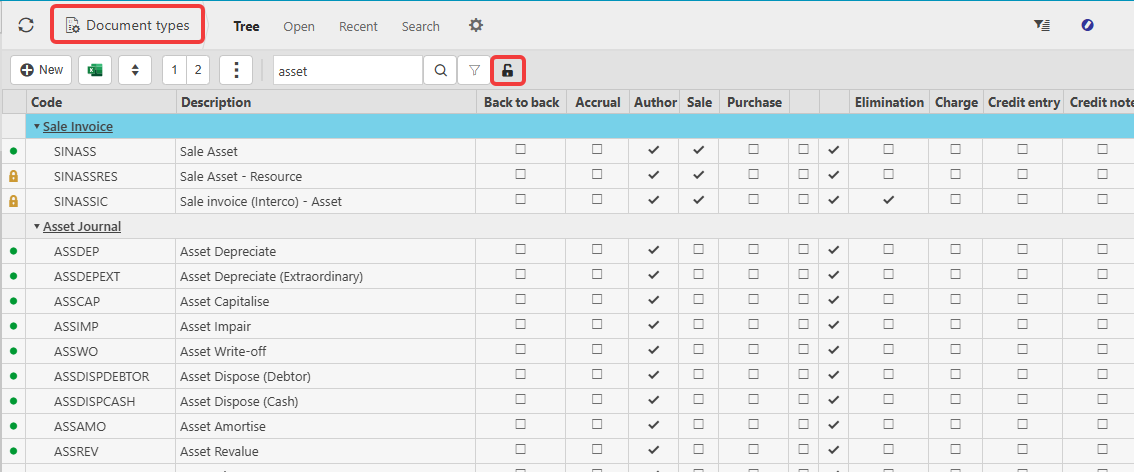
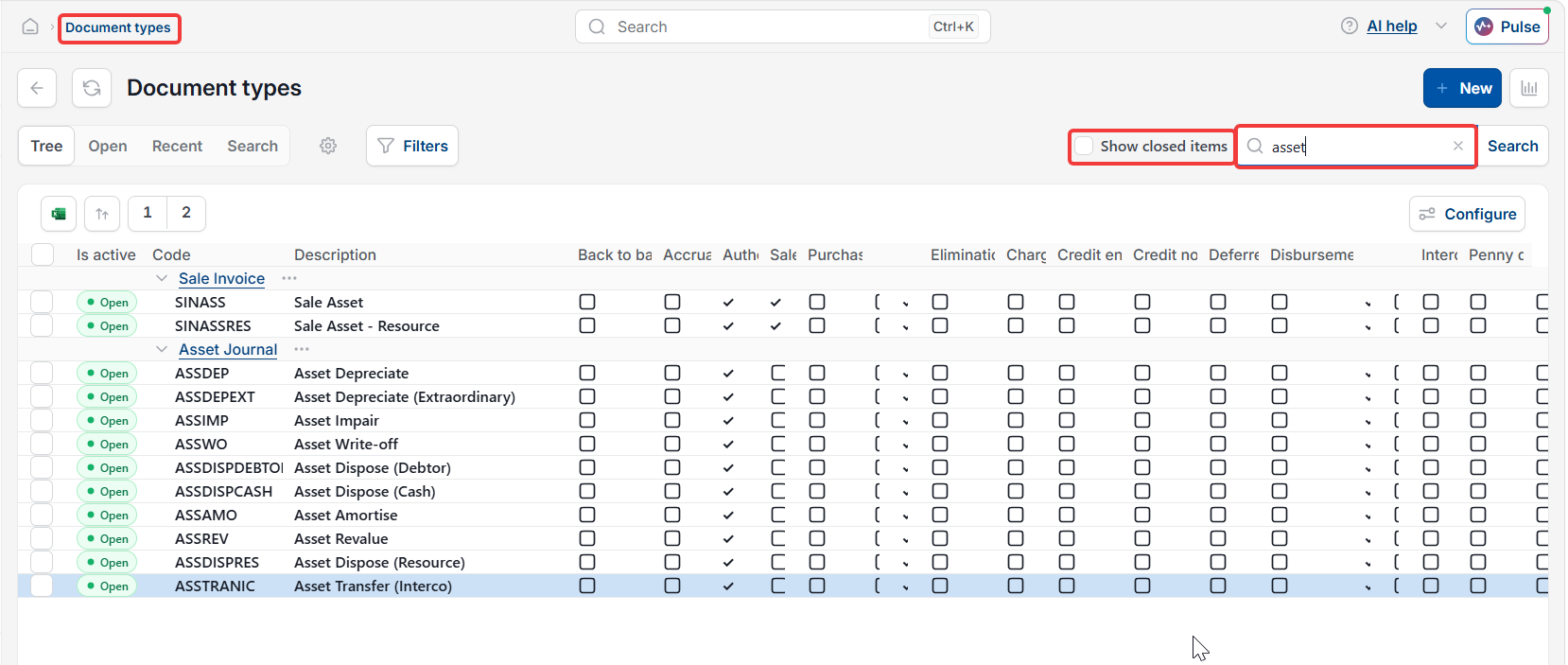
- Navigate to 'Document types'
- Search for 'asset' to filter the list to asset-related document types
- If locked document types are not visible, depending on your screen, select the green dot or tick 'Show closed items' to show them
- Check each document type relevant to the movements you intend to process:
- 'Asset Capitalise' (ASSCAP)
- 'Asset Depreciate' (ASSDEP)
- 'Asset Depreciate (Extraordinary)' (ASSDEPEXT)
- 'Asset Impair' (ASSIMP)
- 'Asset Write-off' (ASSWO)
- 'Asset Dispose (Debtor)' (ASSDISPDEBTOR)
- 'Asset Dispose (Cash)' (ASSDISPCASH)
- 'Asset Amortise' (ASSAMO)
- 'Sale Asset' (SINASS) – this is required to dispose of an asset but it does not create a sales invoice.
- Unlock any that are locked. Depending on your screen, select the three-dot menu or the 'More' drop-down, then select 'Unlock'.
What a document series is and why it matters for fixed assets
Every time iplicit posts a financial transaction, it assigns a document number from a series. For fixed assets, this applies to capitalisation journals, depreciation journals and asset movements such as disposals and write-offs.
Think of it like a numbered receipt book: the book needs to exist and be open before you can issue receipts. If the series is missing, locked or starts after the date of the asset you are trying to process, iplicit will return an error and the transaction will not post.
Asset movements use a separate numbering sequence from other document types. This sequence is managed on the 'Document Series' screen and must be configured independently.
Step two: set up a document series for fixed assets
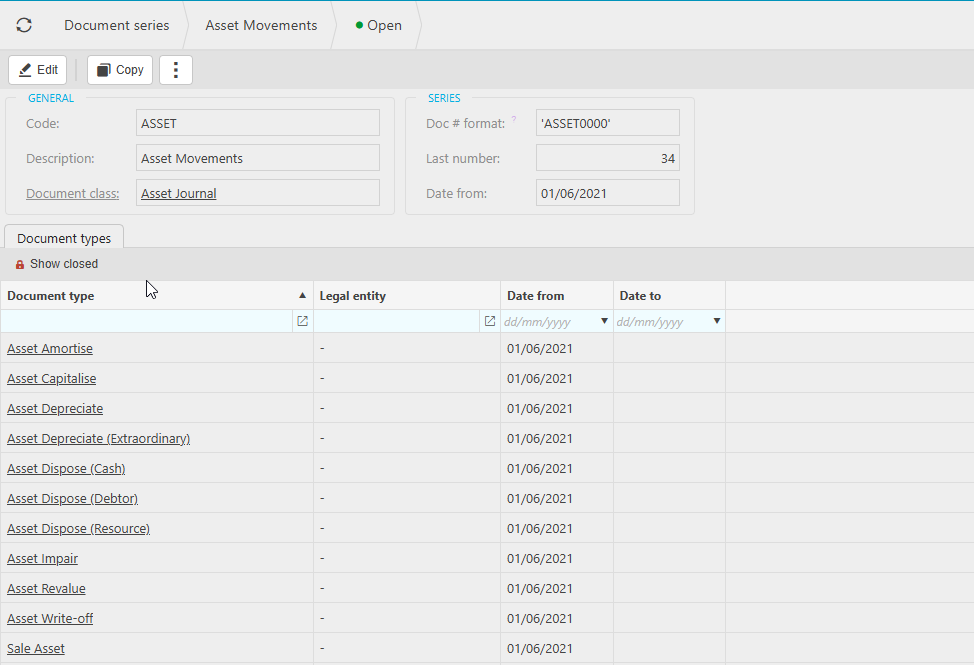
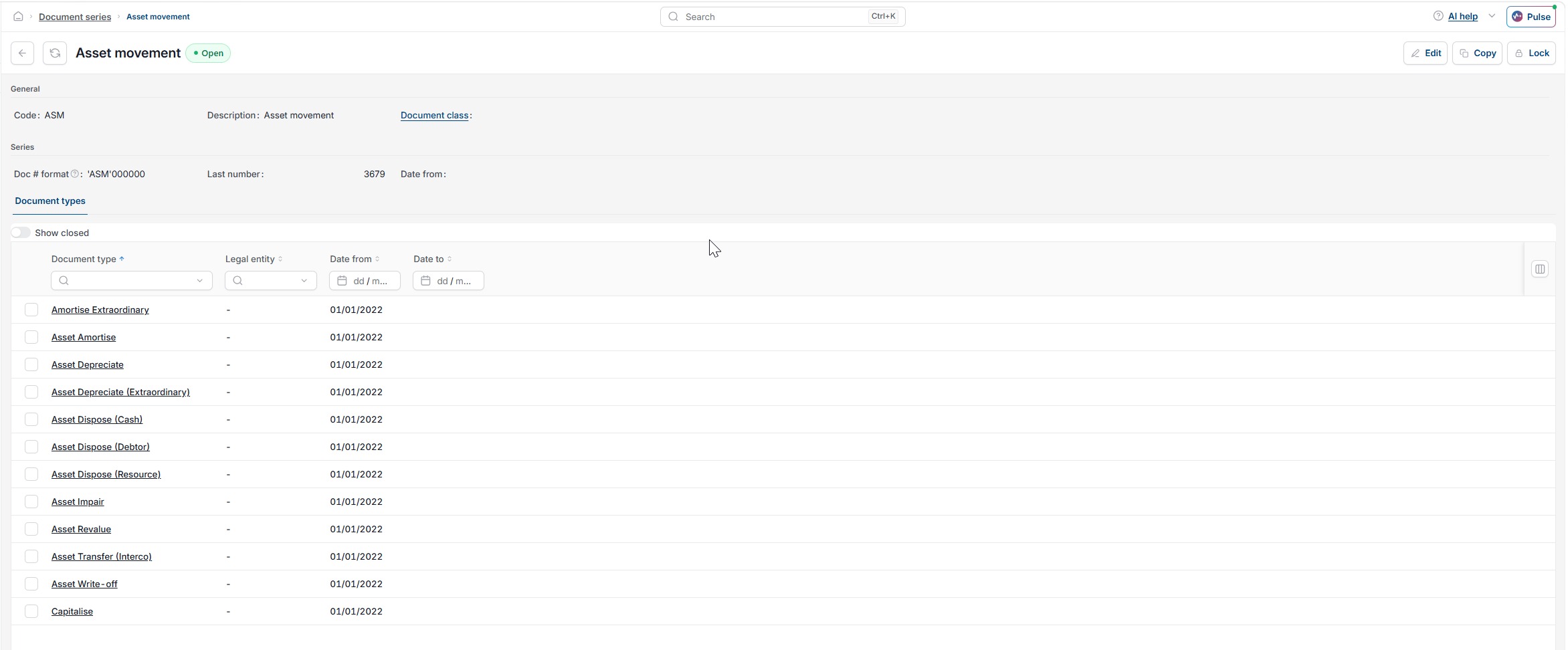
- Navigate to 'Document Series'
- Select 'New' to create a new series, or open an existing asset series to review it
- Set the series type to the relevant fixed asset document type
- Set the start date to a date earlier than the date of your oldest fixed asset – if the start date is later than an asset's purchase date, that asset will not capitalise
- Ensure the series is set to 'Unlocked'
- Save the series.
Checking an existing document series for fixed assets
If you are seeing capitalisation errors or assets stuck in pending, check the 'Document Series' screen first:
- Confirm the series exists for the asset movement type you are trying to process
- Confirm the start date is earlier than your earliest asset date
- Confirm the series is not locked.
Resetting the fixed asset document series after a system reset
If assets have been cleared by a vanilla reset or removed manually, the asset movement series may need to be reset. This commonly causes an error when attempting to capitalise. Navigate to the 'Document Series' screen, locate the asset movement series, and reset the next document number to one.
Fixed asset transaction setup
Document number fixed assets
Asset series setup
Unlock asset journals
Documents needed for asset movements