

This article covers bulk receipts and bulk payments, and what to do if iplicit will not let you select a customer or supplier because they have no bank details recorded. The cause is the payment method on the bank account being set to produce an output file. This article explains the rule and how to change it.
Why this happens in bulk receipts and bulk payments
When you run a bulk receipt or bulk payment, iplicit checks the payment method set up on the bank account. If 'No output' is not ticked on that payment method, iplicit will produce an output file – for example, a BACS file you upload to your bank. Bank details are required for every customer or supplier included in that file, so iplicit will not let you select accounts that do not have them.
If 'No output' is ticked, iplicit does not produce a file and does not require bank details on the customer or supplier.
When to tick 'No output' on a bulk receipt or bulk payment method
Tick 'No output' when:
- You are recording receipts or payments that have already been processed outside iplicit
- You enter the transactions directly into online banking and only need iplicit to keep the ledger in sync
- You are doing a one-off or back-dated entry and do not need a file to upload to the bank.
Do not tick 'No output' when:
- You rely on iplicit to generate a BACS, Faster Payments or other bank file from the bulk receipt (for refunds) or bulk payment
- Your bank requires a structured file to process the transactions.
If you are unsure which applies, check with whoever set up the bank file process for your organisation before changing the setting.
How to change the 'No output' setting on a bank account payment method
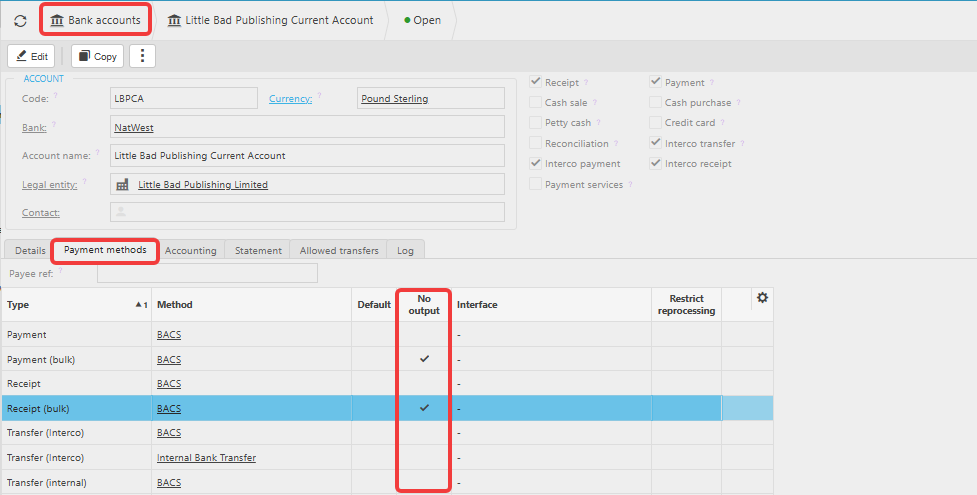
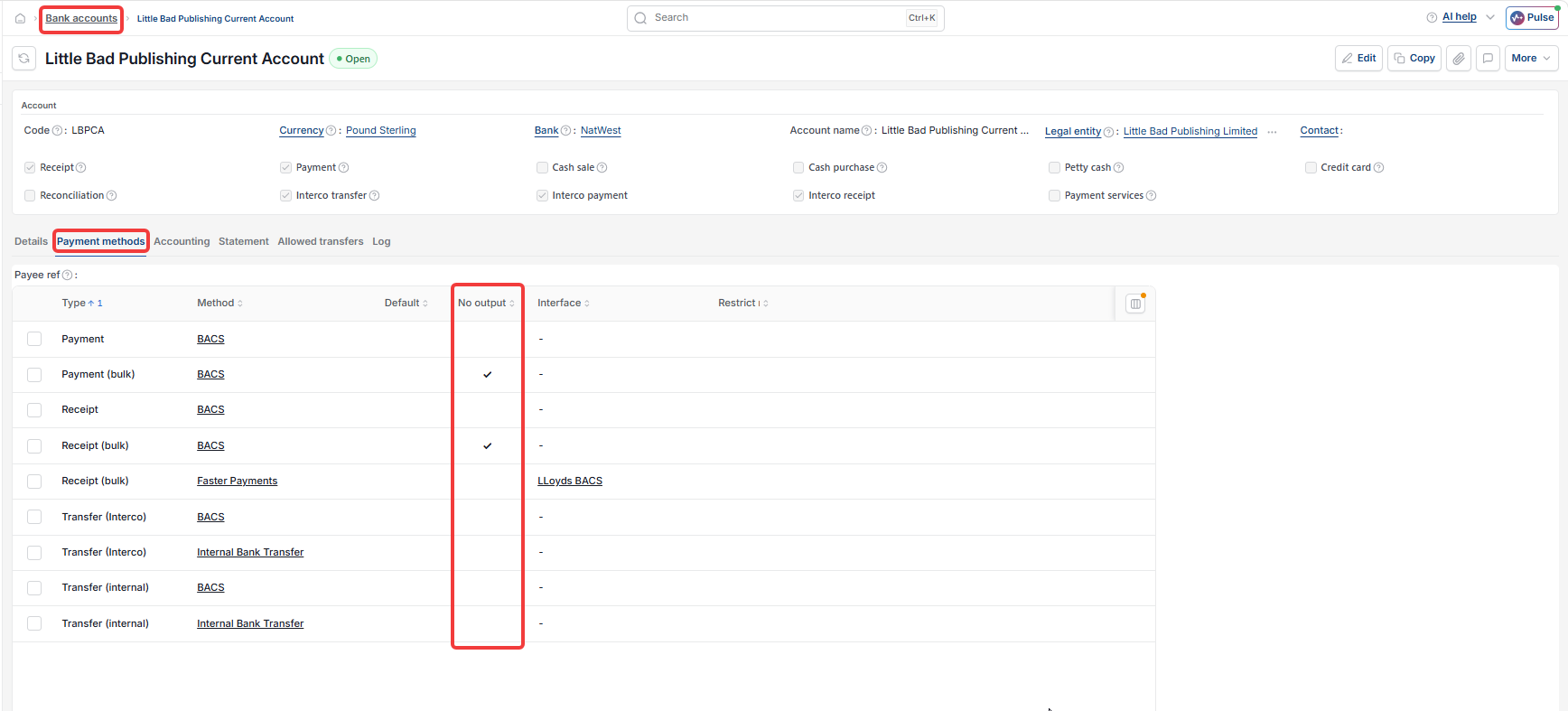
- Navigate to the bank accounts screen
- Drill into the bank account you are running the bulk receipt or bulk payment from
- Open the 'Payment methods' tab
- Find the row for 'Receipt (bulk)' or 'Payment (bulk)' depending on which one you are running
- Tick the 'No output' column for that row
- Select 'Save'.
You can now run the bulk receipt or bulk payment and select customers or suppliers regardless of whether they have bank details recorded.
If you need both options on the same bank account
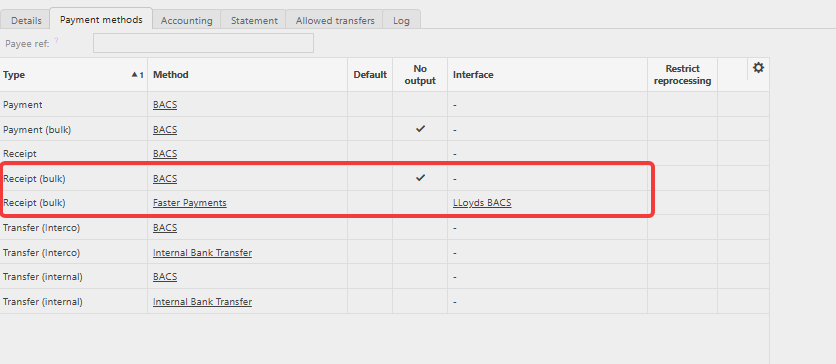
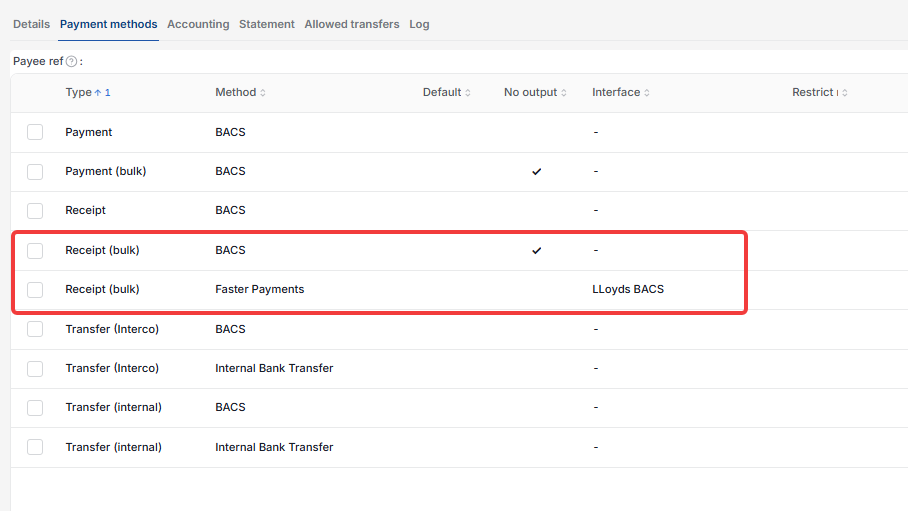
If there are times when you need iplicit to produce the file and times when you do not, set up two payment methods on the bank account using different methods – for example, BACS with 'No output' unticked, and Faster Payments with 'No output' ticked. When you run a bulk receipt or bulk payment, you then select the method that matches what you need for that batch.
For example:
- 'Receipt (bulk)' with method 'BACS' and 'No output' unticked, used when you want iplicit to generate a BACS file for upload to the bank
- 'Receipt (bulk)' with method 'Faster Payments' and 'No output' ticked, used when you are recording receipts that have already been processed outside iplicit.
The same approach works for 'Payment (bulk)'. Choose methods that genuinely reflect how the transactions are being processed, so your records remain accurate.
Bulk receipt bank account detail requirement
Bulk error
No output for bulk
BACs bulk receipts
Bulk payment bank account required