

This article covers how to amend a budget forecast that has already been submitted and approved within the legacy Budgets module in iplicit. Because approved forecasts cannot be edited directly, the process involves copying the forecast, amending the copy and deleting the original.
Why you cannot edit an approved budget forecast directly
Once a budget forecast in the Budgets module has been approved, iplicit locks it to protect the integrity of the authorised figures. This means you cannot open the forecast and change values directly. Instead, you copy the forecast to create an editable version, amend it, and then remove the original approved forecast.
Think of it like making a photocopy of an important document – you keep the copy to write on, and file away (or remove) the original once you're done.
Step one: copy the approved budget forecast
Copying the forecast creates a new, editable version in the Budgets module. It carries across all the original lines, periods and values so you don't have to start from scratch.
- Navigate to Budget > Budget Forecasts
- Open the approved forecast you need to amend – you will see 'Approved' displayed in the header
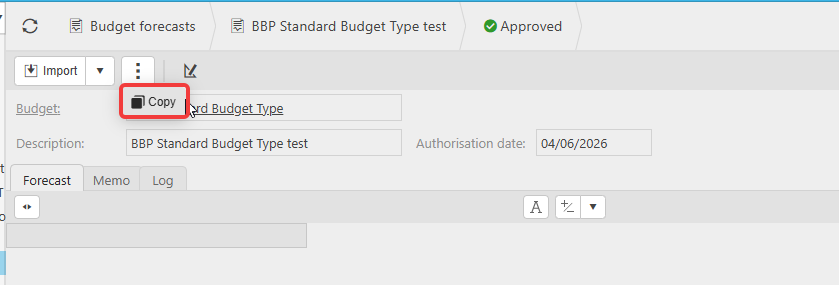
- Select 'Copy' from the toolbar at the top of the forecast. If it isn't visible, depending on your screen, select the three-dot menu or the 'More' drop-down to find it
- In the 'Copy forecast' window, enter a new name in the 'Description' field – this helps you identify the amended version
- If you want to carry across any notes from the original forecast, ensure the 'Copy notes' tick box is ticked
- Select 'Apply'.
iplicit creates a new forecast with the status 'Open'. This is your working copy.

Step two: amend the copied budget forecast
The copied forecast opens automatically with 'Open' status, meaning it is fully editable.
- Make the amendments you need directly within the forecast lines
- Once your changes are complete, select 'Submit' to send the forecast through the approval workflow.
The amended forecast will follow the same approval process as the original.
Step three: delete the original approved budget forecast
Once the amended copy has been submitted, delete the original approved forecast to avoid two versions existing at the same time. Keeping both creates confusion and may affect reporting within the Budgets module.
For full instructions on how to delete a budget forecast, see 'How to delete a budget forecast in iplicit'.
Amend approved budget forecast
Edit approved forecast
Copy budget forecast
How to edit a forecast once approved