

This article covers how to import fixed assets into iplicit's Fixed Assets module using a spreadsheet. Importing is the most efficient way to add multiple assets at once – most commonly when migrating an existing asset register from another system, or when creating a large number of new assets outside the normal purchase invoice route.
Before importing fixed assets
Asset groups must be configured before importing. Each asset in the import file requires a valid asset group. Imports containing an invalid or missing asset group will fail for those rows. See 'What are asset groups and how should they be structured in iplicit' if groups are not yet in place.
Note: already capitalised assets cannot be imported. Use the import process for draft assets only.
Step one: create your fixed asset import file
The easiest way to produce a correctly formatted import file is to first export the existing asset list from iplicit. This gives you a spreadsheet with all the correct columns already in place.
- Select 'Assets' from the pulse menu, main menu or quick search (Ctrl + K)
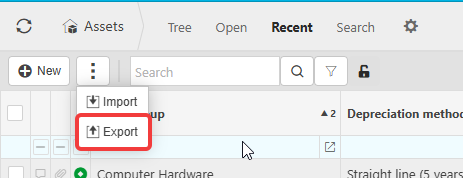
- Depending on your screen, select the three-dot menu or the 'More' menu, then select 'Export'
- Set any export options required and select 'Submit'
- Open the exported Excel file – this is your template.
Add new asset rows or edit existing ones directly in the spreadsheet. Key column rules to be aware of:
- Code – leave blank for iplicit to assign a number automatically; enter an existing code to update that asset; enter a new code to create a new asset
- Asset Group – must match a valid asset group already set up in iplicit
- Asset Depreciation Method – enter a valid method code, or leave blank to use the asset group default
- Depreciation Frequency – use M (monthly), Q (quarterly), P (accounting period) or N (not applicable).
Custom fields can be added to the spreadsheet in the format ext.FieldName and will be included in the import.
The file must use a single tab only. If your data spans multiple tabs, split it into separate files and import each one individually.
Save the file when complete.

Step two: import the fixed asset file
- Select 'Assets' from the pulse menu, main menu or quick search (Ctrl + K)
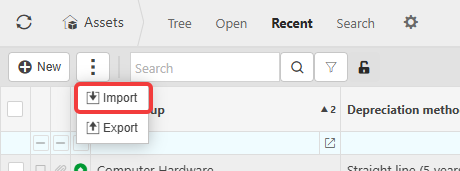
- Depending on your screen, select the three-dot menu or the 'More' menu, then select 'Import'
- Select your saved file in the 'File' field
- Set the date format if your file uses a non-UK format such as MM/DD/YYYY
- Tick 'Submit' if you want assets to be automatically submitted for authorisation after import
- Tick 'Skip Errors' to allow the import to continue past rows with errors rather than stopping
- Select 'Submit'.

Step three: review the fixed asset import results
Once complete, iplicit shows the import results screen listing which assets imported successfully and which did not. Review any failures and correct the source file before re-importing those rows.
Bulk updating draft fixed assets by import
To update assets already in the system that are in draft status, export the current asset list, make your changes in the file, and re-import. iplicit will overwrite the existing records where the asset code matches. This does not apply to capitalised assets.
Import fixed assets
Bulk import assets
Asset spreadsheet import
Import asset file
Upload asset register