

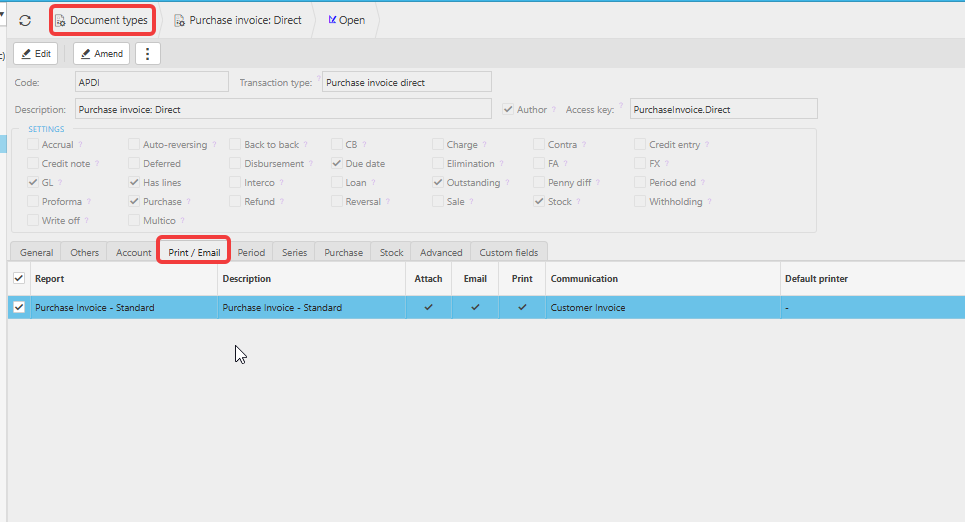
This article covers how to configure a print report on a document type in iplicit. The report is the PDF that attaches to outgoing emails, prints, or saves against the document - for example, the PDF a supplier receives with a purchase invoice. Configuration sits on the Print/Email tab of the document type.
Before you start
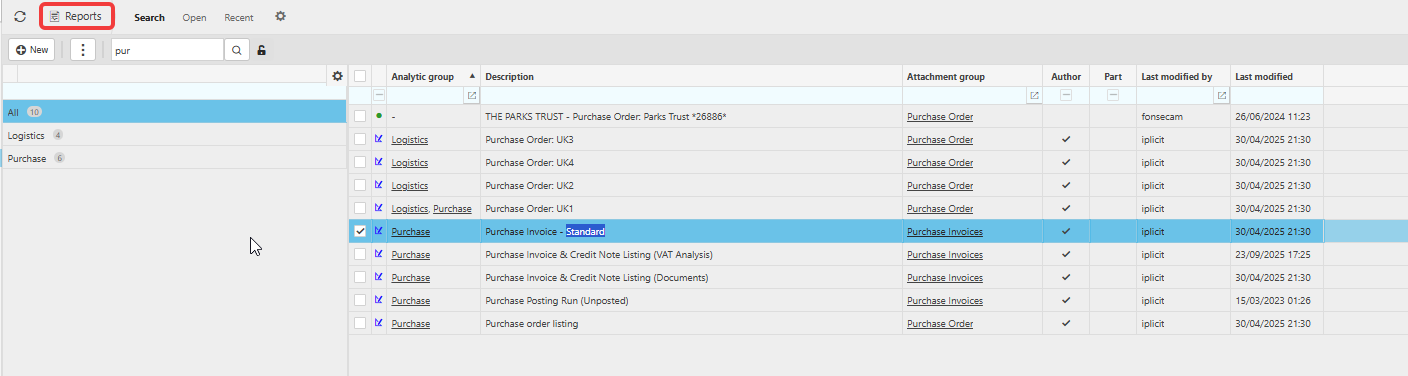
The report you want to attach must already exist in iplicit. To check, open the Reports screen and search for the report you need.
Configuring the print report on a document type
- Navigate to the document type you want to configure - for example, 'Purchase invoice: Direct'
- Select the 'Print/Email' tab
- Locate the report row you want to configure
- Set the tick boxes for that report:
- Attach - tick to allow the report to attach as a PDF to outgoing emails
- Email - tick to allow the report to be sent by email
- Print - tick to allow the report to be printed
- Confirm the 'Communication' column shows the correct email template. This is the template the PDF is sent with. To change it, open the Communication setup page
- Save the document type.
If the report you need is not available
If the report you need is not in the list, or the existing report does not look the way you need it to, the iplicit analytics team will need to build or adjust it. Log a support ticket with:
- The document type the report should sit against
- A description of what the report should show
- Any layout or branding requirements
- An example or mock-up if you have one.
Print document
Email document
PDF of transaction
Comms set up to email invoice
Email invoices
PDF attachment