

This article explains where to find the budget code in iplicit's Budgeting module. The budget code is a unique reference assigned to each budget and is required by several Excel add-in functions, including IP.BUDGETINGGROUPFLAMOUNT. The code is not shown in the Budgeting list by default, so you need to expose the column first.
What the budget code is used for
The budget code identifies a specific budget when you reference it from outside the Budgeting module. You'll most commonly need it when building Excel reports using the iplicit Excel add-in, where functions such as IP.BUDGETINGGROUPFLAMOUNT take the budget code as a required attribute alongside the legal entity and account group.
The code is created at the point the budget is set up Once the budget exists, the code is fixed and can be viewed from the Budgeting list.
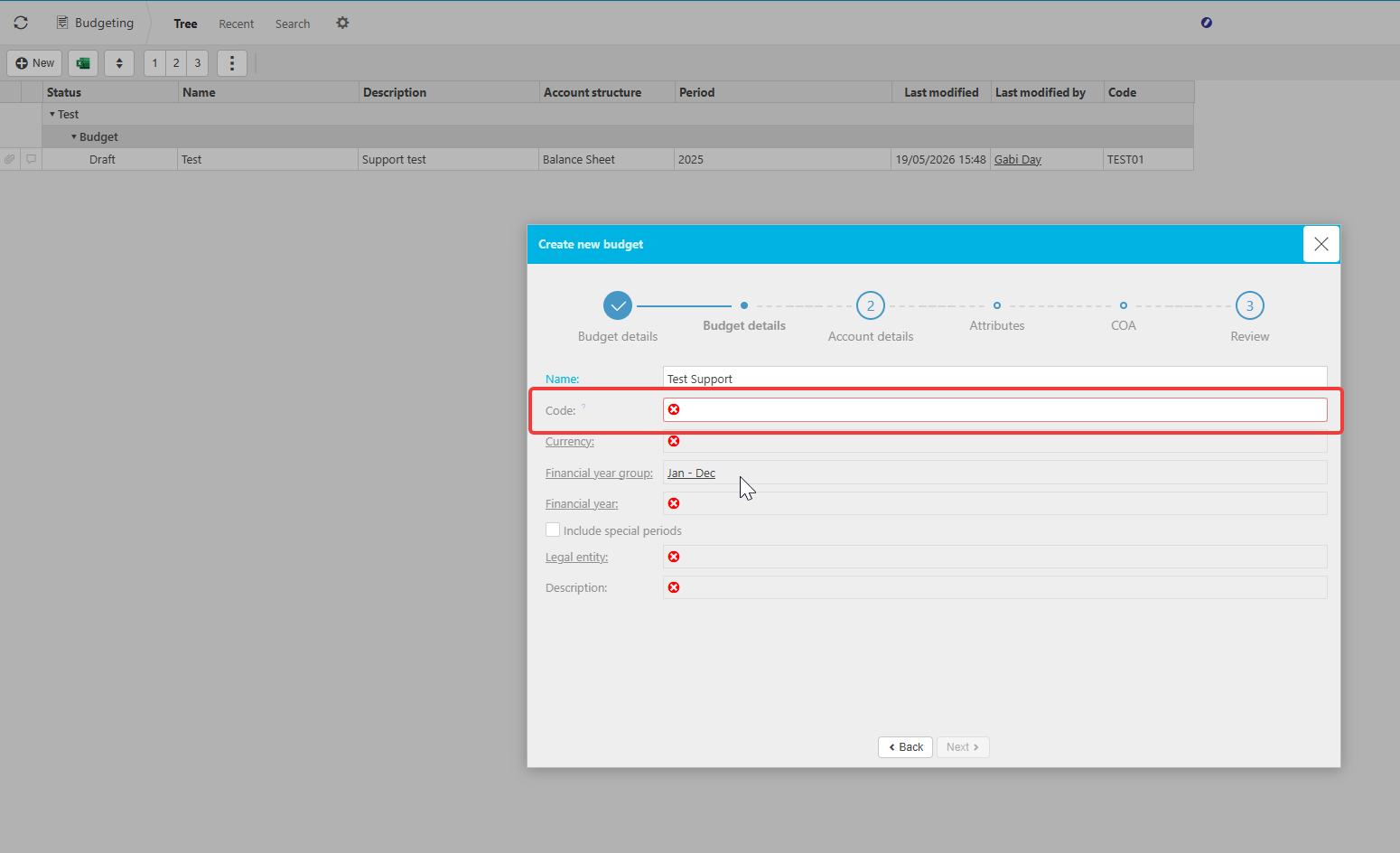
How to expose the budget code column in the Budgeting list
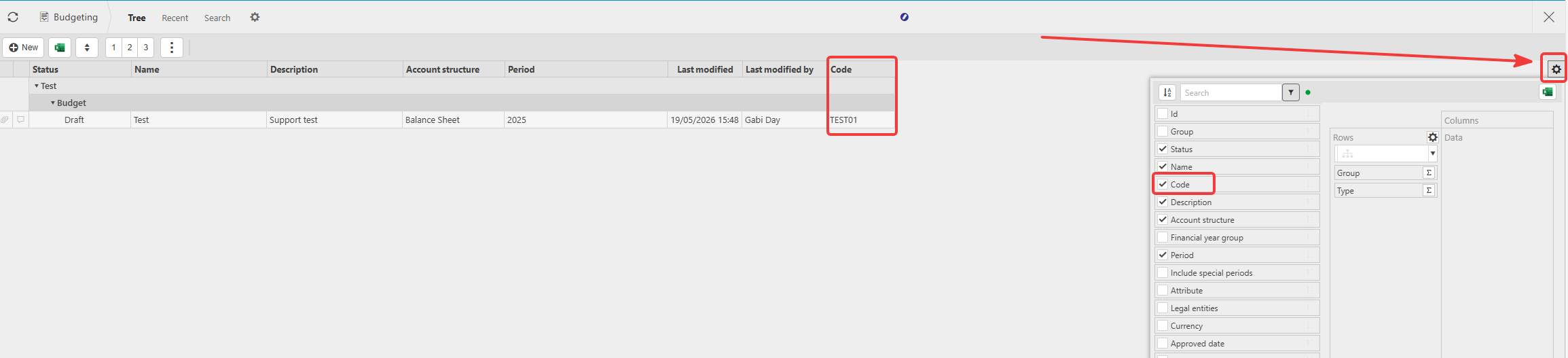
You need to add the Code column to the Budgeting list view before you can see it. This is a one-off change and the column will stay visible for your user the next time you open the screen.
- Navigate to Budgeting
- Locate the column settings icon (the cog) at the top right of the Budgeting list
- Select the cog to open the column options
- Tick 'Code' in the list of available columns
- Close the column options. The Code column now appears in the Budgeting list.
How to copy the budget code for use in Excel
Once the Code column is visible:
- Find the budget you want to reference in the Budgeting list
- Select the code value in the Code column
- Copy the code
- Paste it into the relevant attribute of your Excel add-in formula, for example as the budget code argument in
IP.BUDGETINGGROUPFLAMOUNT.
Budgeting code
Budget code
Excel budgeting formulas
Where to find the budget code
Budget code location