

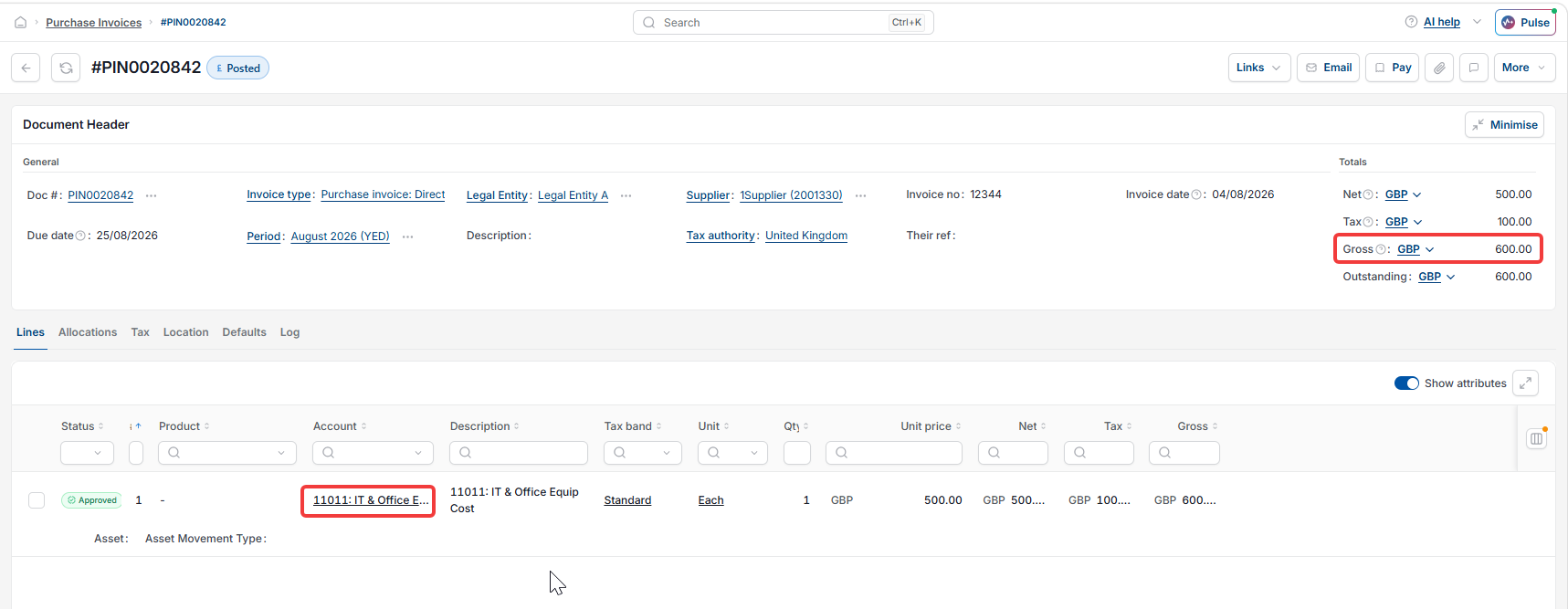
This article covers how to create a fixed asset from a purchase invoice in iplicit's Fixed Assets module. When a purchase invoice is posted to an account that is configured for capitalisation, iplicit can either create the asset automatically or route it to the asset capitalisation screen for review. This is the most common way assets are added to the register for organisations that process capital purchases through their Purchase Ledger.
Before creating a fixed asset from a purchase invoice
Three things must be in place before a purchase invoice can generate a fixed asset:
- The Chart of Accounts account used on the invoice must have 'Fixed assets', 'Purchase' and 'Capitalisation' all ticked in its settings
- An active capitalisation rule must exist that matches the account or product on the invoice
- A document series for fixed assets must be unlocked and dated before the invoice date.
If any of these are missing, the invoice will post but no asset will be created. See 'How to configure account defaults for fixed assets', 'How do asset capitalisation rules work' and 'How to set up a document series for fixed assets' if you need to complete this setup first.
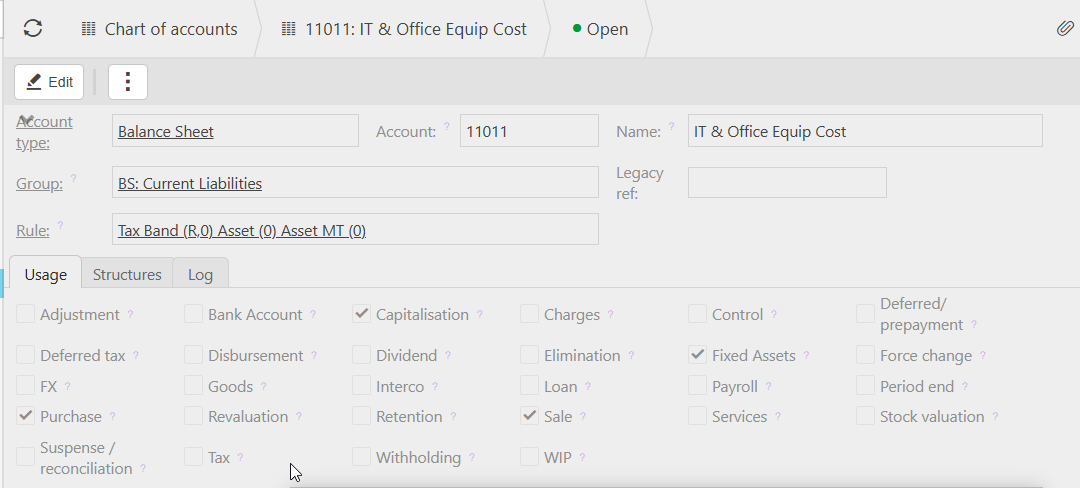
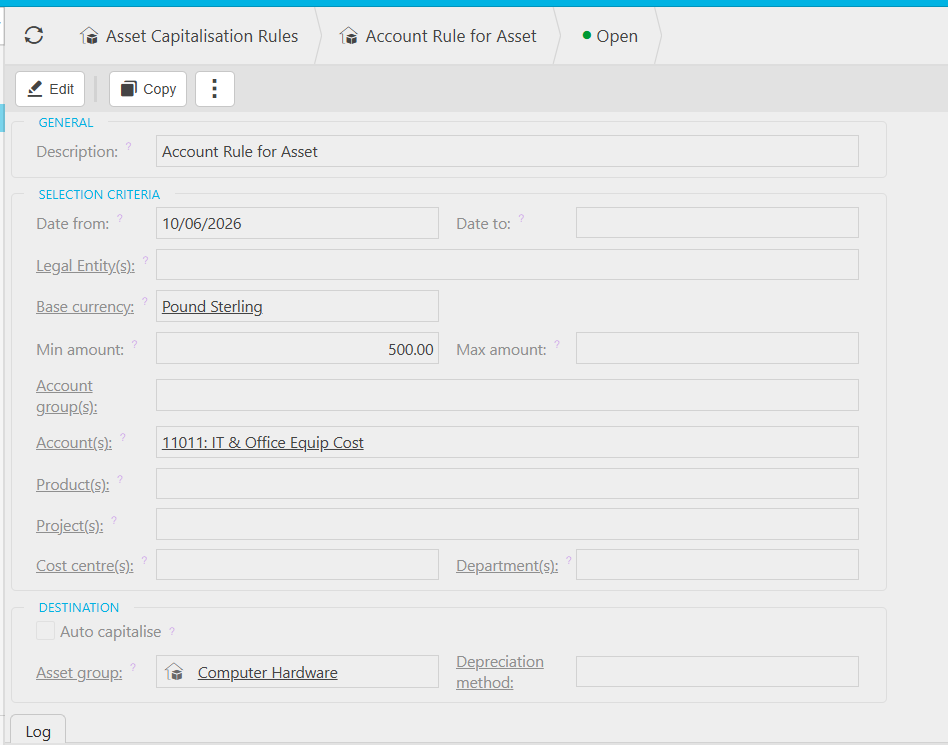
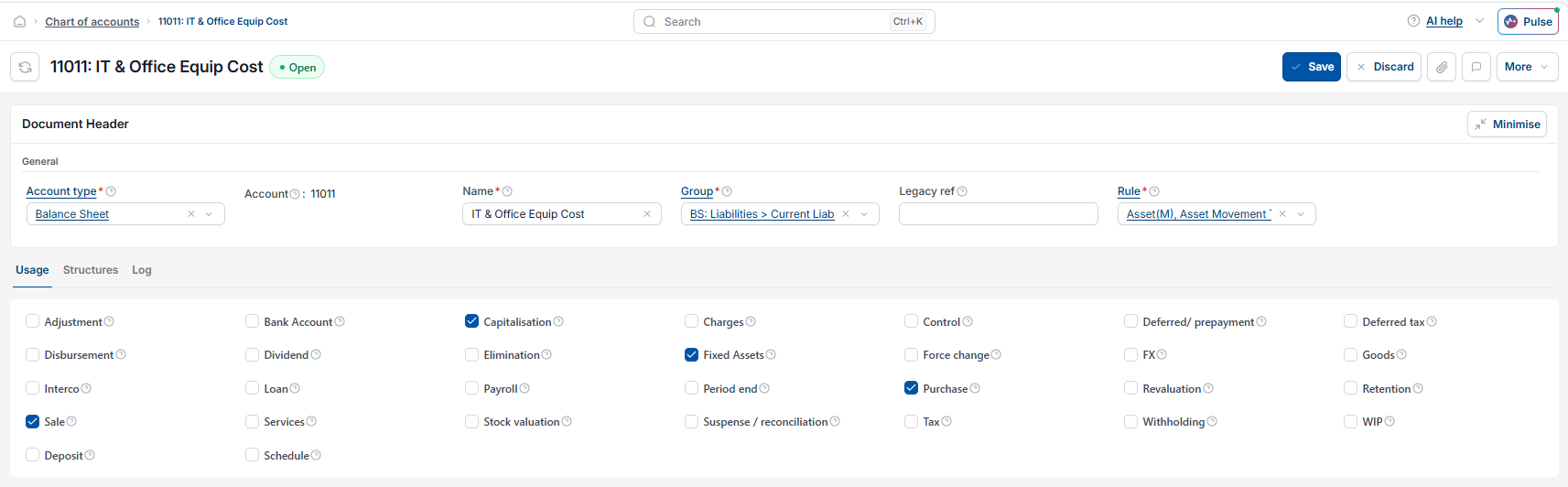
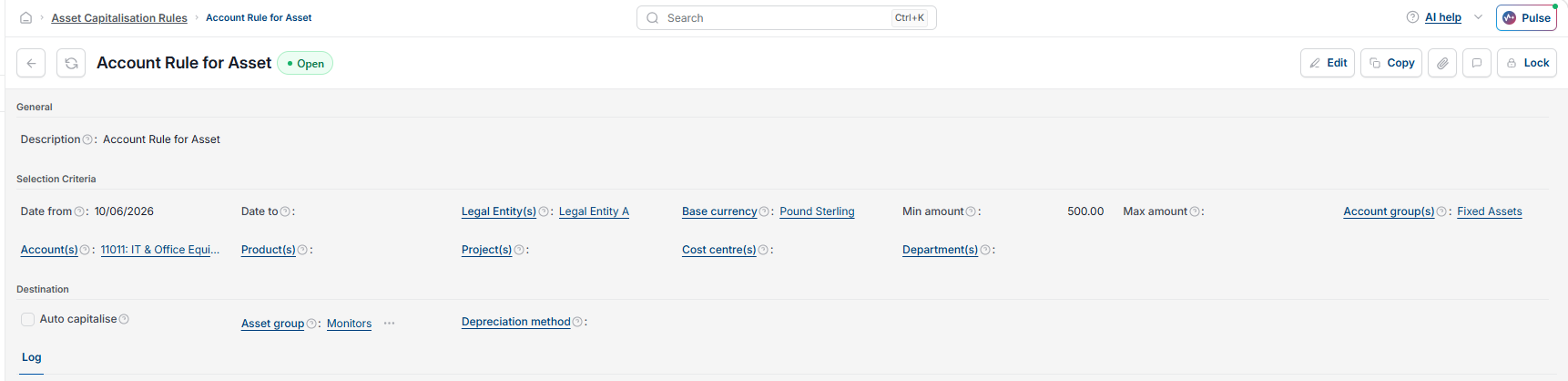
How a purchase invoice creates a fixed asset
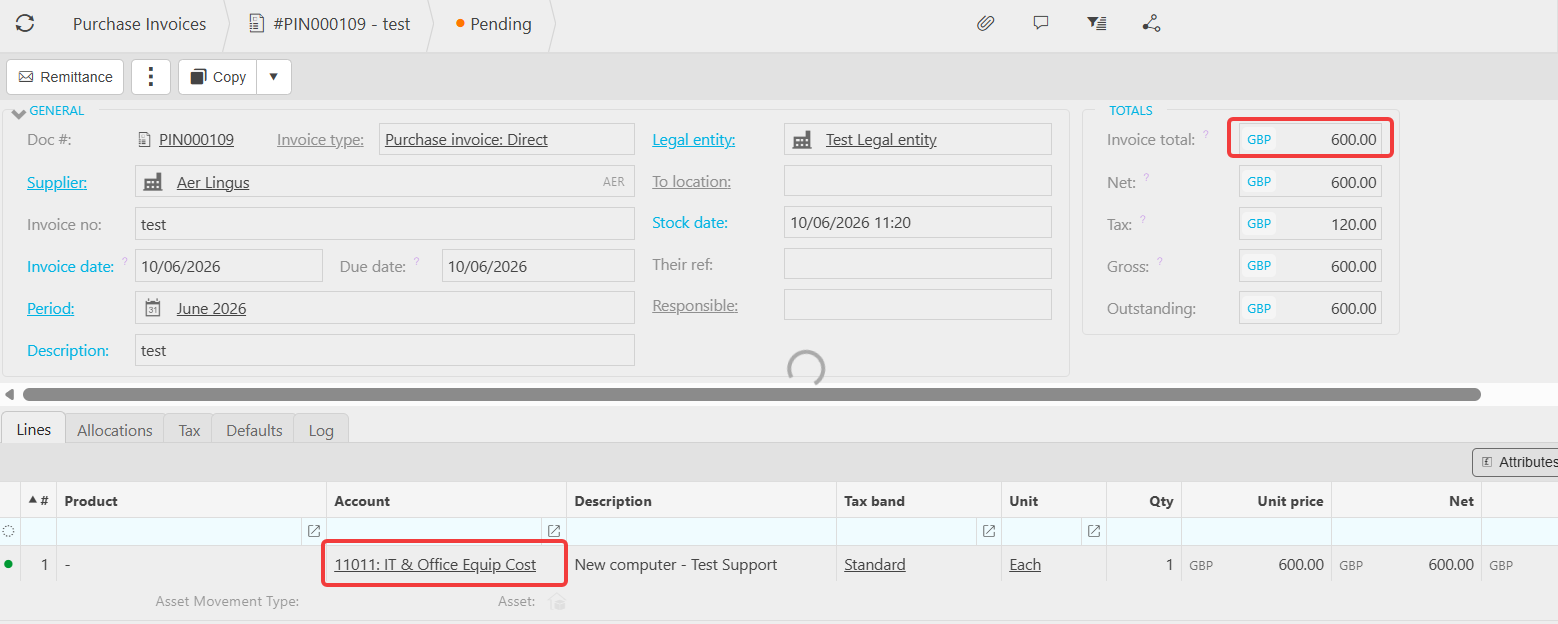
When you post a purchase invoice to a capitalisation-enabled account, iplicit checks for a matching capitalisation rule. Depending on how the rule is configured, one of two things happens:
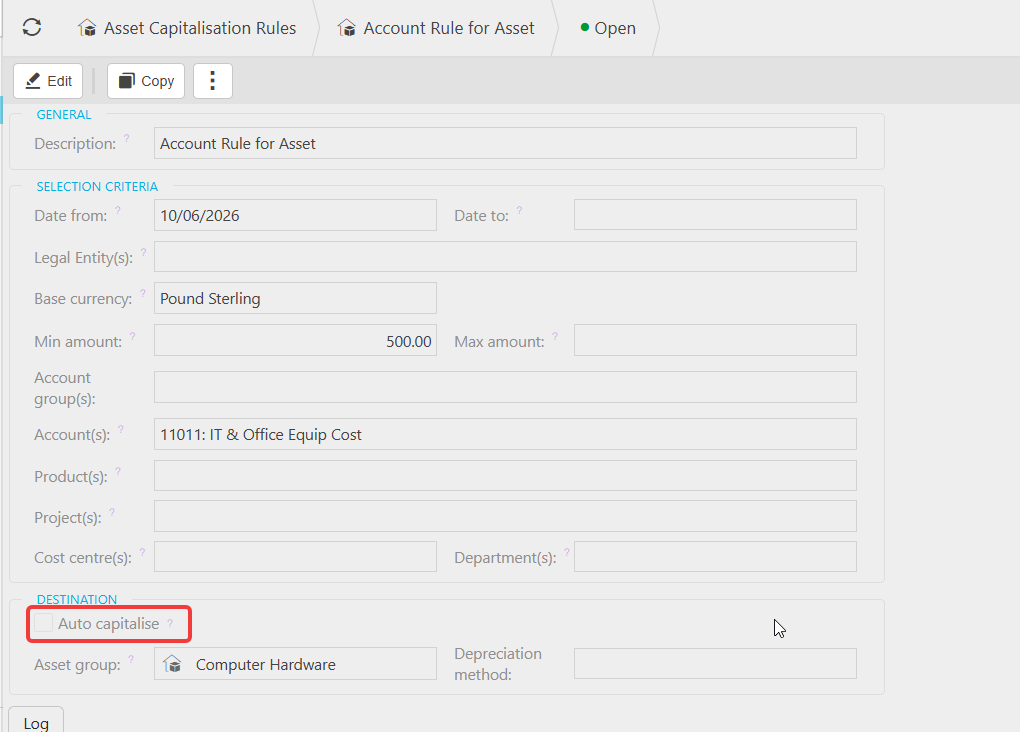
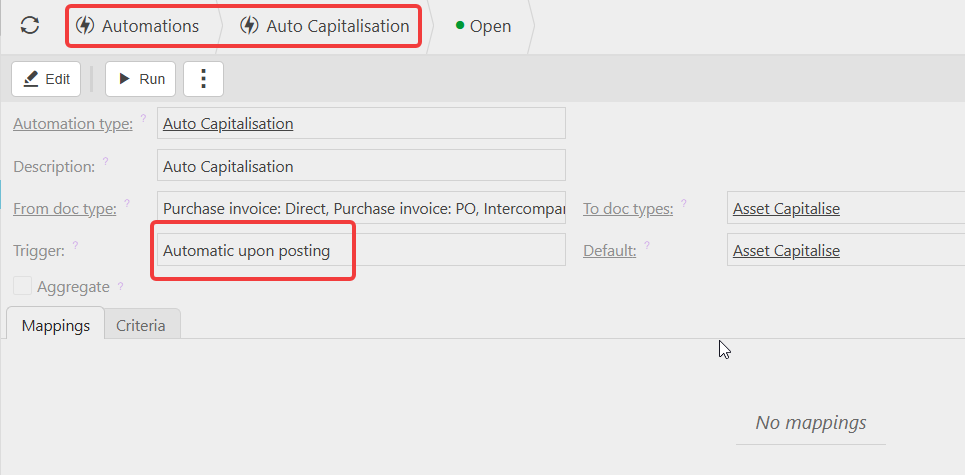
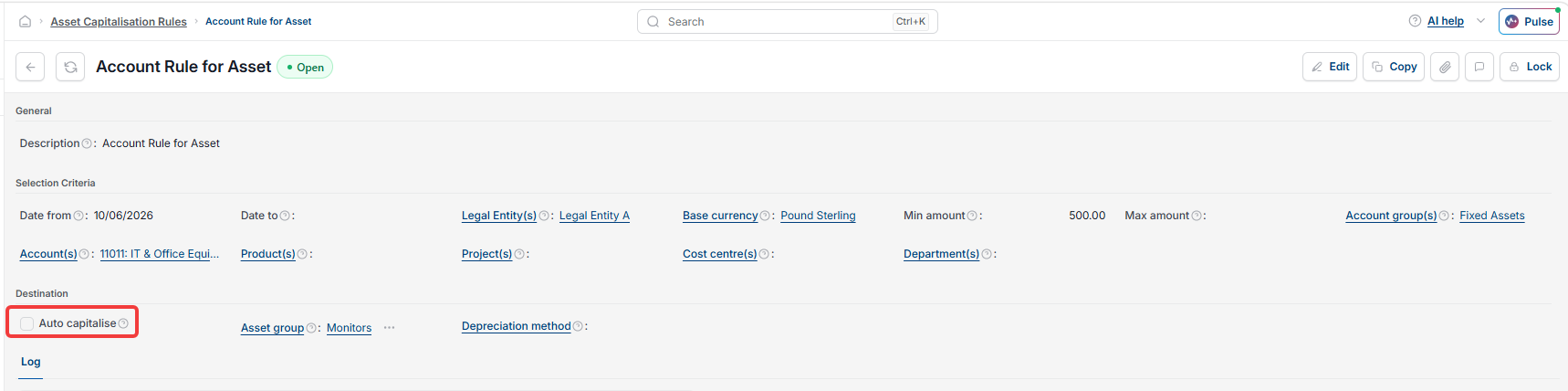
- Auto-capitalisation is enabled on the rule – iplicit creates the asset record automatically when the automation runs. No further action is needed unless you want to review the details
- Auto-capitalisation is not enabled – the invoice appears on the Asset Capitalisation screen, where a user must review and confirm the details before the asset is created.

Reviewing assets on the Asset Capitalisation screen
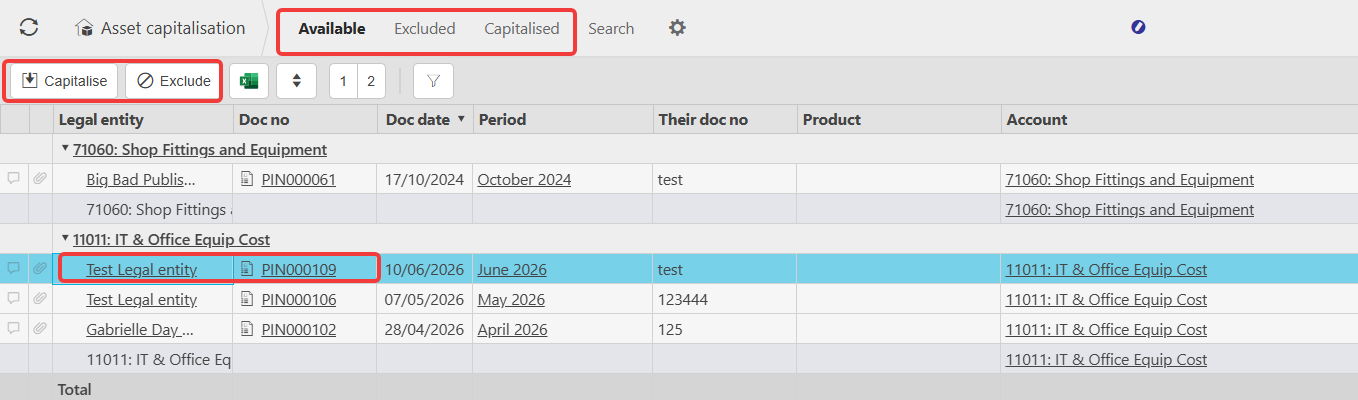
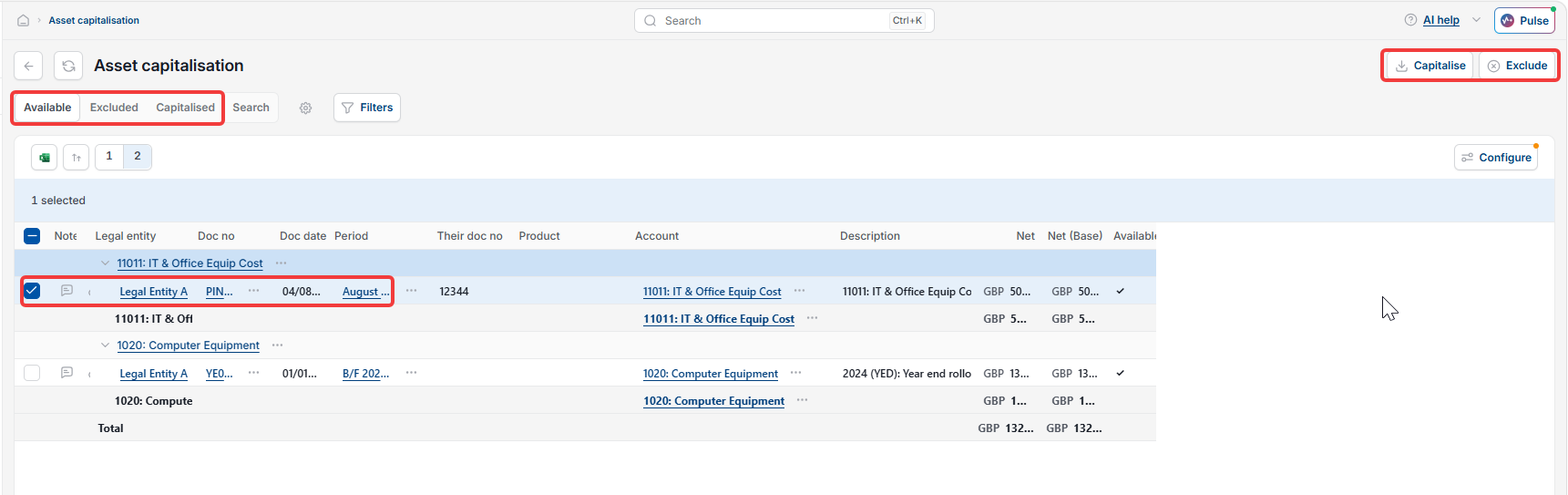
Assets that have been identified for capitalisation but not yet auto-capitalised appear on the Asset Capitalisation screen. From here you can:
- Review the details pulled through from the invoice
- Modify available fields before creating the asset
- Select 'Capitalise' to make the asset details available for creation – note this does not capitalise the asset immediately; it prepares the record
- Select 'Exclude' if the item should not become an asset – excluded items can be reinstated from the 'Excluded' tab if needed.
Completing fixed asset creation on the Asset Capitalisation screen
Once you have confirmed the details on the Asset Capitalisation screen:
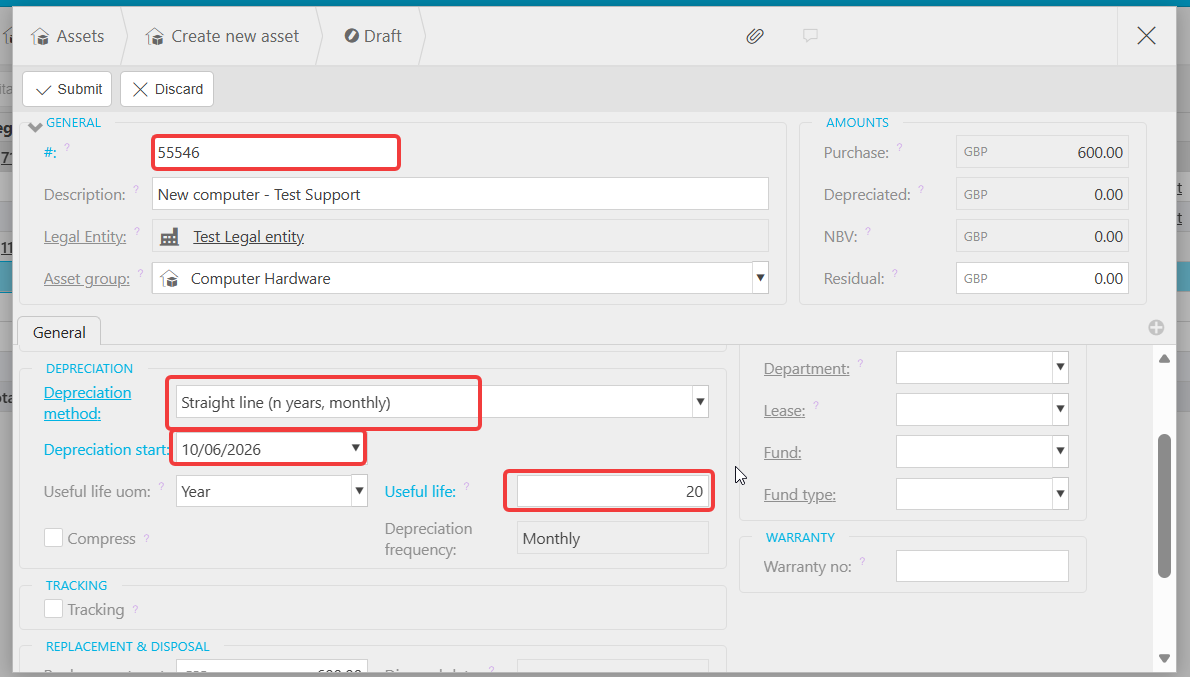
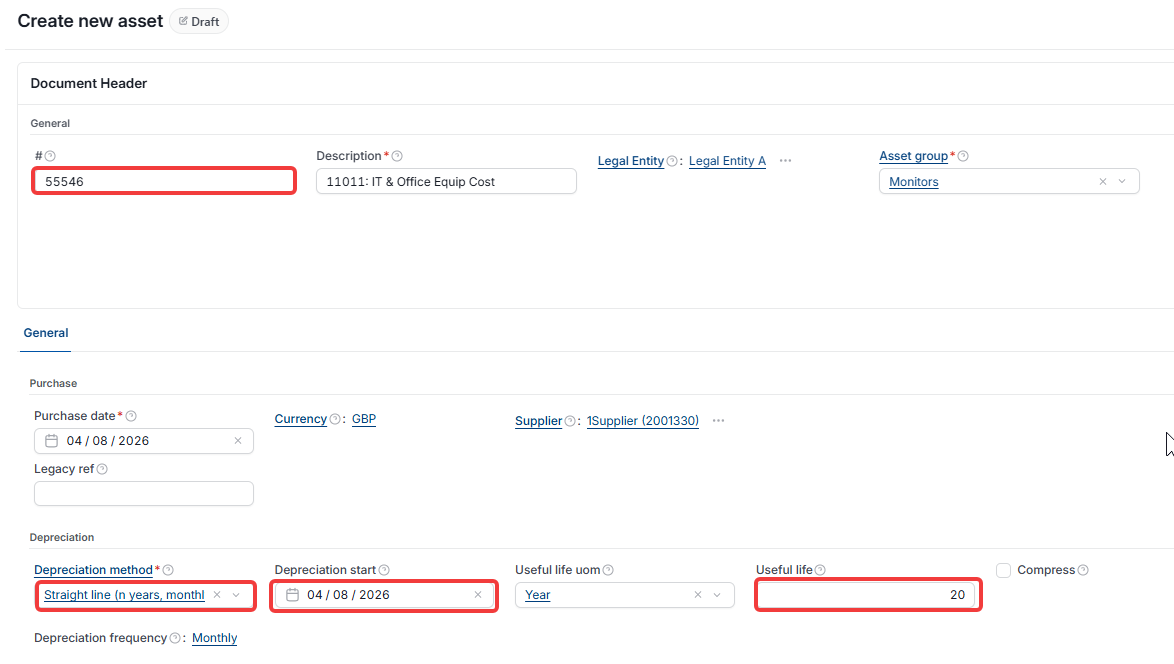
- Assign an asset number manually, or leave blank for iplicit to assign one automatically
- Confirm or update the asset group
- Set the depreciation method if not predetermined by the asset group
- Enter a useful life in years – this is mandatory. Without a useful life, iplicit cannot generate a depreciation schedule and the asset will not capitalise
- Select 'Save' to create the asset record.
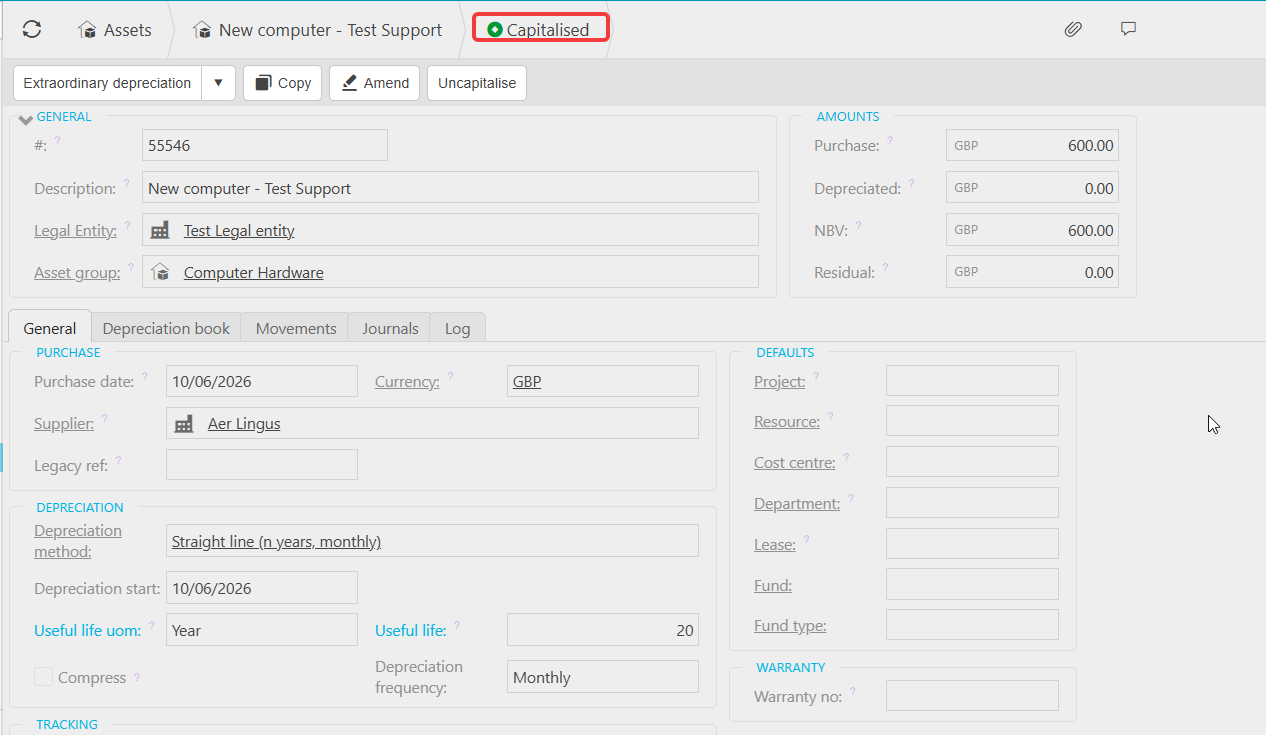
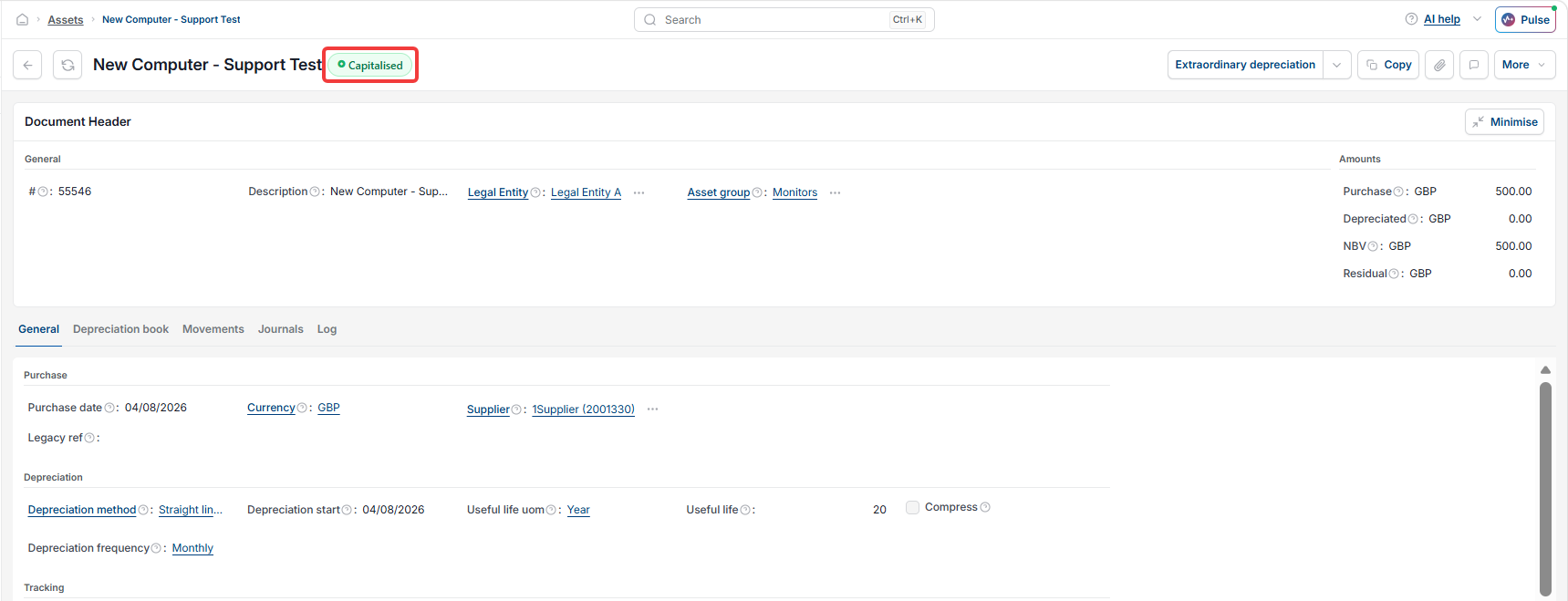
The asset will then be available for capitalisation. See 'How to capitalise a fixed asset in iplicit' for the next step.
Create an asset from a PIN
Invoice to asset
Purchase invoice fixed asset
Capitalise from invoice
Purchase ledger asset