

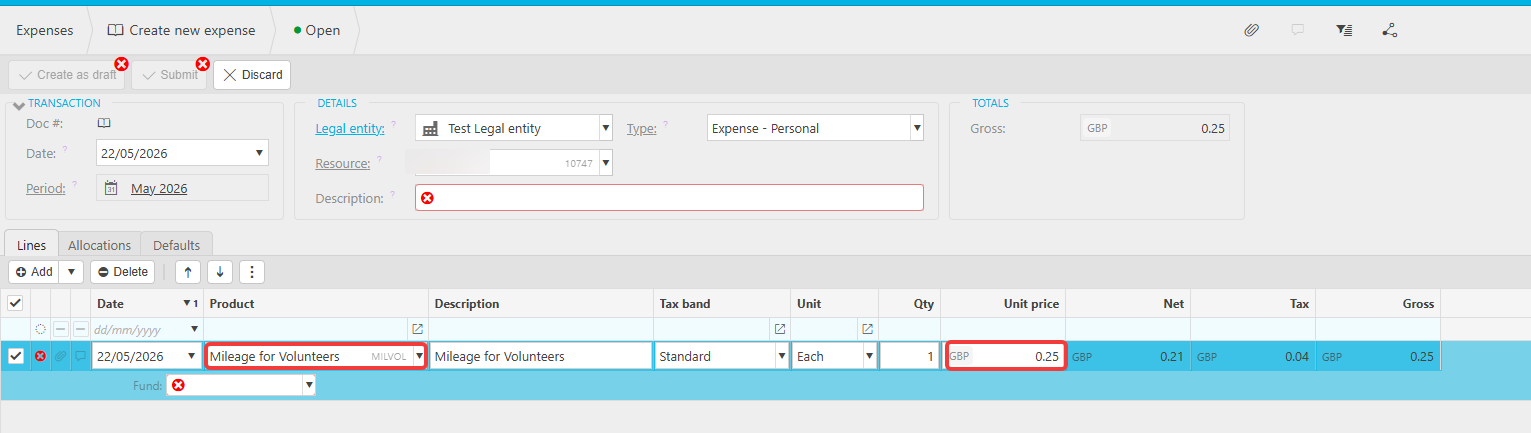
This article covers setting a mileage rate for volunteer expense claims in the Expenses module. The rate is held against an expense product, so any volunteer claiming mileage uses the same suggested rate per mile.
Creating the mileage expense product for volunteers
The mileage rate lives on an expense product in the Expenses module. Create the product first, then add the rate and assign resources.
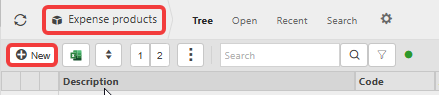
- Navigate to 'Expense products' and select 'New'
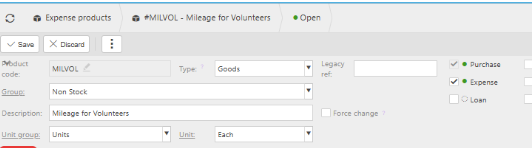
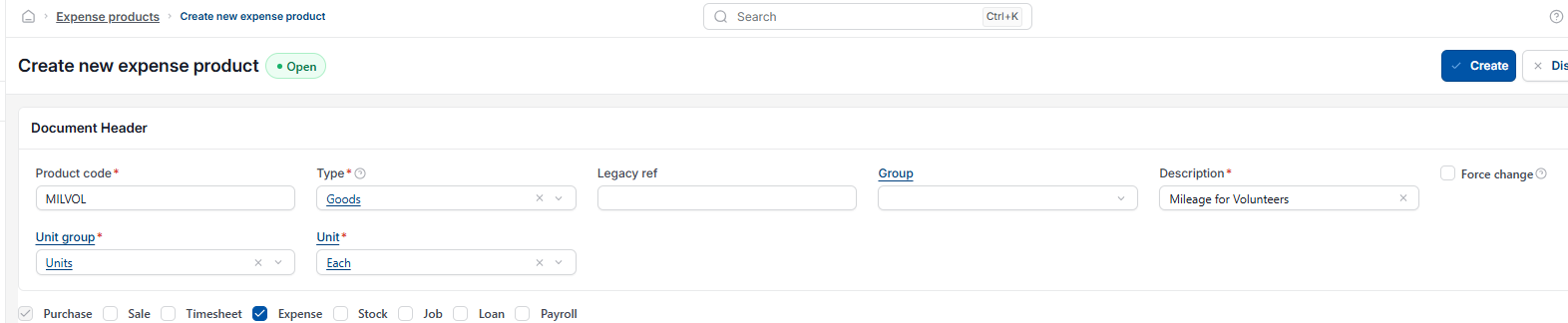
- Complete the 'Product code', 'Type', 'Group' and 'Description' (for example, code 'MILVOL', type 'Goods', group 'Non Stock', description 'Mileage for Volunteers')
- Select 'Create'.

Setting the fixed mileage rate on the expense product
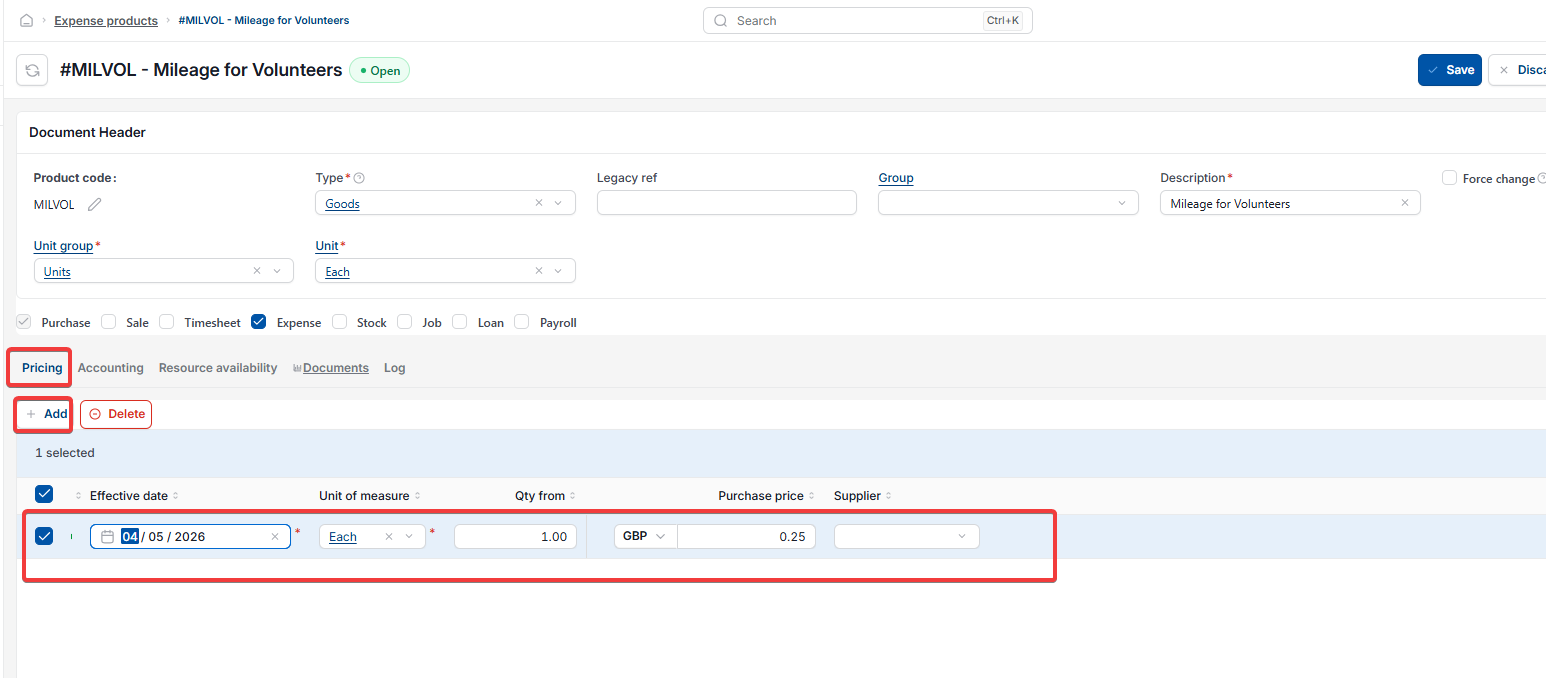
The rate is held as the purchase price on the expense product's 'Pricing' tab. Every volunteer claiming against this product uses the same rate.
- Open the expense product and select 'Edit'
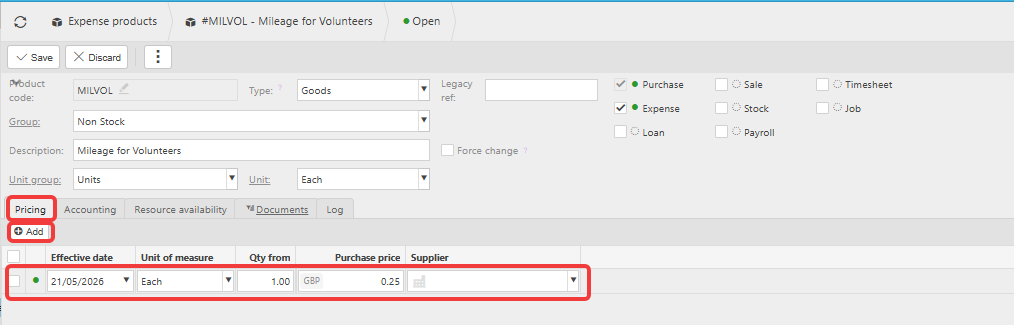
- Select the 'Pricing' tab
- Enter the 'Effective date' the rate should apply from
- Set 'Unit of measure' to 'Each'
- Enter '1.00' in 'Qty from' so the rate applies to every mile claimed
- Enter the fixed rate in 'Purchase price' (for example, 0.25 for 25p per mile).
To change the rate later, add a new pricing line with a new effective date rather than editing the existing one. This keeps an audit trail of the rates used on past expense claims.
Assigning volunteers to the mileage expense product
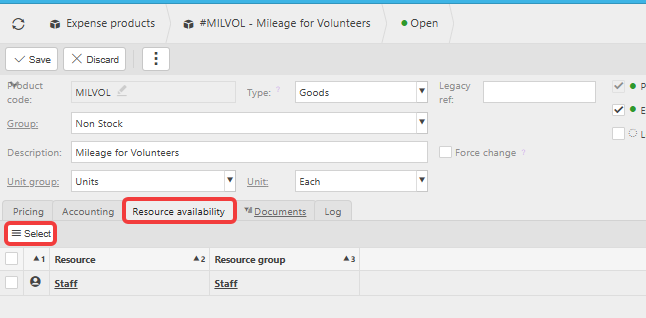
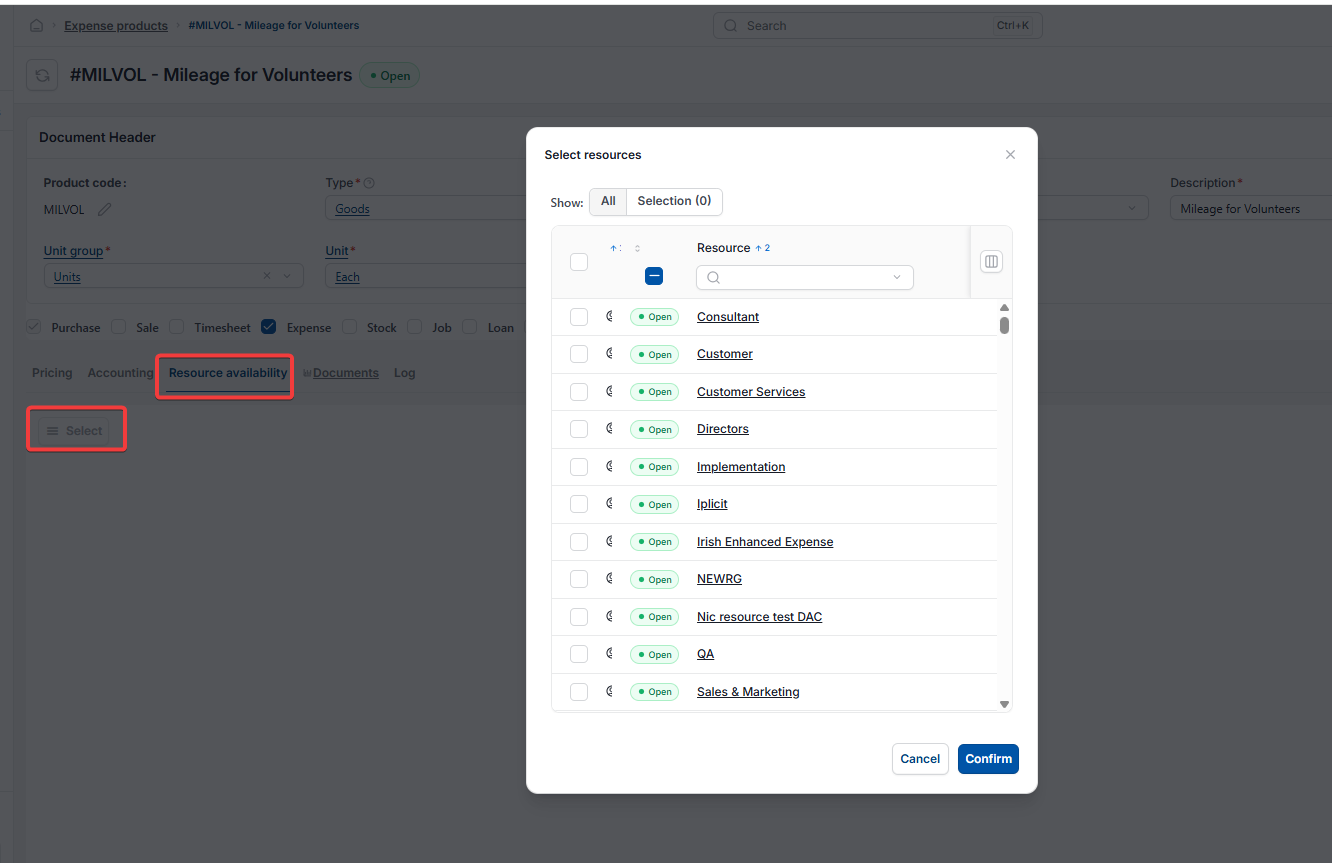
The expense product is only available to volunteers whose resource records are assigned to it.
- Assign the resources you want to be able to use this expense product
- Save the record.
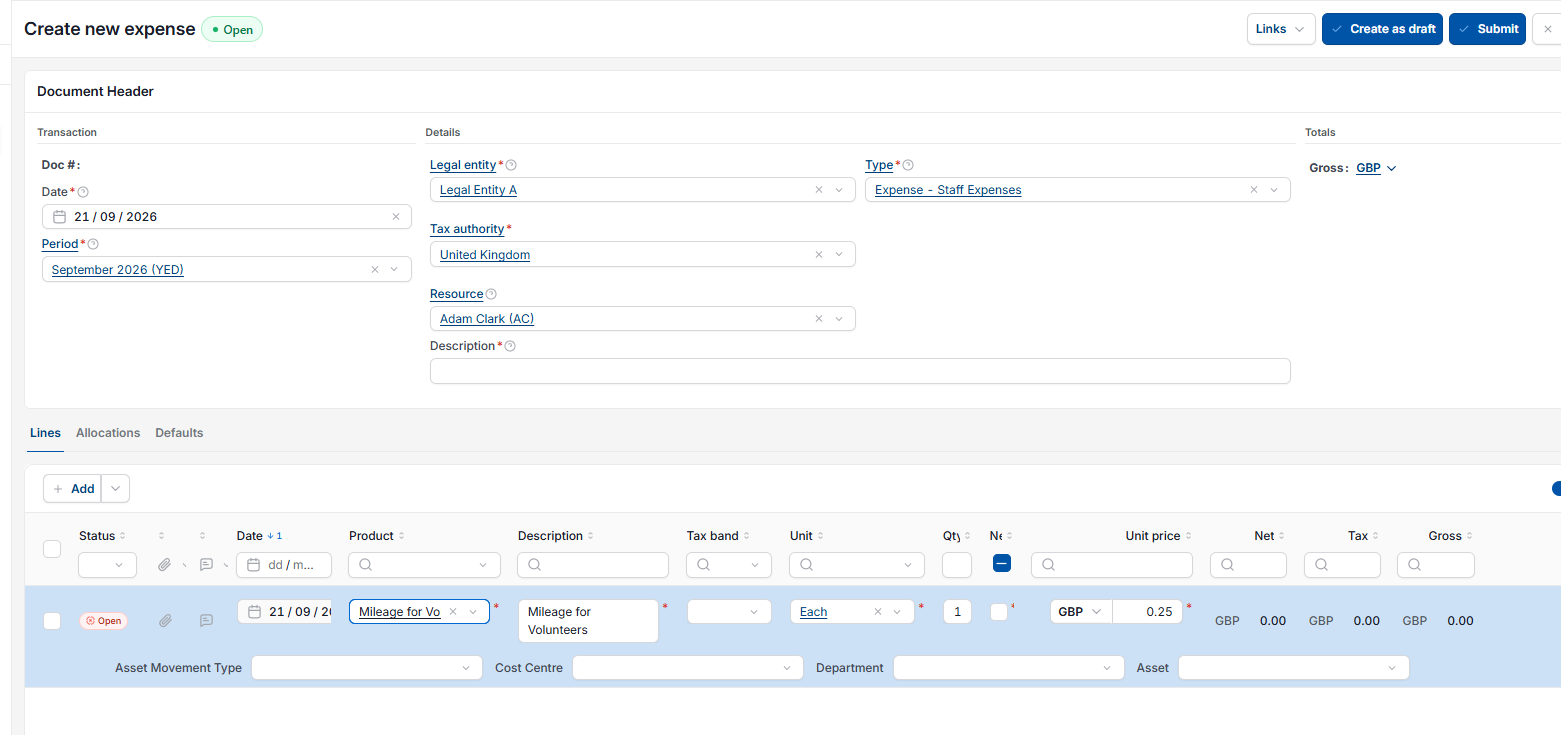
Different expense mileage rate
Expense products
Varied rates for mileage
Volunteer expenses