

This article explains how to add attachments to documents in iplicit – for example, invoices or expenses – at either the document header or line level. It also covers what to do if a document has been rejected due to a missing or incorrectly placed attachment.
Where attachments can be added on a document
In iplicit, you can attach files in two places on a document:
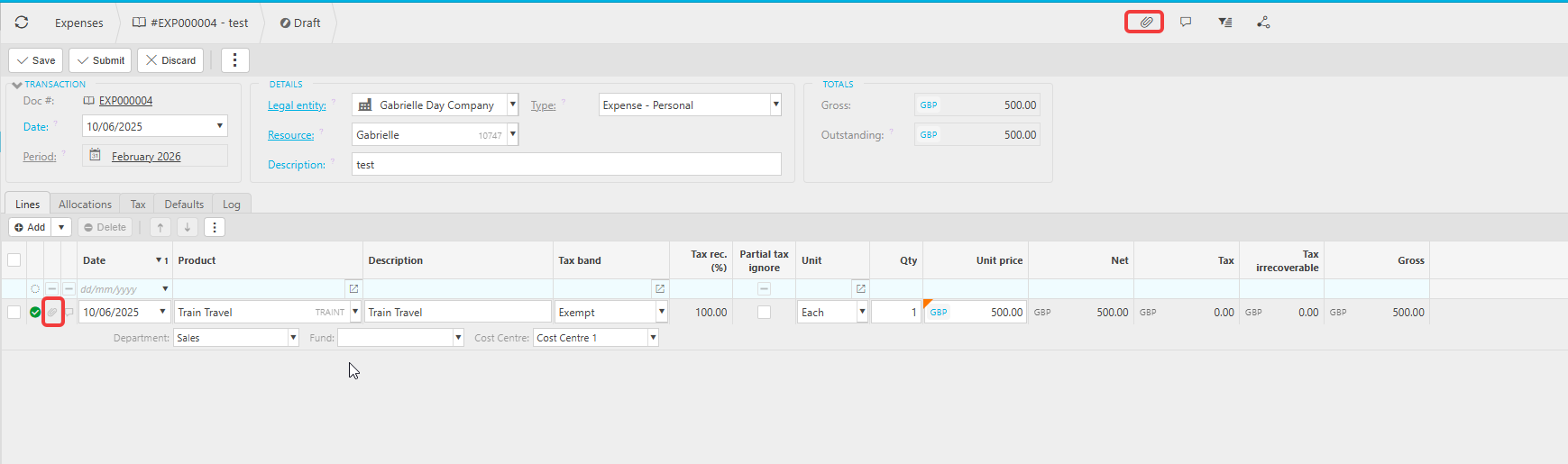
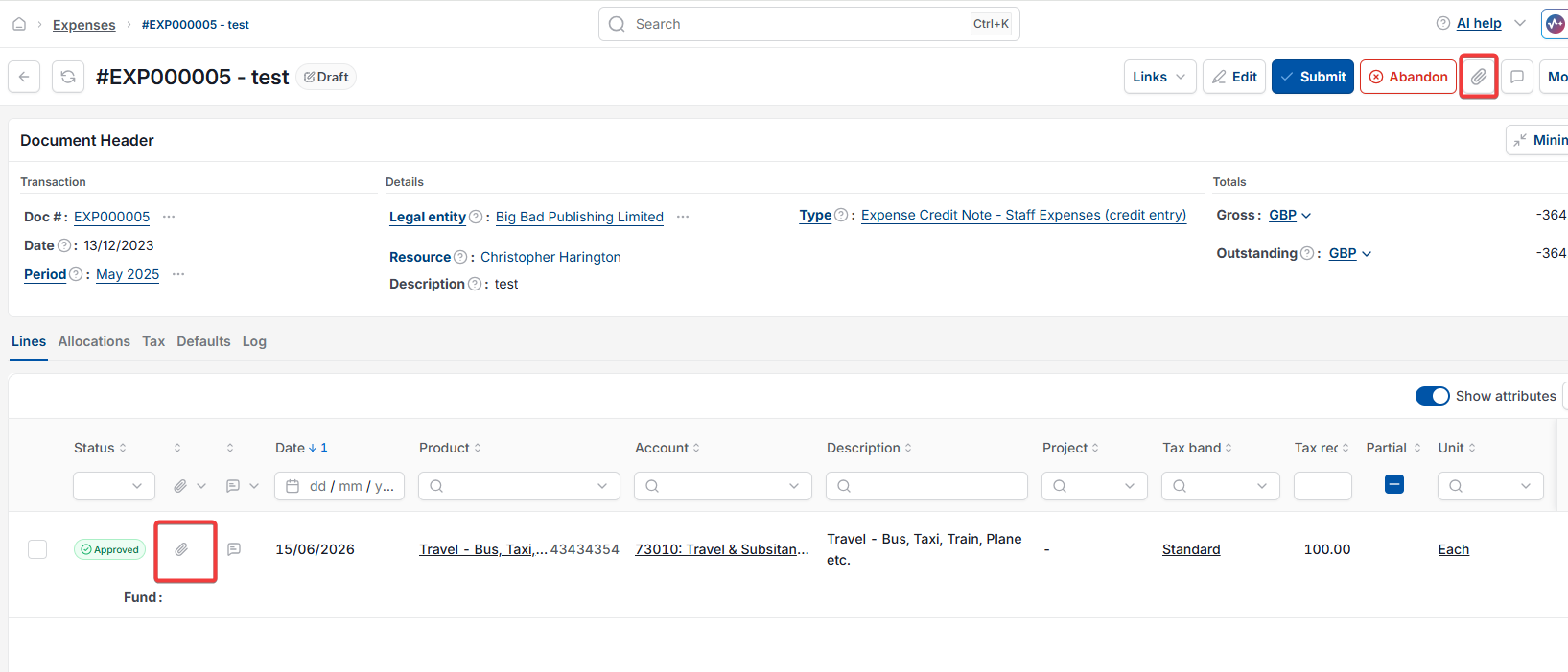
- The header – this is the paperclip icon at the top of the document, used for files that relate to the document as a whole
- The line – this is the paperclip icon on an individual line row, used for files that relate to a specific line item.
Which location you use matters. Some approval workflows in iplicit are configured to look for attachments in a specific place. If your workflow expects an attachment on the line and you attach it to the header instead – or the other way around – the workflow will not detect it, and the document may be rejected.
If you are unsure which location your workflow requires, check with your system administrator or refer to your organisation's approval workflow configuration.
How to add an attachment to a document
- Open the document you want to add an attachment to
- Decide whether the attachment belongs at the header level or the line level (see above if you are unsure)
- To attach at the header level, select the paperclip icon at the top of the document
- To attach at the line level, locate the relevant line row and select the paperclip icon on that row
- Select the file you want to attach
- Confirm the attachment has been added before saving or submitting.
Adding an attachment to a rejected document
If a document is rejected because an attachment is missing or in the wrong place, iplicit reverts the document to draft status. Draft status means the document is unlocked and you can make changes to it by entering edit mode.
To resolve the rejection and re-submit:
- Open the rejected document. It will be in draft status
- Review the rejection reason. If it states that an attachment is missing or was not found, check whether the attachment needs to be at the header or on a specific line
- Add the attachment in the correct location (see steps above)
- Once the attachment is in place, re-submit the document.
If the document is rejected again after re-submitting, the attachment may still be in the wrong location. Move it to the other location – header or line – and re-submit again.
Attachment to expense rejection
Rejected attachment missing
Add attachment to invoice
Paperclip icon