

This article covers how authorisation workflows behave when a document has already been submitted for approval and the workflow is later locked, amended and replaced. It applies to all documents routed through an authorisation workflow in iplicit, including purchase invoices, purchase orders, expenses and journals.
Why documents stay with the original approver after an authorisation workflow changes
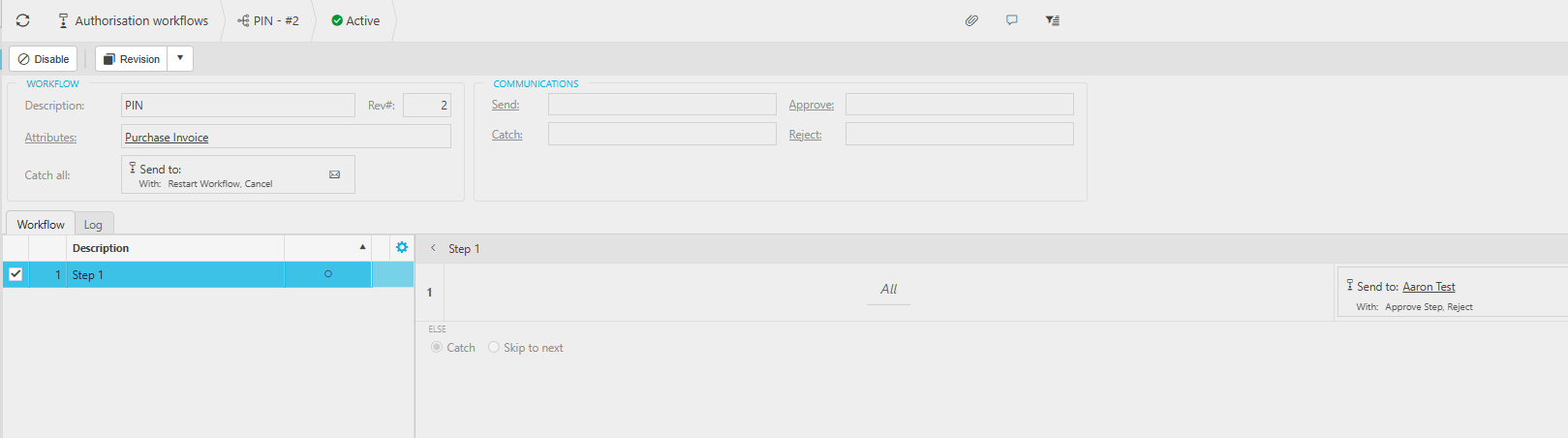
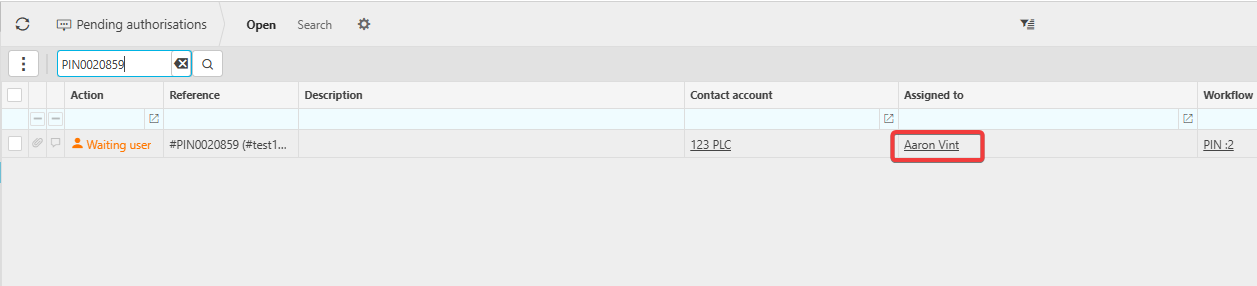
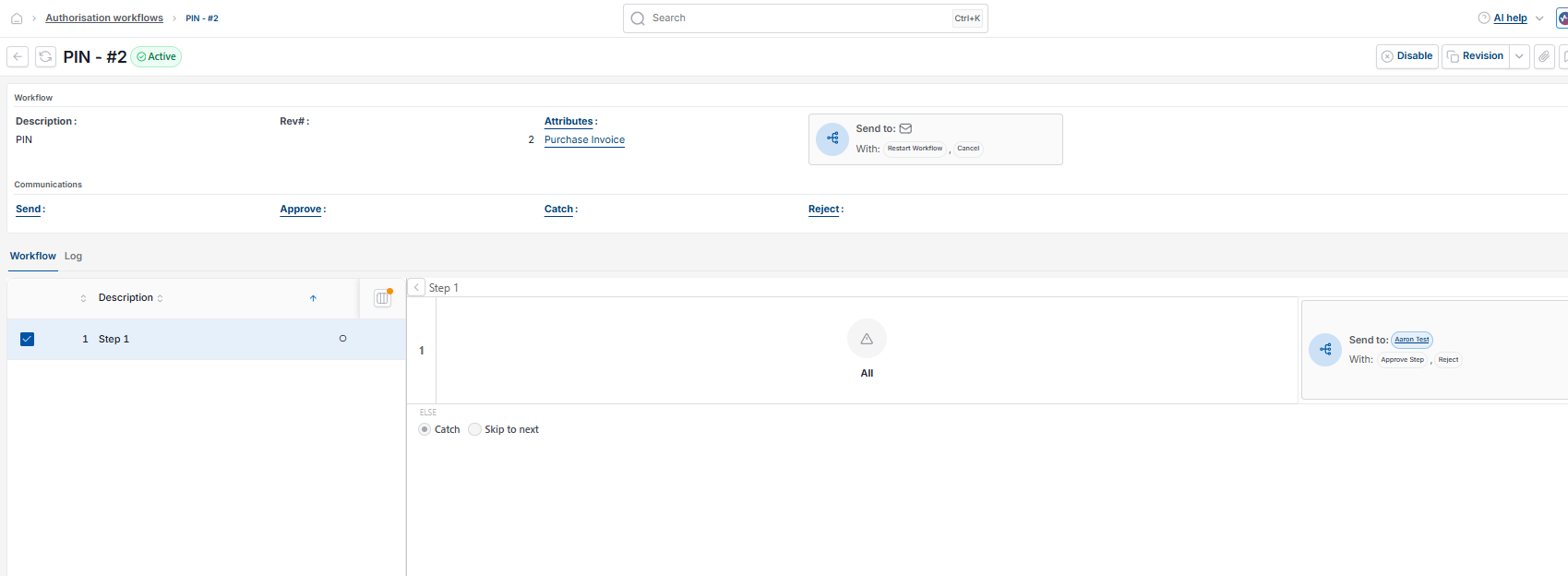
When a document is submitted for authorisation, iplicit follows the workflow version that was active at the moment of submission. The document is assigned to the authoriser named in that workflow version, the document moves into 'Pending authorisation' status and the approval notification is sent to that person.
If the authorisation workflow is later amended, locked and replaced with a new version, documents already pending authorisation are not reassigned. The original authoriser will still be able to approve the document, because the approval task was raised against them when the document was submitted.
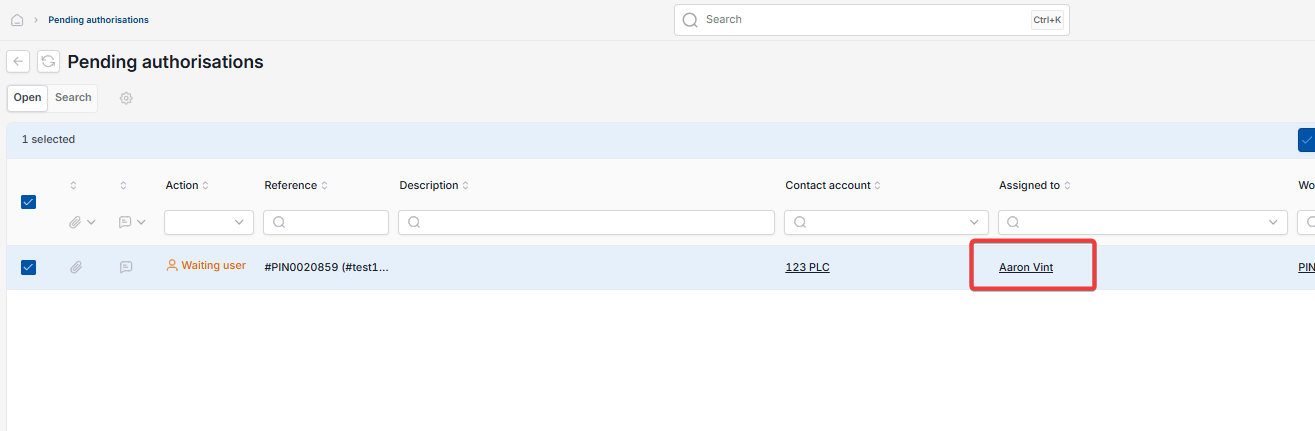
You can see the locked workflow version on the 'Pending authorisations' screen – the 'Workflow' column shows a padlock icon and a version number, for example 'test workflow :1'. The padlock indicates the document is tied to a superseded workflow version, not the workflow currently active.
This behaviour protects the audit trail. The approver shown on the document matches the workflow that was live when the submitter requested approval, so there is a clear record of who was responsible at the time.
Options for reassigning or actioning a pending document
If you want a pending document to follow the updated authorisation workflow, or you need to action it directly without waiting for the original approver, there are two options.
Option one – the submitter cancels and resubmits the document
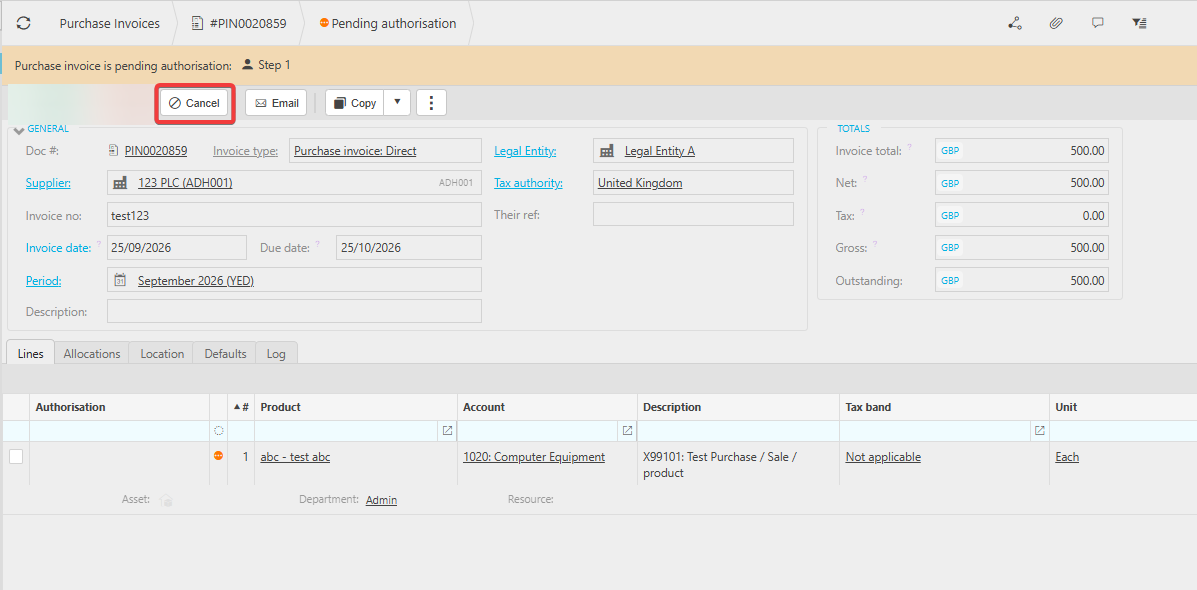
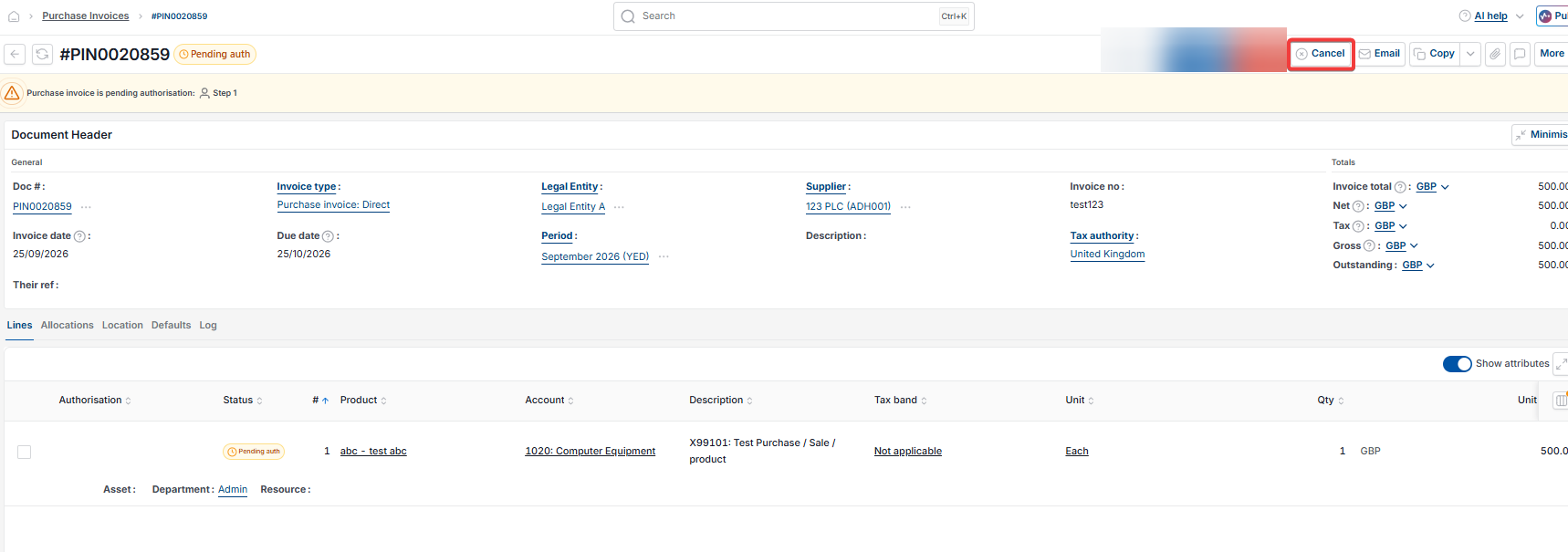
The person who submitted the document can cancel the existing authorisation request and resubmit. The 'Cancel' button is visible on the document toolbar while the document is in 'Pending authorisation' status, but only to the user who submitted it.
- Open the document
- Select 'Cancel' on the document toolbar to cancel the authorisation request
- Resubmit the document for approval.
The resubmission picks up the authorisation workflow currently active and assigns the document to the new authoriser.
Option two – an admin user actions the document from the 'Pending authorisations' screen
Any user with access to the 'Pending authorisations' screen can action a pending document from there. To open the screen, type 'pending authorisations' into the iplicit search bar and select the result.
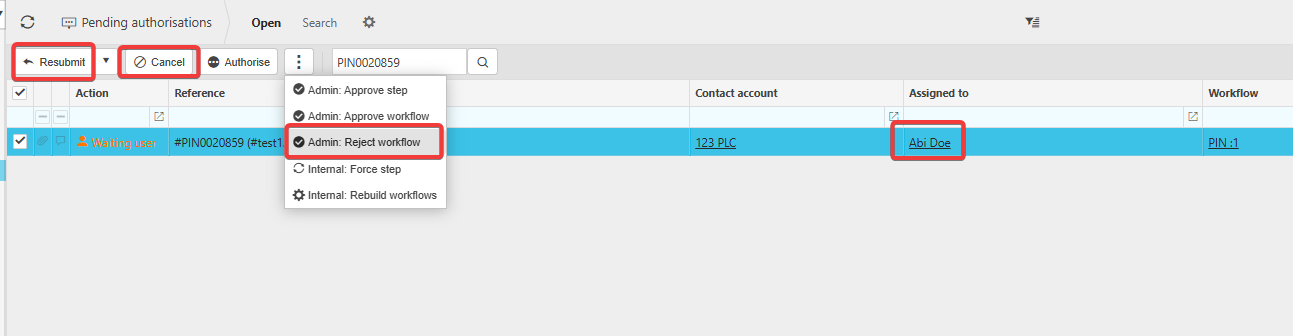
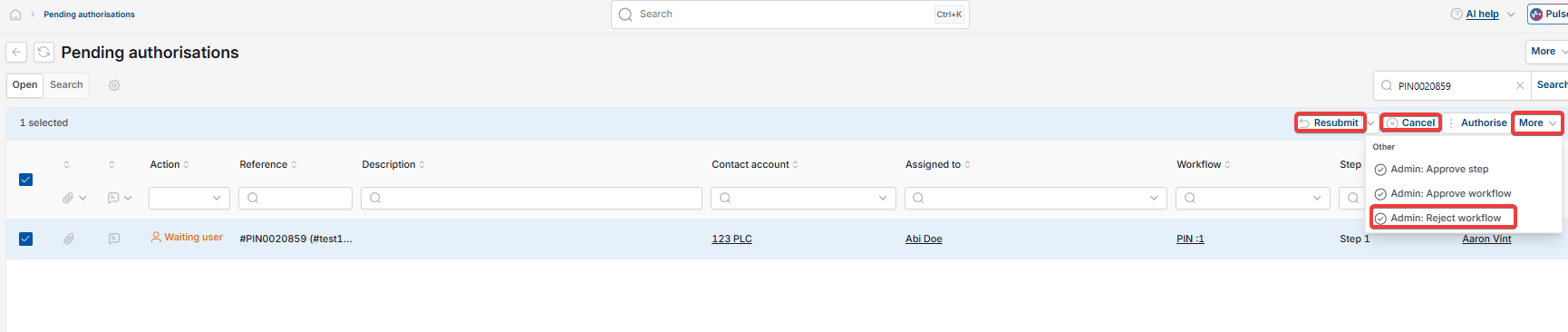
The main toolbar on the 'Pending authorisations' screen offers three actions:
- Select 'Resubmit' to re-trigger the approval process. The document is routed to the authoriser named in the authorisation workflow currently active, rather than the one active when the document was first submitted
- Select 'Cancel' to cancel the authorisation request entirely. From the 'Pending authorisations' screen, this works for any document, including those submitted by other users. The document will then need resubmitting by the user
- Select 'Authorise' to approve the document at the current step using the standard authorise action.
The three-dot or more button menu next to the toolbar offers additional admin override actions:
- Select 'Admin: Approve step' to approve only the current authorisation step. The document then continues through any remaining steps in the workflow it was submitted under
- Select 'Admin: Approve workflow' to approve the entire authorisation workflow in one action. The document is fully authorised and bypasses any remaining approvers
- Select 'Admin: Reject workflow' to reject the entire authorisation workflow. The document is rejected outright.
To use any of these actions on the 'Pending authorisations' screen:
- Type 'pending authorisations' into the search bar and open the screen
- Select the document in the list
- Select the relevant action from the toolbar, or open the three-dot menu and select one of the admin override options.
Admin override actions are recorded on the document's 'Log' tab as having been performed by an admin override, so the audit trail remains complete.
What happens when a document is resubmitted to an updated authorisation workflow
When 'Resubmit' is selected on a pending document, the document is re-evaluated against the authorisation workflow currently active. The 'Workflow' column on the 'Pending authorisations' screen updates to show the current workflow version (with no padlock, because it is no longer locked to a superseded version). The 'Assigned to' column updates to show the new authoriser named in that workflow.
For example, if a purchase invoice was originally submitted under 'test workflow :1' and assigned to the authoriser named in that version, resubmitting under an updated 'Purchase invoice :4' workflow reassigns the document to the new authoriser named in version 4 of that workflow.
Workflow changes updating pending documents
Change approver on submitted document
Reassign authoriser for workflow changes
Workflow updates
Document stuck with old approver