

This article covers how to delete a General Ledger (GL) account in iplicit. Deletion is only possible when an account has never been used. If the account has any transaction history or is linked to other records, locking it is the correct alternative - this hides the account from future selection without removing historical data.
Conditions for deleting a General Ledger account
A General Ledger account in iplicit cannot be deleted if any of the following apply:
- Transactions have been posted to it
- It is referenced in a journal, invoice or other record
- It is linked to a configuration setting or control account
Think of it like a filing cabinet drawer. If it's empty, you can remove it entirely. If it has documents in it, you can lock it so nobody can add anything new - but the documents stay where they are.
If you're unsure whether an account has been used, check its transaction history before proceeding.
How to delete a General Ledger account in iplicit
Follow these steps to delete a General Ledger account. You must lock the account first - the delete option only appears once an account is locked.
- Navigate to Chart of Accounts
- Locate and open the account you want to delete
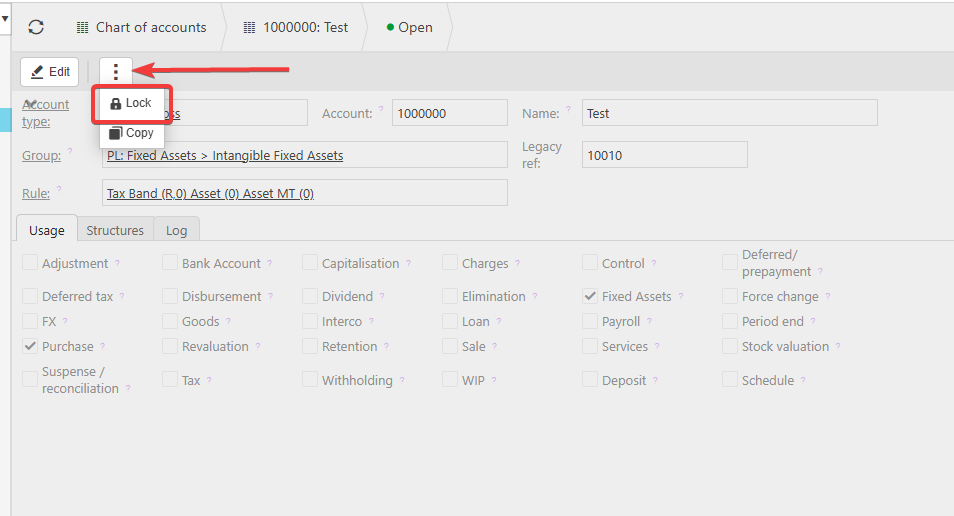
- Select the three-dot menu within the account record
- Select 'Lock' - the account status changes to locked
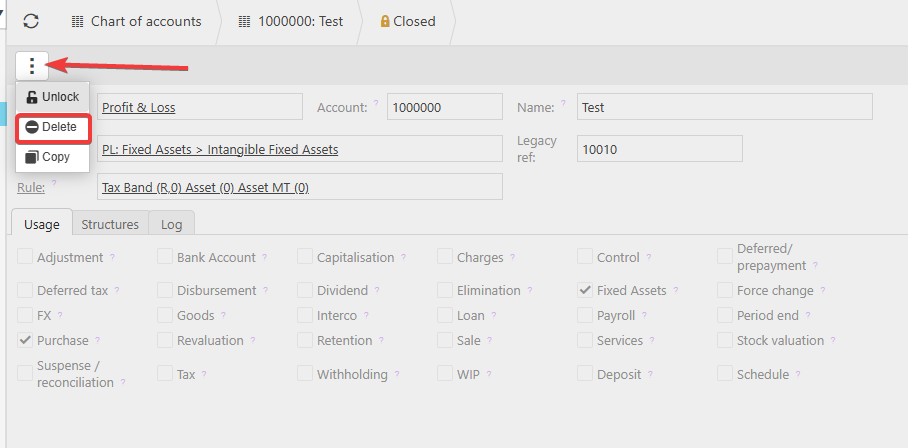
- Select the three-dot menu again
- Select 'Delete' to permanently remove the account
Deletion is permanent. iplicit does not retain a deleted account and it cannot be recovered.
Why can't I delete my General Ledger account?
If the 'Delete' option does not appear after locking or you encounter an error when attempting to delete, the account has been used. This is the most common reason deletion is blocked in iplicit's General Ledger.
In this case, locking the account is the only option. A locked General Ledger account will no longer appear in dropdowns or be selectable when posting transactions - but all existing data is preserved.
How to lock a General Ledger account in iplicit
If deletion is not available, locking the account is the correct approach.
- Navigate to Chart of Accounts
- Open the account record
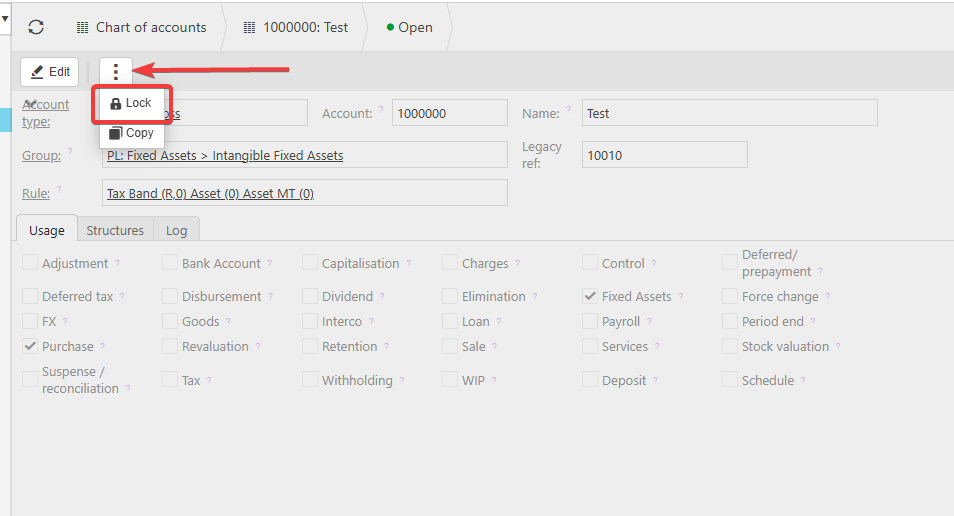
- Select the three-dot menu
- Select 'Lock account'
The account is now inactive and cannot be used in new transactions.
Remove nominal account
Remove GL account
Delete GL account
Delete nominal account
Removing an account code
Delete account code