

This article covers how to amend or remove a prepayment or deferred income from a posted invoice in iplicit. This applies to purchase invoices with prepayments in the Purchase Ledger and sales invoices with deferred income in the Sales Ledger. Neither can be amended directly once posted. The correct approach depends on whether any journals have already been released from the invoice.
Before you start
If any journals have already been released, ensure all periods associated with the original posting are unlocked before attempting the reversal. If any period is locked the reversal will fail. See: How to unlock a period in iplicit.
When no journals have been released
If no prepayment or deferred income journals have been released you can unpost the invoice directly, make the required changes and resubmit.
Before unposting, unallocate any payments applied to the invoice:
- Navigate to the relevant invoice in the Purchase Ledger (for prepayments) or Sales Ledger (for deferred income)
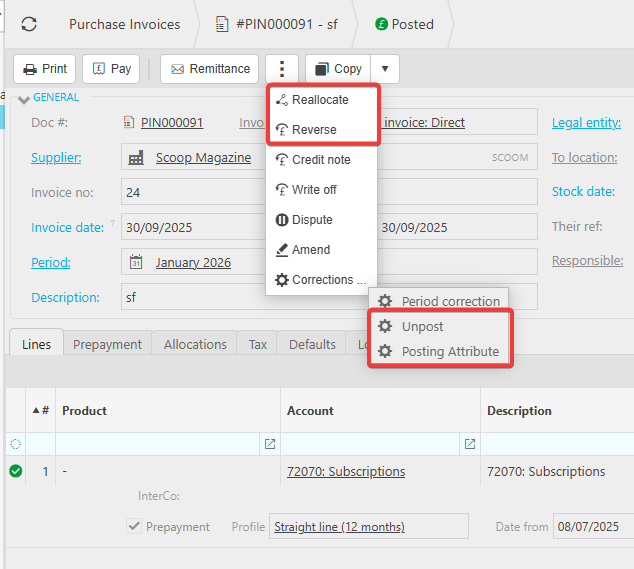
- Select the ellipsis and choose 'Reallocate'
- Remove any payment allocations and select 'Apply'
Then unpost the invoice:
- Select the ellipsis and choose 'Corrections'
- Select 'Unpost' to return the invoice to draft status
- Make the required changes:
- To remove a prepayment or deferred income - untick the 'Prepayment' tick on a purchase invoice or the 'Deferred income' box on a sales invoice
- To amend the details - update the distribution profile, dates or GL account as required
- Resubmit the invoice and rerun the automation
When journals have already been released
Once journals have been released you cannot amend the invoice or its schedule directly. You must reverse the invoice, copy it and recreate it with the required changes.
Before reversing, unallocate any payments applied to the invoice:
- Navigate to the relevant invoice in the Purchase Ledger (for prepayments) or Sales Ledger (for deferred income)
- Select the ellipsis and choose 'Reallocate'
- Remove any payment allocations and select 'Apply'
Then complete the reversal and recreation:
- Select 'Reverse' on the invoice - this reverses the invoice and all associated prepayment or deferred income journals
- Select 'Copy' to create a duplicate of the original invoice
- Make the required changes:
- To remove a prepayment or deferred income - untick the 'Prepayment' tick on a purchase invoice or the 'Deferred income' box on a sales invoice
- To amend the details - update the distribution profile, dates or GL account as required, keeping the tick in place
- Submit the new invoice and run the automation
This ensures all journals are regenerated correctly and remain properly linked to the updated invoice.
Correcting a posting attribute only
You can make a posting attribute correction - such as cost centre or department - on an invoice even after journals have been released. However, the correction only applies to future journals yet to be released. Any journals already released retain the original attribute values.
If you need the attribute correction to apply to all journals including those already released, you must complete the full reversal process above and recreate the invoice with the correct attributes.
Video walkthrough
Prefer to follow along visually? The video below covers the same steps as this article.
Amend prepayment journals
Amend deferred income posted invoice
Remove deferred income posted invoice
Edit prepayment journal
Change prepayment schedule
Correct prepayment journal
Unpost prepayment invoice
Reverse prepayment
Reverse deferred income invoice
Prepayment correction
Deferred income correction
Posting attribute prepayments
Posting attribute deferred income