

This article covers how to export a bank statement to Excel within the Bank module in iplicit. Exporting (also called downloading or extracting statement data) lets you use your transaction data outside iplicit for reporting, review or sharing.
Exporting a bank statement in the Bank module
Bank statements in iplicit live within the Bank module. You can export any statement – including those from locked periods – directly to Excel.
To locate the statement you want to export:
- Navigate to Bank Statements
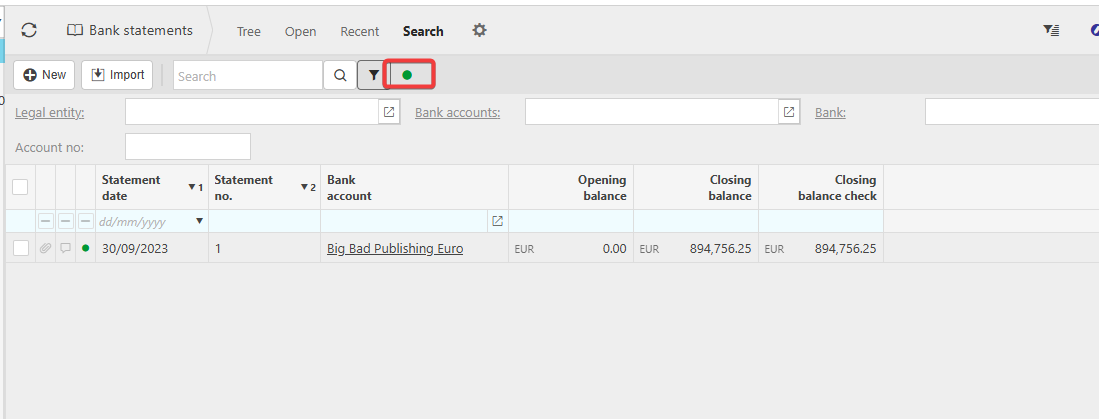
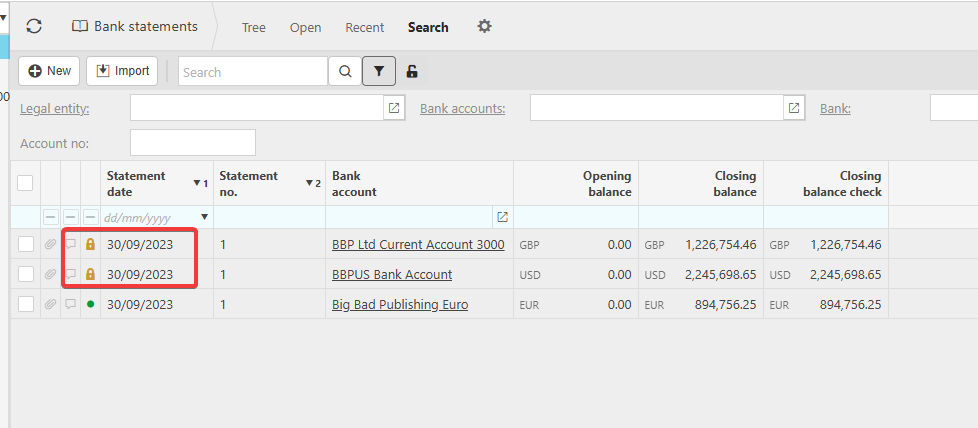
- Find the statement in the list. If the statement is from a locked period and is not visible, select the green circle icon to expose locked bank statements
- Double-click the statement record to open it.
Exporting the statement to Excel
Once the bank statement is open, you can export its contents to Excel:
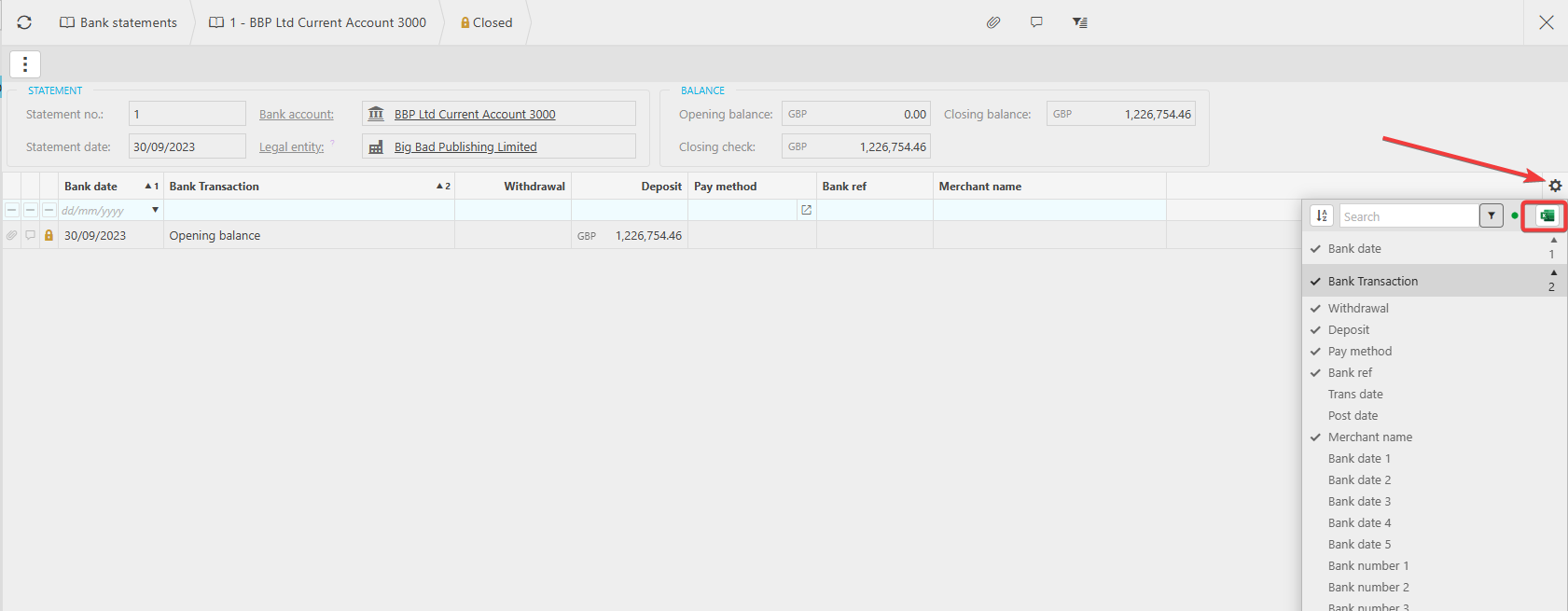
- Select the cog icon within the open bank statement
- Select the Excel icon
- The statement data downloads to your device as an Excel file.
The exported file contains the transaction data visible in the statement at the time of export. Any filters you have applied will be reflected in the downloaded file.
Export bank statement
Download bank statement
Bank statement to excel
Locked bank statement