

This article explains how to view the General Ledger (GL) postings created when any transaction is posted in iplicit. This applies across modules - including Purchase Ledger invoices, Sales Ledger invoices, payments, journals and credit notes.
Use this when you need to check which accounts were debited or credited - for example during an audit, a period-end review, or when investigating an unexpected balance in the General Ledger.
Viewing General Ledger postings from a transaction
When a transaction is posted in iplicit, it automatically creates entries in the General Ledger. You can view these entries directly from the transaction itself, without running a separate report.
- Open the transaction you want to check
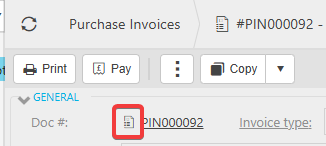
- Locate the document icon next to the document number - this small icon sits inline with the transaction reference
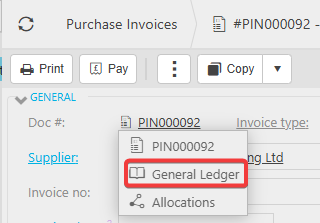
- Select the document icon to open the options menu
- Select 'General Ledger' from the list
- iplicit displays the General Ledger postings for that transaction, showing each account debited or credited and the values posted.
Viewing General Ledger postings from a view or enquiry
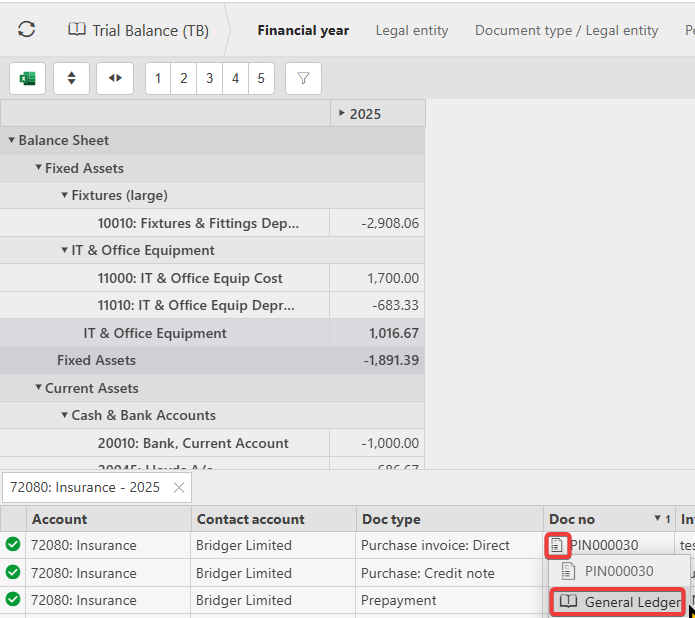
You do not need to open the transaction itself. The document icon also appears in iplicit views and enquiries wherever a document number is displayed, so you can access GL postings directly from a list.
- Navigate to the relevant view or enquiry
- Locate the document icon next to the transaction reference
- Select the document icon and choose 'General Ledger' from the options menu
- iplicit displays the same postings screen as when accessed from the transaction directly.
This is useful when reviewing multiple transactions without opening each one individually.
View GL postings transaction
General ledger journal entries
See postings from invoice
Check GL from document
View accounts posted to
GL drill down iplicit
How to check general ledger posting
View journal from transaction