

This article covers how to credit note a prepayment in the Purchase Ledger. This applies when you have received a partial or full refund against a purchase invoice that has a prepayment distribution profile running against it. The original invoice and its release schedule remain untouched. A purchase credit note is raised with its own matching distribution profile, which runs alongside the original to counterbalance the refunded portion.
How the credit note process works
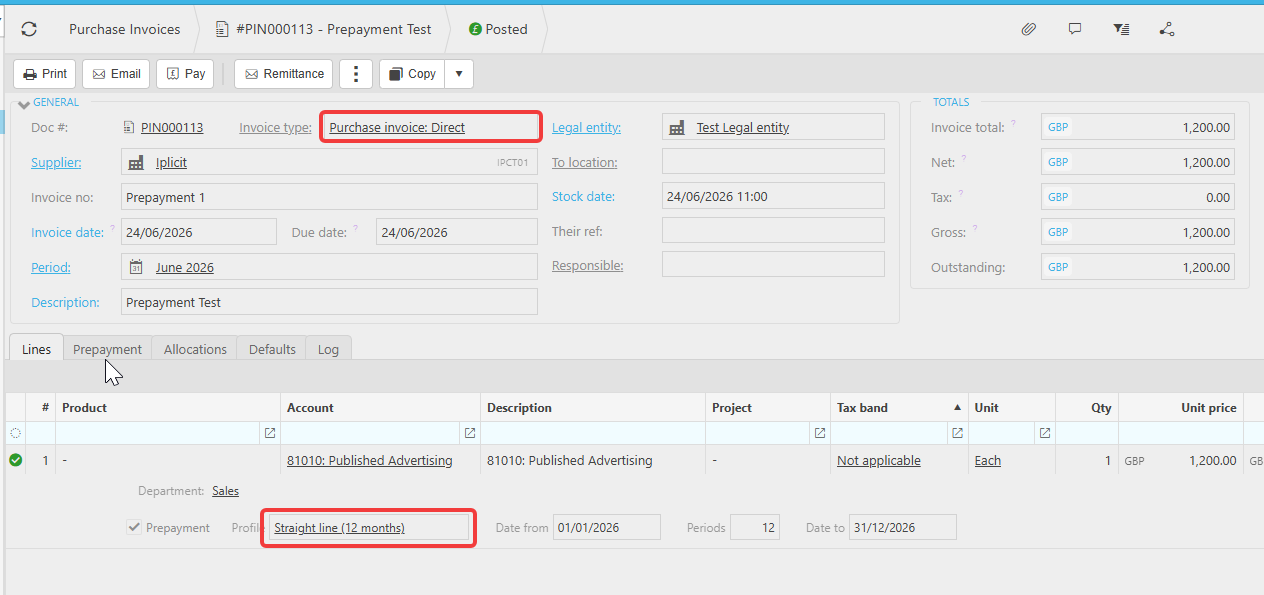
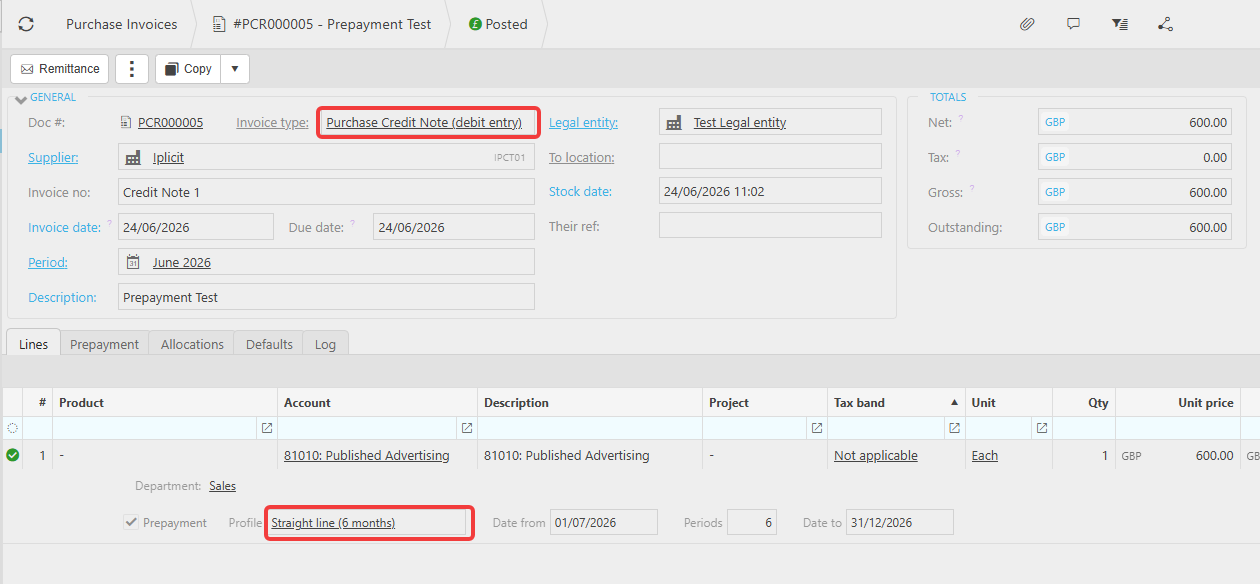
When a refund is received against a prepayment invoice, iplicit handles this through a purchase credit note rather than amending the original invoice. The credit note carries its own prepayment distribution profile, set up to match the periods and GL account of the refunded portion. The two schedules then run in parallel - the original invoice continues releasing the full amount, and the credit note releases the refunded amount back, with the net effect being the correct accounting position.
Before you start
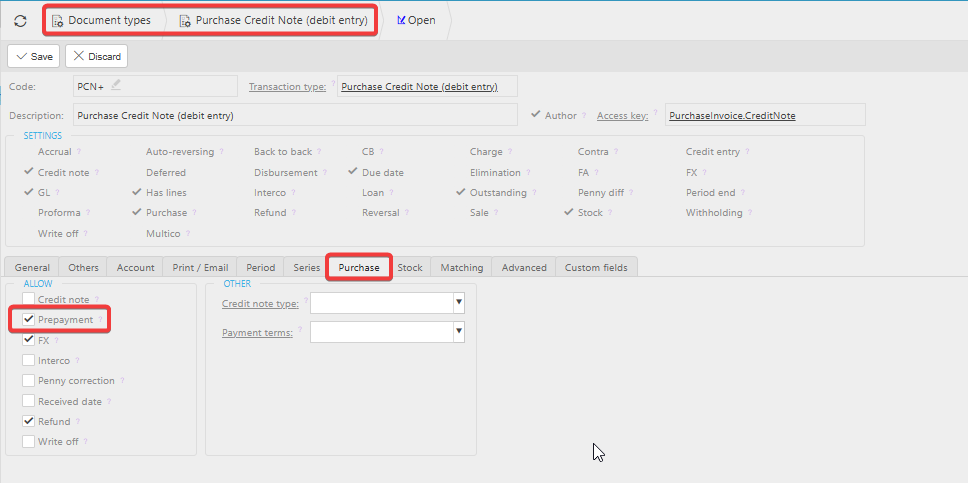
Confirm the purchase credit note document type has prepayments enabled. Navigate to Document Types, open the relevant purchase credit note document type, select the 'Purchase' tab and confirm the 'Prepayment' tick box is enabled. If this is not in place the distribution profile column will not appear on the credit note line.
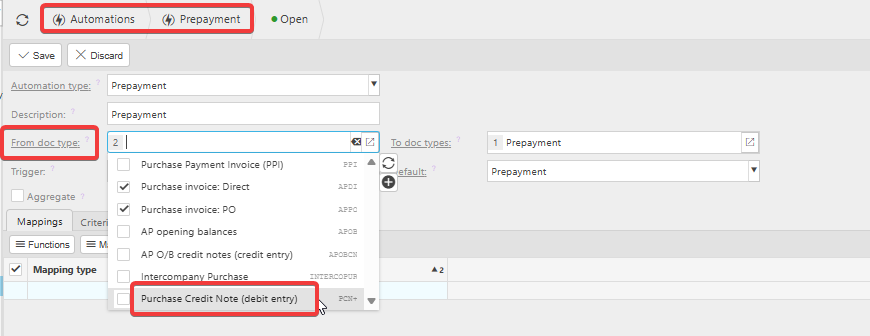
Also confirm the prepayment automation includes the purchase credit note document type in the 'From doc type' field. Navigate to Automations, open the prepayment automation and check. If the credit note document type is not listed, add it before proceeding.
Raising the credit note
- Create a new purchase credit note in the Purchase Ledger using the credit note document type
- Enter the supplier and relevant details
- On the line, select the same GL account used on the original purchase invoice
- The prepayment distribution profile column will appear - select the distribution profile that accounts for the remaining schedule
- Enter the start and end date to match the periods being refunded - for example if the refund covers six months of the original twelve month schedule, set the profile to cover those six months only
- Post the credit note
The automation will generate the credit note prepayment journals automatically, releasing the refunded value back from the prepayment holding account to the P&L account across the matching periods.
Allocating the refund
Allocate the refund received from the supplier to the purchase credit note in the normal way. The original purchase invoice remains allocated to the original payment and its release schedule continues to run unaffected.
Credit note prepayment
Reverse prepayment credit note
Prepayment credit note iplicit
Partial prepayment refund
Prepayment refund credit note
Credit note prepayment schedule
Purchase credit note prepayment