

This article covers why suppliers on hold or stop still appear in the Bulk Payment screen within the Purchase Ledger, and how to exclude them entirely if you need to. If you haven't yet placed a supplier on hold or stop, see How to place a customer or supplier on hold or stop first.
Why this happens
A supplier on hold or stop will still appear in the Bulk Payment screen if they have outstanding invoices. This is expected behaviour - the Bulk Payment screen displays everything technically due for payment, regardless of restrictions.
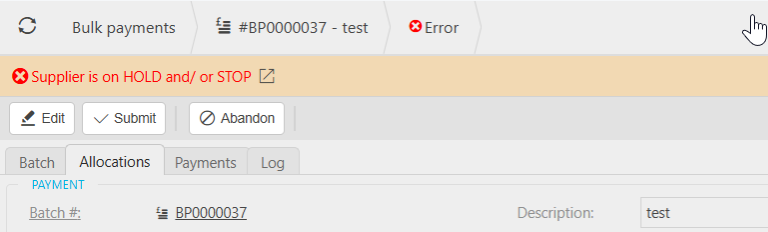
If you attempt to generate the payment, iplicit blocks the process and shows an error, because the supplier is on hold or stop. No payment can complete for a restricted supplier, even though their invoices appeared in the list.
Excluding hold or stop suppliers from Bulk Payment entirely
If you'd rather these suppliers didn't appear in the Bulk Payment list at all, you can set up Contact Classifications to filter them out.
If you use this method, update the supplier's classification at the same time you apply or remove a hold or stop flag on that supplier. If the two fall out of sync, the filtering will miss suppliers it should be excluding.
Step one: set up the classifications
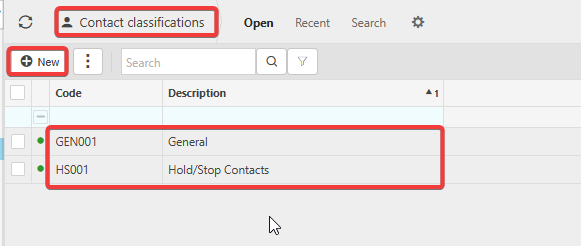
- Navigate to Contact Classifications
- Create two classifications: 'General' and 'Hold/Stop'
- Assign a unique code to each classification
Step two: assign classifications to suppliers
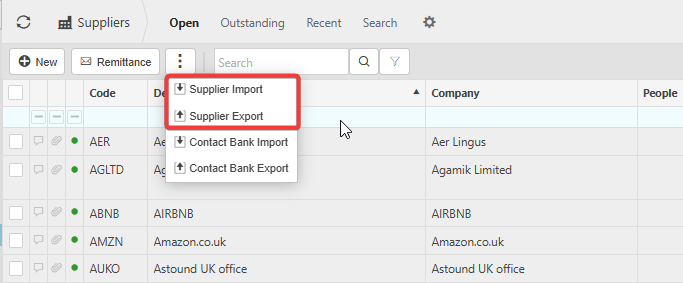
For a small number of suppliers, update each supplier record individually. For larger supplier lists, use the bulk method:
- Go to the Suppliers screen
- Export the supplier list to Excel
- Add the appropriate classification code in the Classification column for each supplier
- Import the file back into iplicit to update the records

Step three: filter by classification when creating a batch payment
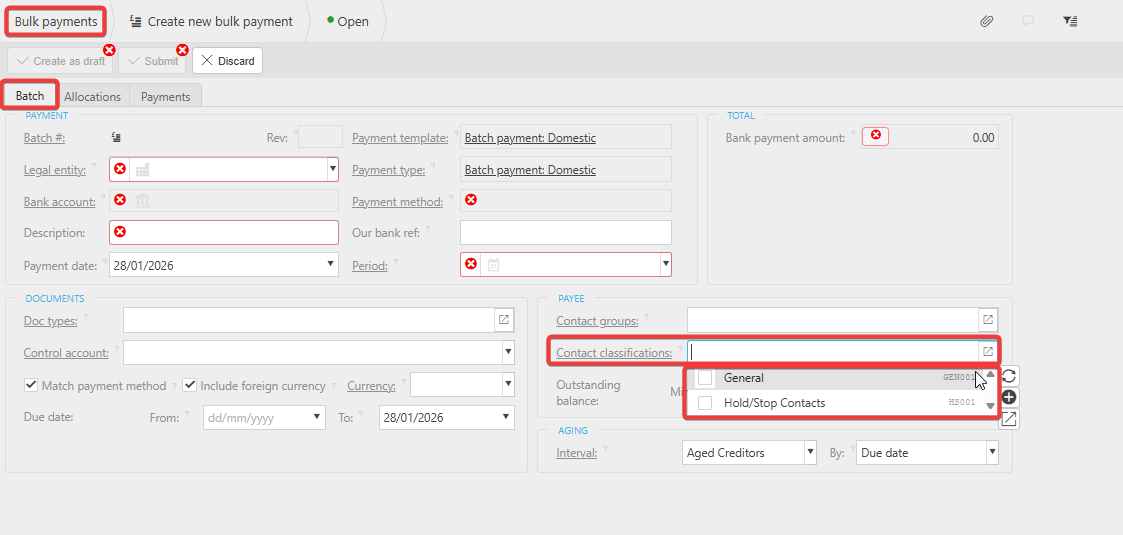
- When generating a bulk payment, use the classification filter on the Bulk Payment screen
- Select the classifications to include, such as 'General'
- Leave 'Hold/Stop' unselected, so suppliers with that classification do not appear at all
Keeping this accurate
Whenever you place a supplier on hold or stop, or remove them from hold or stop, update their Contact Classification at the same time. This keeps the exclusion filter reliable going forward.
Supplier still shows in bulk payment
Hold stop bulk payment
Exclude supplier from bulk payment
Remove supplier from bulk payment list