

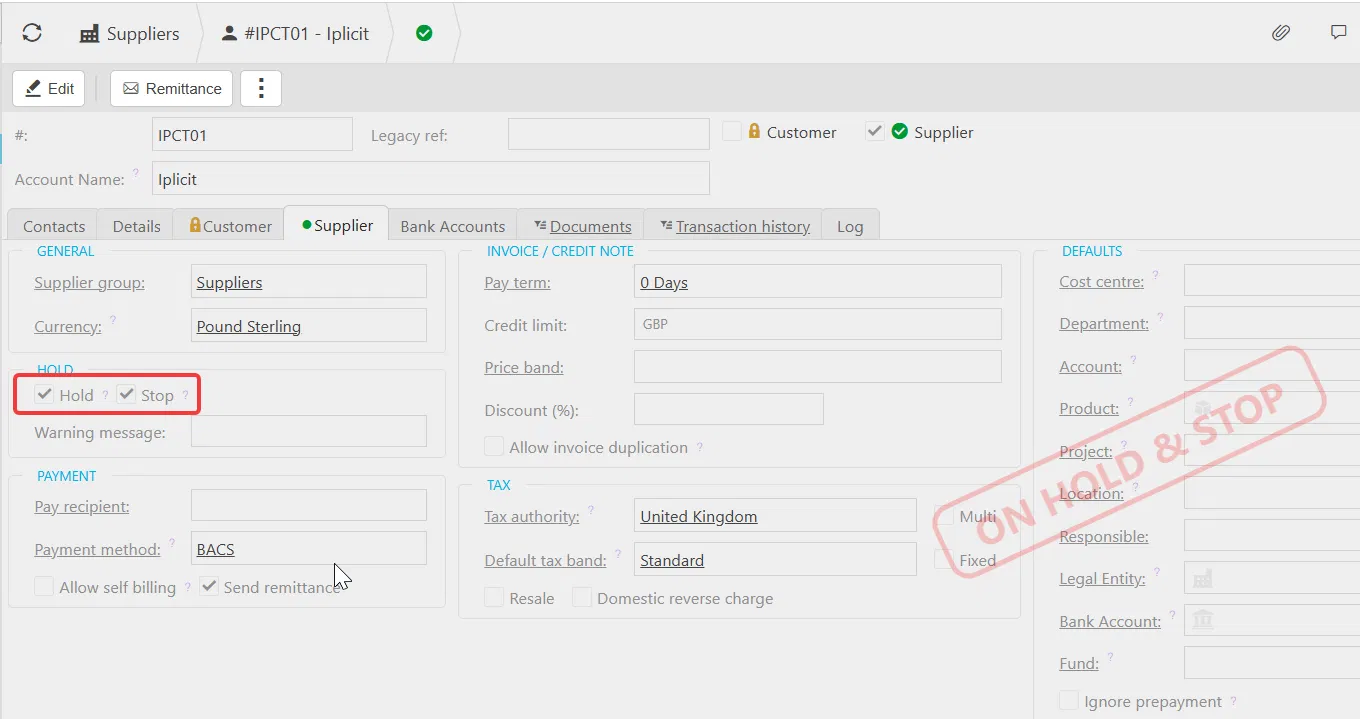
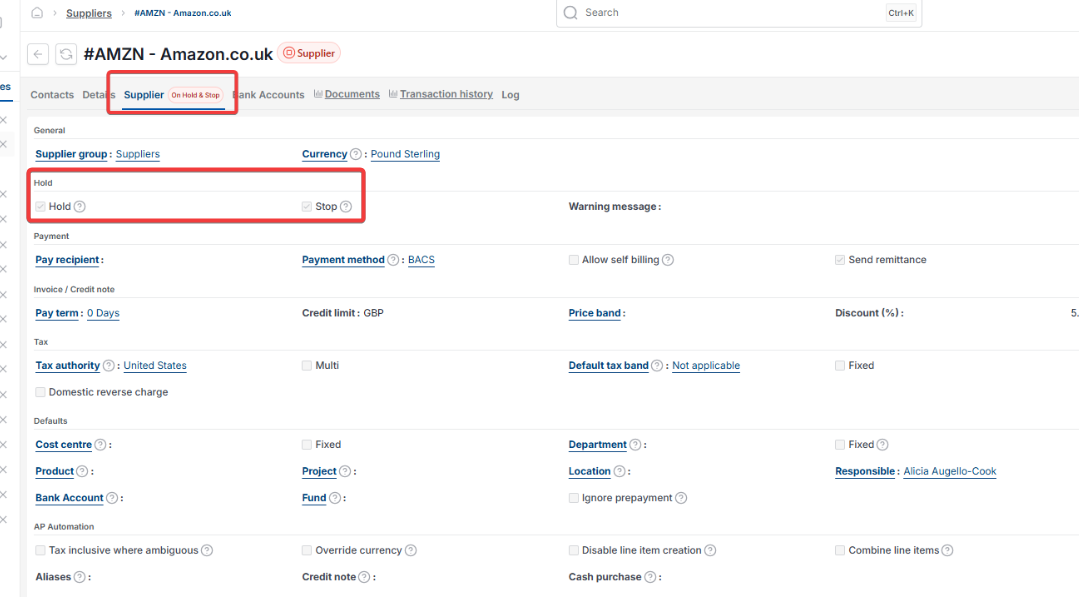
This article covers placing a Hold or Stop on a customer or supplier account in iplicit. Hold and Stop are two separate restrictions with different effects, and both are set from the 'HOLD' section on the account's 'Customer' or 'Supplier' tab.
What 'Hold' and 'Stop' mean on a customer or supplier account
'Hold' allows draft documents to be created for the account, but they cannot be posted to the ledger. 'Stop' is stricter – no documents can be created for that account at all.
You can apply Hold, Stop or both, and you can set them independently on the Customer side and the Supplier side of an account, since one account can be both.
Placing a hold or stop on a supplier
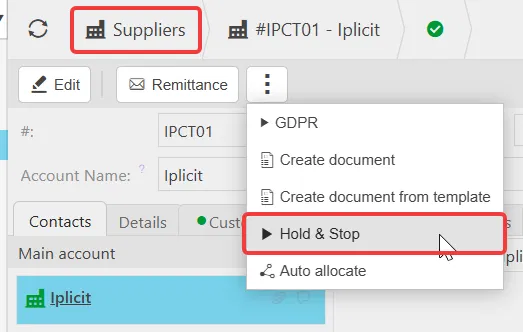
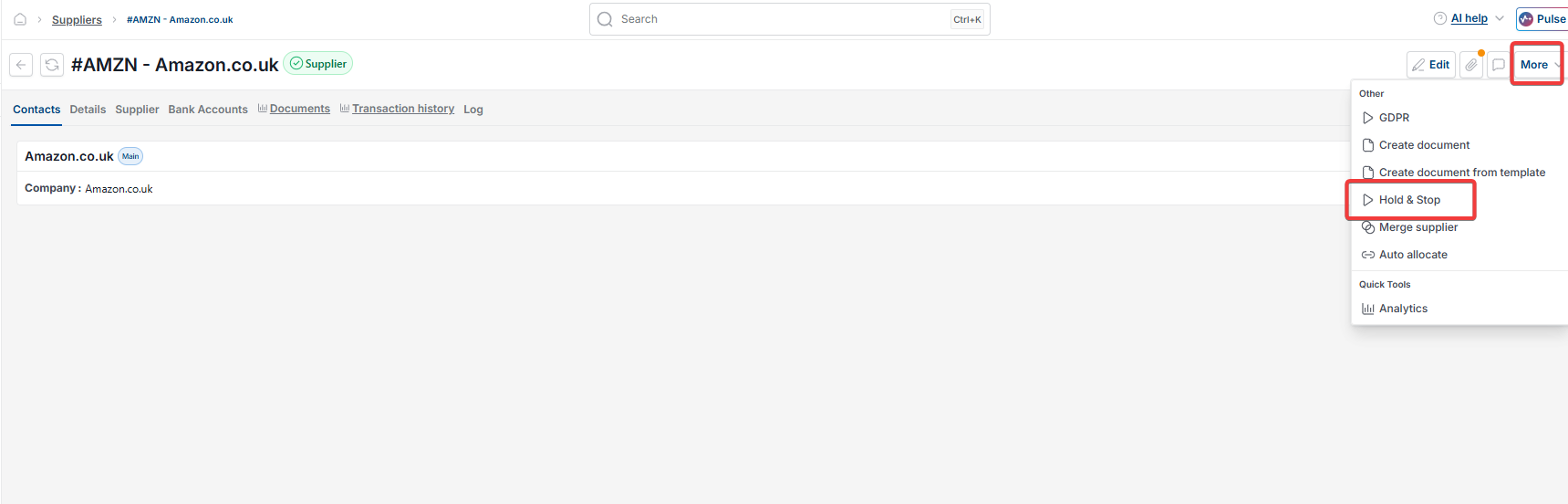
- Go to Purchases > Suppliers and open the relevant supplier record
- Depending on your screen, select the three-dot menu or the 'More' menu
- Select 'Hold & Stop' to jump to the 'HOLD' section on the 'Supplier' tab
- Tick 'Hold', 'Stop' or both
- Save the record.
The supplier is now restricted according to the boxes ticked.
Placing a hold or stop on a customer
- Go to Sales > Customers and open the relevant customer record
- Depending on your screen, select the three-dot menu or the 'More' menu
- Select 'Hold & Stop' to jump to the 'HOLD' section on the 'Customer' tab
- Tick 'Hold', 'Stop' or both
- Save the record.
The customer is now restricted according to the boxes ticked.
What happens after placing a hold or stop on an account
A supplier on hold or stop may still appear in screens such as Batch Payment if they have outstanding invoices – this is expected, and does not mean the restriction failed.
Put a supplier on hold
Put a customer on stop
Hold and stop
Stop a supplier
Block a supplier
Restrict a customer
Prevent invoices for a supplier