

This article covers writing off a purchase order within the Purchase Ledger – for example when an approved order will not be received and needs clearing rather than left open. For a purchase invoice, see 'How to write off a purchase invoice'.
Writing off a purchase order in the Purchase Ledger
To write off a purchase order:
- Open the purchase order you want to write off
- Select the small arrow next to 'Receive'
- Select 'Write off' from the drop-down menu.
On a purchase order, 'Write off' sits within the 'Receive' drop-down alongside 'Invoice' and 'Credit', rather than under the three dots menu or as its own button. However, this could appear as its own button should the other options not yet be set up.
If 'Write off' does not appear under 'Receive' on a purchase order
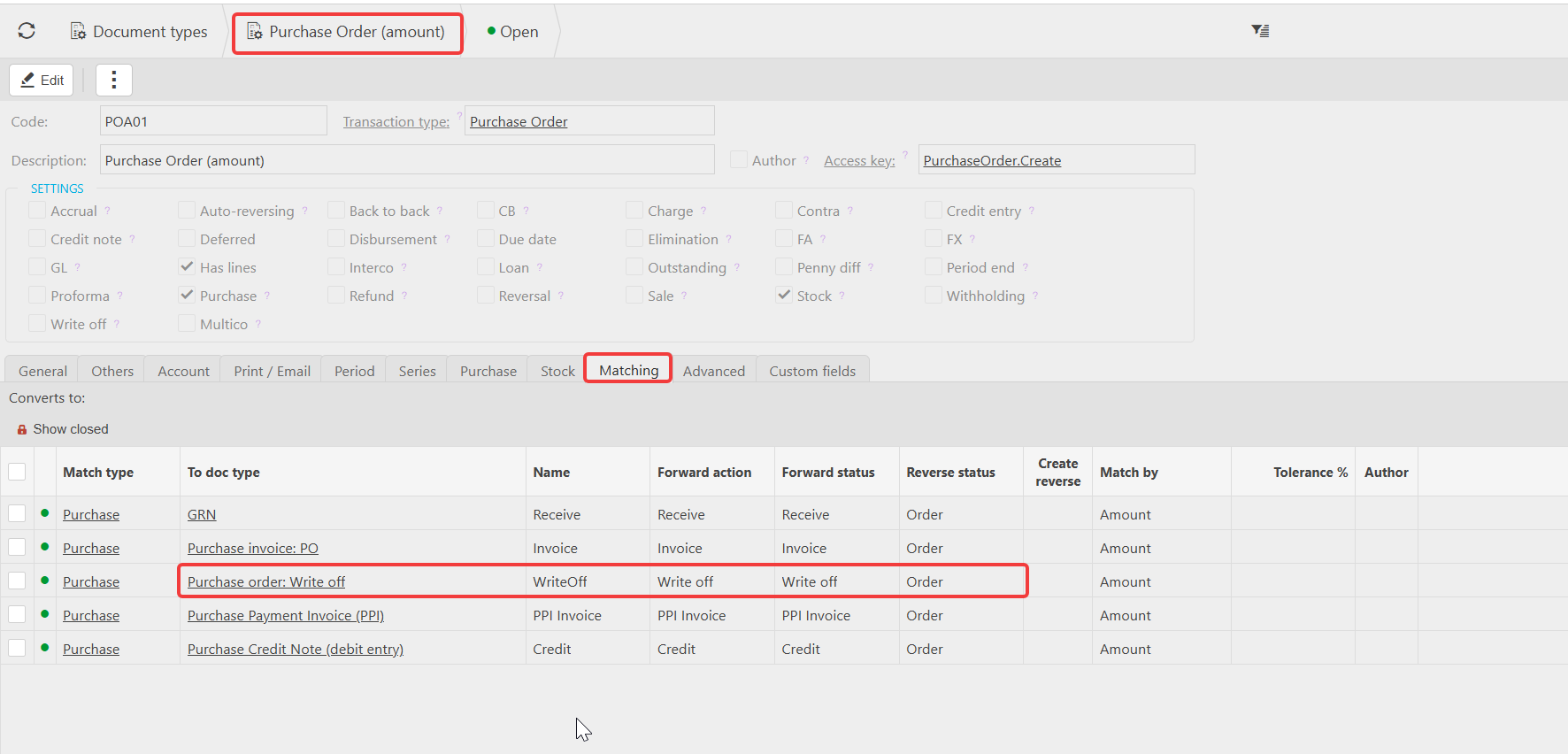
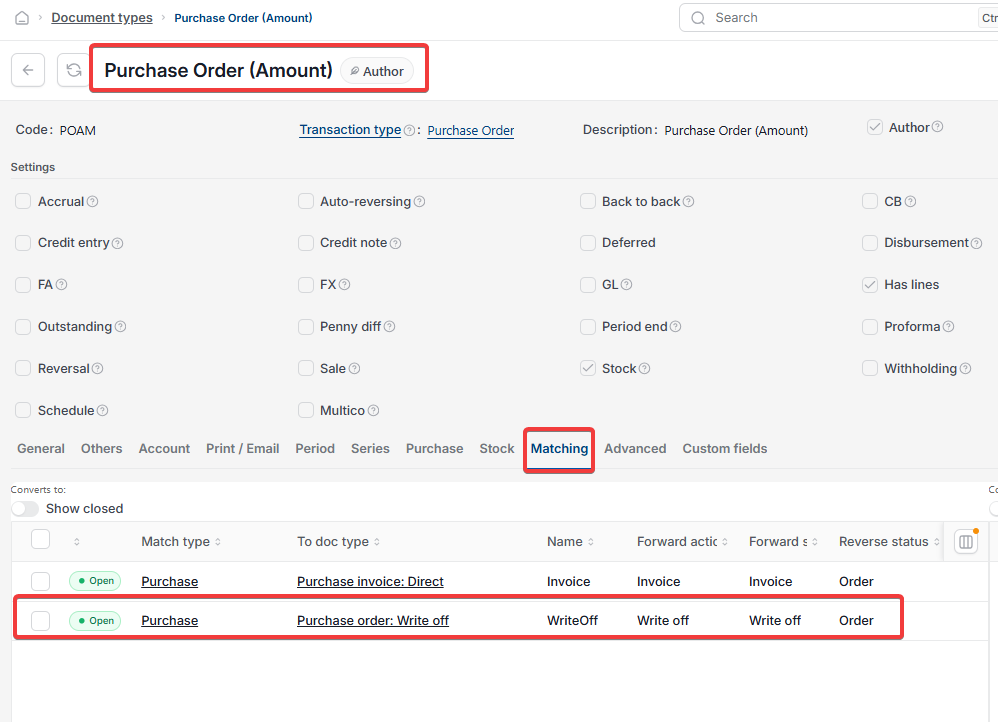
If 'Write off' is missing from the 'Receive' drop-down on a purchase order, the conversion between the purchase order document type and the corresponding write-off document type has not been set up. This is an administrator task – see 'Setting up write off document types' to resolve it.
Write off purchase order
Cancel purchase order
Void purchase order
Write off missing from receive menu