

This article covers writing off a sale invoice within the Sales Ledger – for example when a customer debt becomes uncollectable and needs clearing as bad debt. Writing off is sometimes called voiding, cancelling or clearing an unpaid invoice. For a sale order, see 'How to write off a sale order'. For a purchase invoice, see 'How to write off a purchase invoice'.
Writing off a sale invoice in the Sales Ledger
To write off a sale invoice:
- Open the sale invoice you want to write off
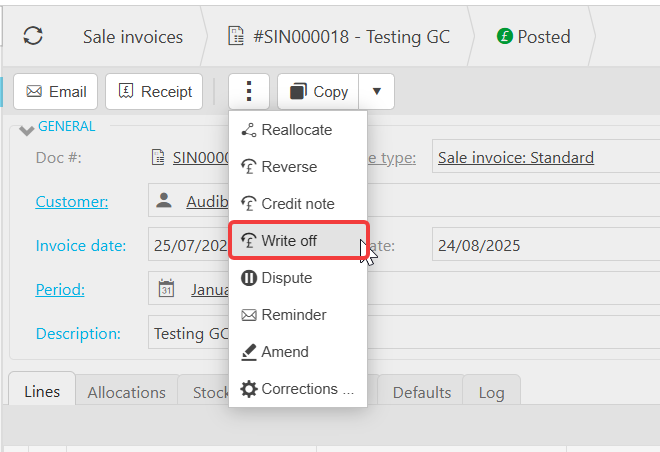
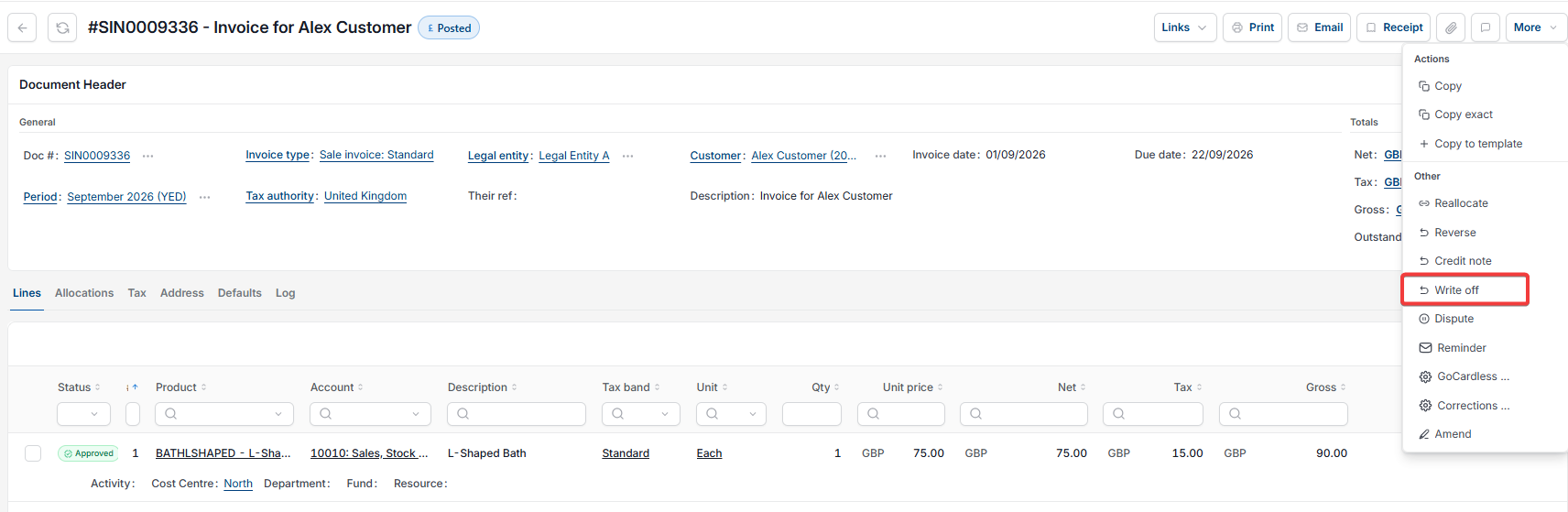
- Depending on your screen, select the three dots (⋮) or the 'More' menu at the top of the invoice, next to 'Copy'
- Select 'Write off' from the drop-down menu.
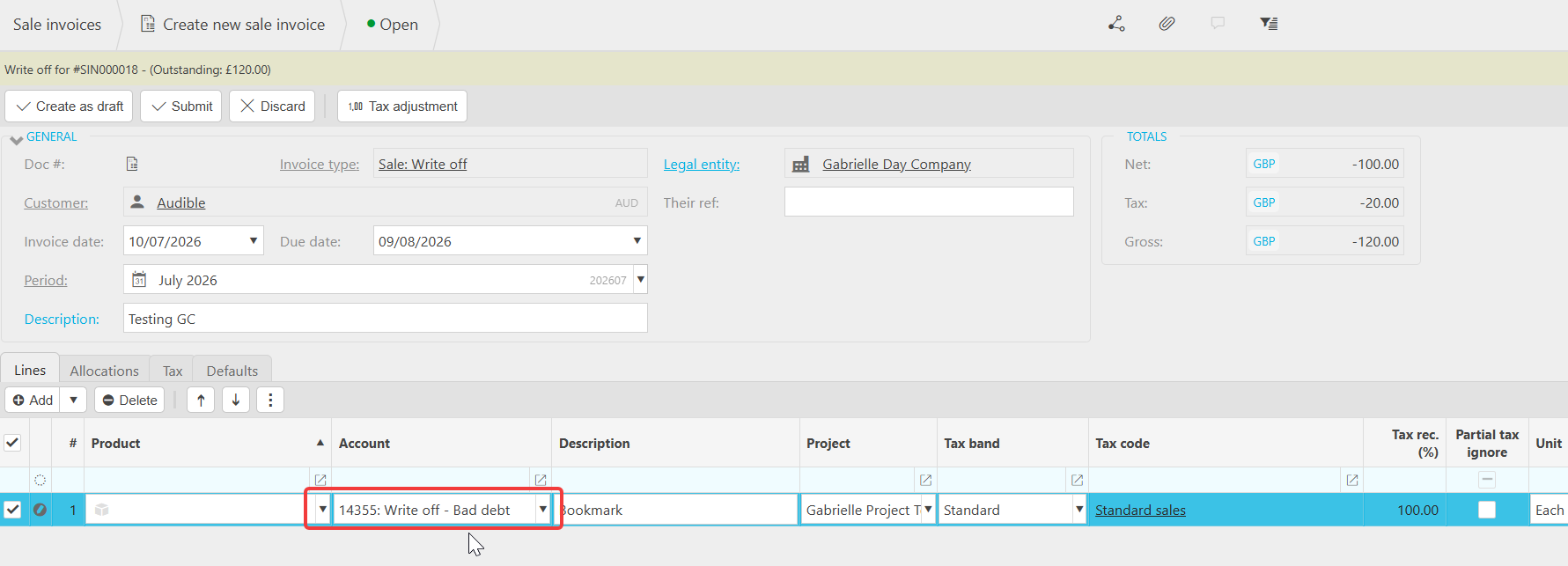
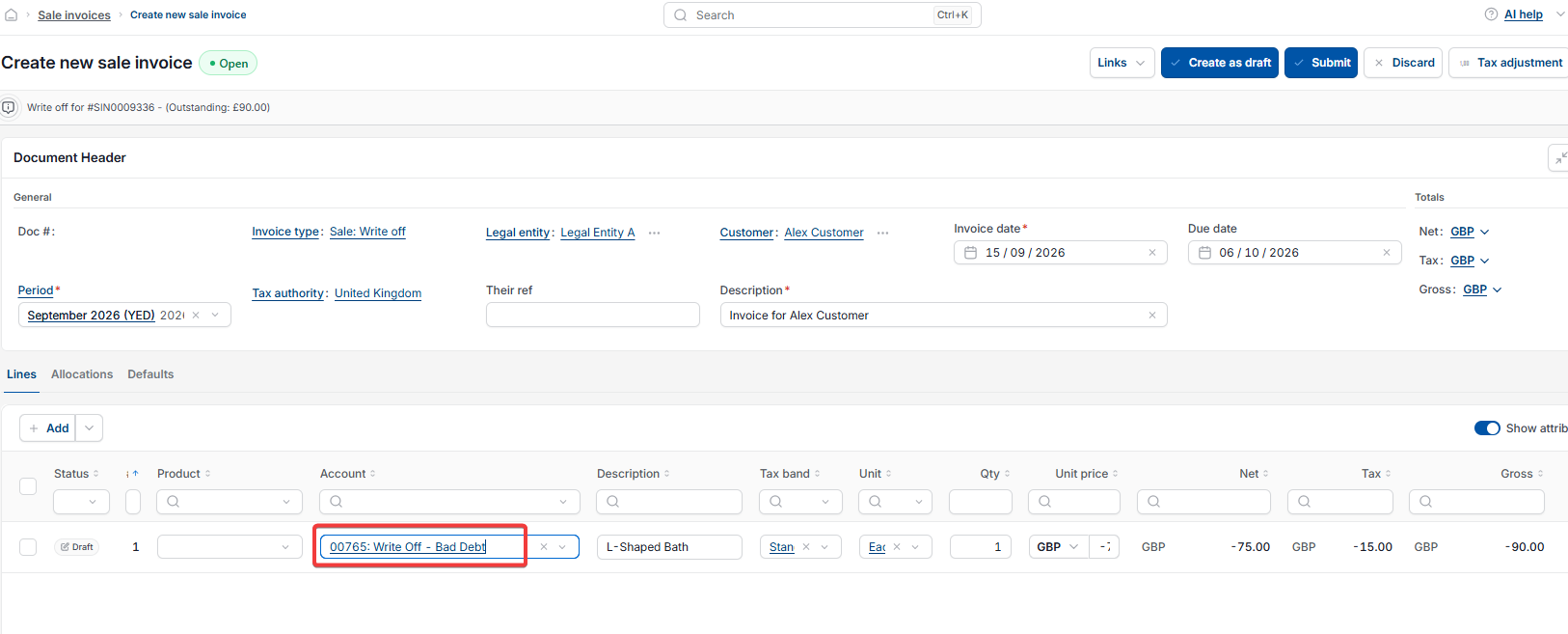
Selecting 'Write off' opens a new invoice with the invoice type set to 'Sale: Write off', pre-filled with the same customer, period and line details as the original sale invoice.
Completing the write-off invoice for a sale invoice
Before submitting the write-off invoice, amend the transaction lines so the account is your write-off (bad debt) account – for example 'Write off - Bad debt'. The account code will differ depending on your chart of accounts. This step in the Sales Ledger is what actually clears the debt to the correct nominal account, rather than simply cancelling the invoice.
- For a full write-off, leave the amount as shown
- For a partial write-off, amend the amount on the line to the value you're writing off.
Once the account and amount are correct, select 'Submit' or 'Create as draft'.
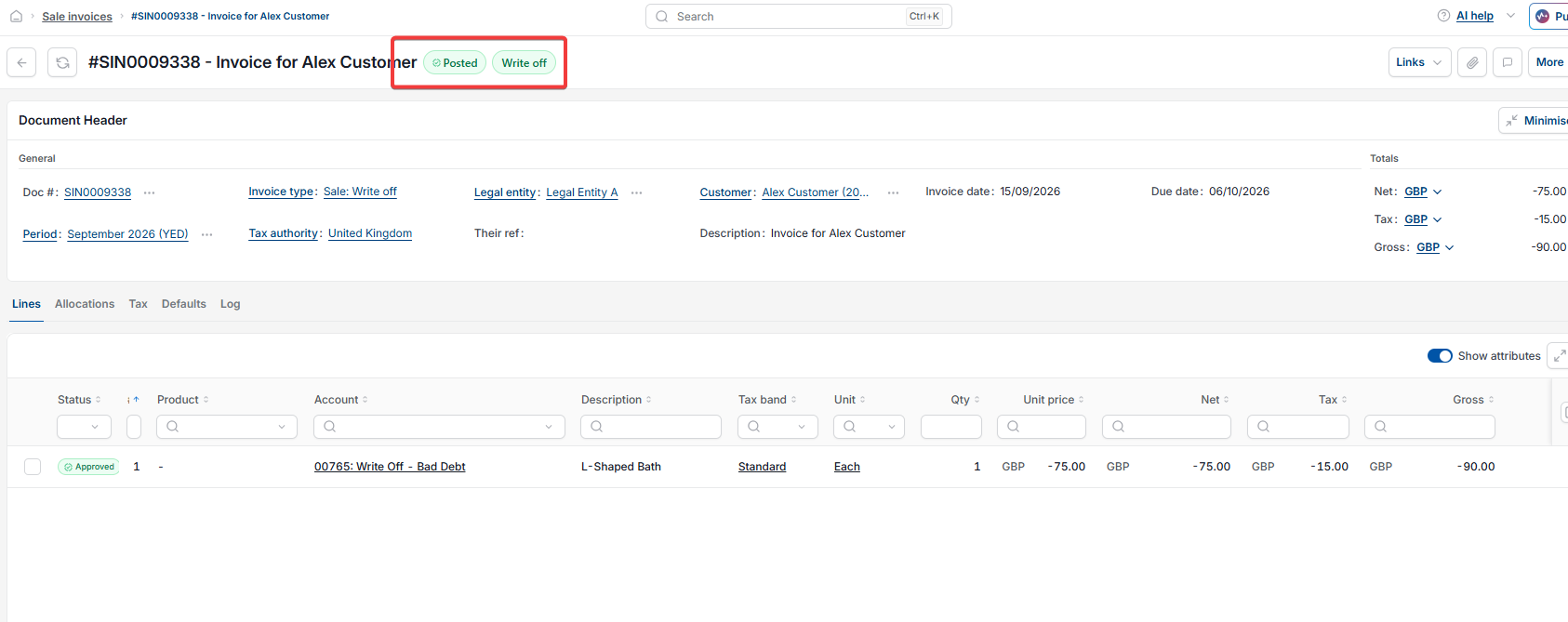
Once posted:
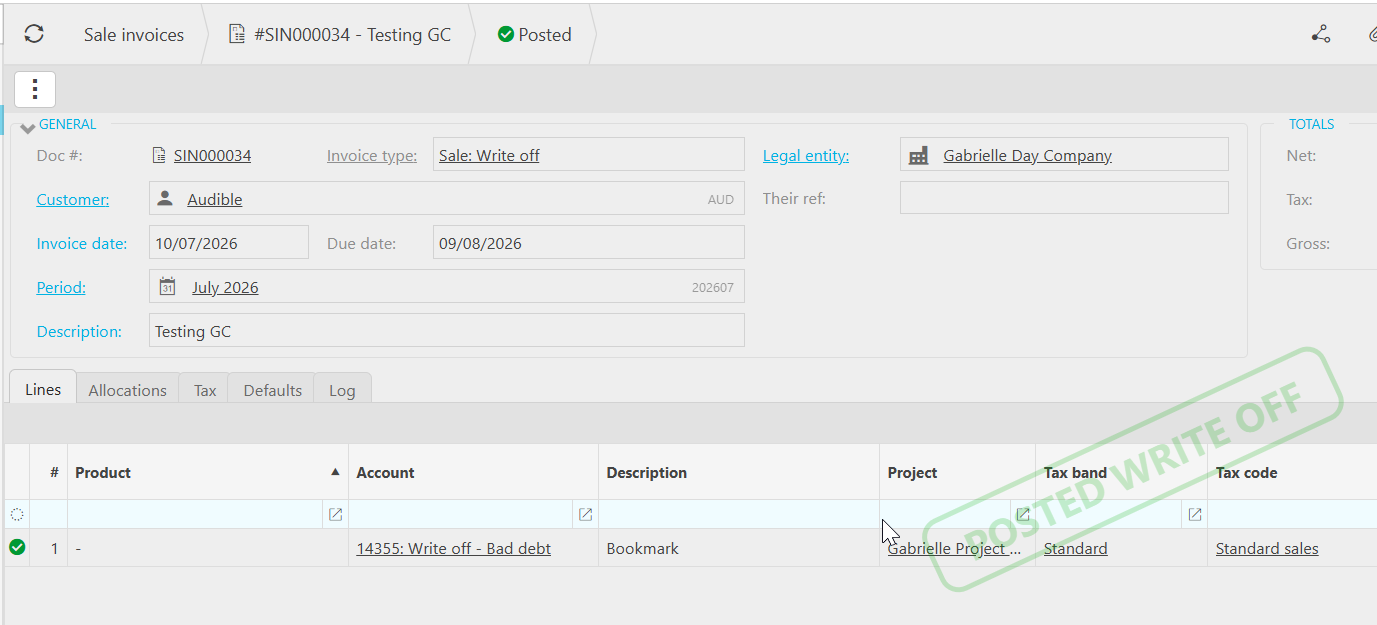
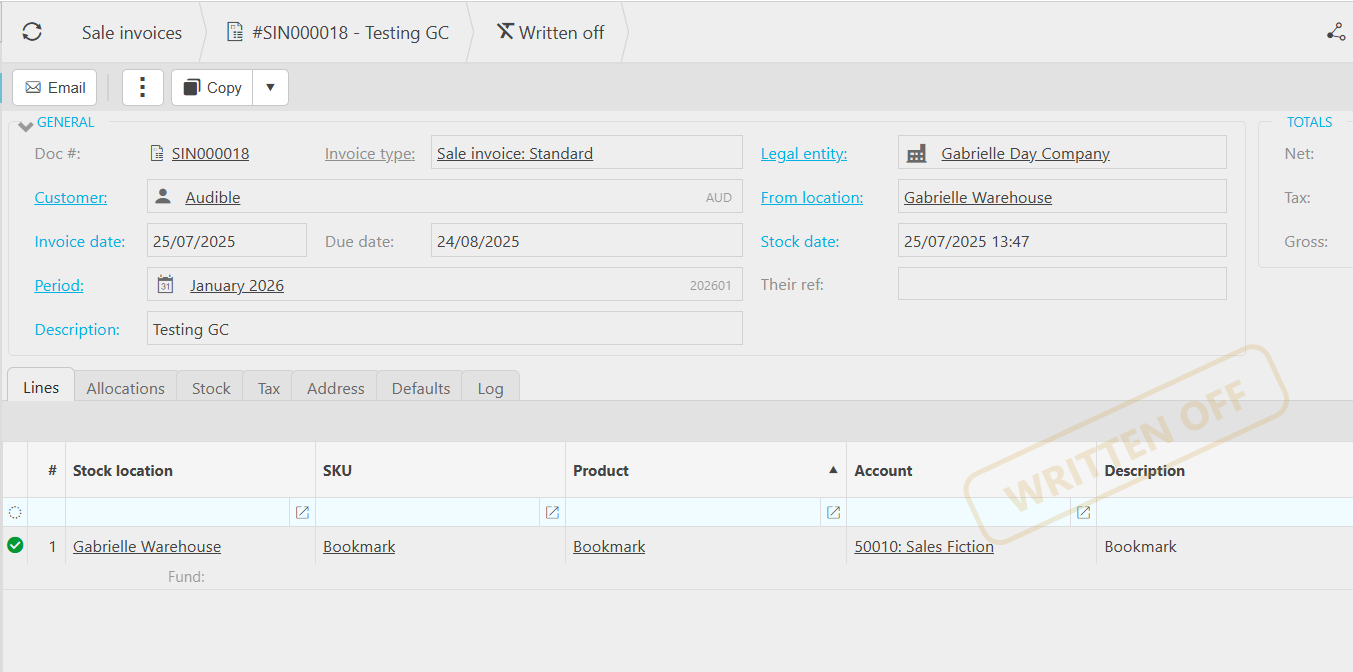
- The original sale invoice is marked 'Written off'
- The new write-off invoice shows a 'Posted write off' stamp and carries a negative net, tax and gross value equal to the amount written off.
If 'Write off' is missing or opens blank on a sale invoice
Two separate problems can stop write-off working correctly on a sale invoice:
- If 'Write off' does not appear in the three dots (⋮) or 'More' menu at all, the conversion between the sale invoice and the 'Sale: Write off' document type has not been set up
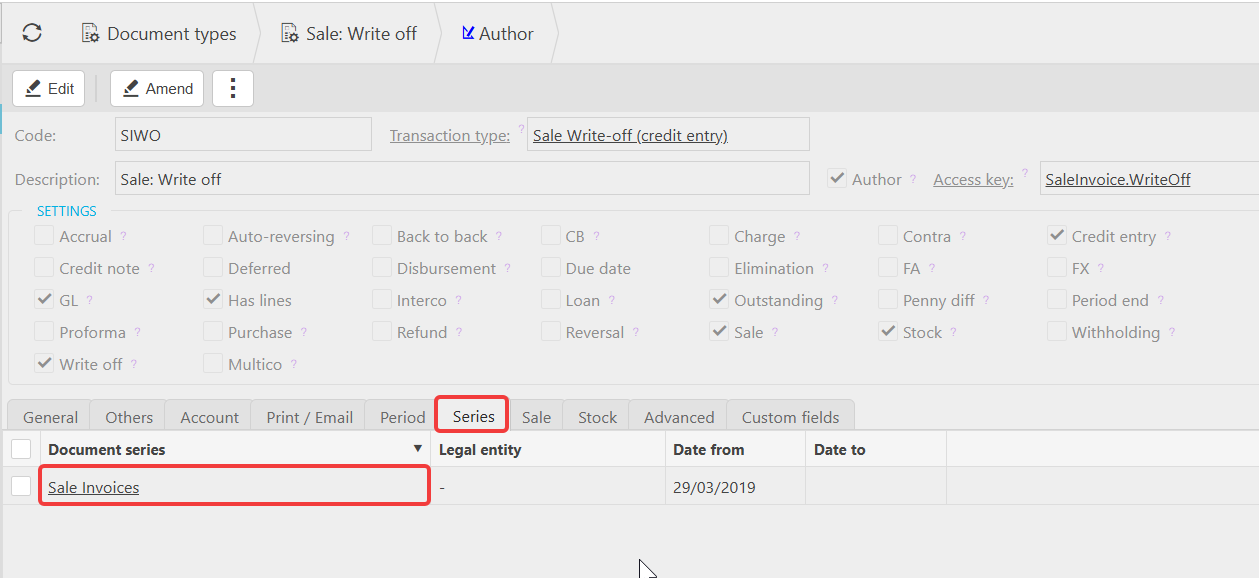
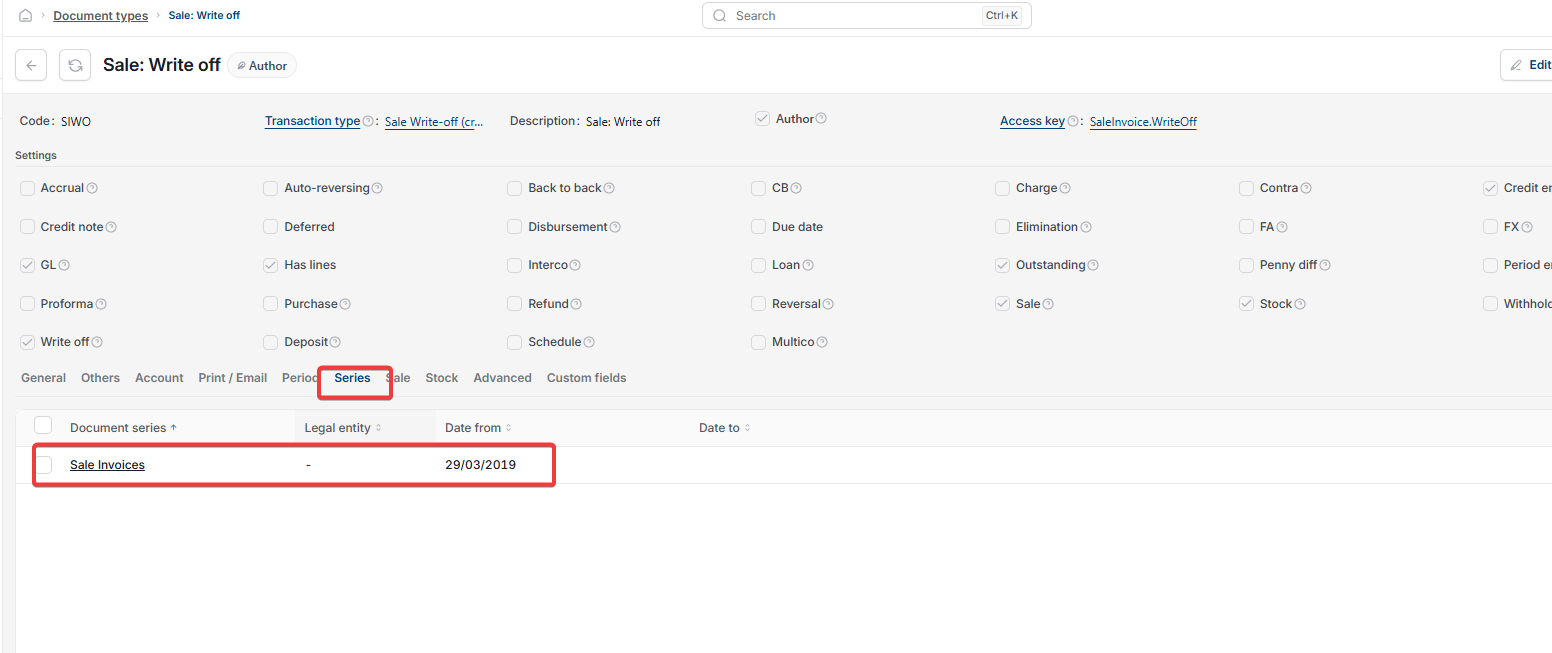
- If 'Write off' appears and opens, but the pop-up is empty, the 'Sale: Write off' document type has not been unlocked and assigned a document series.
Both are administrator tasks, not something you can fix from the invoice screen – see 'Setting up write off document types' to resolve either issue.
Reallocating or removing a sale invoice write-off
This only applies to write-offs created since the July 2026 release, which introduced this feature. Historic write-offs created before this release cannot be reallocated, unposted or abandoned.
Reallocating a sale invoice write-off to a different invoice
Use this if the write-off itself was correct, but you wish to apply it to a different invoice.
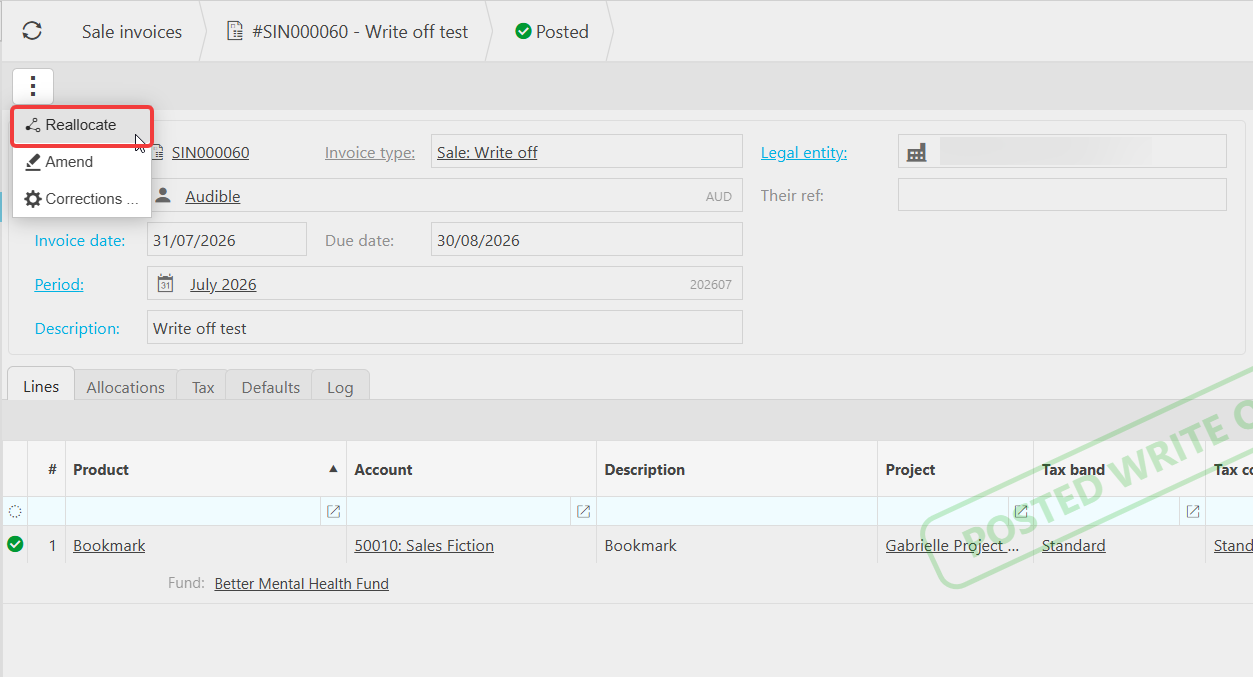
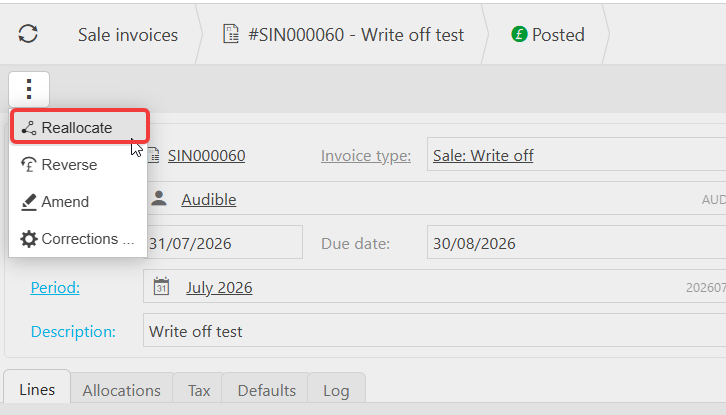
- Open the posted write-off document
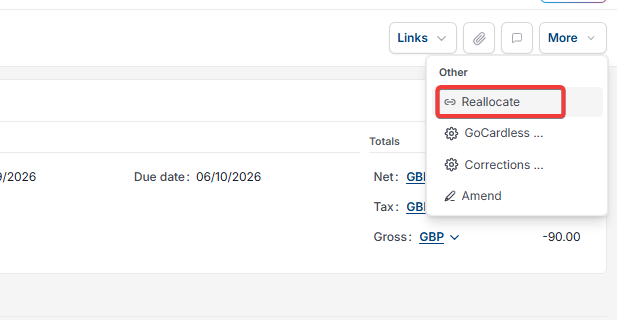
- Depending on your screen, select the three dots (⋮) or the 'More' menu
- Select 'Reallocate'
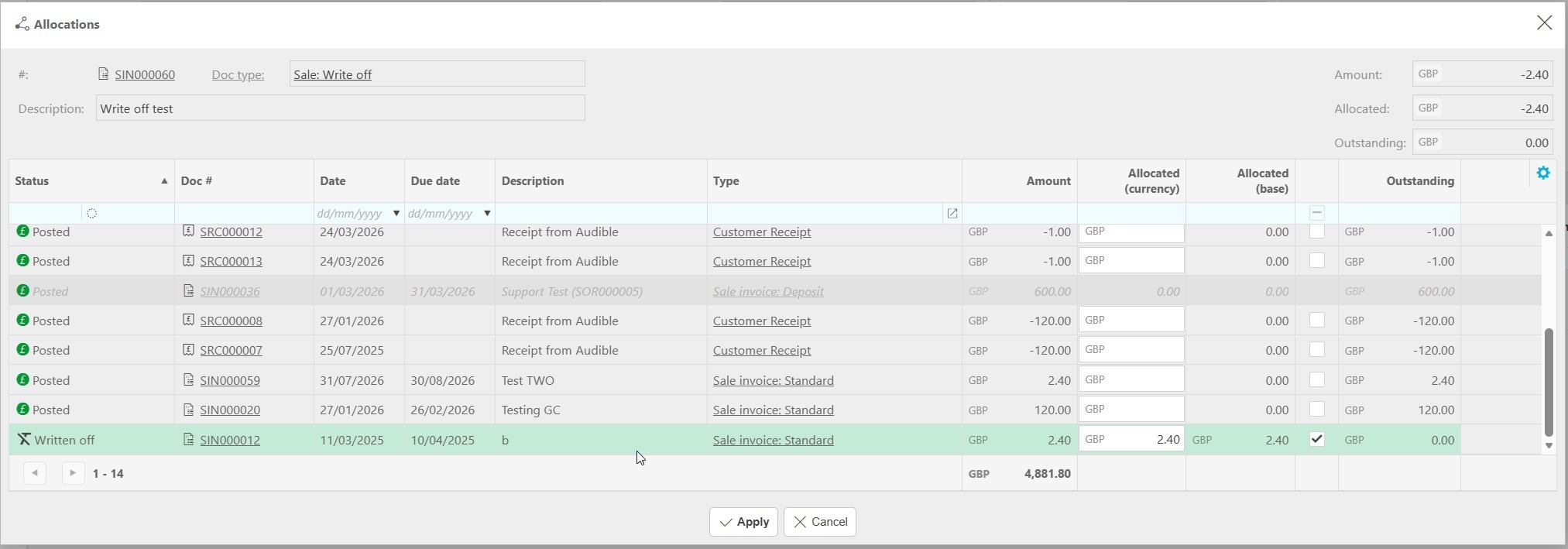
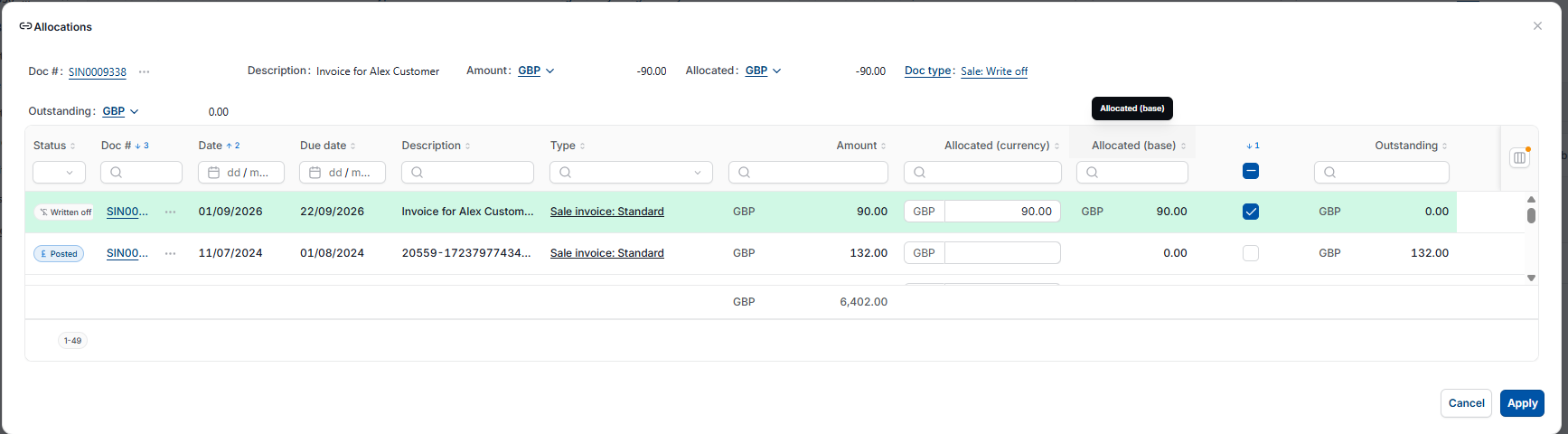
- In the allocations screen, remove the allocation against the current invoice and allocate the write-off amount to the correct invoice instead
- Select 'Apply'.
The write-off document stays posted throughout. Only the invoice it's allocated against changes.
Unposting and abandoning a sale invoice write-off
Use this if the write-off shouldn't have happened at all, and the original invoice needs to go back to being an open, posted invoice.
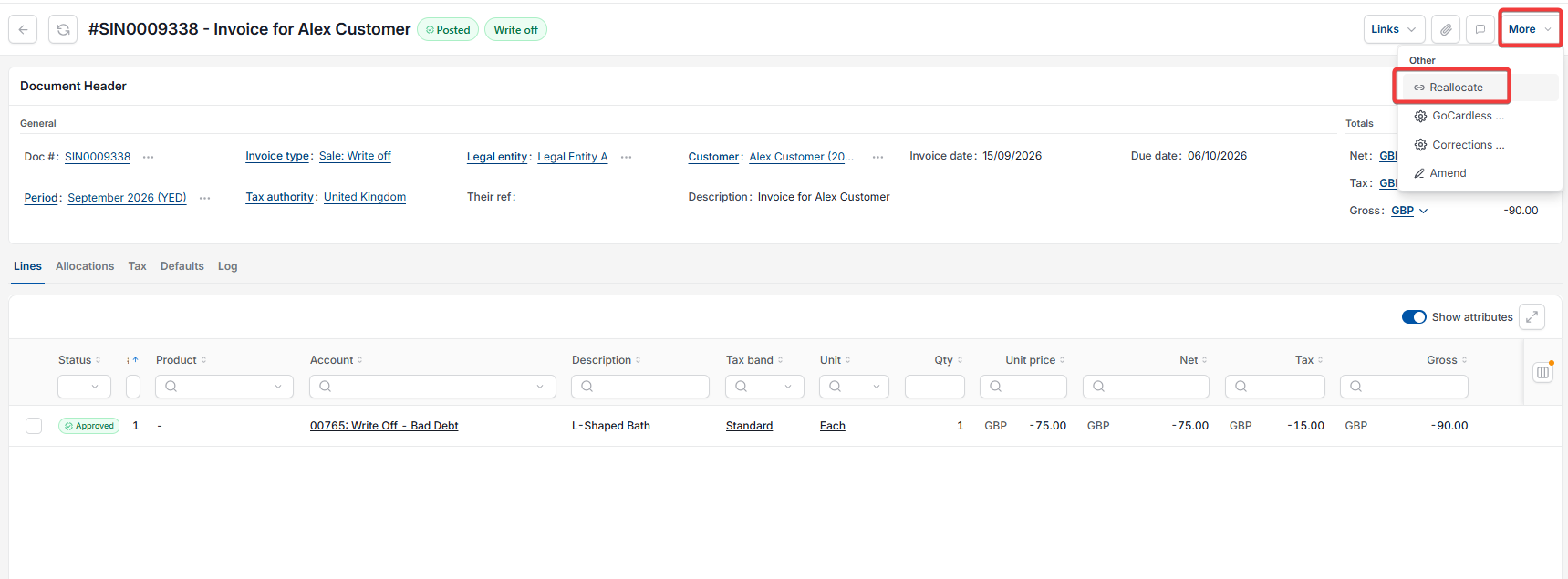
- Open the posted write-off document
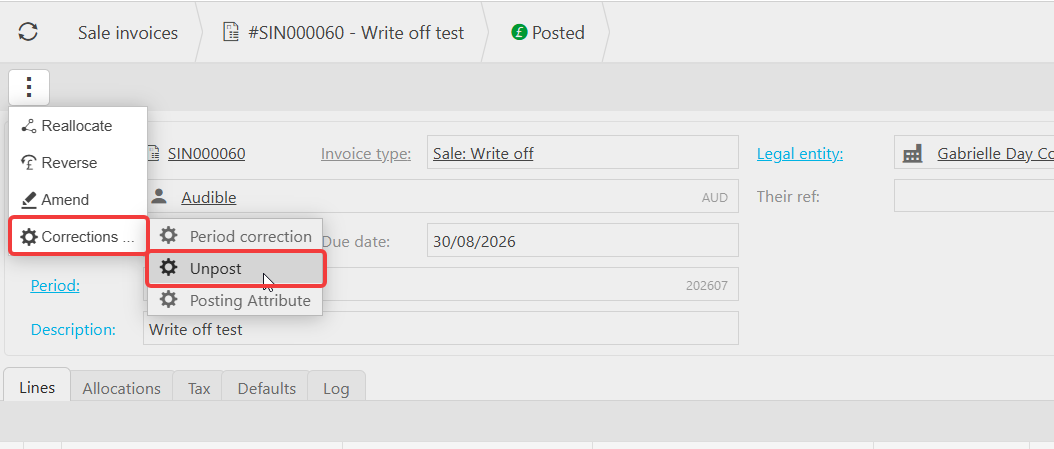
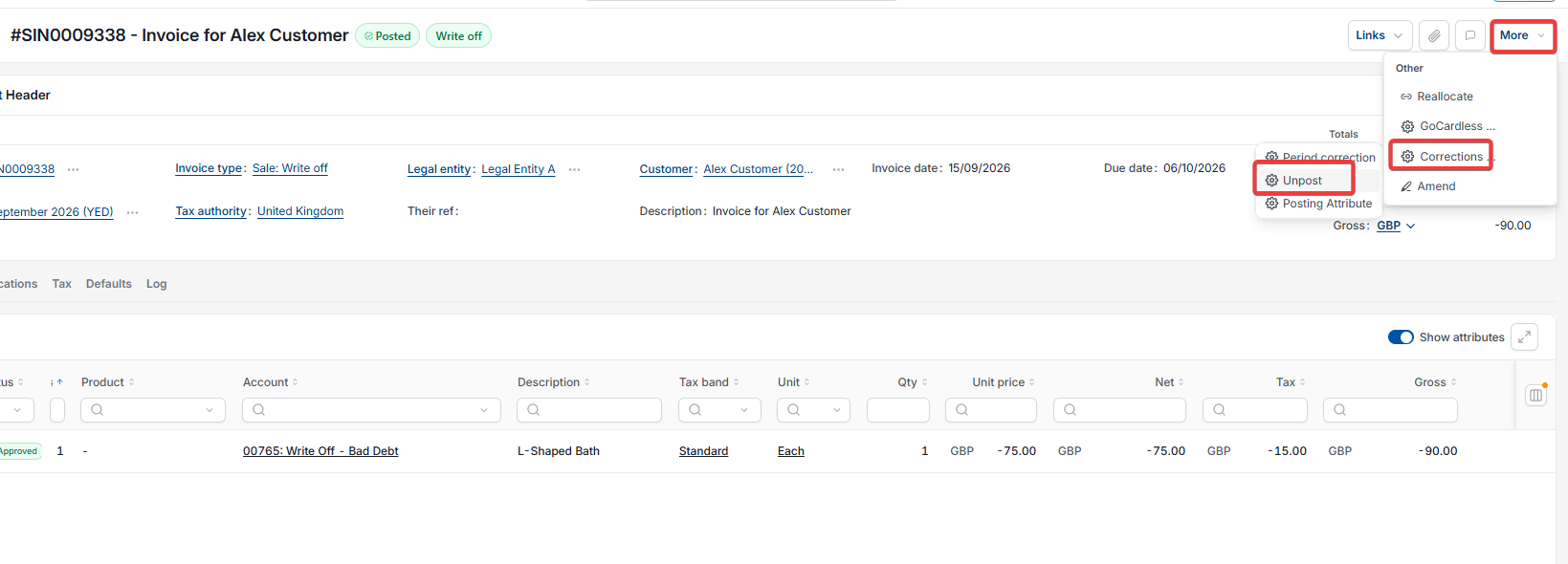
- Depending on your screen, select the three dots (⋮) or the 'More' menu, then 'Reallocate', and remove the allocation against the original invoice. The write-off must be unallocated before it can be unposted
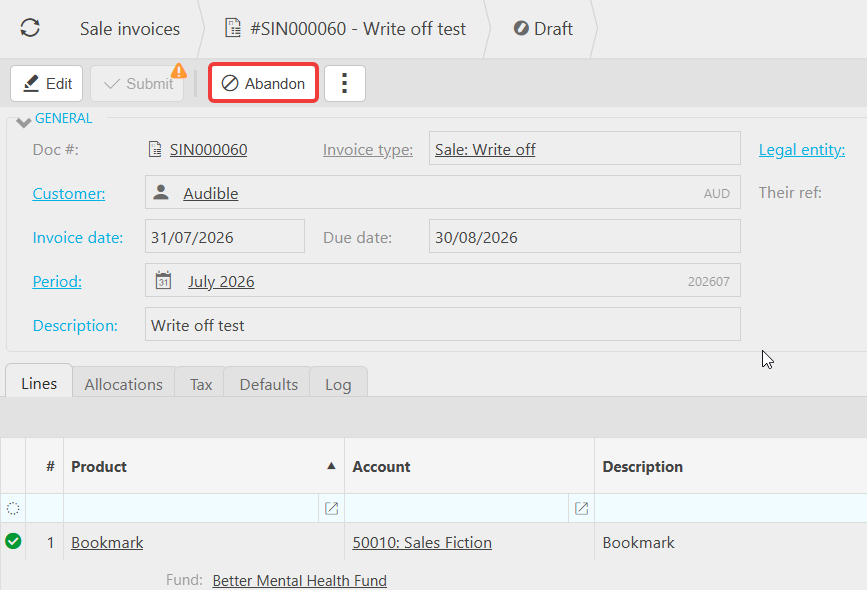
- Select the menu again, then 'Corrections', then 'Unpost'. This returns the write-off document to draft status
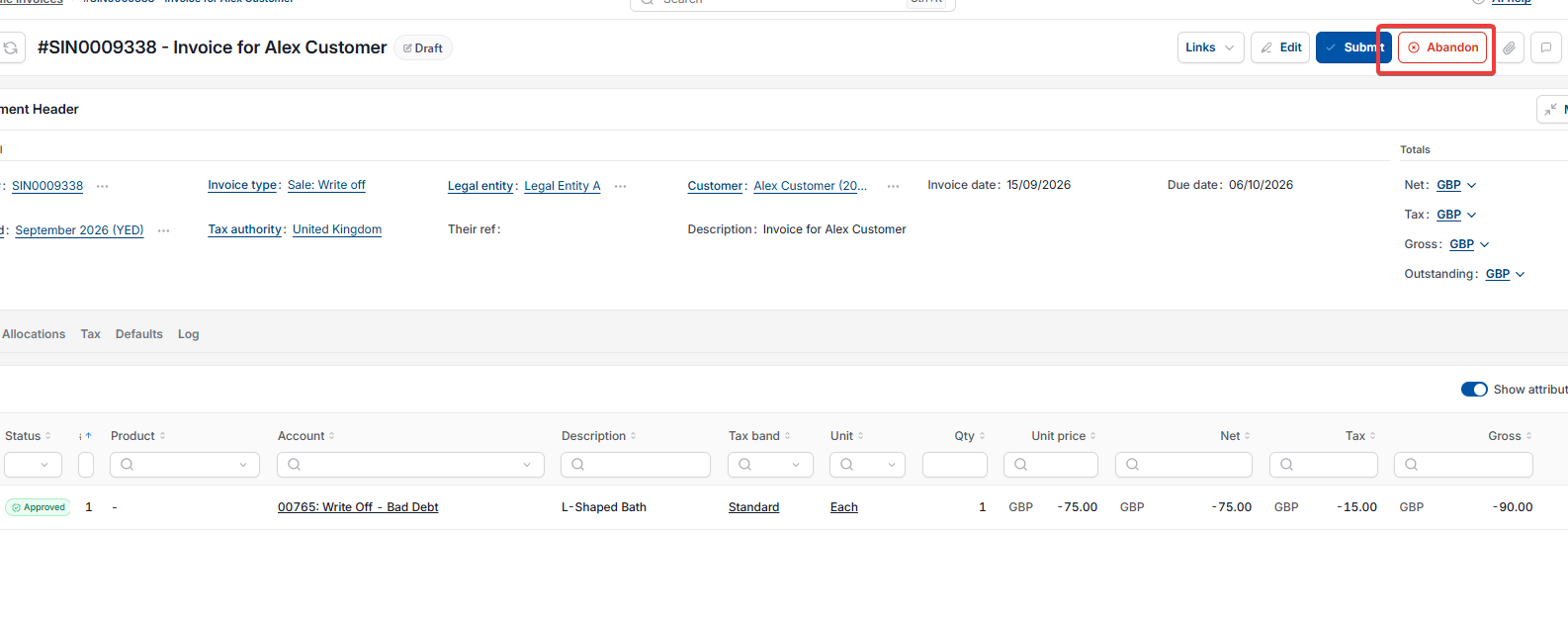
- On the draft write-off document, select 'Abandon'.
Once abandoned, the original invoice returns to 'Posted' status, as though the write-off had never been created.
Write off sale invoice
Sale write off
Cancel sale invoice
Void sale invoice
Partial write off
Blank write off pop up
Write off missing