

This article covers reporting an issue and raising a new support ticket through the iplicit customer support portal. Before raising a ticket, check the knowledge base and user guides in case your question is already answered.
Submitting a ticket
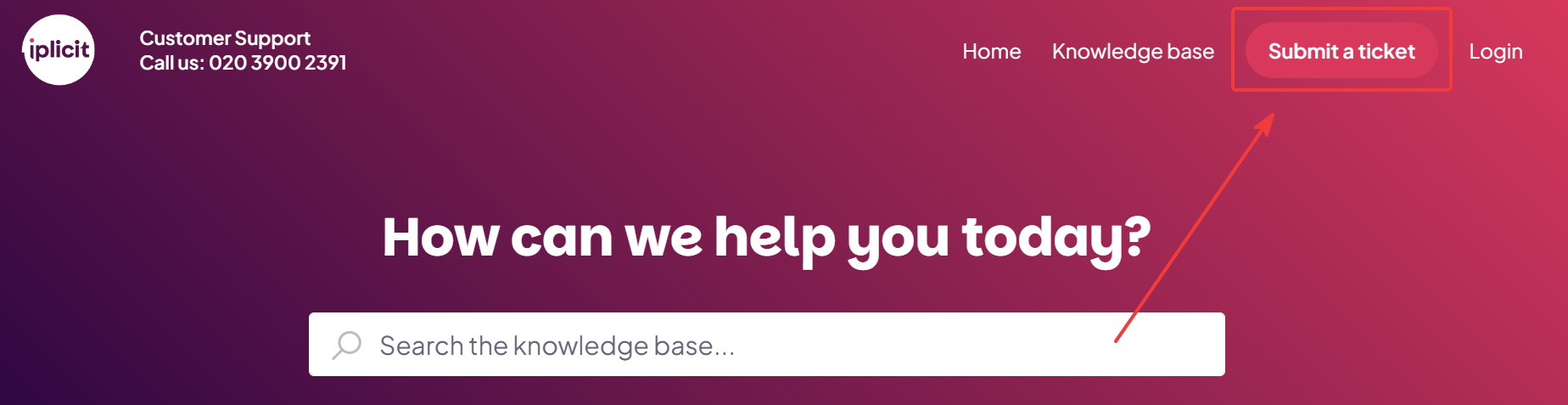
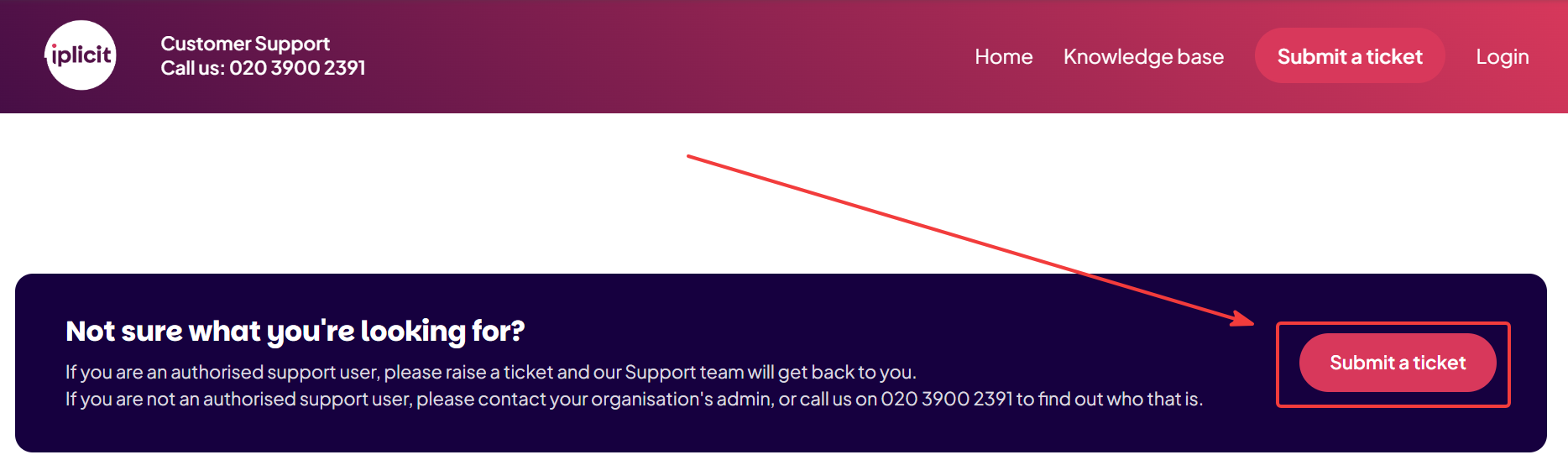
If you can't find a solution to your issue in the knowledge base, report the problem by selecting 'Submit ticket' at the top or bottom of the support portal screen. You must be logged in to the support portal to submit a ticket – see 'How to log in to the support portal and reset your password'.
Completing the ticket form
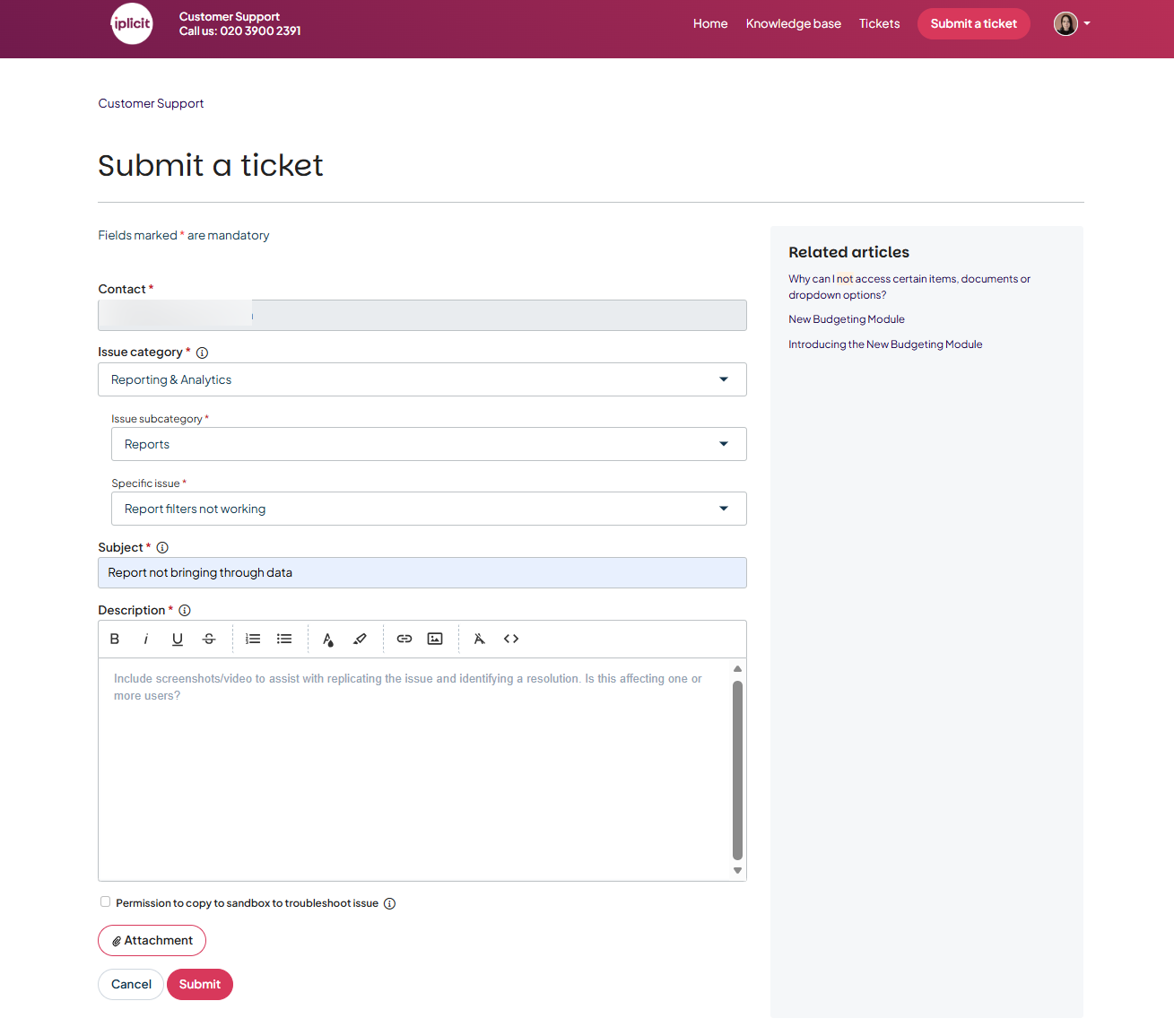
When you submit a ticket, complete the following:
- Choose an issue category, for example technical, reporting, or training
- Choose a more specific subcategory and issue type
- Add a subject and description of the problem, including any steps you've already taken
- Attach screenshots or recordings where possible, as these help resolve your issue faster
- Confirm permission for iplicit to copy your sandbox for troubleshooting. Ticking this box means the team can proceed as soon as they receive your ticket, without asking your permission again.
Why we ask for a category and subcategory
Choosing a category, subcategory, and issue type when you submit a ticket sends your enquiry to the right team straight away, whether it's a technical problem, a request for something new, or a training question. This means:
- Your ticket reaches the right specialists first time
- The team can prioritise your ticket more effectively based on topic and urgency
- You get a faster, more relevant response.
If you're unsure which category fits, choose the best option you can – the team will redirect the ticket if needed.