

This article covers how to lock a budget forecast in iplicit's (Legacy) Budget module. Locking a forecast sets its status to 'Closed' and prevents further edits. It is reversible - you can unlock a forecast or budget at any time.
Locking a budget forecast before approval
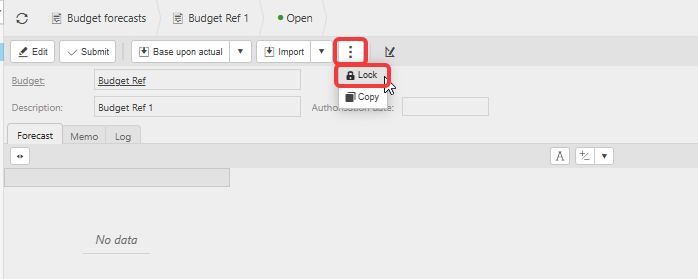
If a budget forecast has not yet been approved, you can lock it directly from within the forecast record.
- Navigate to Budget > Forecasts and open the forecast you want to lock
- Select the three-dot menu ( ⋮ ) in the top toolbar
- Select 'Lock'
The forecast status changes to 'Closed'. The forecast remains visible in the system and can be unlocked at any time.
Locking a budget forecast after approval
Once a budget forecast has been approved, the 'Lock' option is no longer available directly on the forecast. To lock an approved forecast in iplicit's Budget module, you need to lock the budget it is associated with.
Locking a budget sets the budget status to 'Closed' and locks all forecasts linked to that budget at the same time.
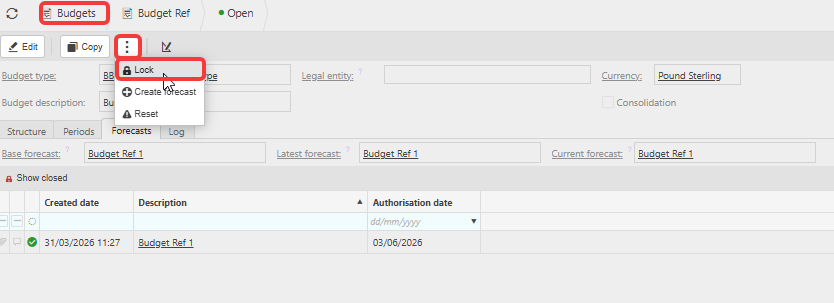
- Navigate to Budget > Budgets and open the budget associated with the forecast
- Select the three-dot menu ( ⋮ ) in the top toolbar
- Select 'Lock'
The budget and all its linked forecasts are now locked.
Locking one forecast without locking others
If a budget has more than one forecast and you only want to lock a specific one, use the following approach in iplicit's Budget module.
- Lock the budget using the steps above - this locks the budget and all linked forecasts
- Open the budget and select the three-dot menu ( ⋮ )
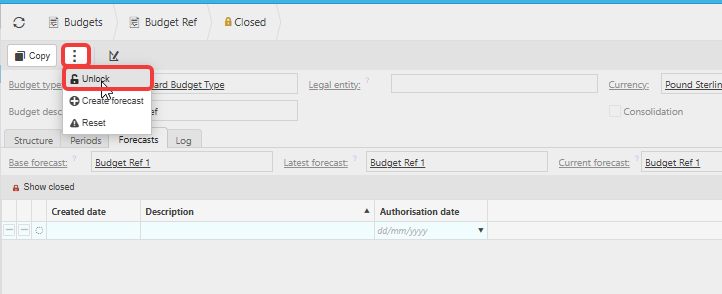
- Select 'Unlock' to unlock the budget
- Open each forecast you want to keep unlocked and select 'Unlock' from the three-dot menu
The forecasts you unlocked are now editable again. The forecast you wanted to lock remains in 'Closed' status.
Unlocking a budget forecast
You can unlock a budget or forecast at any point. Open the record, select the three-dot menu ( ⋮ ) and select 'Unlock'. The status returns to its previous state.
Lock budget forecast
Lock budget
Unlock budget
Close budget forecast