

This article covers creating a sales order that invoices in instalments using Billing Schedule, once the module is enabled and the relevant account is configured. For adding a deposit to this order, see 'How to add a deposit to a billing schedule sales order?'
Unlocking the billing schedule document type
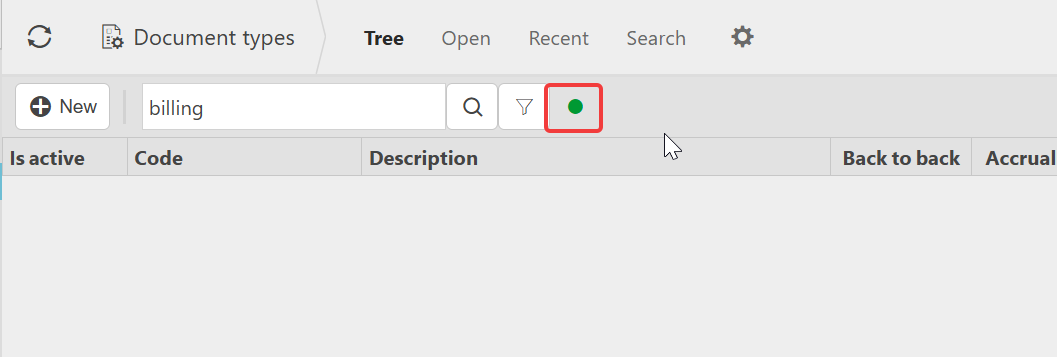
Before Billing Schedule can be used on a sales order, the document type must be unlocked.
- Navigate to 'Document types'
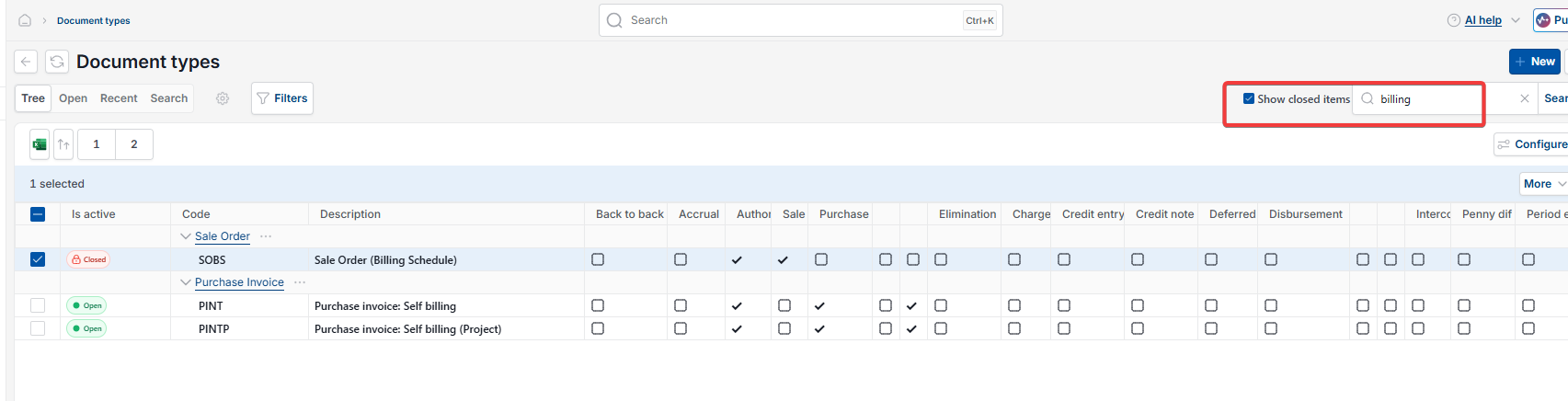
- Search for 'Billing Schedule'
- If the document type doesn't appear, tick 'Show closed items' to reveal inactive document types
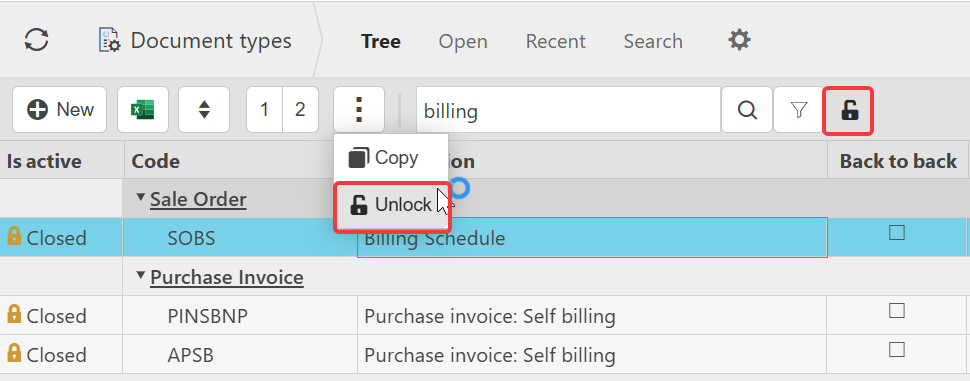
- Select the 'Billing Schedule' record
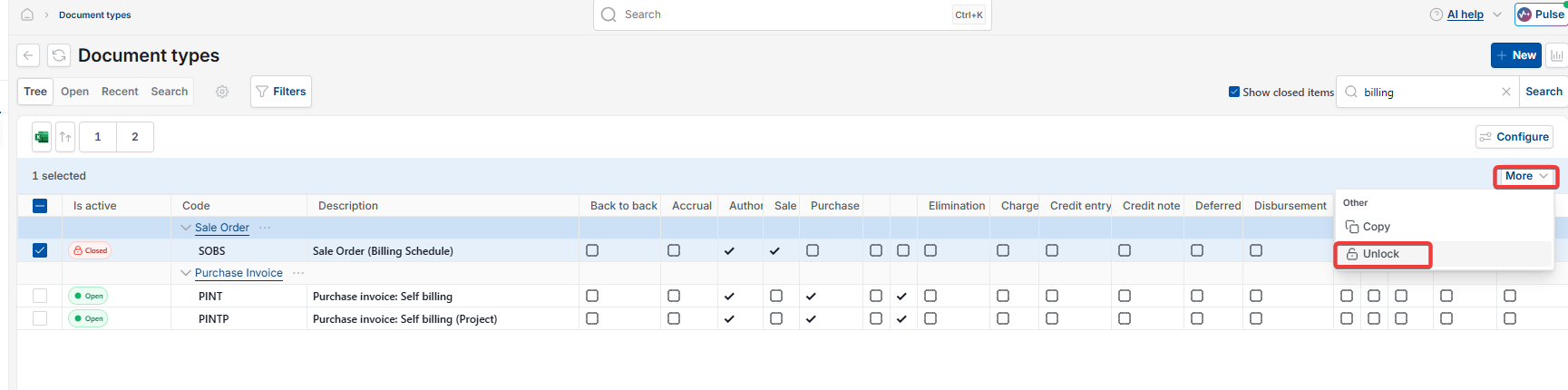
- Open the additional actions menu – shown as a three-dot icon or as the 'More' dropdown, depending on your version of iplicit
- Select 'Unlock'.
Assigning a document series
Once unlocked, the document type needs a document series before it can be used.
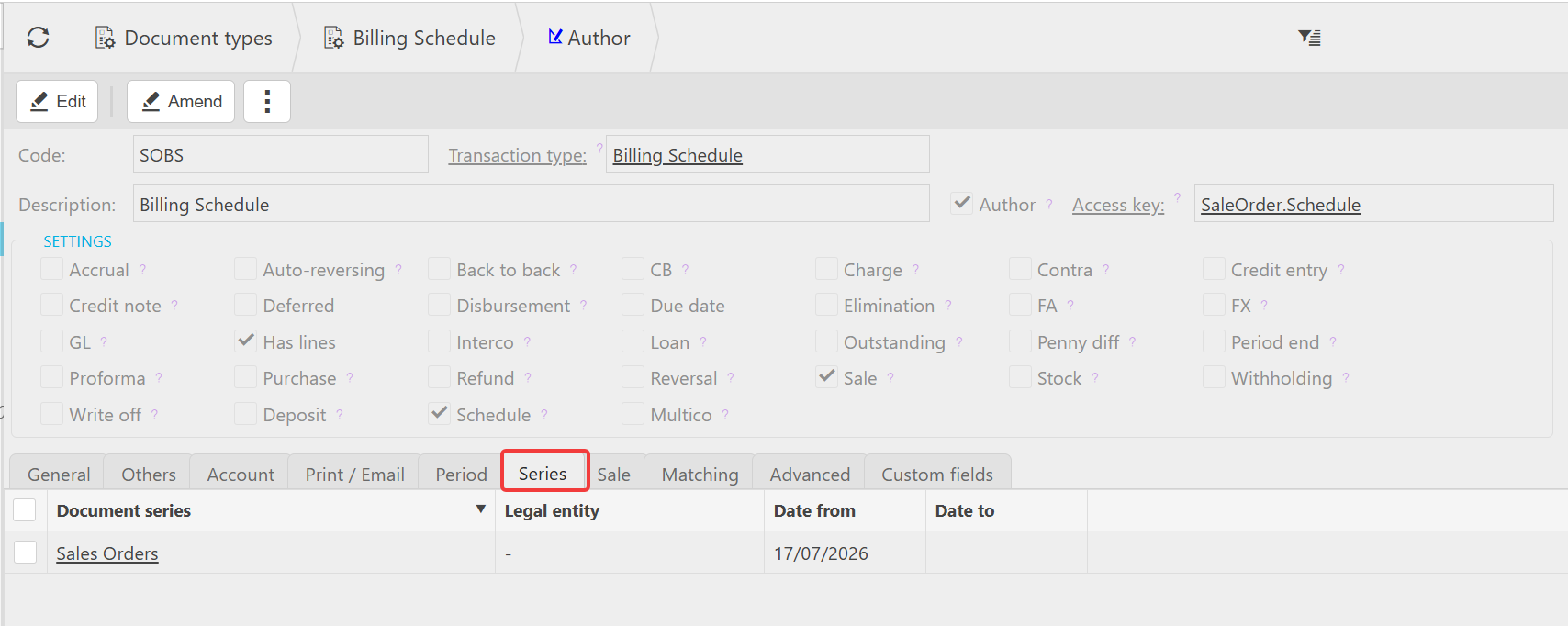
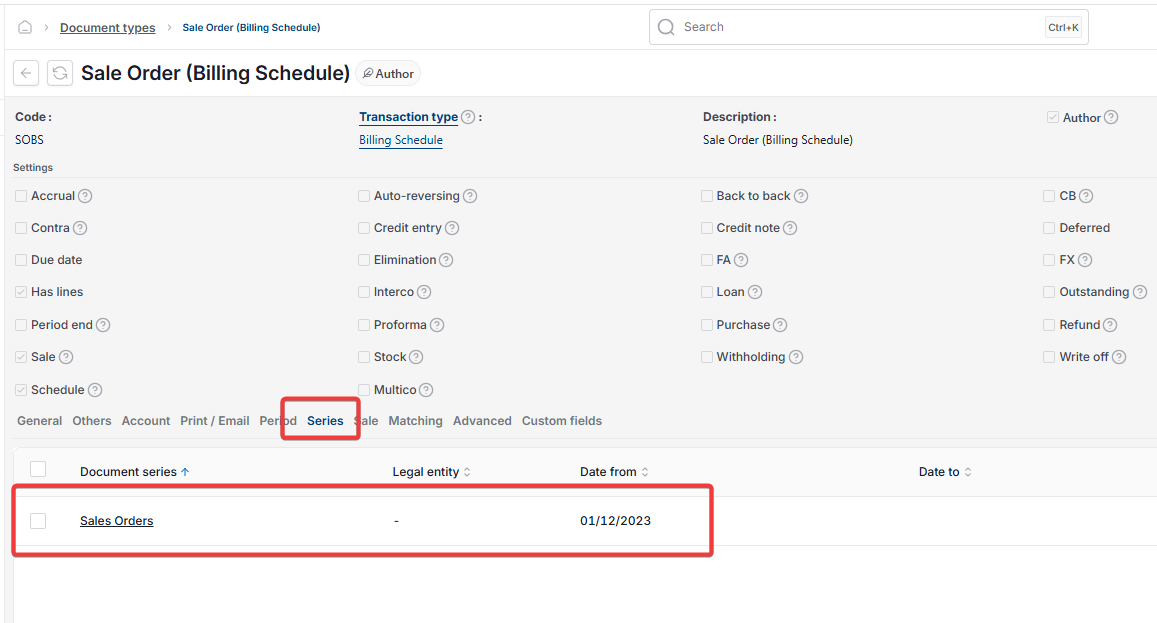
- With the document open in edit mode, go to the 'Series' tab
- Assign a document series
- Set the date from field to any historic date before your earliest order that needs picking up
- Save the changes.
Setting the order type
- Create a new sale order
- Set the 'Order type' field to 'Billing Schedule'
- Complete the customer, legal entity and description fields as normal.
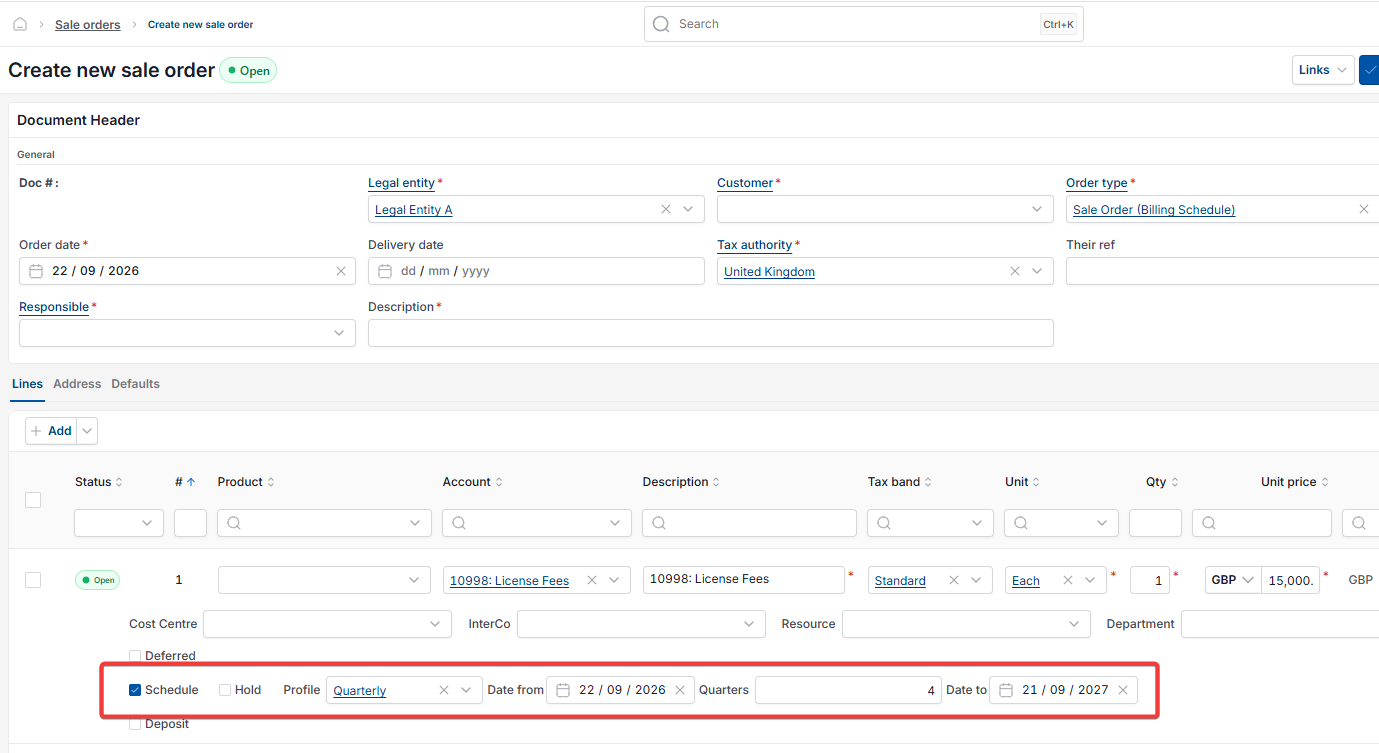
Setting the schedule on the order line
Schedule settings are configured at line level, not at order header level.
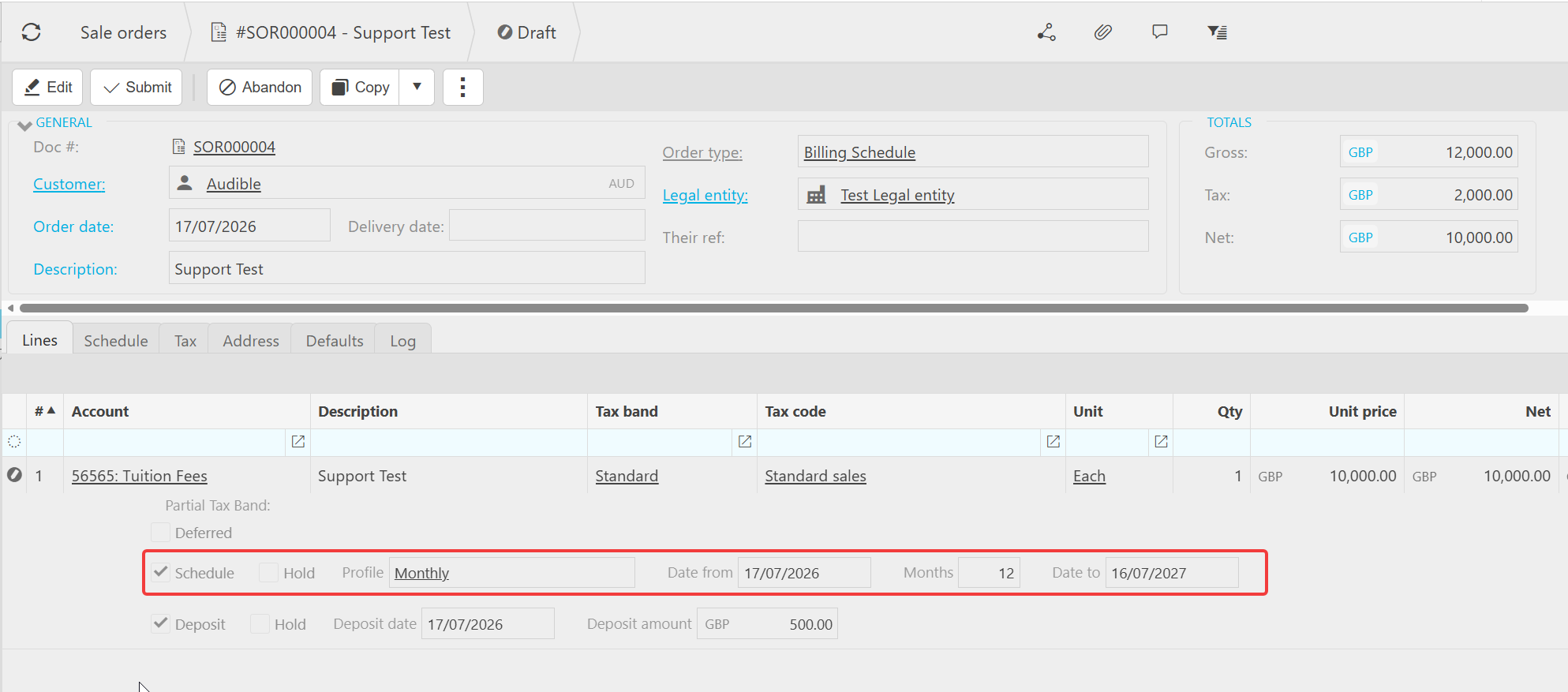
- Add your order line and select an account that has the 'Schedule' usage flag enabled
- Tick 'Schedule' on the line
- Set the 'Profile' field – for example 'Monthly'
- Set 'Date from' to the start date of the schedule
- Set 'Months' to the number of instalments required
- iplicit calculates 'Date to' automatically based on the months entered
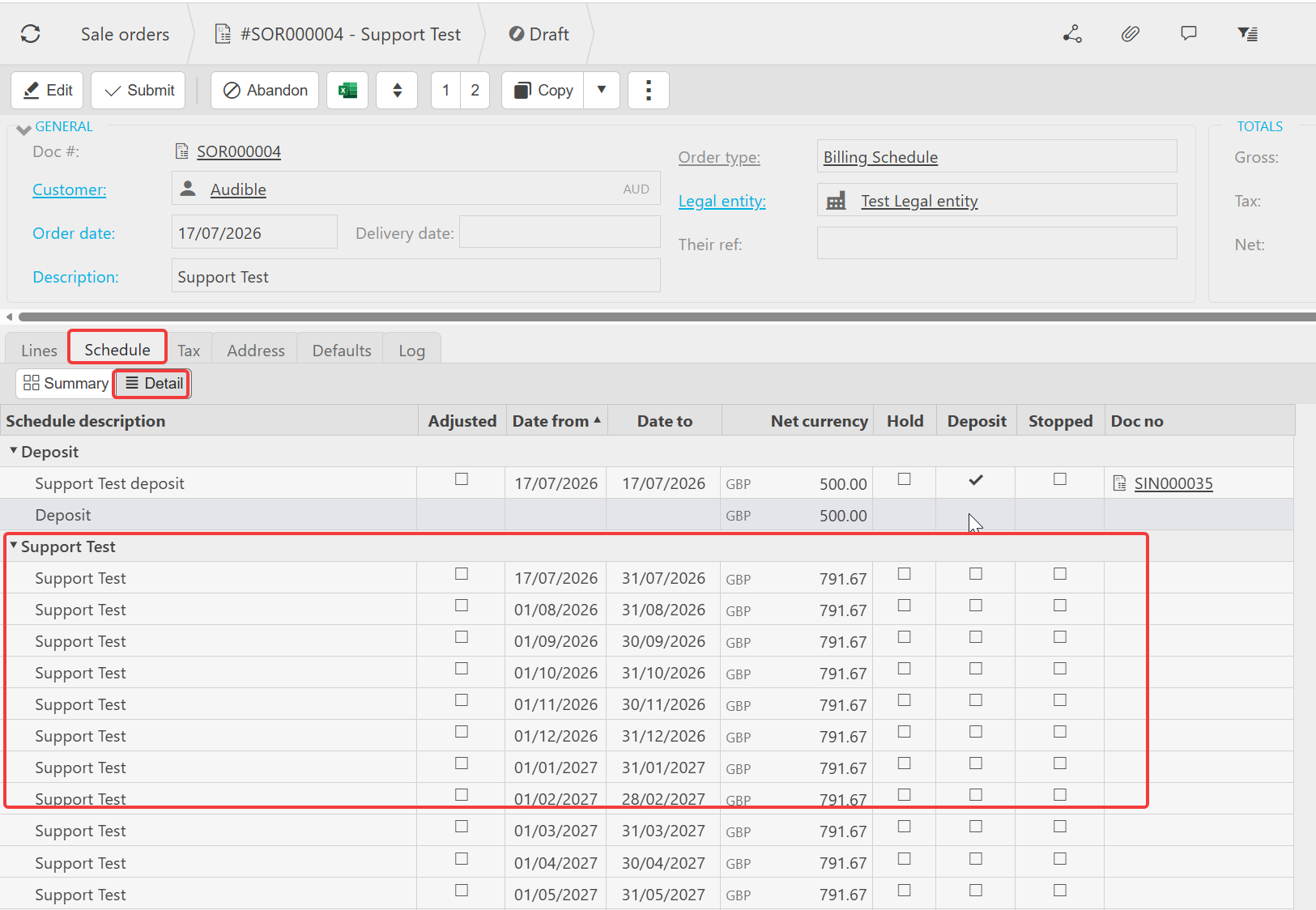
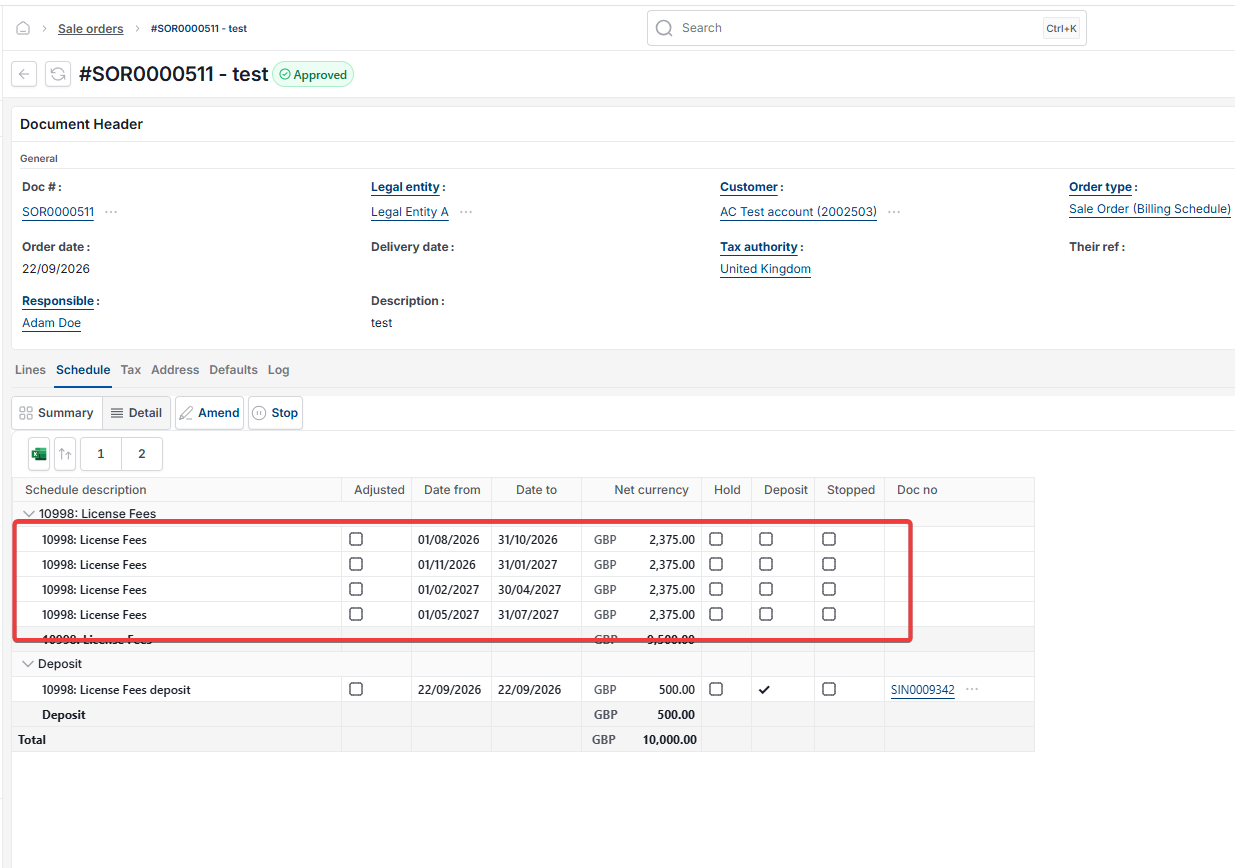
Once saved, the Schedule tab on the order shows each instalment as a separate schedule line, with its own date range and net value, and a linked invoice number once that instalment has been invoiced.
If 'Schedule' does not appear on the line
If the 'Schedule' tick box does not appear against the order line, the account selected does not have the 'Schedule' usage flag enabled. See 'Setting up an account for use in a billing schedule'.
Create billing schedule order
Monthly billing schedule
Recurring sales order
Schedule sales order
Billing schedule setup on order
Billing schedule locked