

This article covers taking an upfront deposit on a sales order that is using Billing Schedule. This sits alongside the schedule lines covered in 'How to create a sales order with a billing schedule', and feeds the invoice raised by 'Setting up sales deposit automation to invoice a deposit against a billing schedule'.
Adding a deposit to a billing schedule sales order line
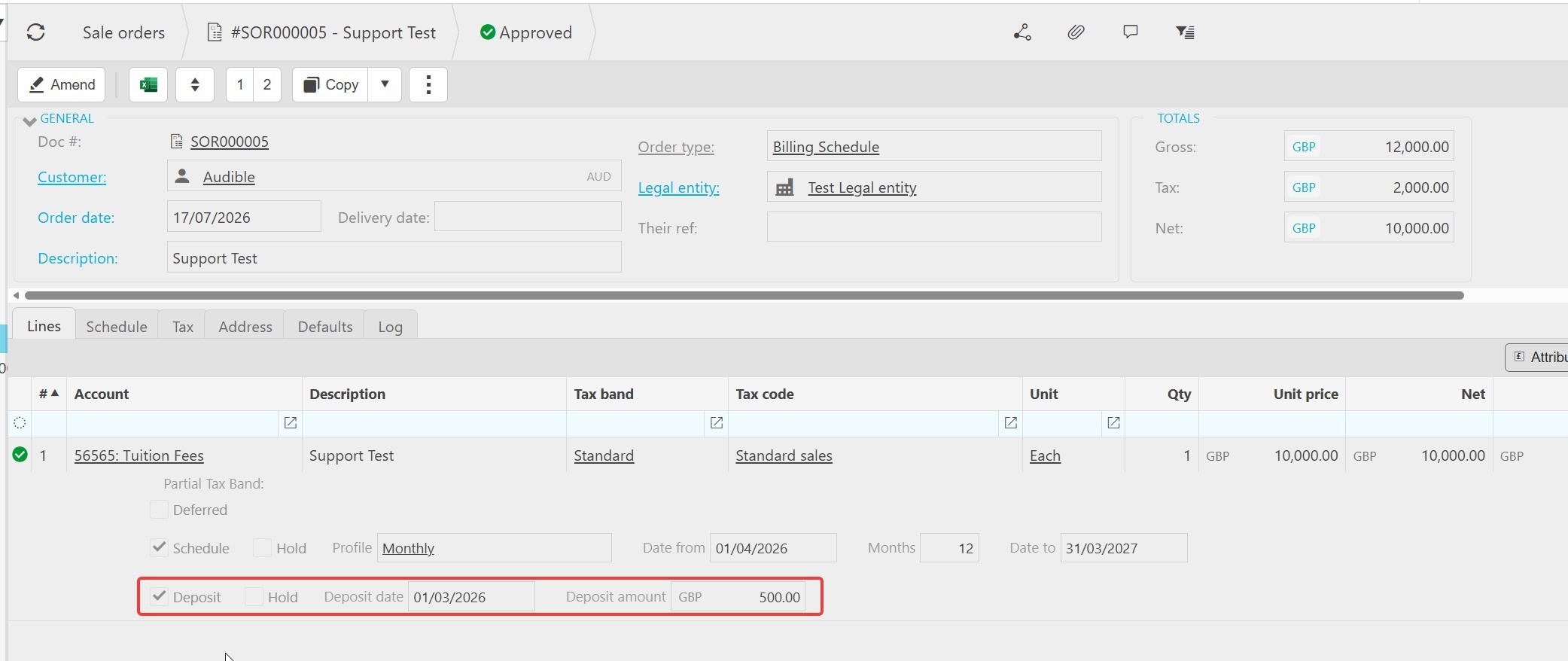
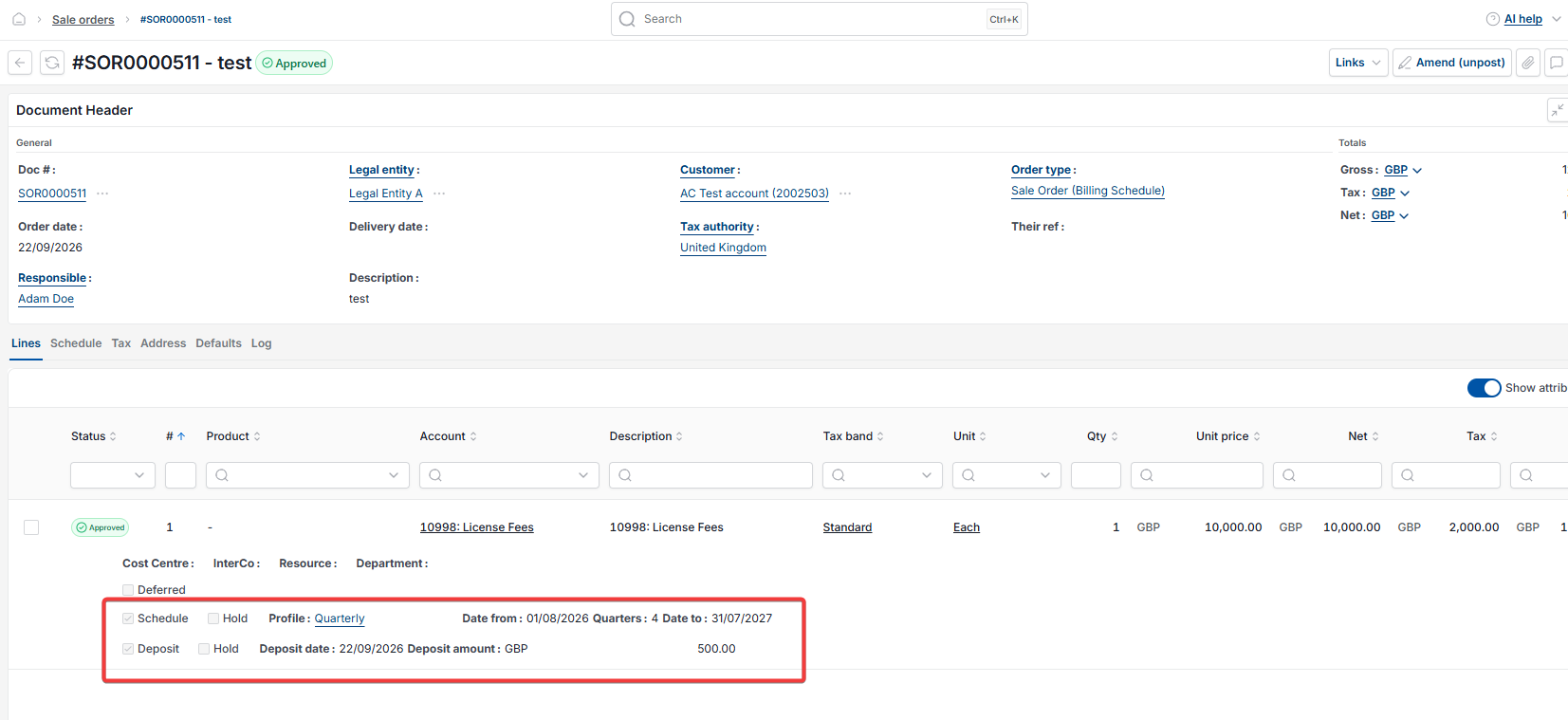
Deposit settings are configured on the same order line as the schedule, and only appear if the GL account being used has the 'Deposit' usage flag enabled on its settings.
- On the order line, tick 'Deposit'
- Set 'Deposit date' to the date the deposit should be invoiced from
- Enter the 'Deposit amount'
- Save the order.
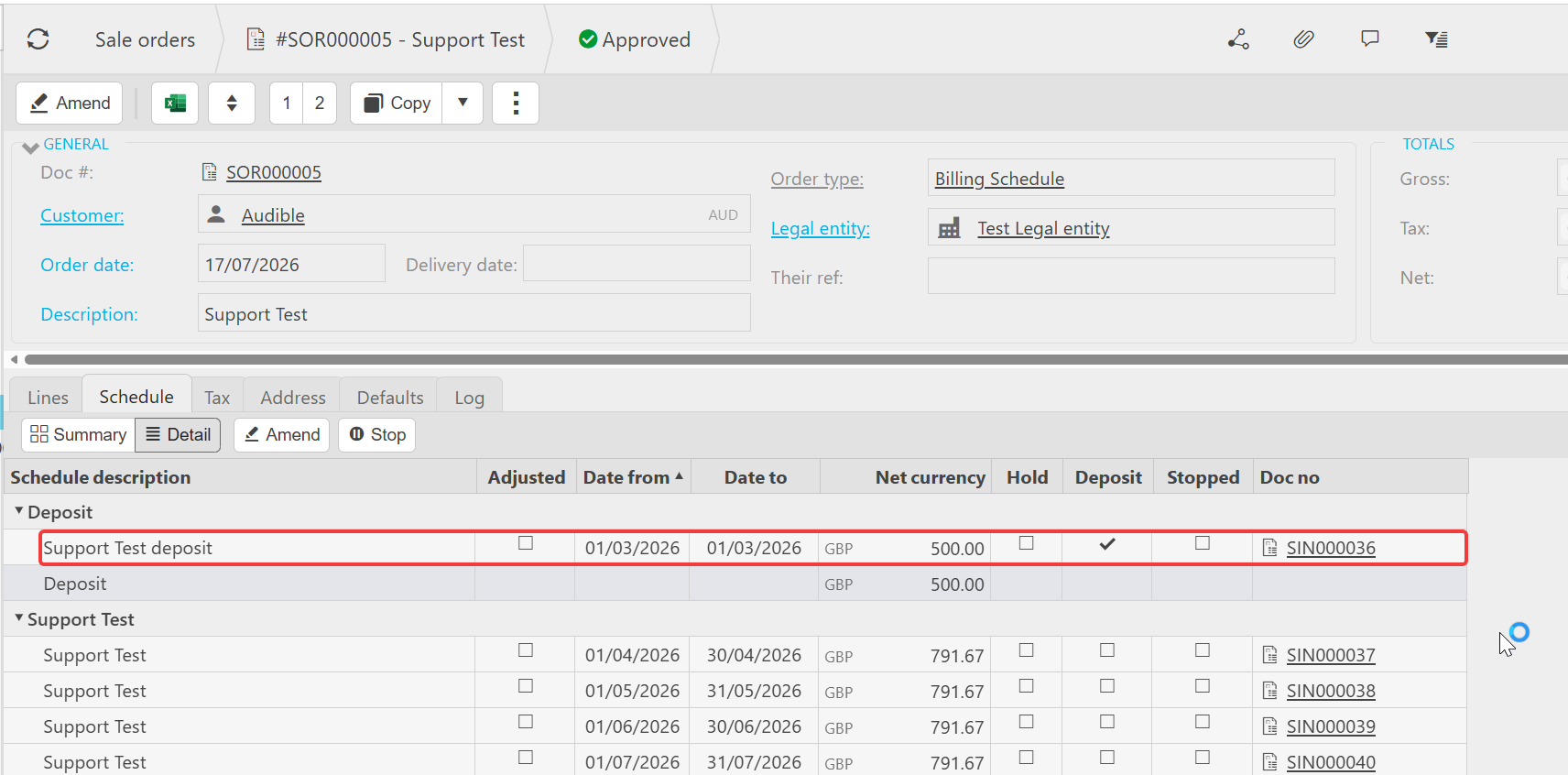
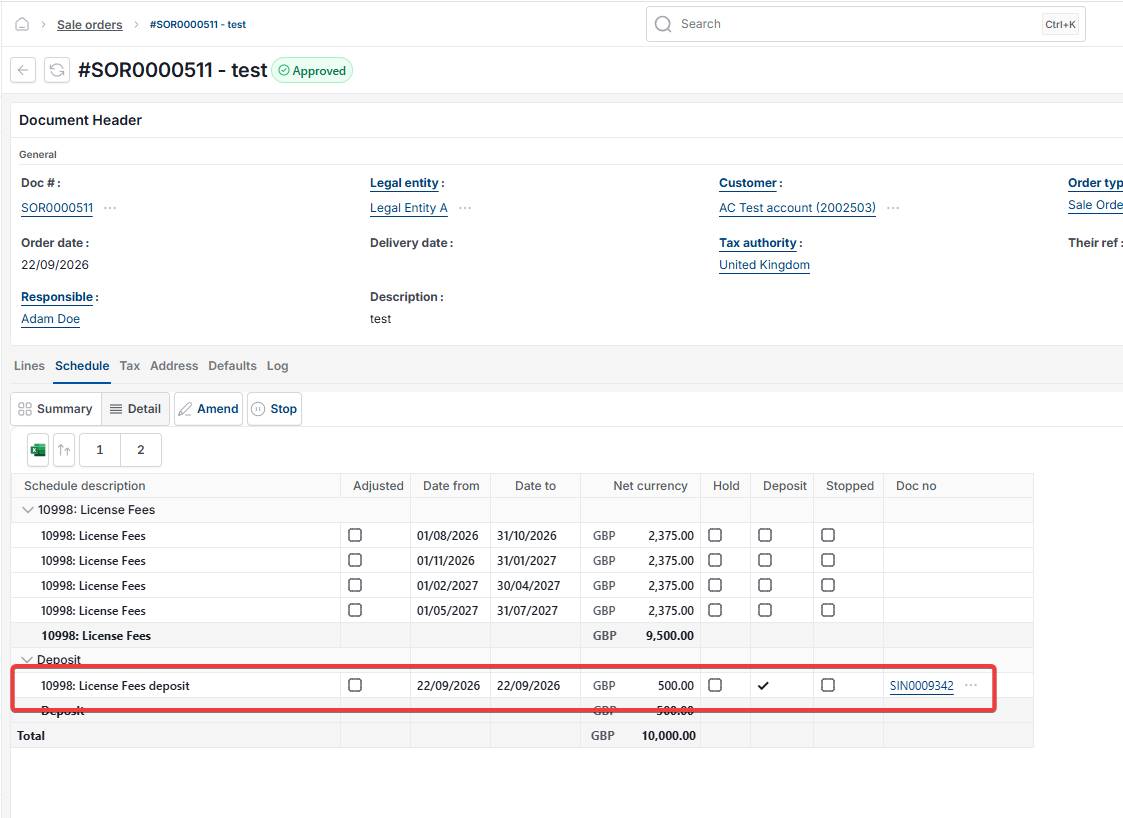
The deposit appears as its own entry on the 'Schedule' tab, separate from the regular instalment lines, and shows a tick under 'Deposit' to distinguish it from the standard schedule entries.
If 'Deposit' does not appear on the billing schedule order line
If the 'Deposit' tick box does not appear against the order line, the account selected does not have the 'Deposit' usage flag enabled. See 'Setting up an account for use in a billing schedule'.
How the billing schedule deposit gets invoiced
Adding a deposit to the order line does not raise the invoice itself. The deposit invoice is generated by a separate automation. See 'Setting up sales deposit automation to invoice a deposit against a billing schedule'.
Deposit on billing schedule
Sales order deposit
Billing schedule deposit amount
Deposit not showing on order line