

This article covers configuring an income account in the Chart of Accounts so it can be used on a billing schedule sales order, including taking a deposit. This is separate from the account default used by the deposit automation, covered in 'Setting up sales deposit automation'.
Enabling an account for schedule and deposit lines
An account must have the correct usage flags ticked before it can be selected on a billing schedule line, or before the deposit fields appear for that line.
- Navigate to the Chart of Accounts and open the account you want to use
- Select 'Edit'
- Go to the 'Usage' tab
- Tick 'Schedule' to allow the account to be used on a billing schedule line
- Tick 'Deposit' as well if you also want to take a deposit against orders using this account
- Save the changes.
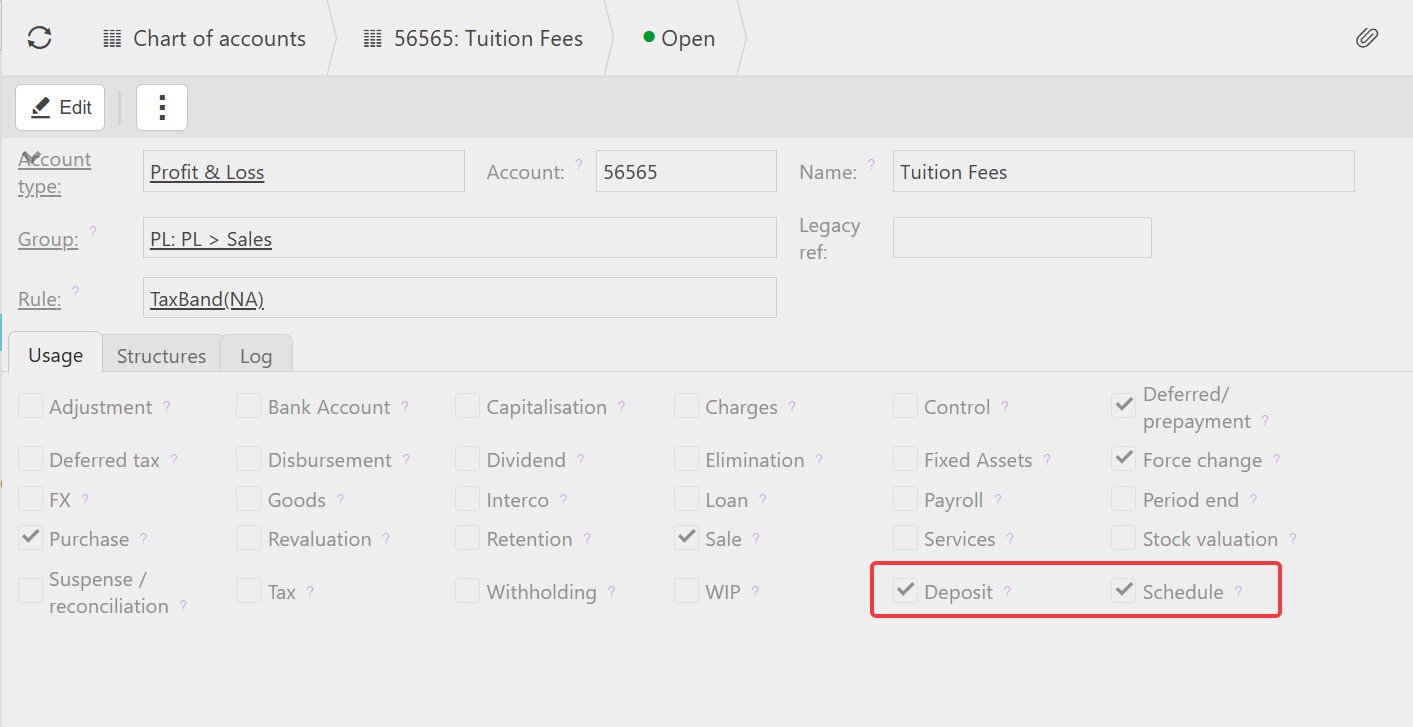
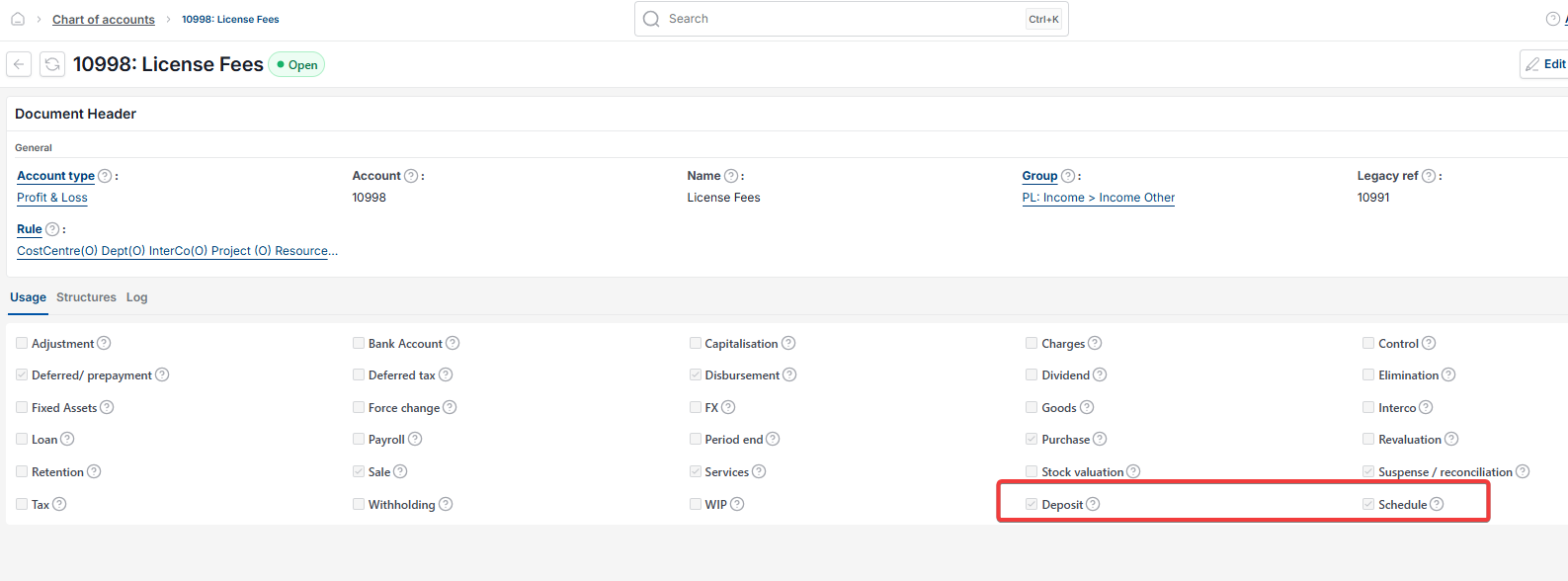
If the Deposit and Schedule flags are not visible
Billing Schedule is a chargeable module and must be enabled in your environment before you can set up the account correctly to use this feature. If 'Deposit' and 'Schedule' do not appear on your GL account, please raise a support ticket or reach out to your Customer Success Executive who will be able to assist you in utilising this feature.
What ticking these flags does
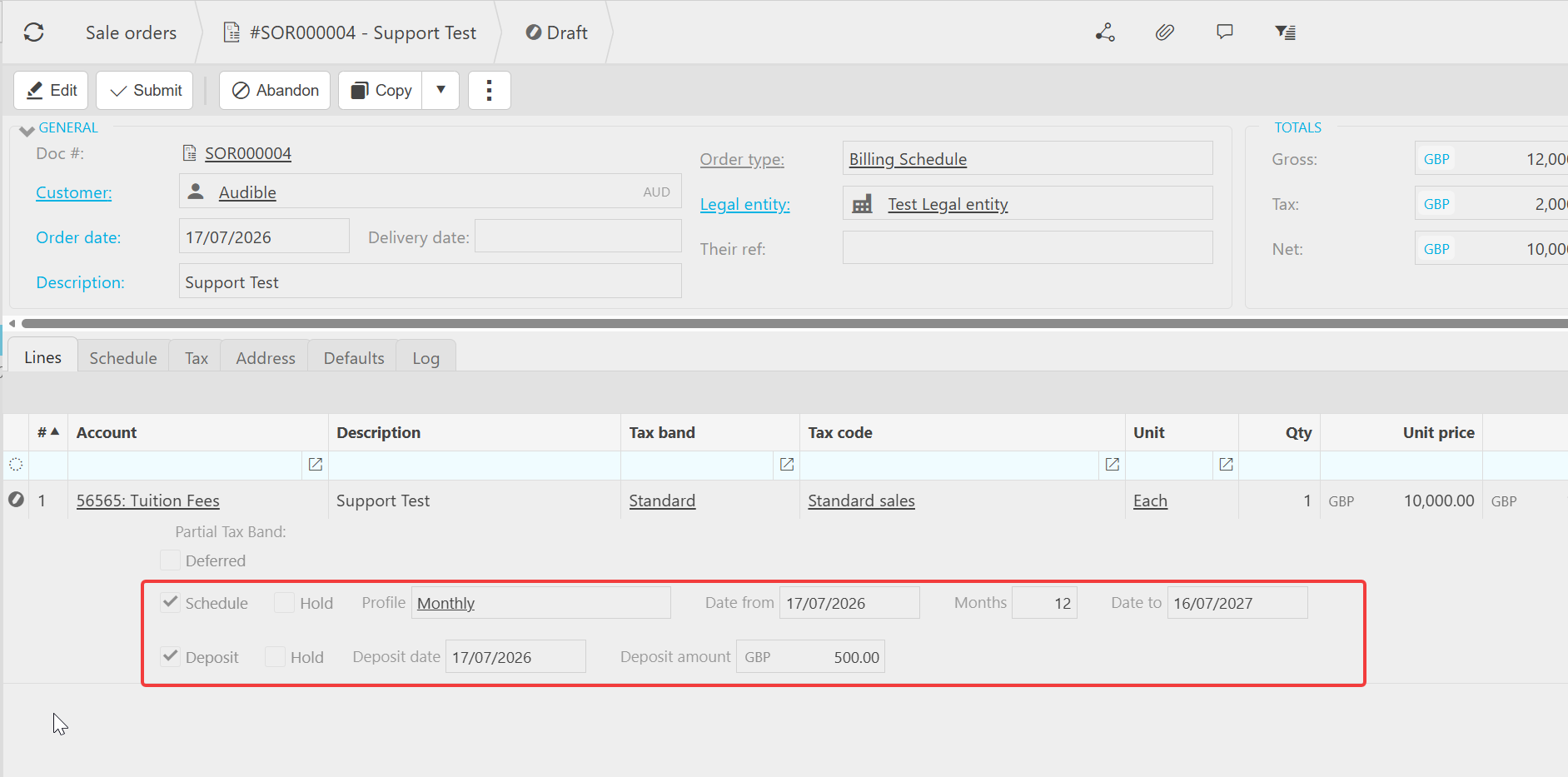
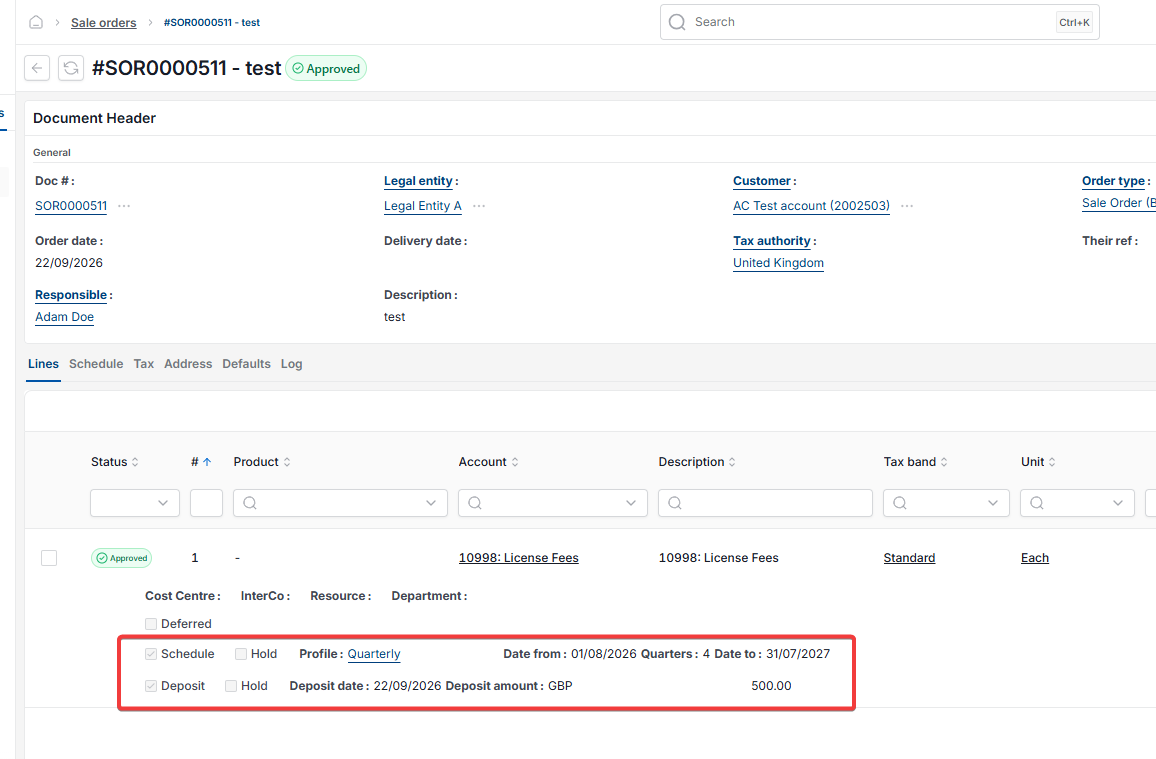
Ticking 'Schedule' and 'Deposit' on the account makes the corresponding settings available at line level on a sales order using that account. If these flags are not ticked, the schedule and deposit options will not appear on the order line, even where the account itself is otherwise usable.
Billing schedule account
Deposit account setup
Schedule usage flag
Account not showing on schedule line
Chart of accounts deposit
Billing schedule not enabled