

This article covers automating a sales deposit invoice from a billing schedule sales order, within the Sales Ledger. This is a separate automation from the one that generates the regular scheduled invoices – see 'Generating scheduled invoices with the billing schedule automation' for that.
Unlocking the sales deposit document type
Before you can automate a sales deposit, the 'Sale invoice: Deposit' document type must be unlocked and configured with a document series and an account default. By default, this document type is locked.
- Navigate to 'Document types'
- Search for 'deposit'
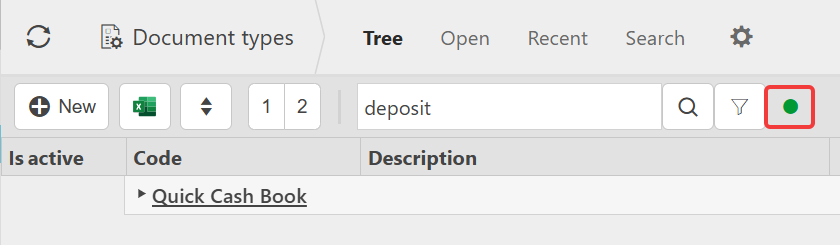
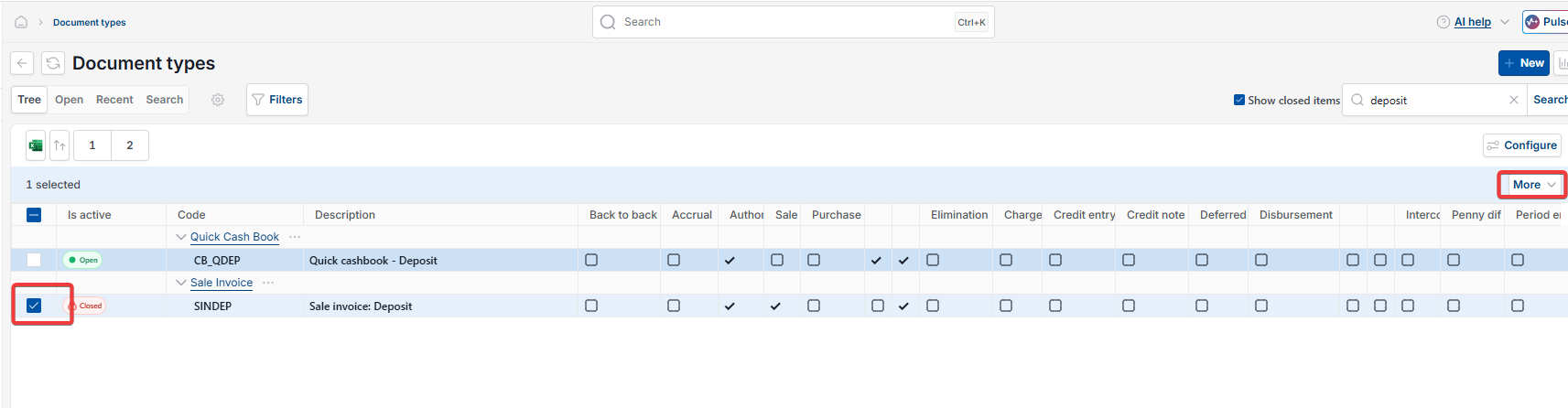
- Depending on your screen, select the green dot or tick 'Show closed items' to reveal inactive document types
- Select the 'Sale invoice: Deposit' record
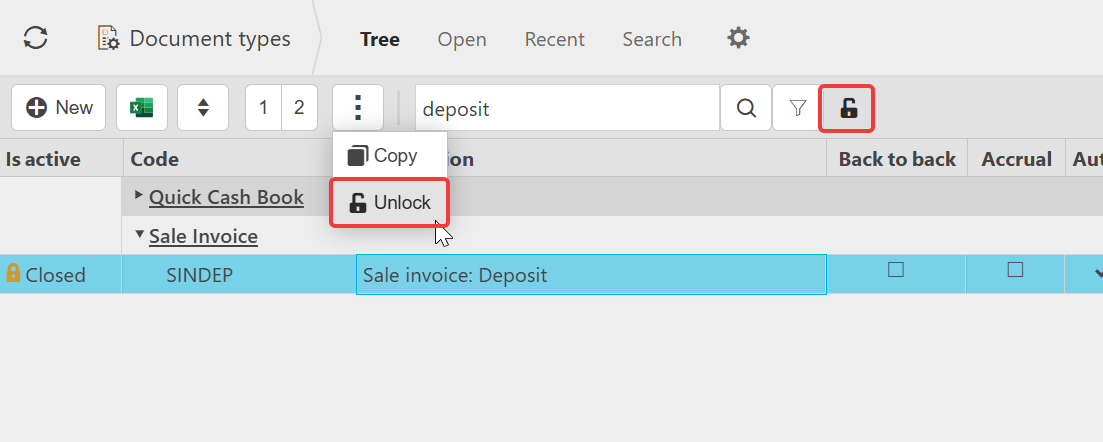
- Depending on your screen, select the three-dot menu or the 'More' drop-down
- Select 'Unlock'.

Assigning a document series to the sales deposit document type
Once unlocked, the document type needs a document series before it can be used in an automation.
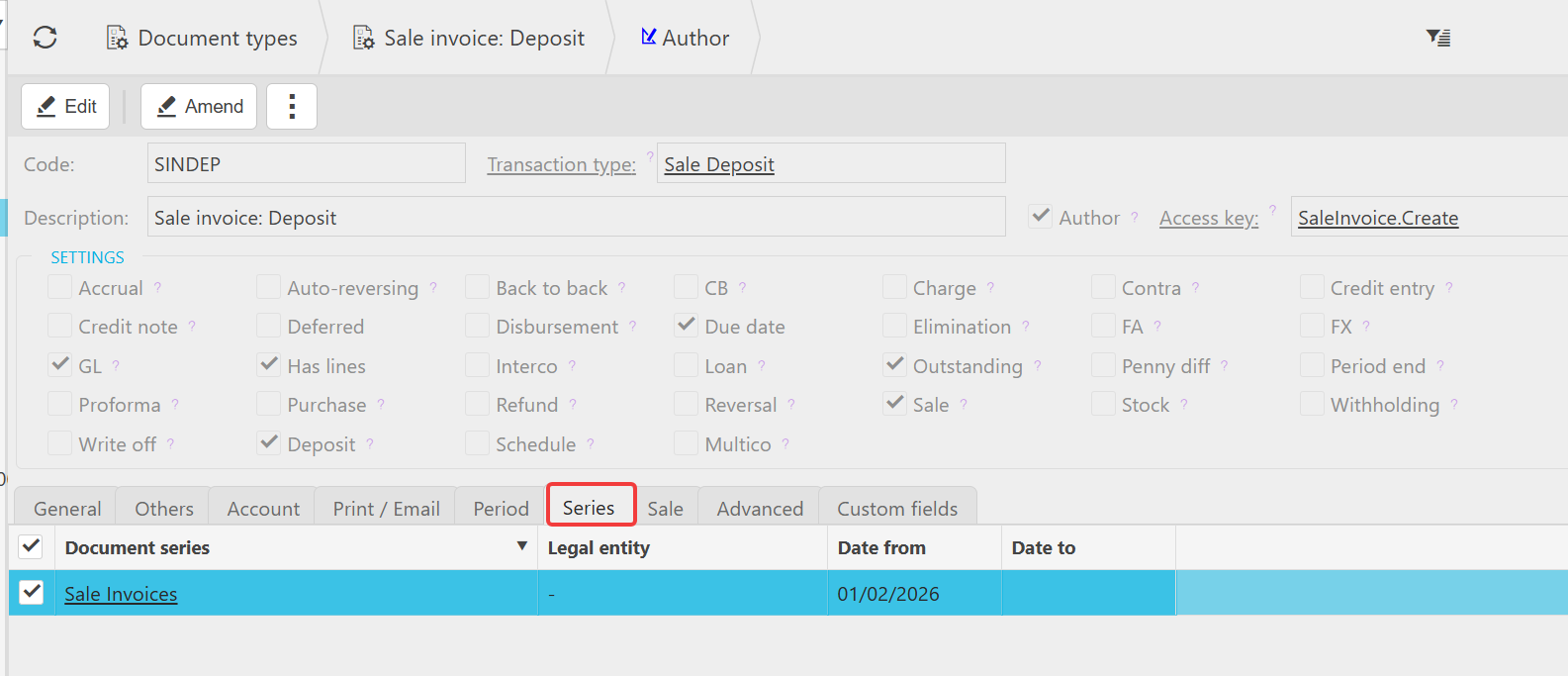
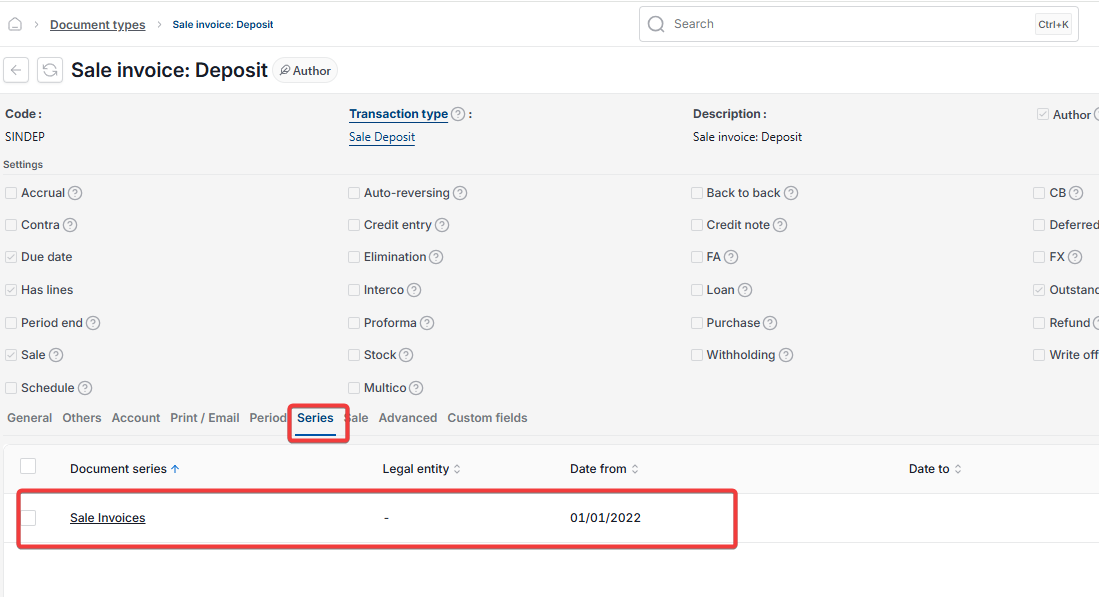
- With the document open in edit mode, go to the 'Series' tab
- Assign a document series
- Set the 'Date from' field to any historic date before your earliest order that needs picking up
- Save the changes.
Assigning an account default for sales deposits
The deposit automation maps to your debtors control account through an account default, not directly through the Chart of Accounts.
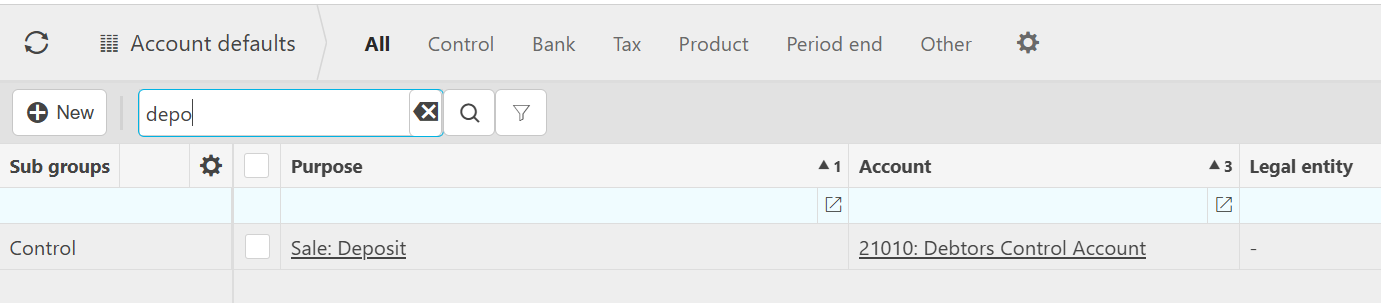
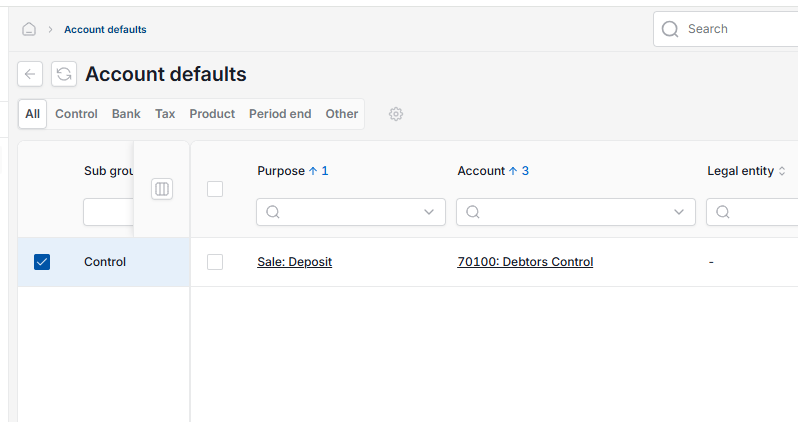
- Navigate to 'Account Defaults'
- Search for 'sale'
- Tick the record with purpose 'Sale: Deposit'
- Confirm the account is set to your debtors control account.
Creating the sales deposit automation
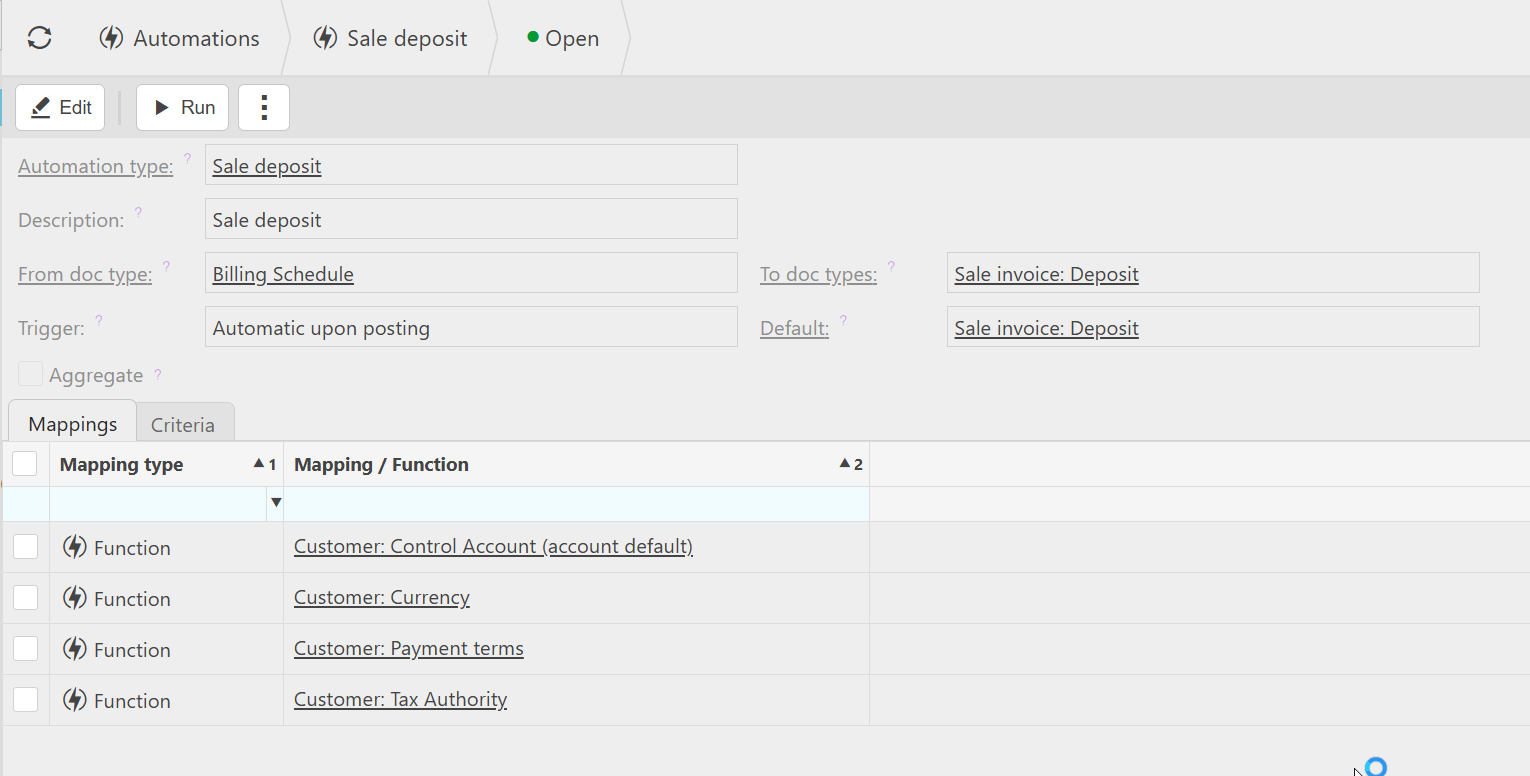
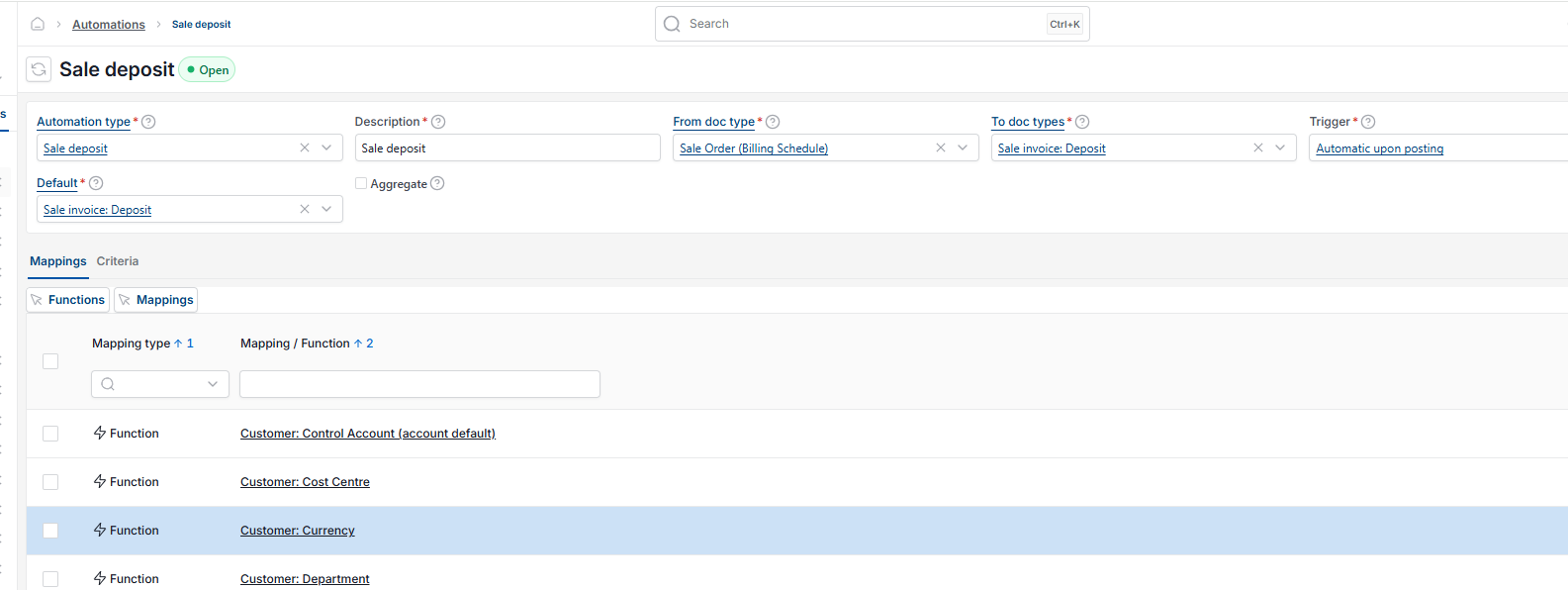
- Navigate to 'Automations' and select 'New'
- Set 'Automation type' to 'Sale deposit'
- Set 'From doc type' to 'Billing Schedule'
- Set 'To doc types' and 'Default' to 'Sale invoice: Deposit'
- Set 'Trigger' to 'Automatic upon posting'
- Save the automation.
Because the trigger is set to automatic upon posting, the deposit invoice is raised as soon as the billing schedule sales order is posted. You do not need to run this automation manually, unless the date for the deposit is in the future.
For how to create a billing schedule order, including adding the deposit, see 'How to create a sales order with a billing schedule' and 'How to add a deposit to a billing schedule sales order'.
Sales deposit automation
Invoice a deposit
Deposit automation
Billing schedule automation
Automate sales deposit
Deposit invoice not showing in billing schedule