

This article covers creating a custom Purchase invoice type within the Purchase Ledger – for example, a dedicated invoice type for a specific supplier category or invoice source. A Purchase invoice type controls how the transaction behaves; a document series is a separate, optional numbering sequence used to group and distinguish documents. This article shows how the two work together.
Permissions needed to create a custom Purchase invoice type
To create a document series yourself, your user needs the 'Document Type: Admin' permission. If you don't have this permission, or don't need a separate numbering sequence, you can skip document series creation entirely and use an existing Purchase invoice series instead – go straight to 'Copying an existing Purchase invoice type to create your custom type' below.
A document series isn't required to create a custom Purchase invoice type, but it does make it easier to tell your custom invoices apart from standard ones, both on screen and on reports.
Creating a document series for your custom Purchase invoice type
If you want a dedicated series, create this first. See 'How do I create a new document series' for the full steps. Name the series to match your custom Purchase invoice type so the two are easy to identify together.
If you're using an existing series instead, skip this step.
Copying an existing Purchase invoice type to create your custom type
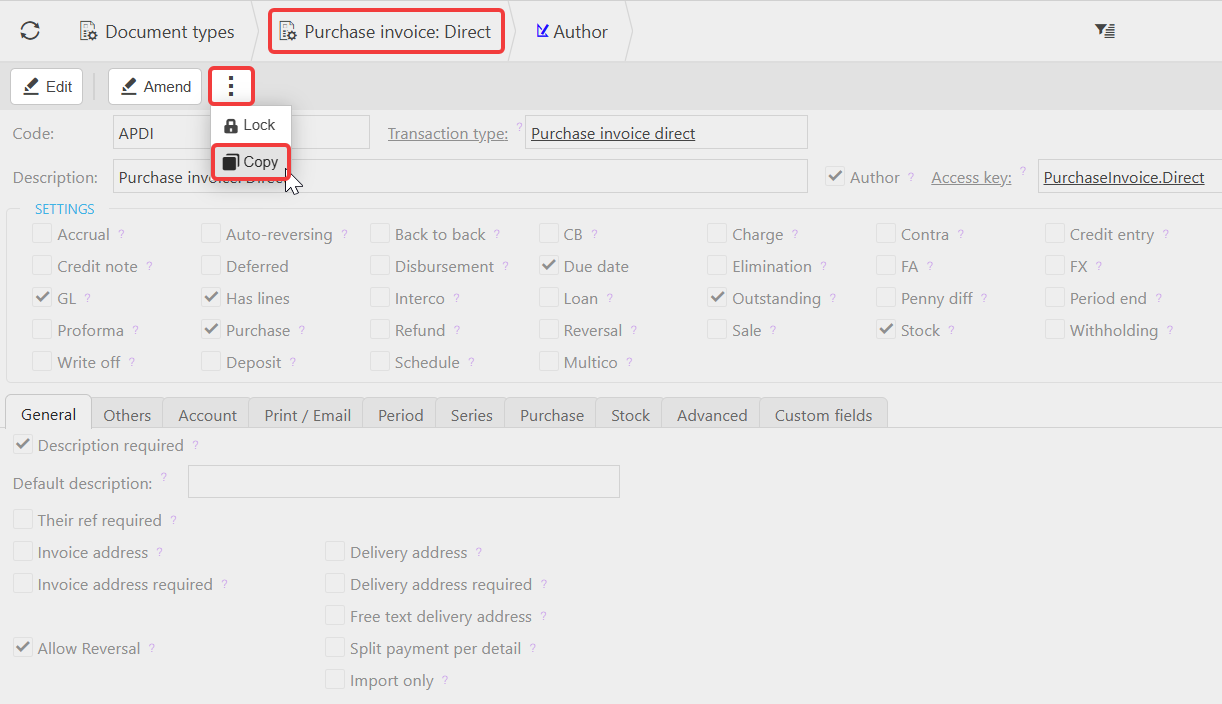
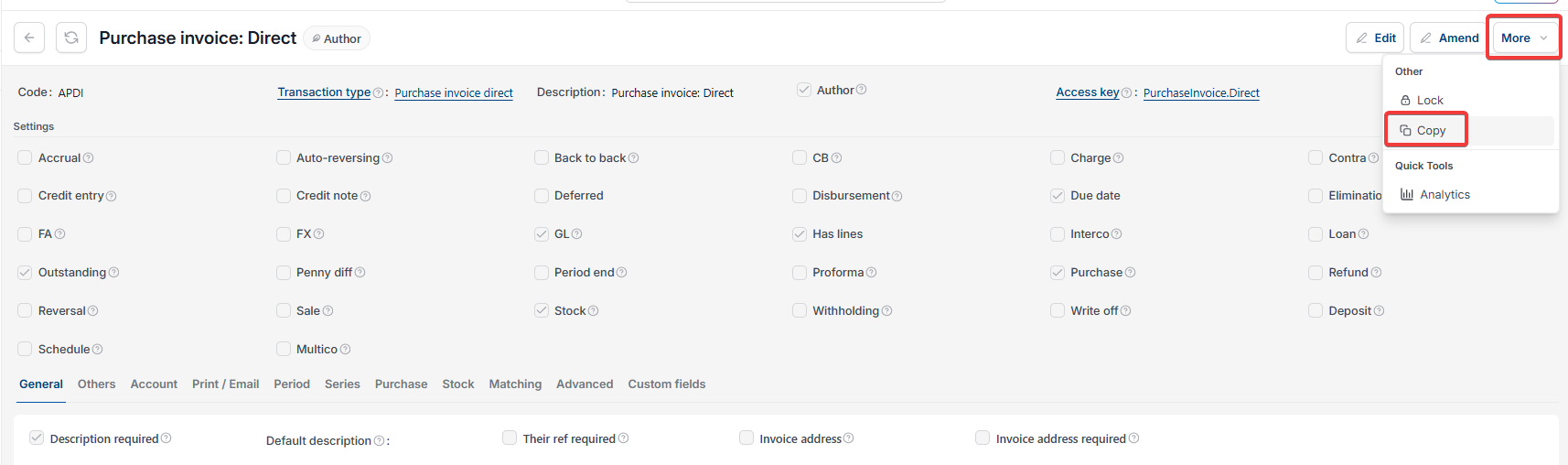
- Navigate to 'Document types', locate 'Purchase invoice: Direct' and open it
- Depending on your screen, select the ellipsis or the 'More' drop-down, then select 'Copy'
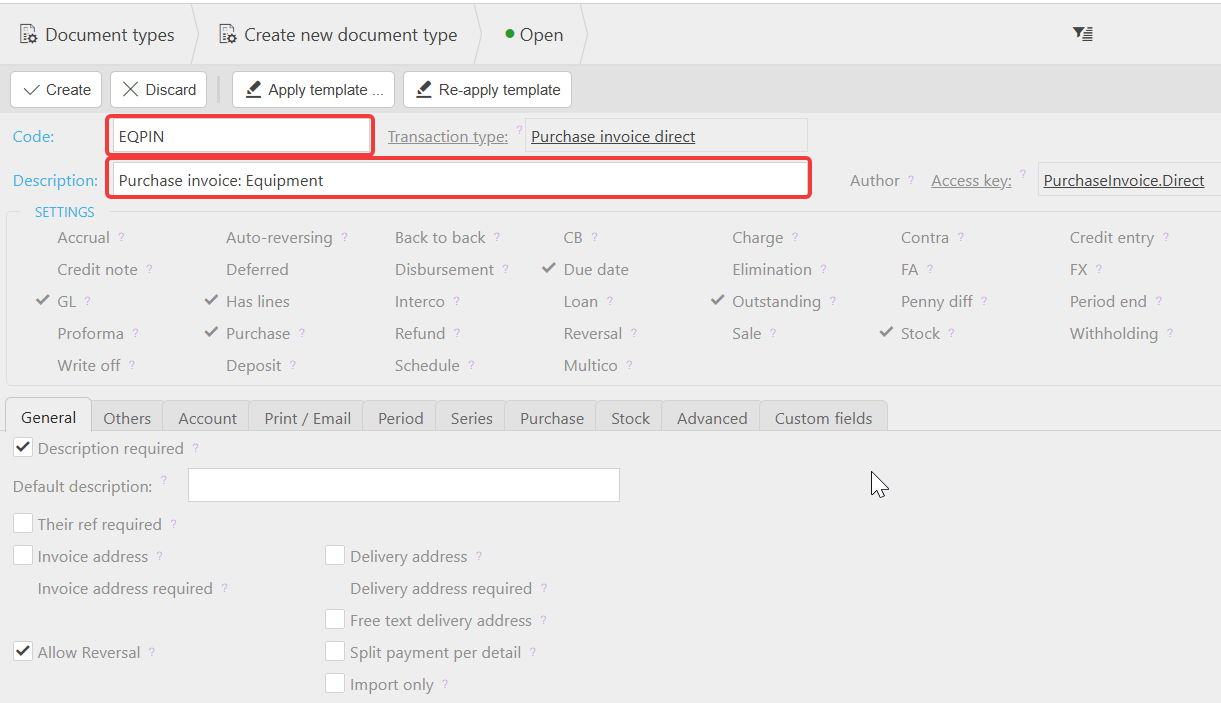
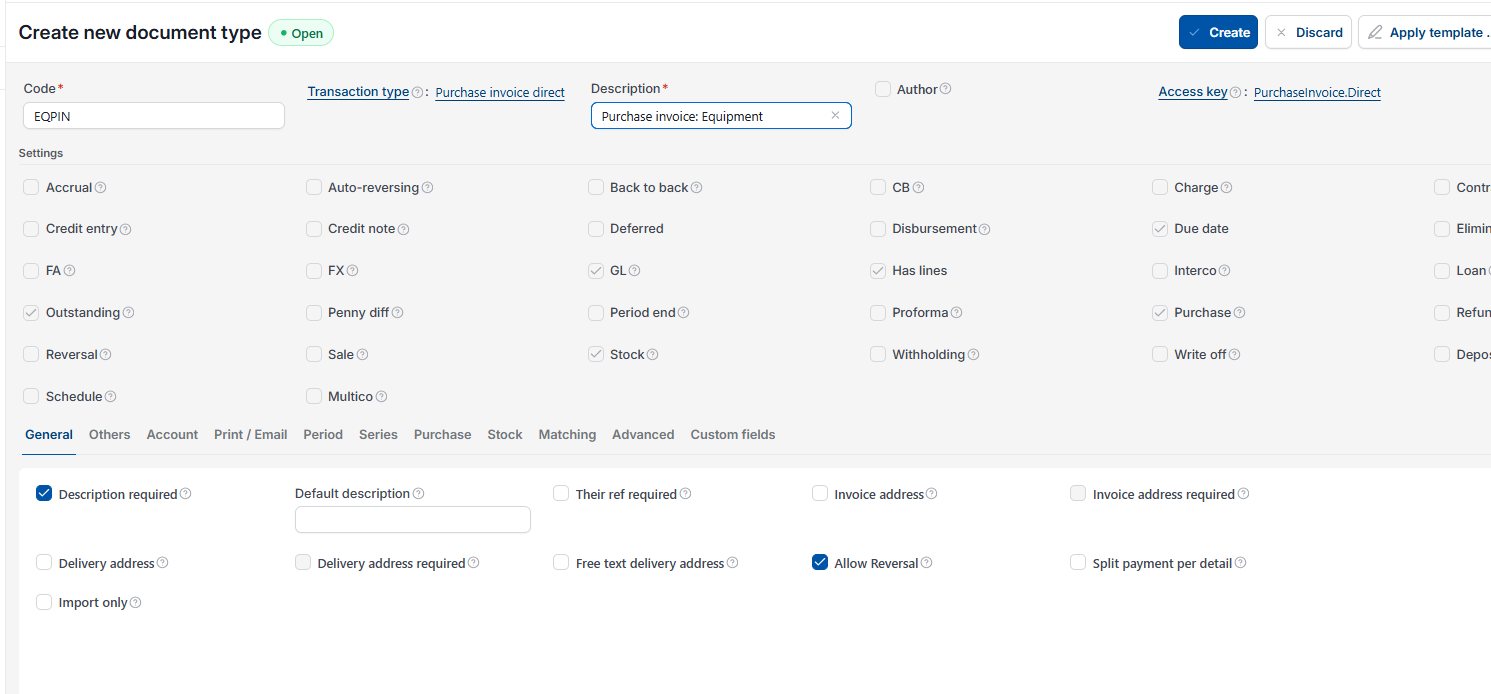
- Enter a code and description for your custom Purchase invoice type – for example 'Purchase Invoice: Equipment'.
Linking your document series to the custom Purchase invoice type
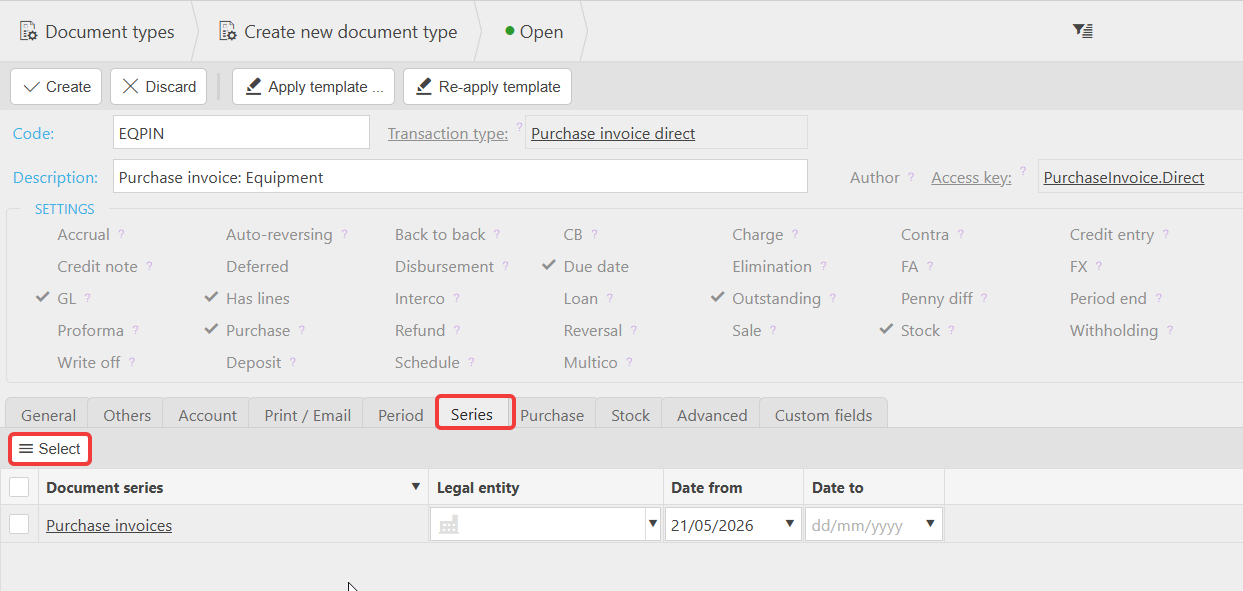
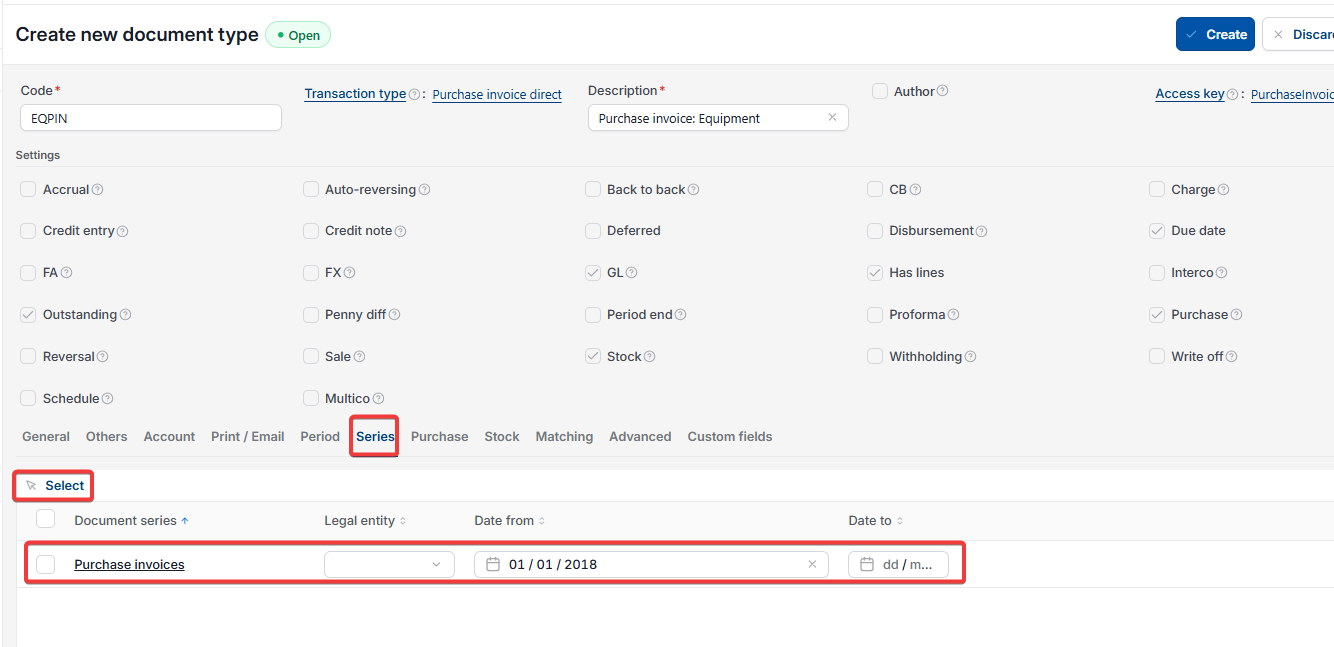
If you created a document series, link it to your new Purchase invoice type now:
- Open the 'Series' tab on your custom Purchase invoice type
- Select the new document series on the left and move it to the right
- Move 'Purchase invoice' from the right back to the left, so only your custom series is active for this type
- Apply the change.
If you're using an existing series, skip this step.
Setting the start date for your custom Purchase invoice type
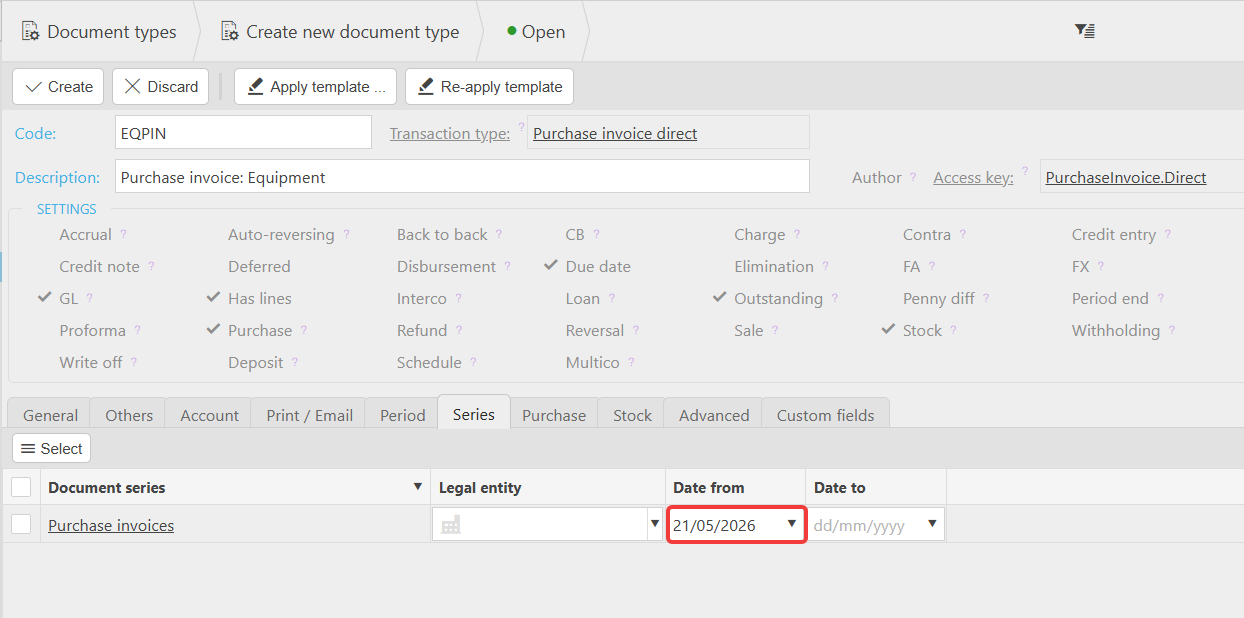
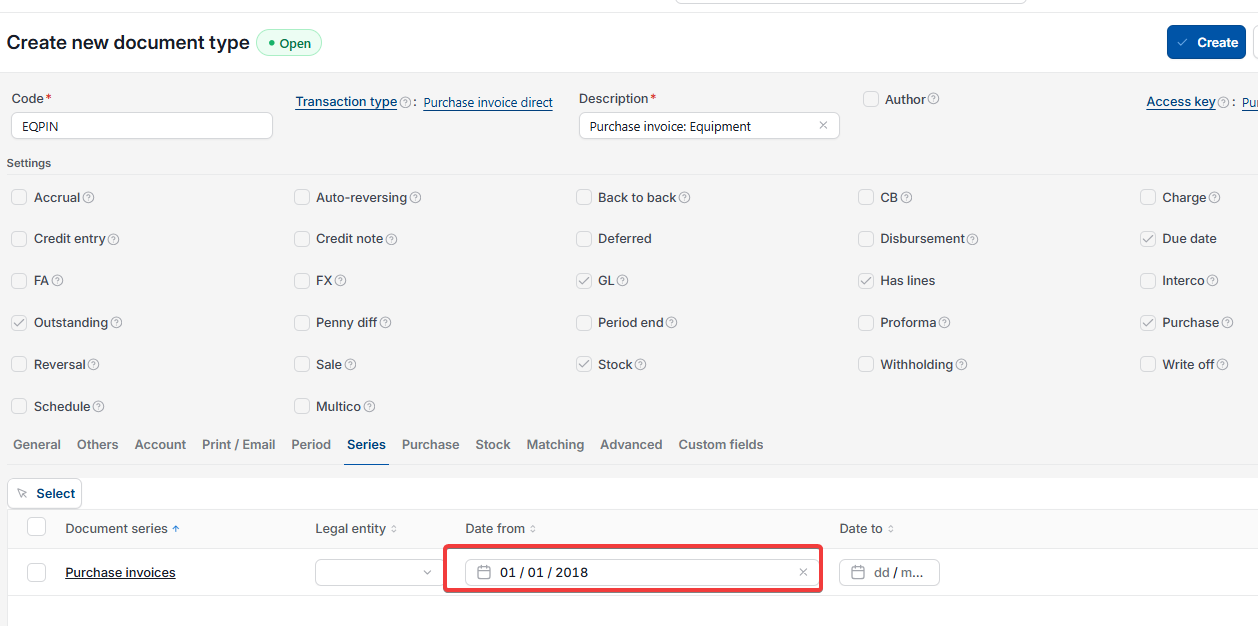
Before creating your custom Purchase invoice type, set the 'Date from' field to a date earlier than any invoices you'll raise using it. Then select 'Create'.
Using your new Purchase invoice type
Your custom Purchase invoice type is now available whenever you create a new Purchase invoice.
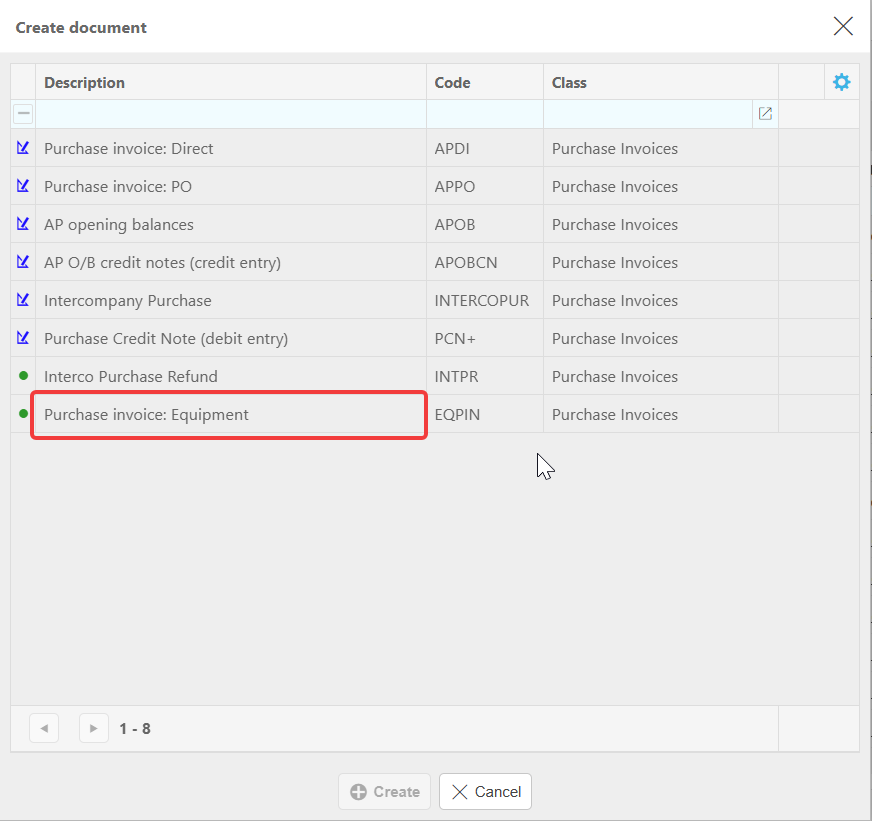
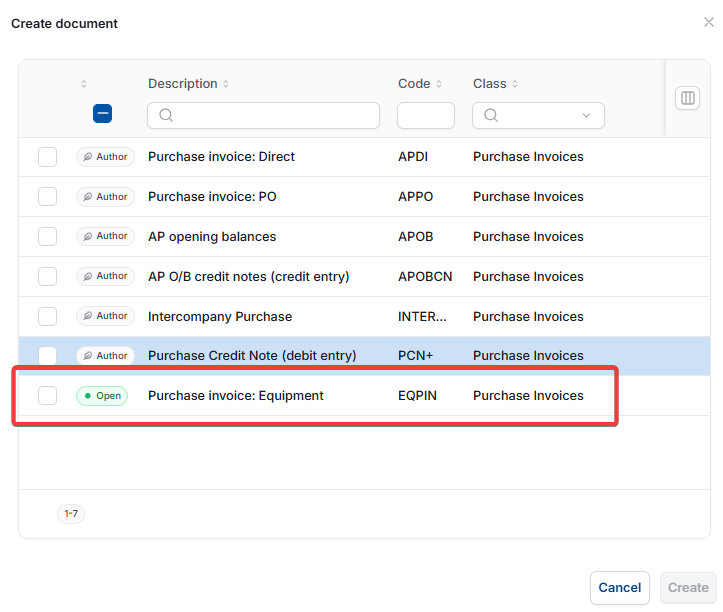
Changing the report header for a custom Purchase invoice type
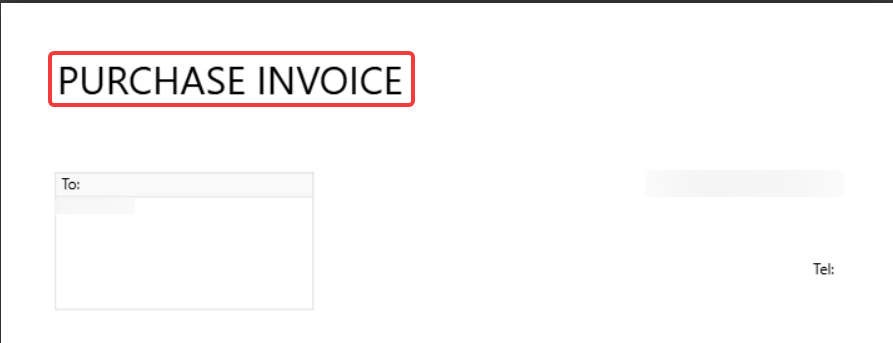
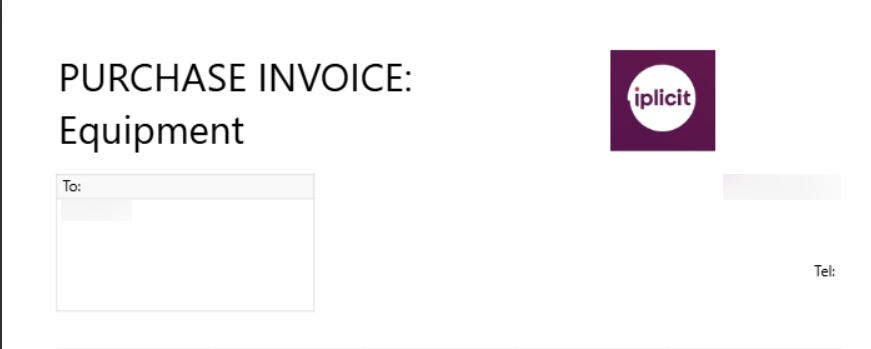
If you'd like the header on generated reports to reflect your custom Purchase invoice type, contact the iplicit Support team. This isn't something you can amend yourself within the Purchase Ledger.
Custom purchase invoice
Create invoice type
Custom document type purchase
Copy document type
Invoice template purchase ledger