

This article covers how to capitalise a fixed asset in iplicit's Fixed Assets module. Capitalisation is the process of recording an asset on the Balance Sheet, split over its useful life. Until an asset is capitalised, depreciation cannot run and the asset will not appear as a capitalised item in the register. Assets can be capitalised manually from the asset record or via the Asset Capitalisation screen.
Before capitalising a fixed asset
Four things must be in place before capitalisation can proceed in the Fixed Assets module:
- The financial year must be open and year end must not have been run for that year
- The GL account used on the source document must have 'Asset capitalisation' ticked in the Chart of Accounts
- The account must be included in an active capitalisation rule
- The document class must be a Cash Purchase, Purchase Invoice or Expense.
If these are not in place, the asset will not capitalise. See 'How to configure account defaults for fixed assets in iplicit', 'How do asset capitalisation rules work in iplicit' and 'How to set up document types and series for fixed assets in iplicit' if any setup is outstanding.
Option one: capitalise a fixed asset manually from the asset record
Use this method when you have created an asset directly in iplicit and want to capitalise it immediately without waiting for the auto-capitalisation automation to run.
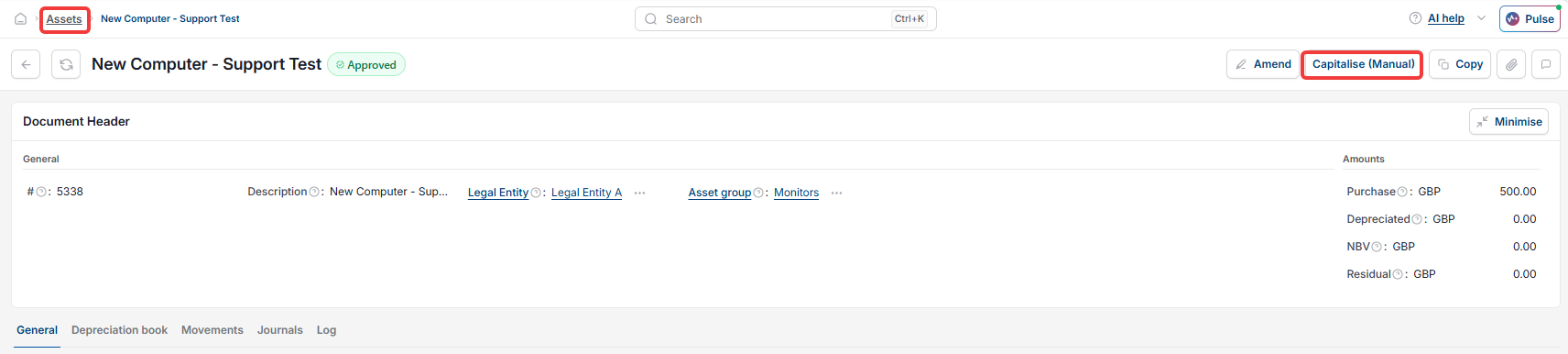
- Select 'Assets' from the main menu, or enter 'Assets' in the quick search (Ctrl + K)
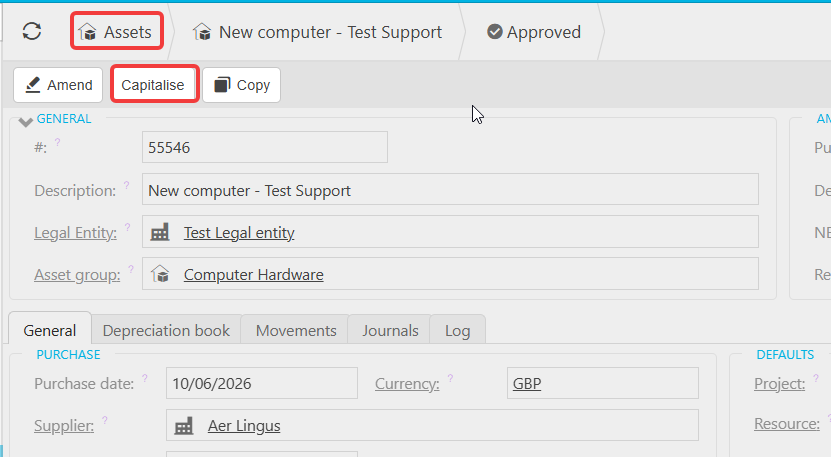
- Open the asset you want to capitalise – it must be in 'Approved' status
- Select 'Capitalise (Manual)' from the asset record.
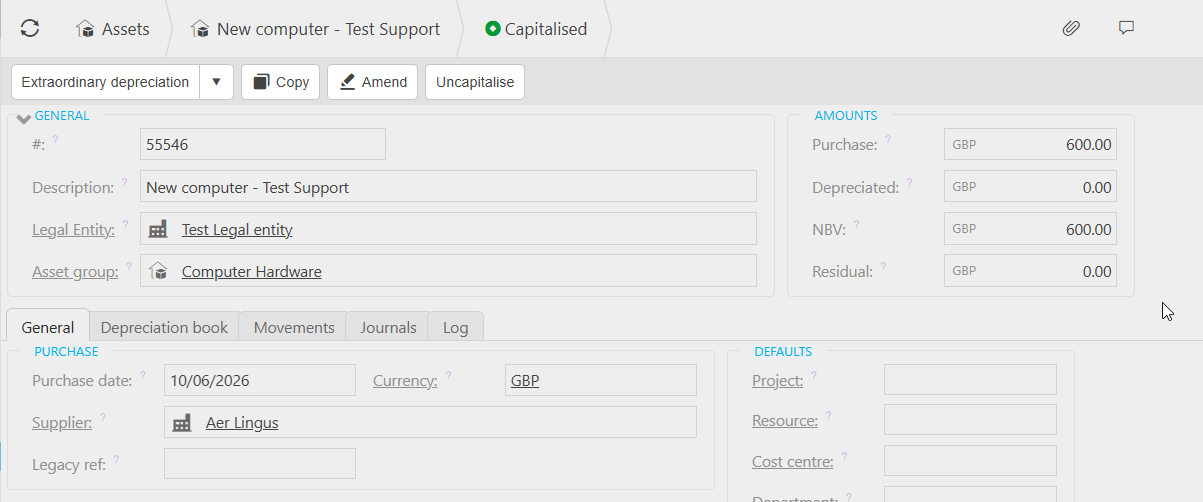
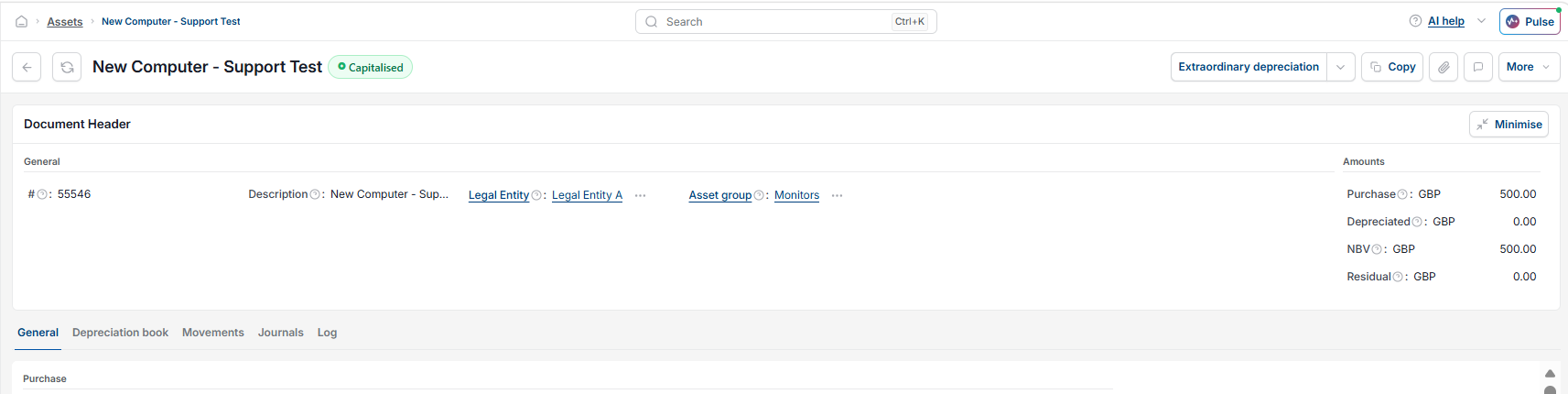
The asset is now capitalised and will appear in the capitalised list. Depreciation can now be processed against it.
Option two: capitalise a fixed asset from the Asset Capitalisation screen
Use this method when assets have been created from purchase invoices but were not auto-capitalised. These assets appear on the Asset Capitalisation screen waiting for review.
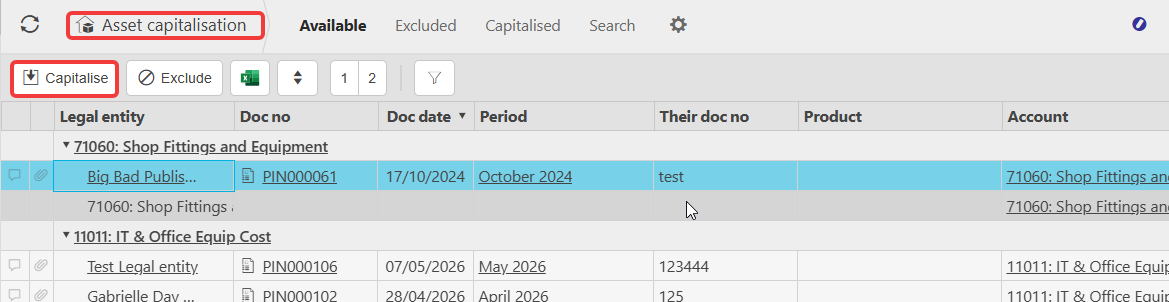
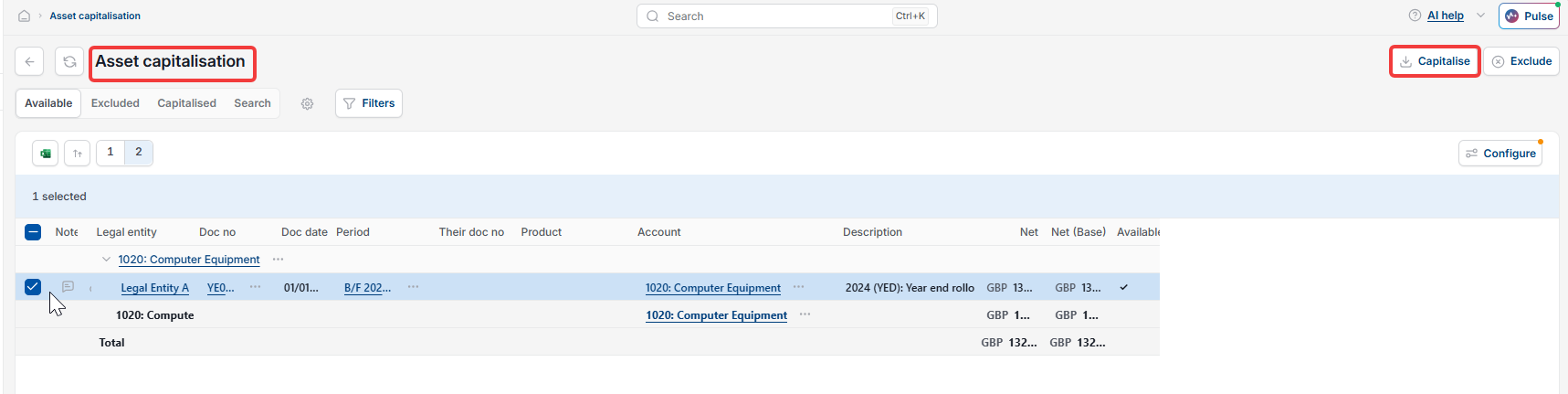
- Select 'Asset Capitalisation' from the main menu, or enter 'Asset capitalisation' in the quick search (Ctrl + K)
- The 'Available' tab shows all assets created from invoices that have not yet been capitalised
- Select the asset you want to capitalise
- Select 'Capitalise' – this moves the asset to the 'Capitalised' list and completes the process.
If an asset has been excluded in error, go to the 'Excluded' tab, select the asset and choose 'Include'. It will return to the 'Available' tab where you can then capitalise it.
What happens after a fixed asset is capitalised
Once an asset is capitalised:
- It appears on the Balance Sheet at its purchase cost
- The depreciation schedule is generated based on the asset group and depreciation method
- Depreciation can be run via the depreciation automation.
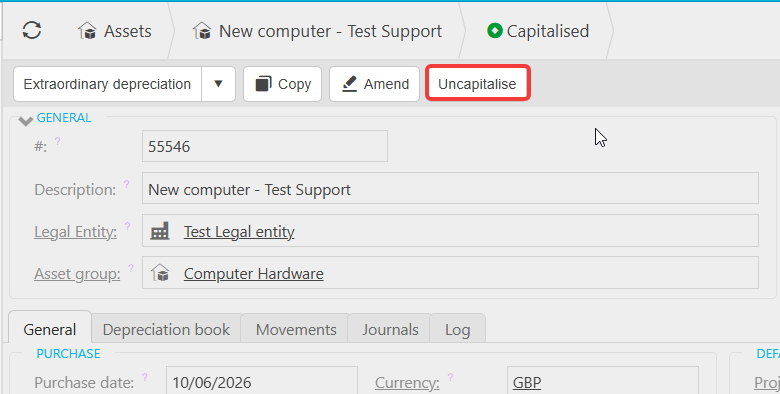
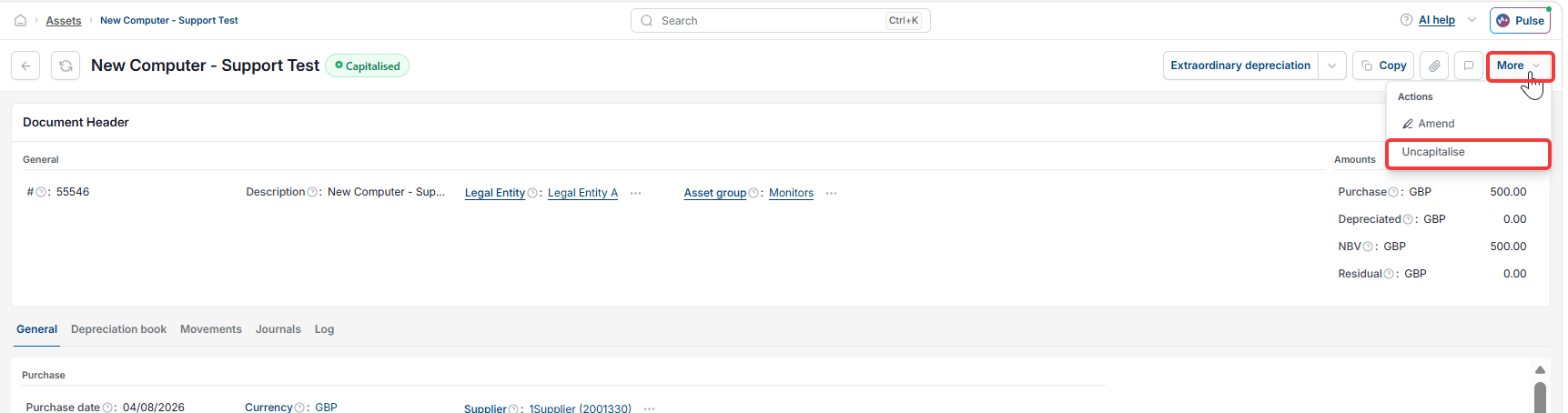
If errors occur after capitalisation – such as an incorrect depreciation start date or purchase amount – use the 'Uncapitalise' button on the asset record. This reverses all journals and movements and returns the asset to draft state for correction. See 'How to run depreciation for fixed assets in iplicit' for the next step.
Capitalise an asset
Capitalise manually
Automatic capitalisation
Fixed asset manual & auto