

This article covers posting a VAT-only invoice (sometimes called a tax-only invoice) in iplicit. You do this by selecting the 'Tax Only' band on the invoice and entering the VAT amount directly, with no net value attached.
Why you might post a VAT-only invoice
A VAT-only invoice lets you post tax with no net amount attached to it.
How to post a VAT-only invoice in iplicit
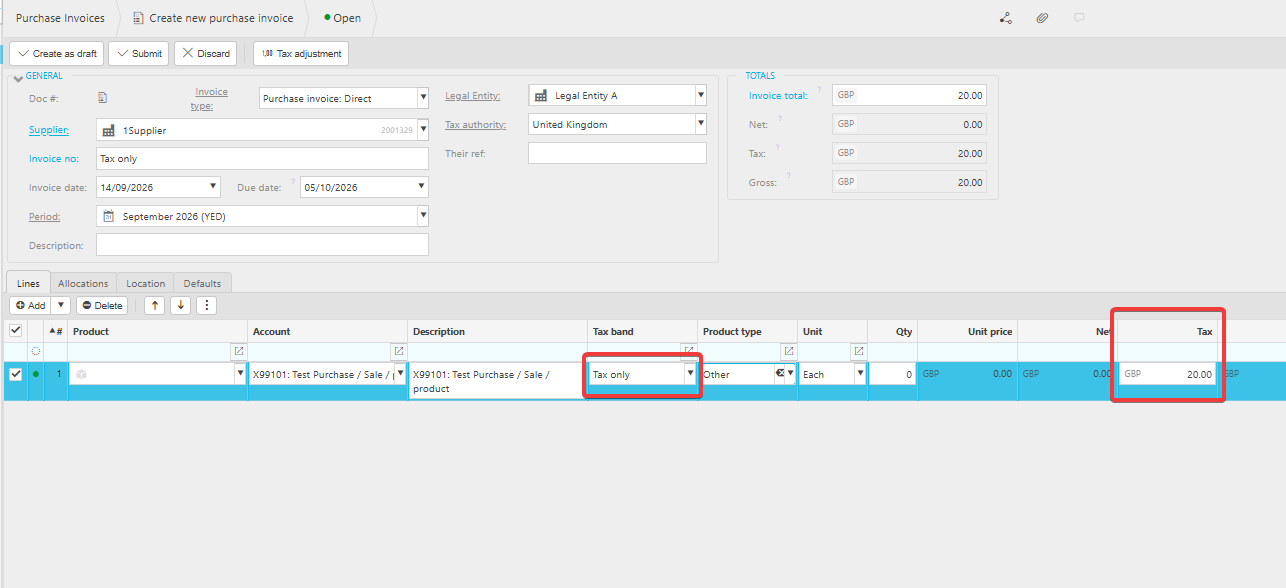
- Start a new invoice as you normally would, and select the correct Account for the transaction
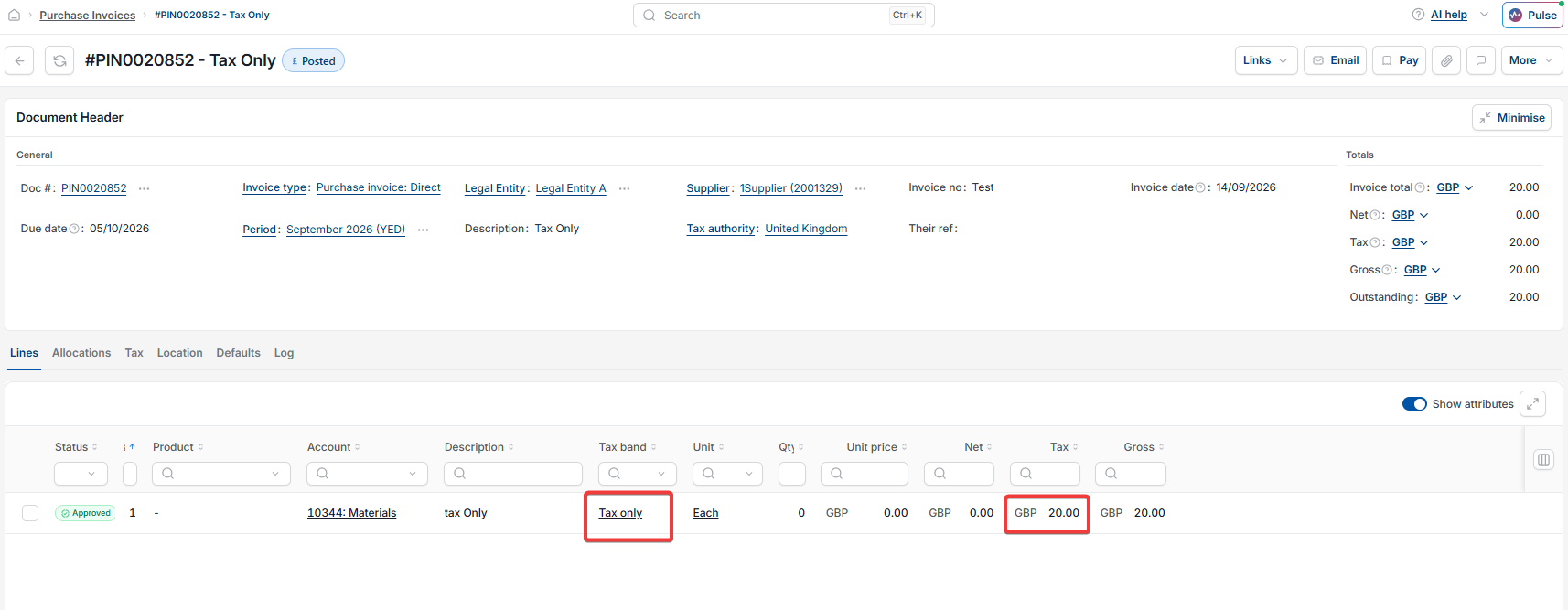
- In the 'Tax Band' dropdown, scroll down and select 'Tax Only'
- A 'Tax' column appears. Enter the VAT amount directly into this column
- The Net Amount shows as £0.00 automatically, since the full value is posted as tax
- Submit the invoice as you normally would.
Once submitted, the invoice posts with the VAT amount only and no net value.
Screenshots for Legacy UI (before October 2026)
Screenshots for New UI (post October 2026)
Customer search terms
VAT only invoice
Tax only invoice
Post VAT without a net amount
Tax Only band iplicit
Zero net invoice VAT