

This article covers the Documents tab on a customer or supplier contact account. It explains how to see which documents are outstanding, matched or unmatched, and how to raise a payment or receipt from there.
Viewing documents on a contact account
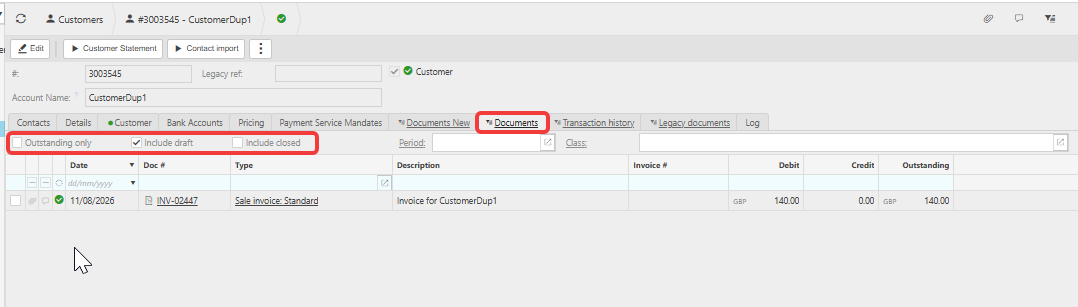
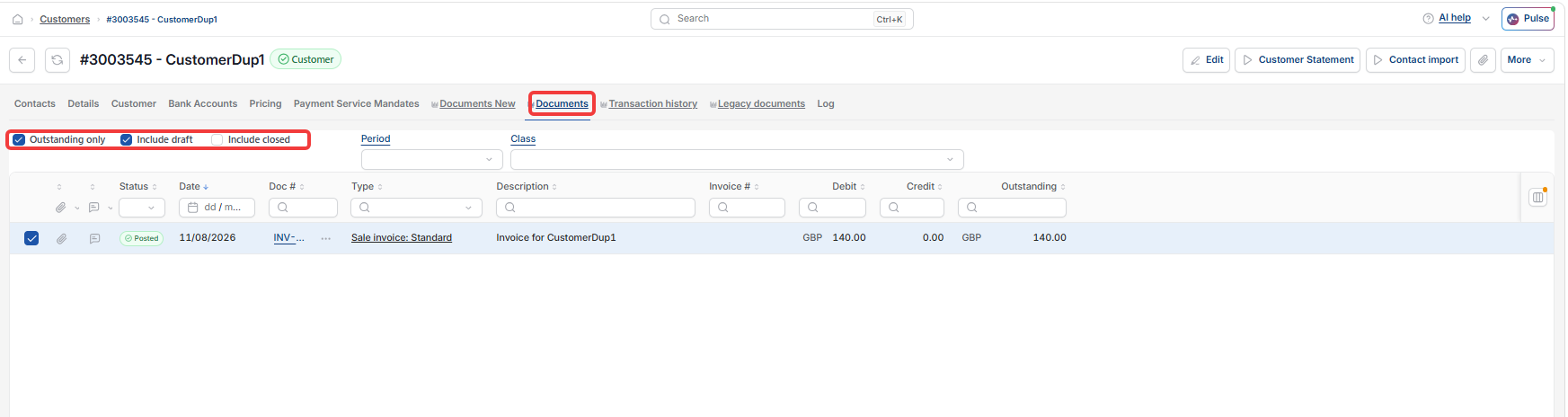
Open the relevant customer or supplier account and select the 'Documents' tab. This lists every document on the account, whether it's fully matched, partly matched or entirely unmatched.
Three filters control what's shown:
- 'Outstanding only' – shows only documents with a balance still owing
- 'Include draft' – includes documents that haven't been posted
- 'Include closed' – includes documents that have already been fully settled.
At the bottom of the tab, iplicit totals the debit, credit and outstanding balances for everything shown, so you can check the account balance without opening each document individually.
Paying or receiving against an outstanding document
There are three ways to raise a payment or receipt against a document on a customer or supplier account:
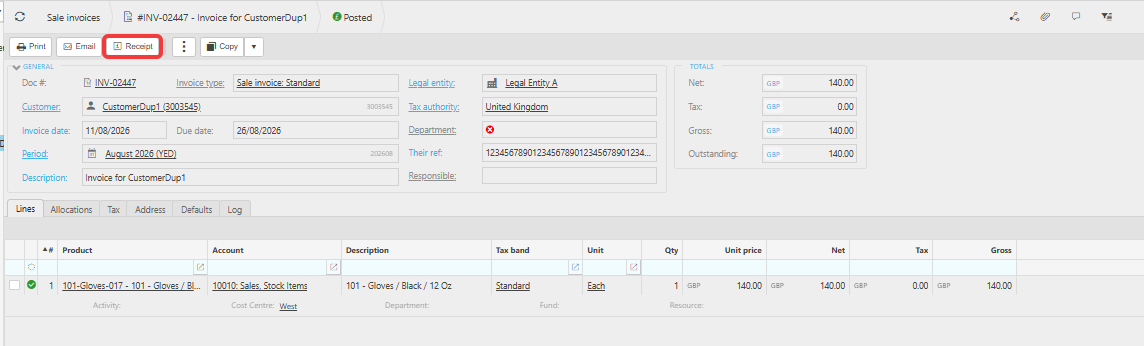
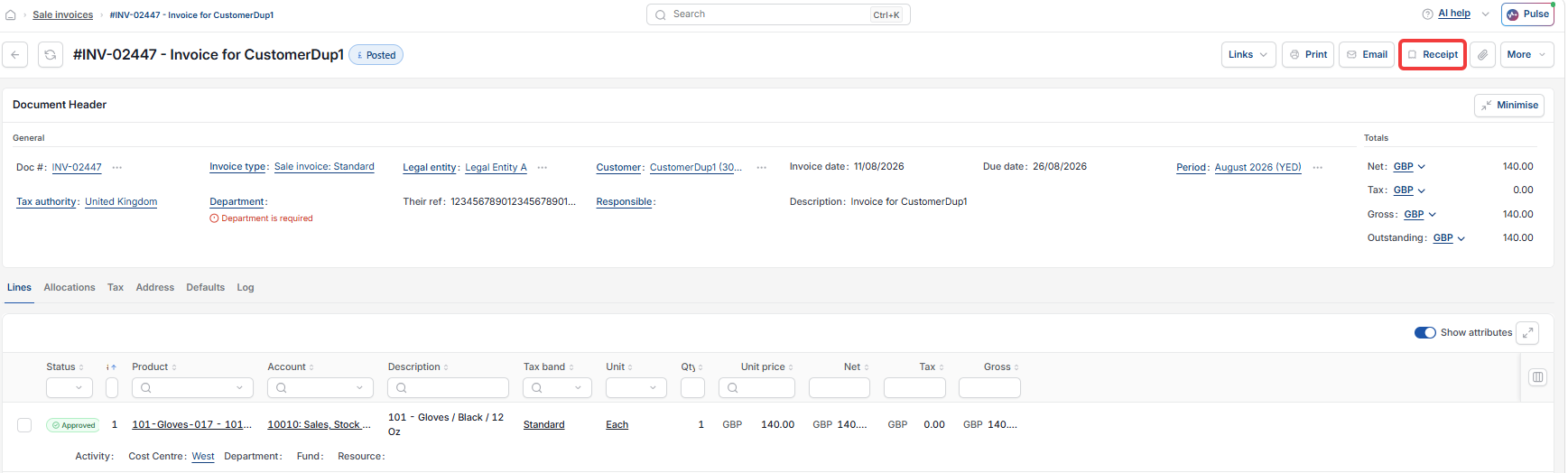
- Open the outstanding invoice from the 'Documents' tab and select 'Pay' or 'Receipt'
- Create a payment or receipt manually
- Use bulk payments to settle several documents at once.
The same three options apply whether you're paying a supplier or receiving from a customer.
For managing what's already been applied to a specific document – reallocating, removing or adjusting a payment or credit note – see 'What are allocations and how to manage them'.
Outstanding balance supplier
Outstanding balance customer
Documents tab contact account
Pay an invoice from supplier account
Bulk payment
Debit credit outstanding