

This article covers a VAT return draft blocking a newer VAT period within a Tax Group, and how to process the historic return without amending or recalculating it. It applies to VAT return processing at Tax Group level.
Why a historic VAT return draft blocks a newer VAT period
Within a Tax Group, iplicit will not create a second VAT return draft while one already exists. If a historic return was started and never posted, it remains the active draft, and any attempt to process a more recent VAT period in that same Tax Group is blocked until the historic one is resolved.
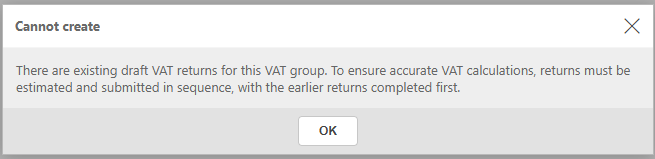
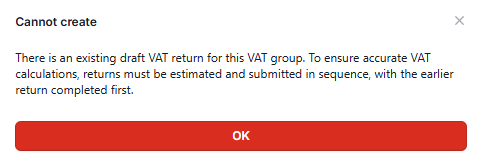
Resolving a historic VAT return based on its current status
The right action depends on what status the historic VAT return is currently in. Three things behave differently:
- 'Mark as Complete' recalculates the return but does not update the General Ledger (GL) liability accounts
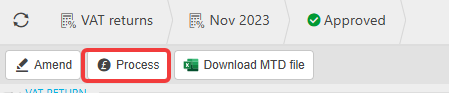
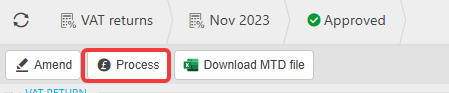
- 'Process' moves the return through iplicit's workflow, and is the point at which it submits through the HMRC interface unless this has been removed
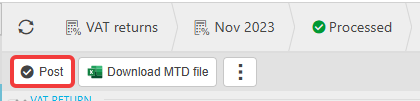
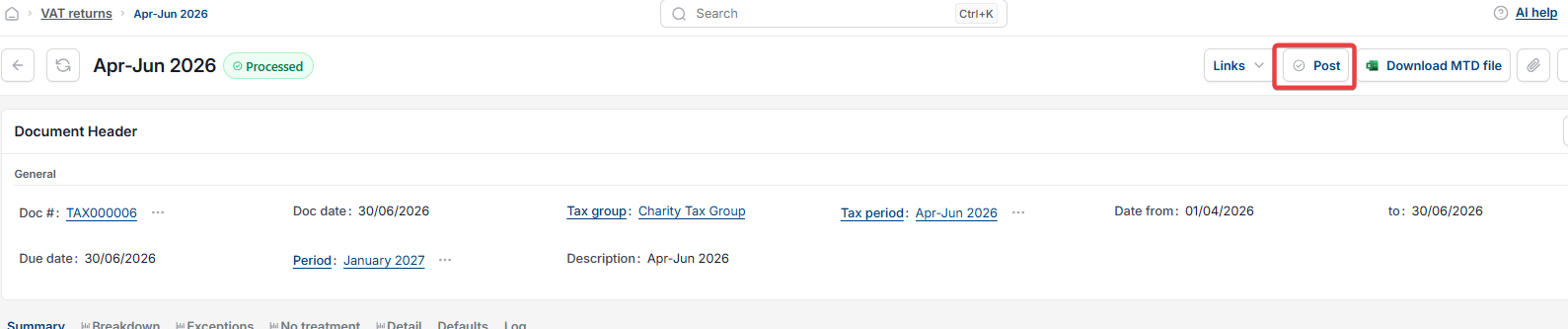
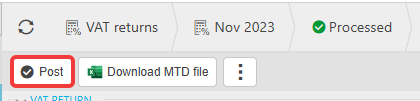
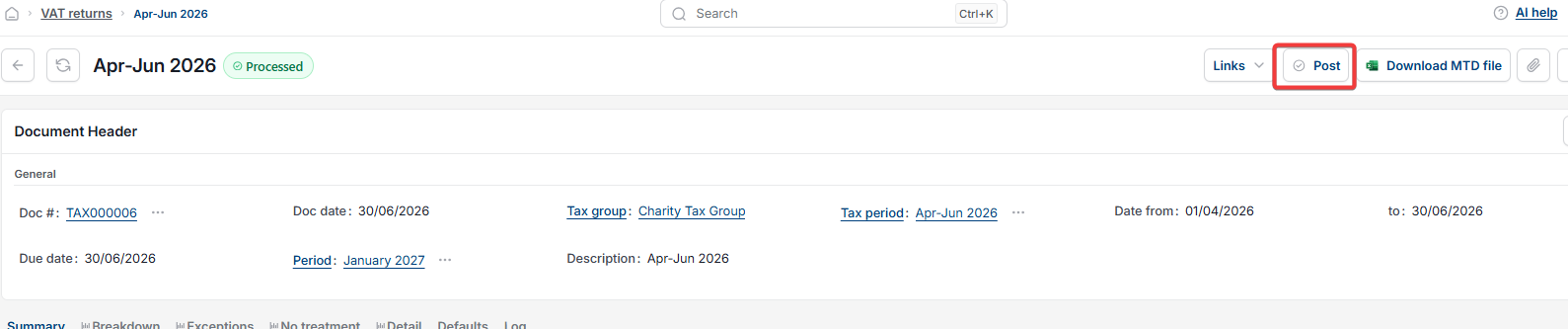
- 'Post' updates the GL liability accounts, and is available once the return is processed. Posting clears down the VAT input and output codes to the liability account, which is where the subsequent payment or refund amount is recorded.
If the historic VAT return is in Draft status
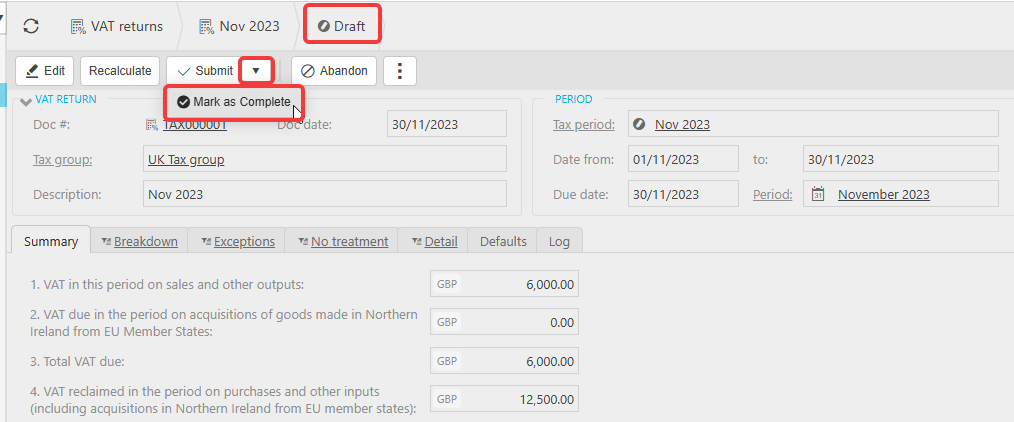
If you've already submitted this return to HMRC separately and it's sitting in Draft in iplicit, select the dropdown arrow next to 'Submit' and choose 'Mark as Complete'. iplicit shows a warning that this recalculates the return without updating the GL liability accounts. Once complete, check the recalculated figures against what you actually submitted to HMRC. If they don't match, contact support before doing anything further.
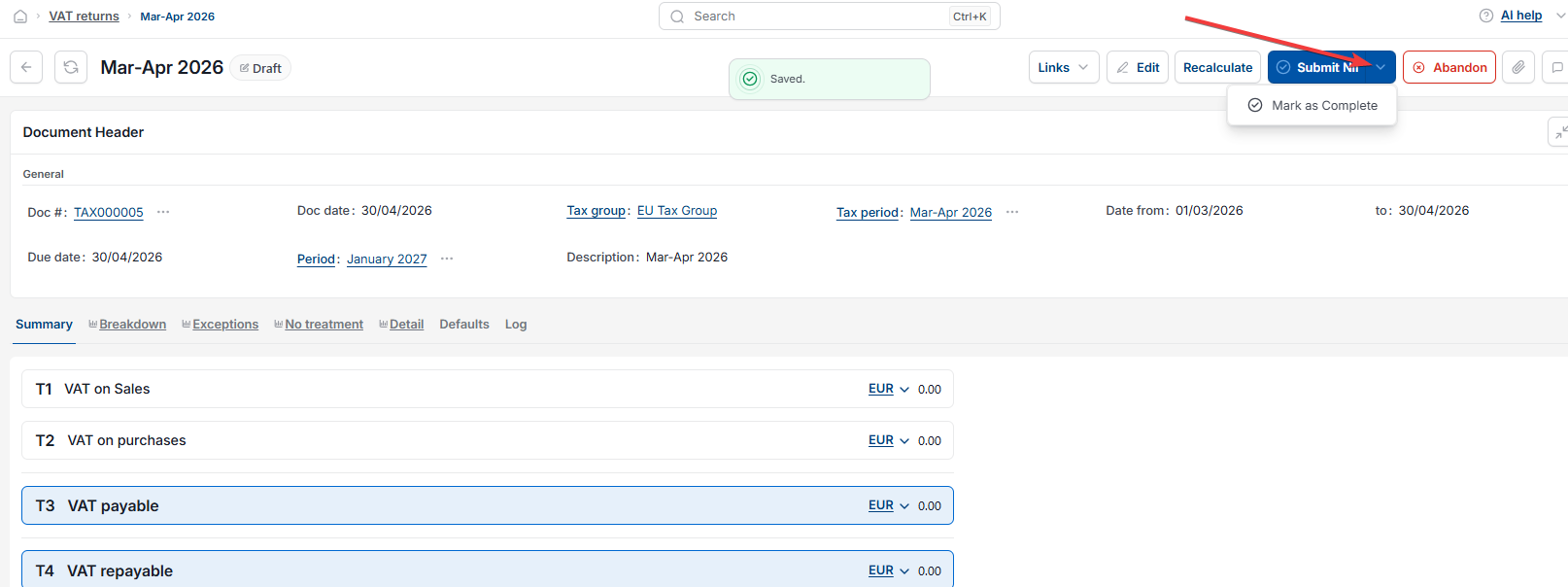
If the historic VAT return is in Approved status
If the return has already been submitted to HMRC separately and is showing as Approved, you have two options, and it's worth understanding the difference before choosing.
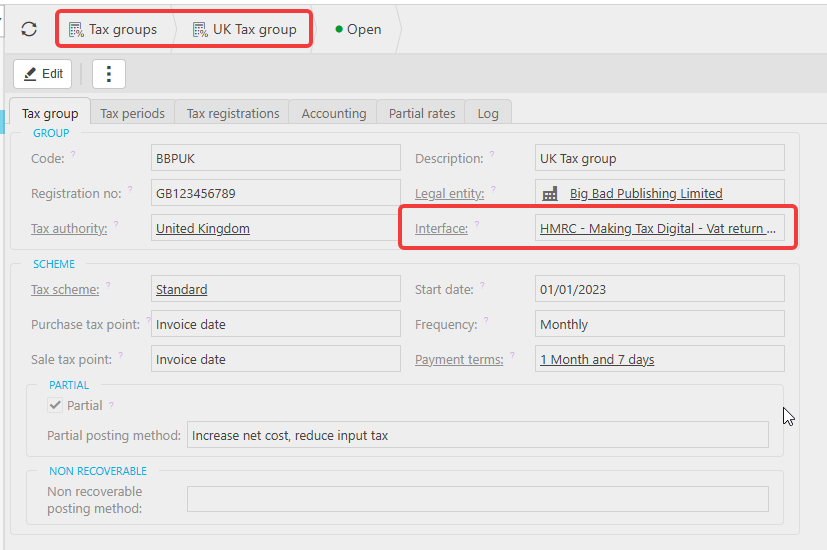
Option one – remove the interface, then process and post. Remove the Interface from the Tax Group (see the steps below), then process and post the return. This updates the GL as normal. If you already recorded the same GL effect using manual journals, those journals can be reversed so the movement isn't duplicated. If there are no manual journals for this period, you can process and post directly. If you need further assistance with this please contact support.
How to process a historic VAT return by removing the interface
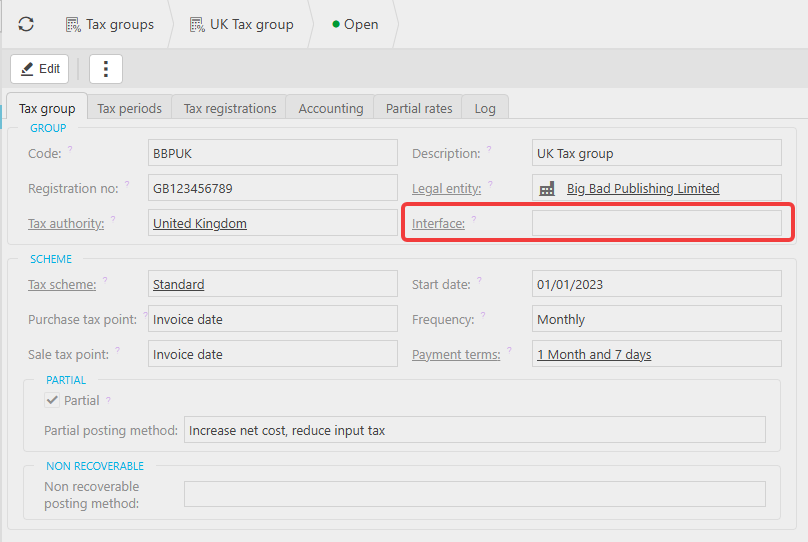
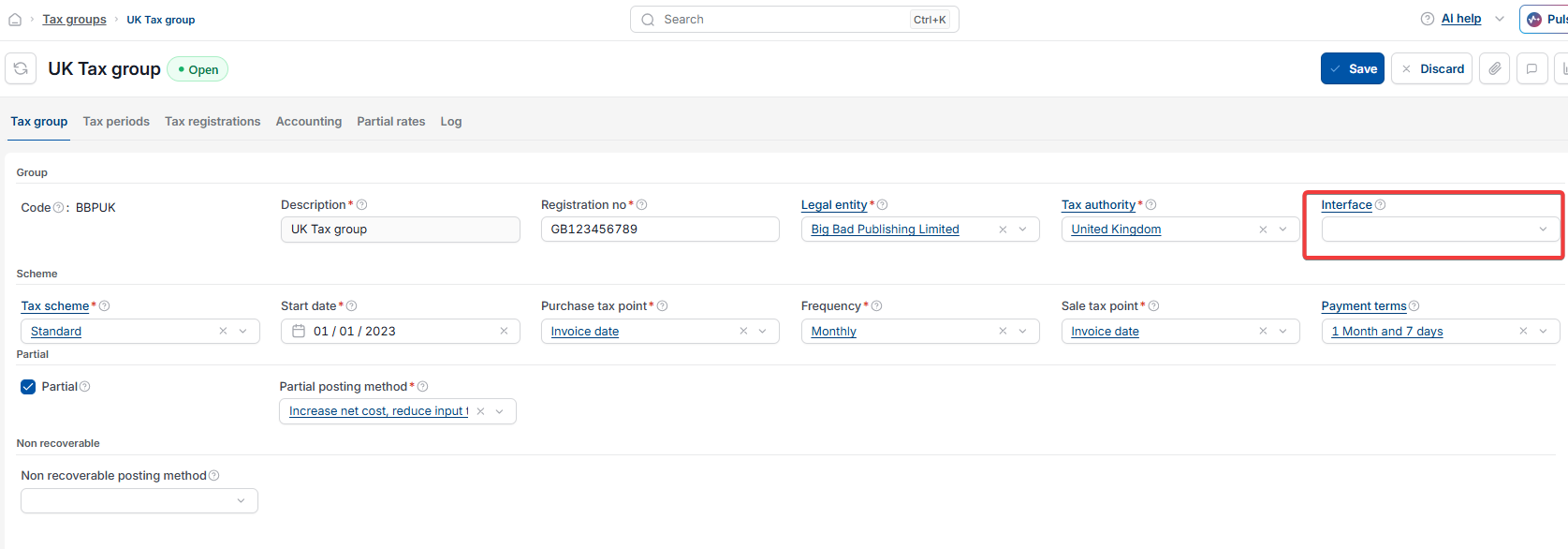
- Remove the Interface from the Tax Group. Open the relevant Legal Entity's Tax Group and clear the value in the 'Interface' field. This stops the VAT return from submitting through the integration, and allows the return to be processed and posted.
- Reload the system. This ensures the change to the Tax Group is applied before you continue.
- Unlock the VAT period. If the affected VAT period is locked, unlock it before processing the return. See 'How to unlock a period'.
- You can now process and post the historic return in the Tax Group without amending or recalculating it. Review the GL impact first, using the guidance above, before posting in your live environment.
- Re-add the Interface to the Tax Group. Once every historic return in the Tax Group has been processed and posted, put the Interface value back. If you skip this step, future VAT returns in that Tax Group will not submit through the integration.
Important: Make sure you add the interface back into the Tax Group to ensure your next VAT return is sent to HMRC.
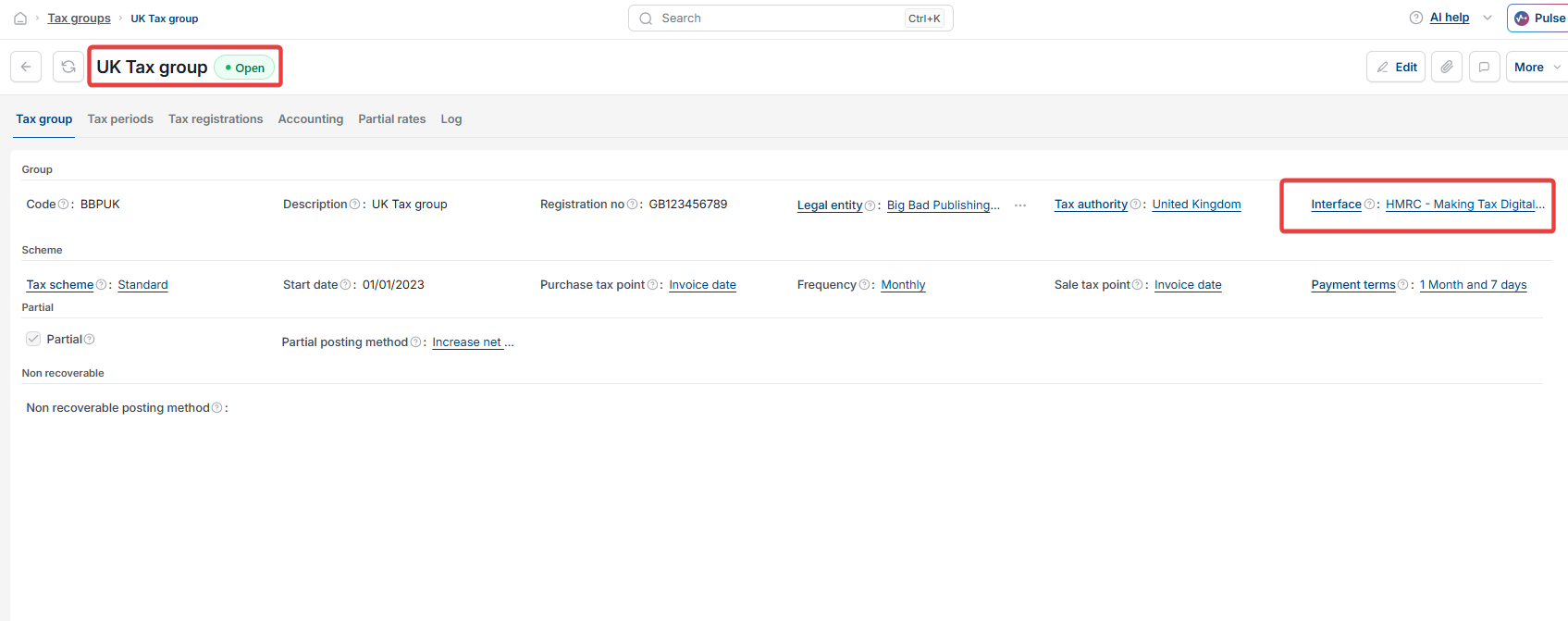

Option two – amend and mark as complete. You can also amend the return and select 'Mark as Complete' at this status. This avoids affecting the GL, and any manual journals you've already posted can remain in place. The risk with this option is that 'Mark as Complete' recalculates the return, so if the recalculated figures don't match what was separately submitted to HMRC, you now have a mismatch between iplicit and HMRC with no GL update to reconcile against. If you're unsure which option fits your situation, contact support before proceeding.
If the historic VAT return has been processed
If the return is already in Processed status, post it to complete the GL update. If manual journals were used to record the same effect, reverse them once the return is posted, so the movement isn't duplicated in the GL.

Historic VAT return draft
VAT return blocked
Cannot process VAT return
VAT return stuck in draft
Remove interface tax group
Recalculate VAT return
Unlock VAT period
MTD VAT return blocked
Post VAT return without sending to HMRC