

This article covers how the delivery address (also called the delivery location) works on purchase and sales documents in iplicit. It explains how to make the field optional instead of required, and where the default address comes from for each type of document. The source of the default address is different for purchase documents and sales documents, so read the section that matches what you're working on.
Making the delivery address optional on a document type
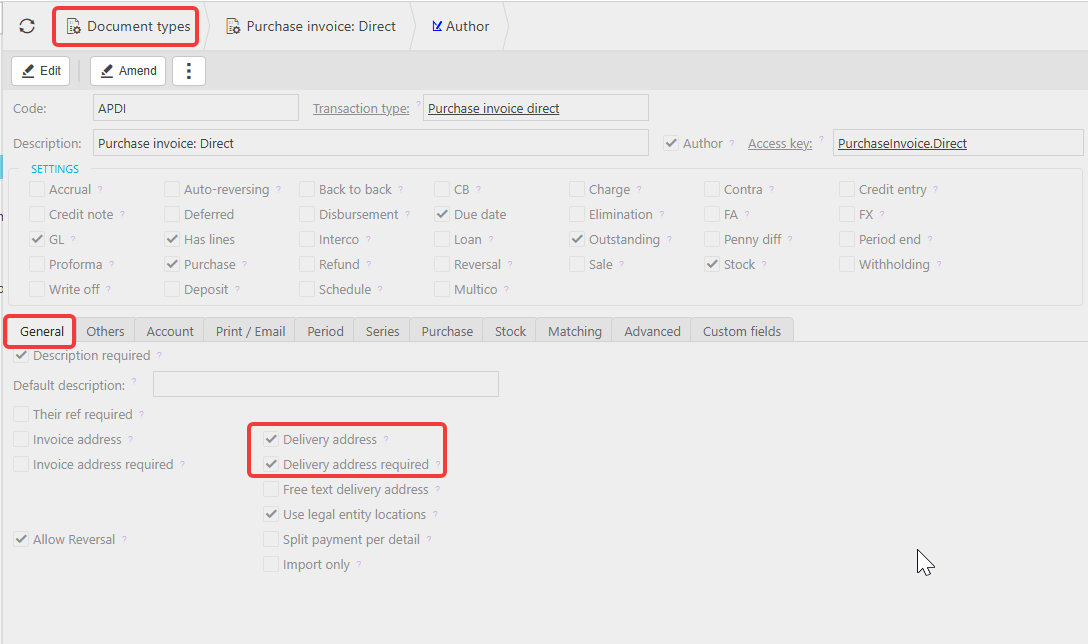
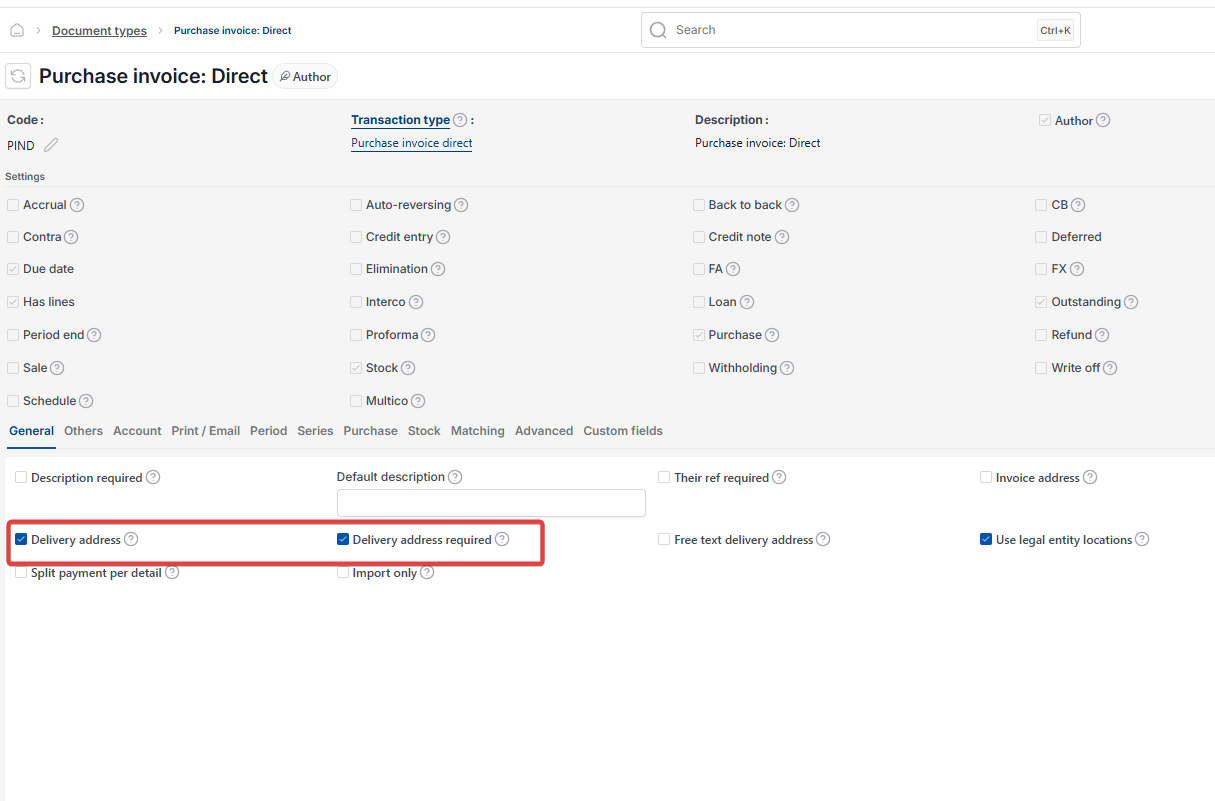
The delivery address can be set as a required field on any document type, meaning a user cannot save the document until an address is chosen. This applies to both purchase and sales document types. If your team finds this too restrictive for a particular document type, you can make it optional instead.
- Navigate to 'Document types'
- Search for and open the document type you want to change, for example 'Purchase Invoice: Direct'
- Select the 'General' tab
- Select 'Edit'
- Uncheck the 'Delivery address required' checkbox
- Select 'Save'.
The delivery address field on any new document created with this document type is now optional. This does not change where the address comes from, only whether it must be filled in.
Default delivery address on purchase documents
On purchase documents, where the delivery address comes from depends on a separate setting on the document type: 'Use legal entity locations'.
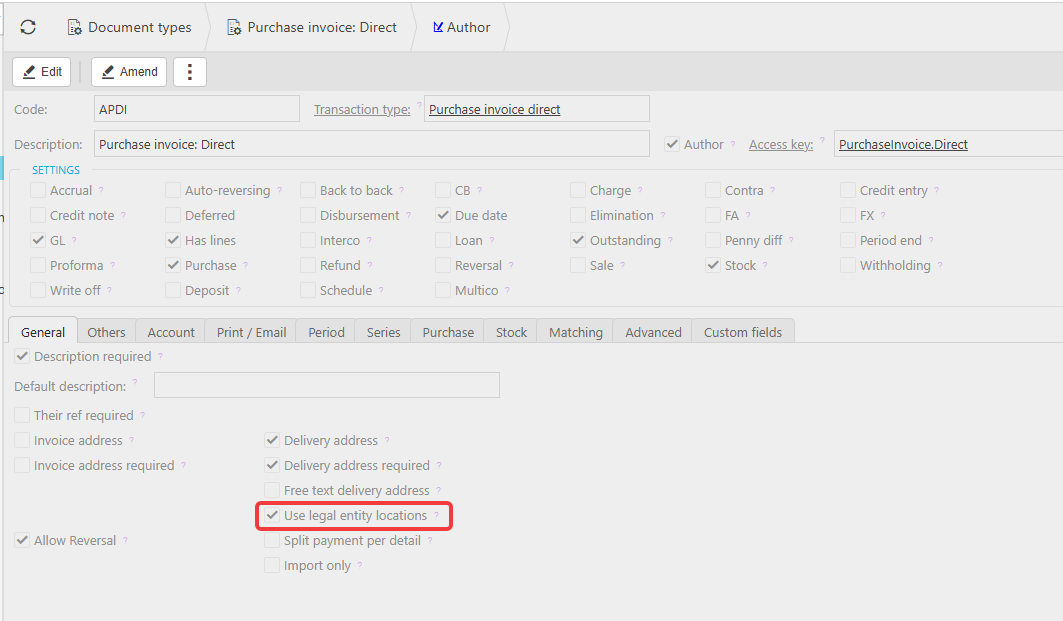
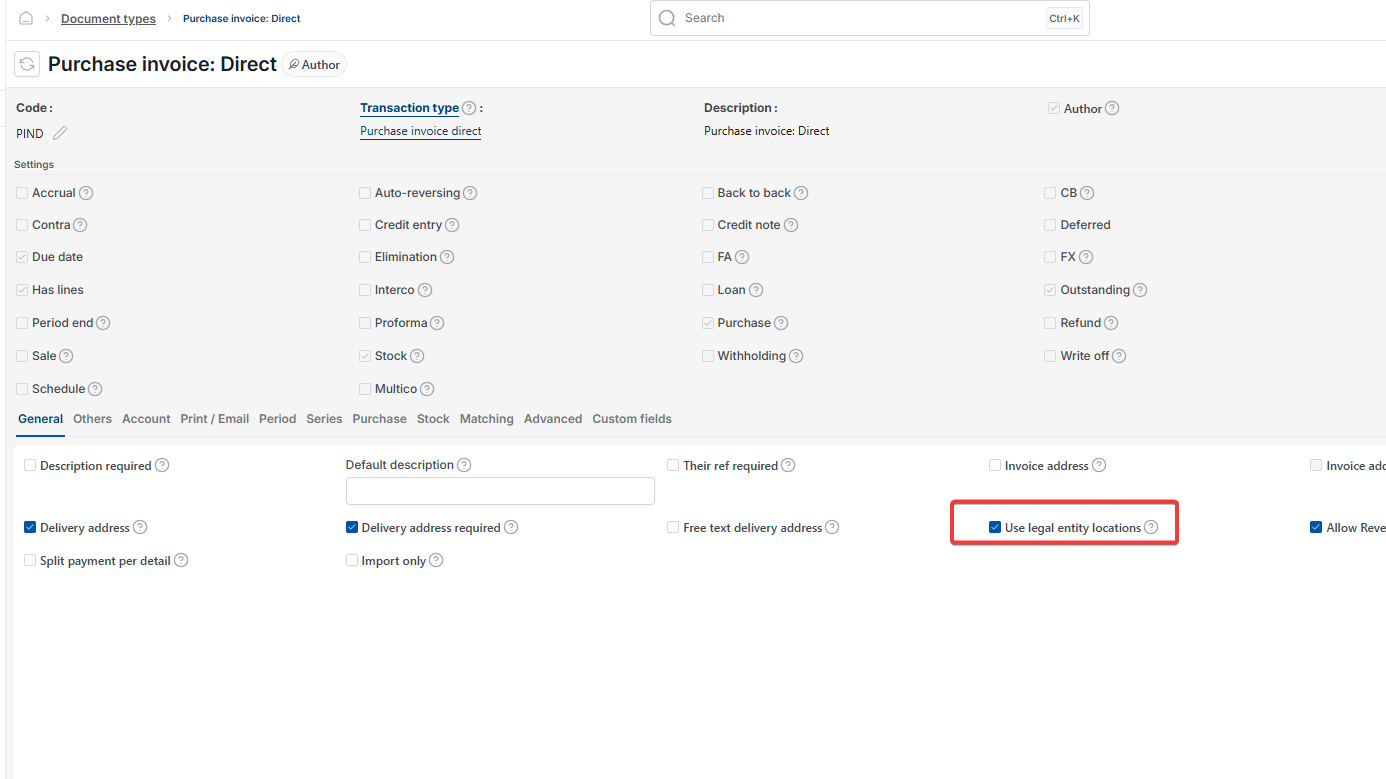
Purchase documents when 'Use legal entity locations' is unchecked
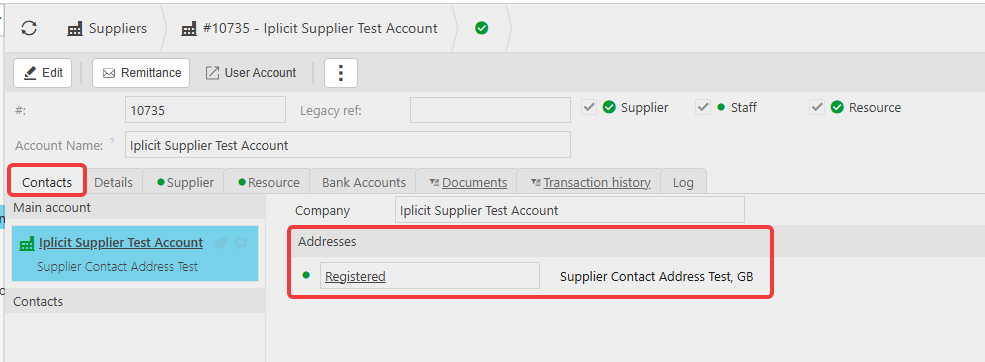
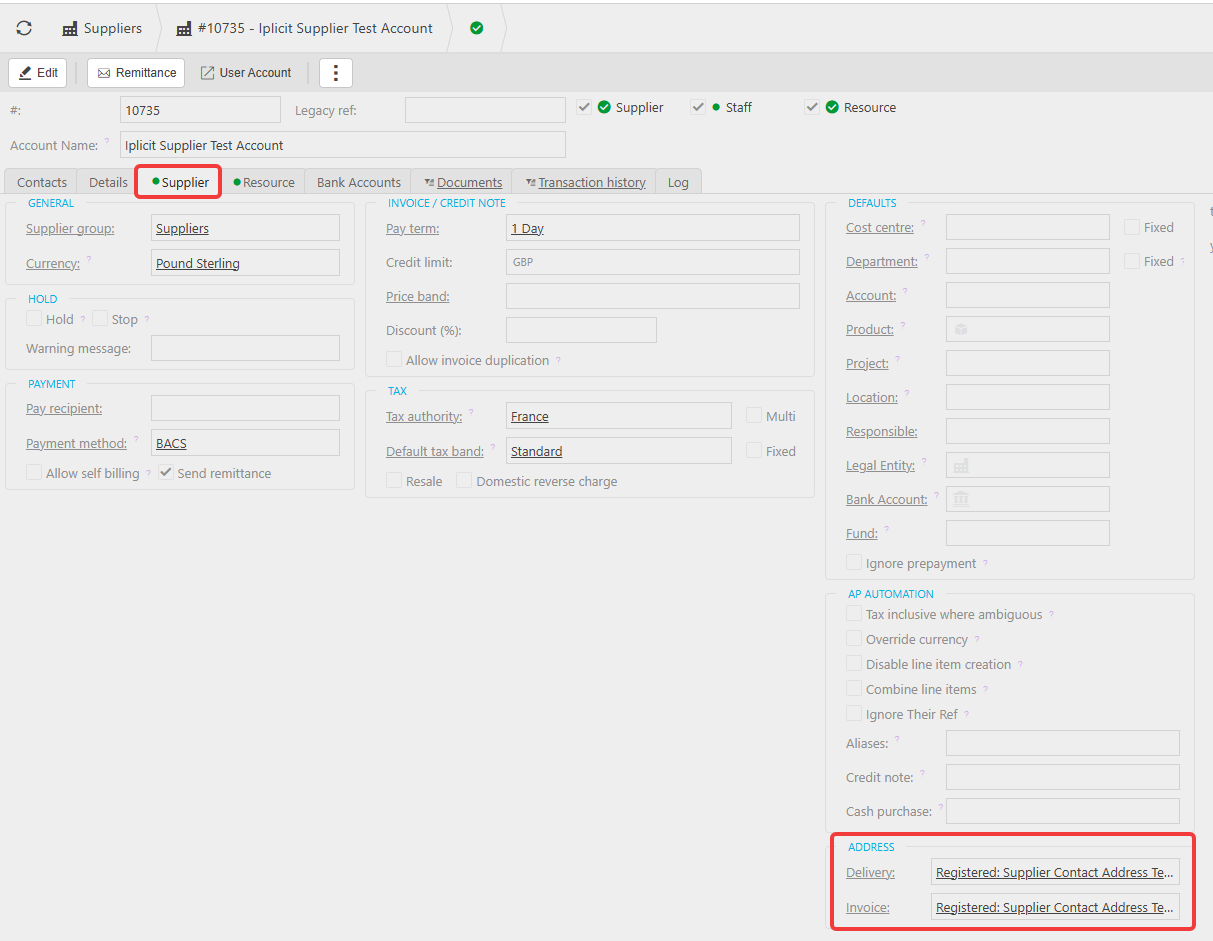
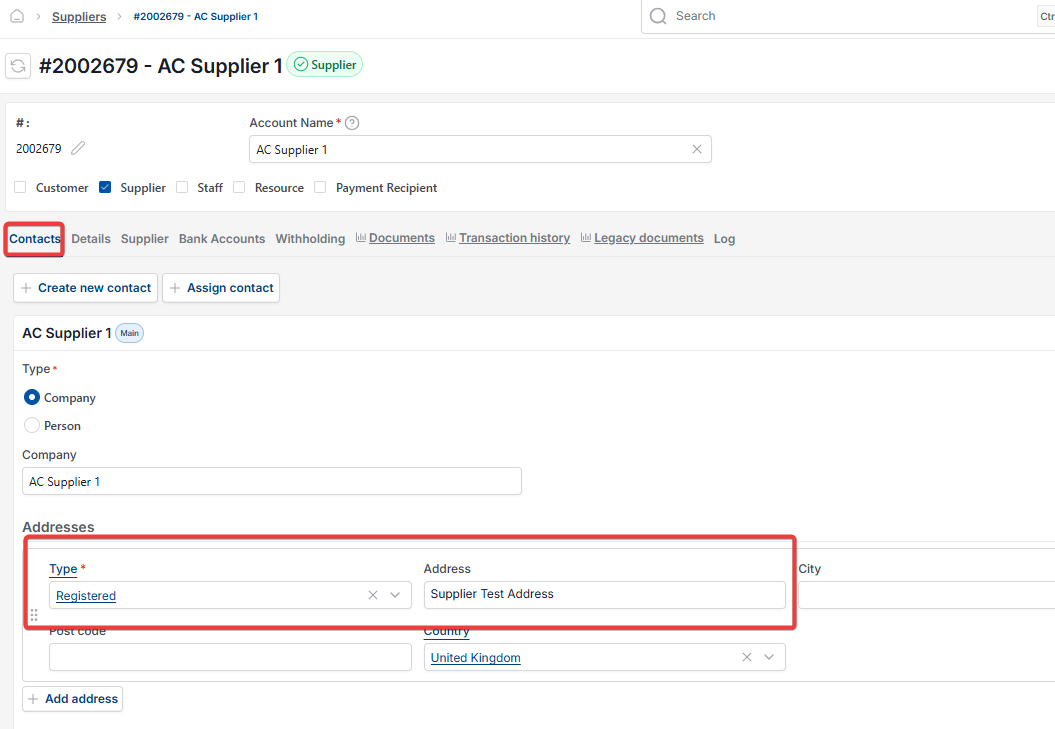
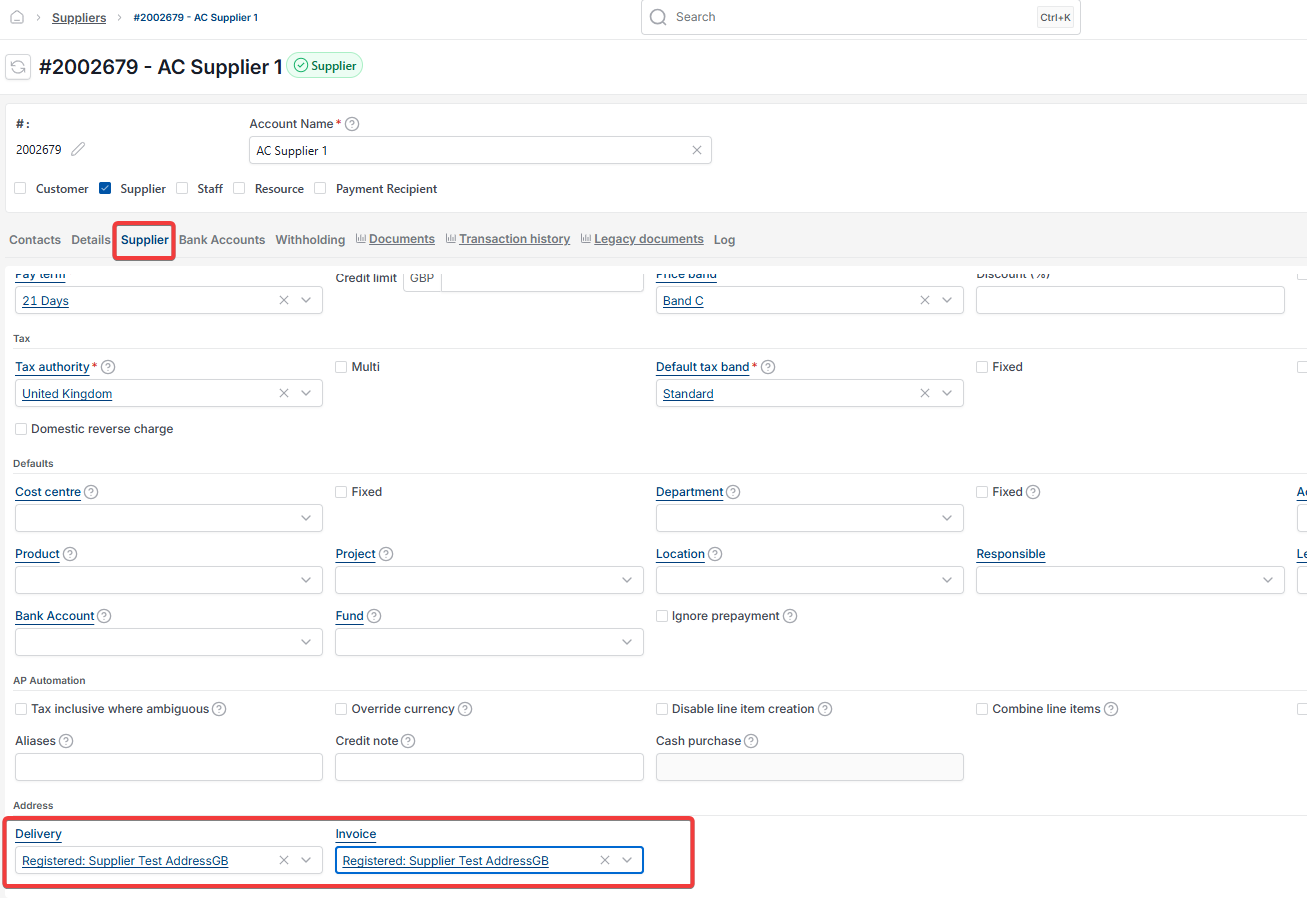
The address is pulled from the supplier's own contact addresses. A supplier can have several addresses stored against their contact account, and one of these is set as the default on the supplier record:
- Navigate to 'Suppliers' and open the supplier account
- Select the 'Contacts' tab to view or add addresses
- Select the 'Supplier' tab
- Under 'Address', set the 'Delivery' field to the address you want used as the default.
Purchase documents when 'Use legal entity locations' is checked
The address instead comes from your own Legal Entity's locations rather than the supplier's. This makes sense for a purchase, since you're arranging delivery to yourself, not to the supplier. To set this up:
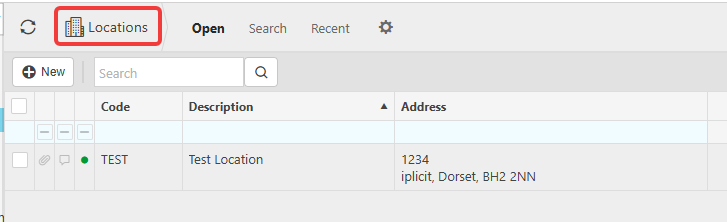
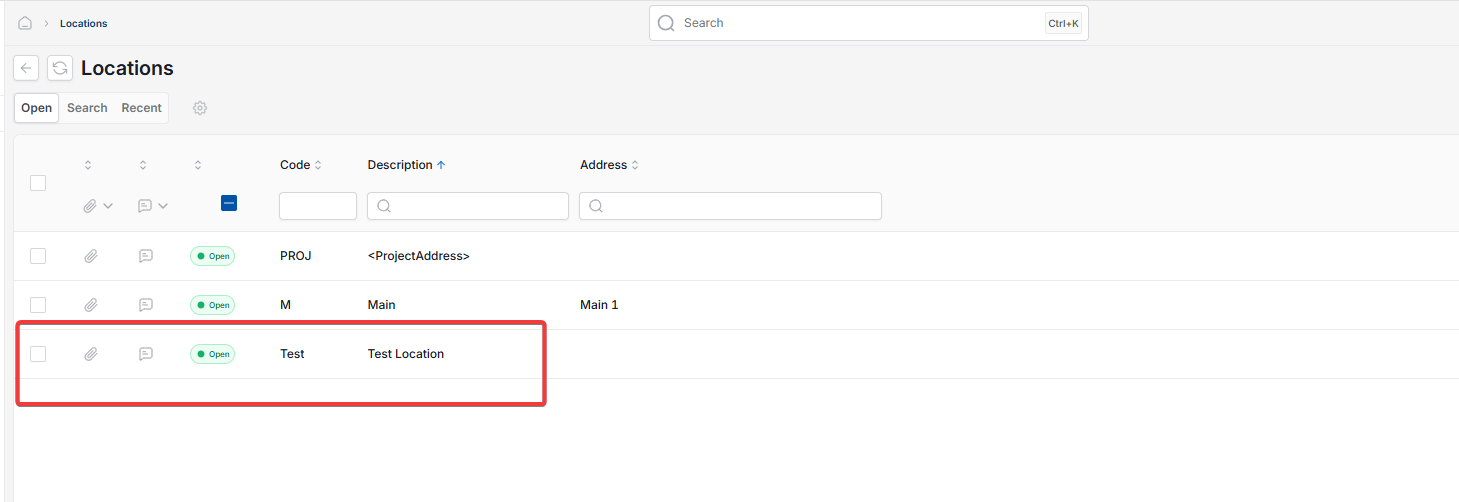
- Navigate to 'Locations' and create the location you want to use for delivery
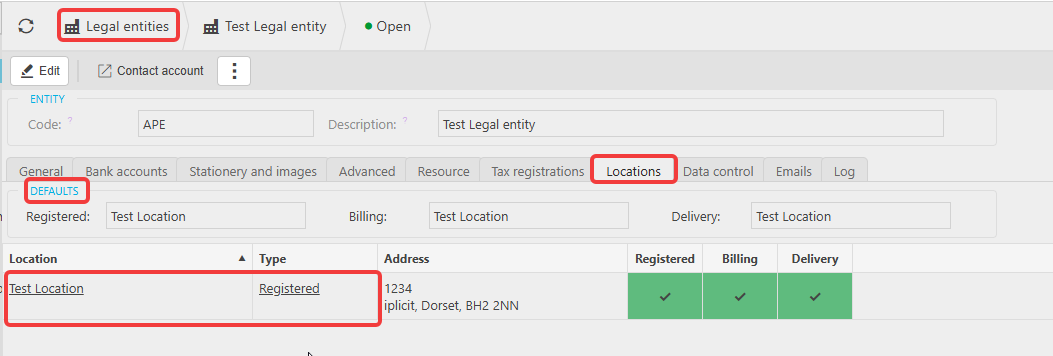
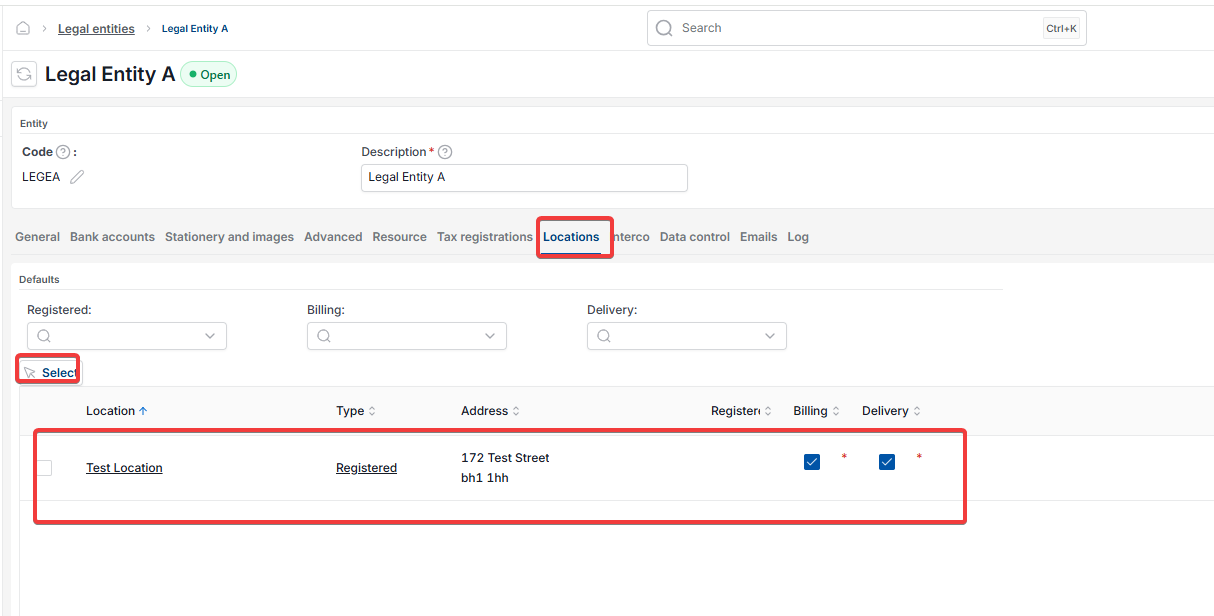
- Navigate to 'Legal Entities' and open the relevant Legal Entity
- Select the 'Locations' tab
- Add the location and mark it as 'Delivery' (and 'Registered' or 'Billing' where relevant).
The 'Use legal entity locations' checkbox is usually ticked by default on purchase document types.
Default delivery address on sales documents
Sales documents work more simply than purchase documents, because there's no legal entity locations option involved. The delivery address on a sales document always comes from the customer's own contact addresses.
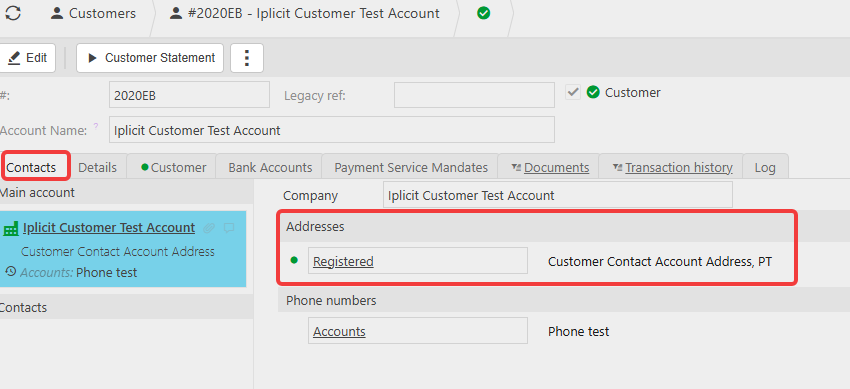
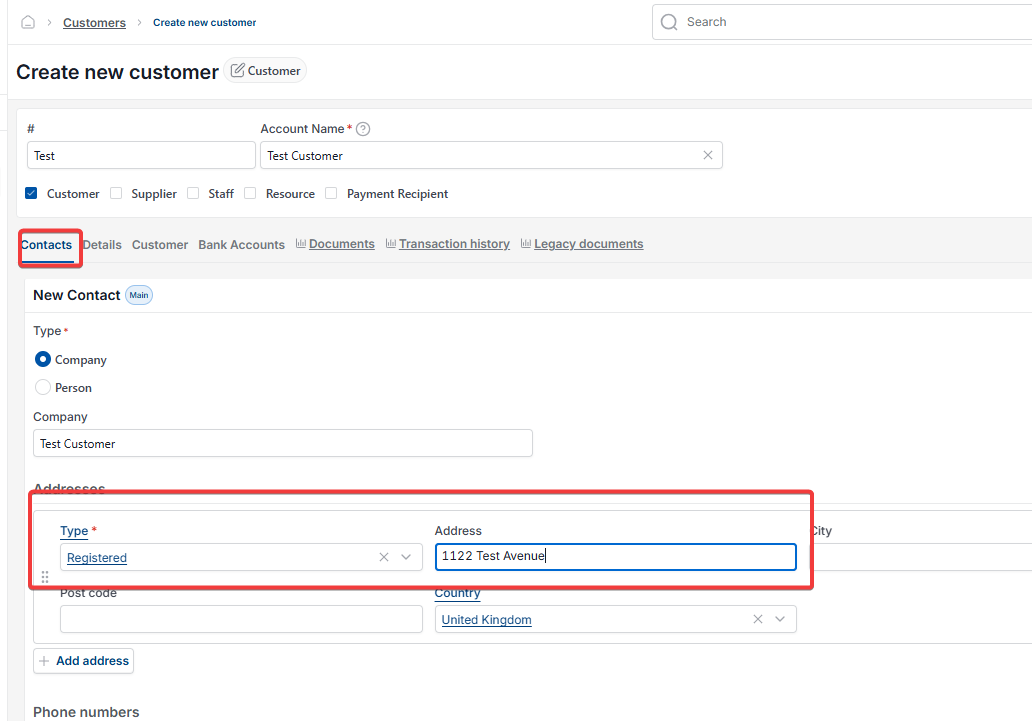
A customer can have several addresses stored against their contact account, and one of these is set as the default:
- Navigate to 'Customers' and open the customer account
- Select the 'Contacts' tab to view or add addresses
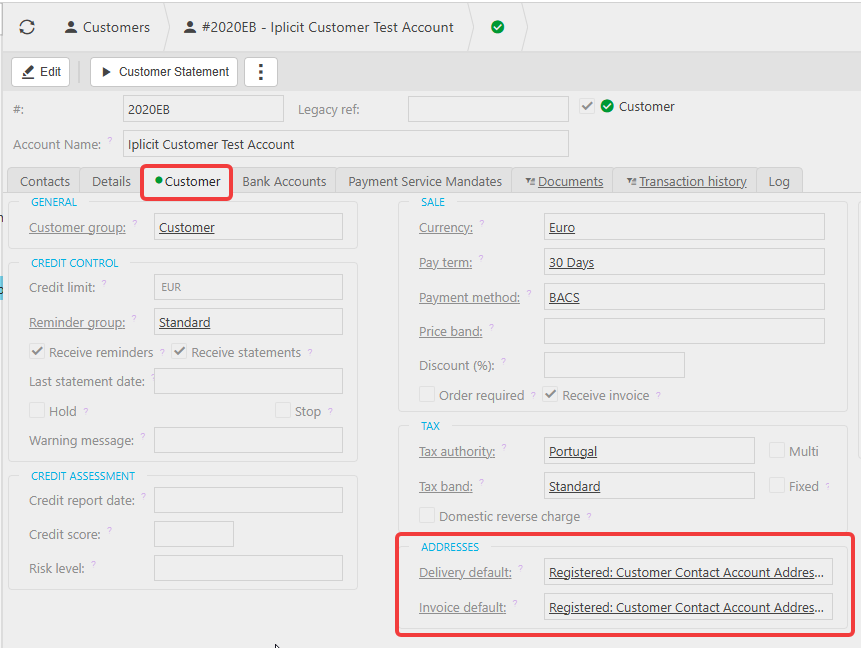
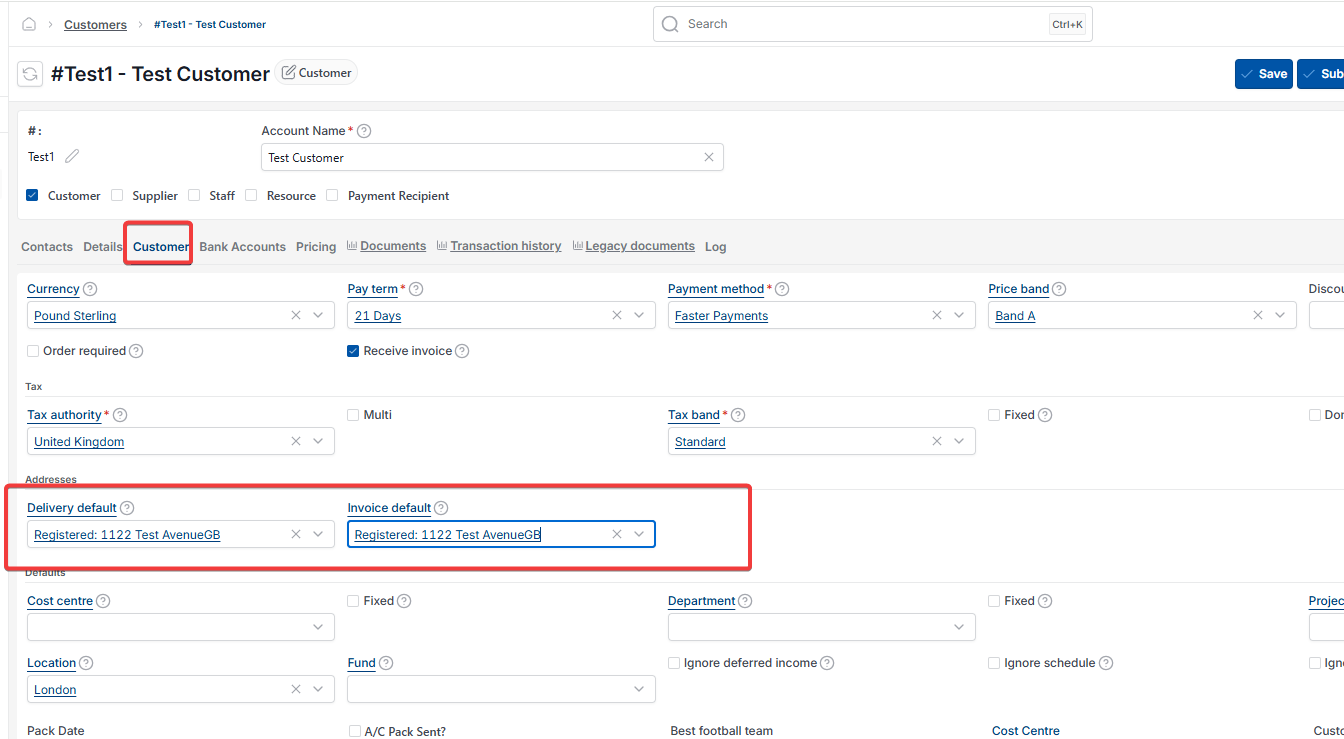
- Select the 'Customer' tab
- Under 'Addresses', set the 'Delivery default' field to the address you want used as the default.
Amending the delivery address on an individual document
Whether you're working on a purchase document or a sales document, you can always override the default. Select the 'Delivery address' field on the document itself and choose a different address from the list.
Delivery address
Delivery location
Default delivery address
Legal entity locations
Delivery address required
Purchase order delivery address
Sales invoice delivery address
iplicit locations