

This article covers assigning an expense product (such as Mileage, Hotel or Subsistence) to a specific employee's resource record, so that product becomes available for them to select when they create an expense claim. Expense products themselves are created in the 'Expense products' screen – see 'Expense products' in the iplicit user guide for that setup step. This article covers the separate step of making an already-created product available to a specific employee.
Why an expense product isn't available to an employee
An expense product only appears for an employee if it has been assigned directly to their resource record. This is true whether the employee reports the issue as "I can't find the product", "no products are available" or asks how to assign a product to their expenses – all three point to the same setup step in the employee's resource record.
A resource record is the employee's profile within iplicit's HR area. It's separate from their user login and separate from the expense product itself.
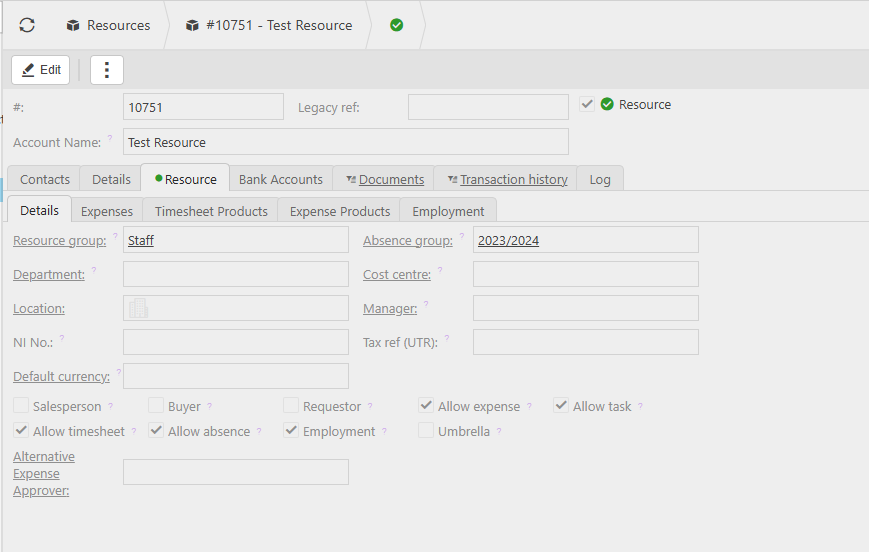
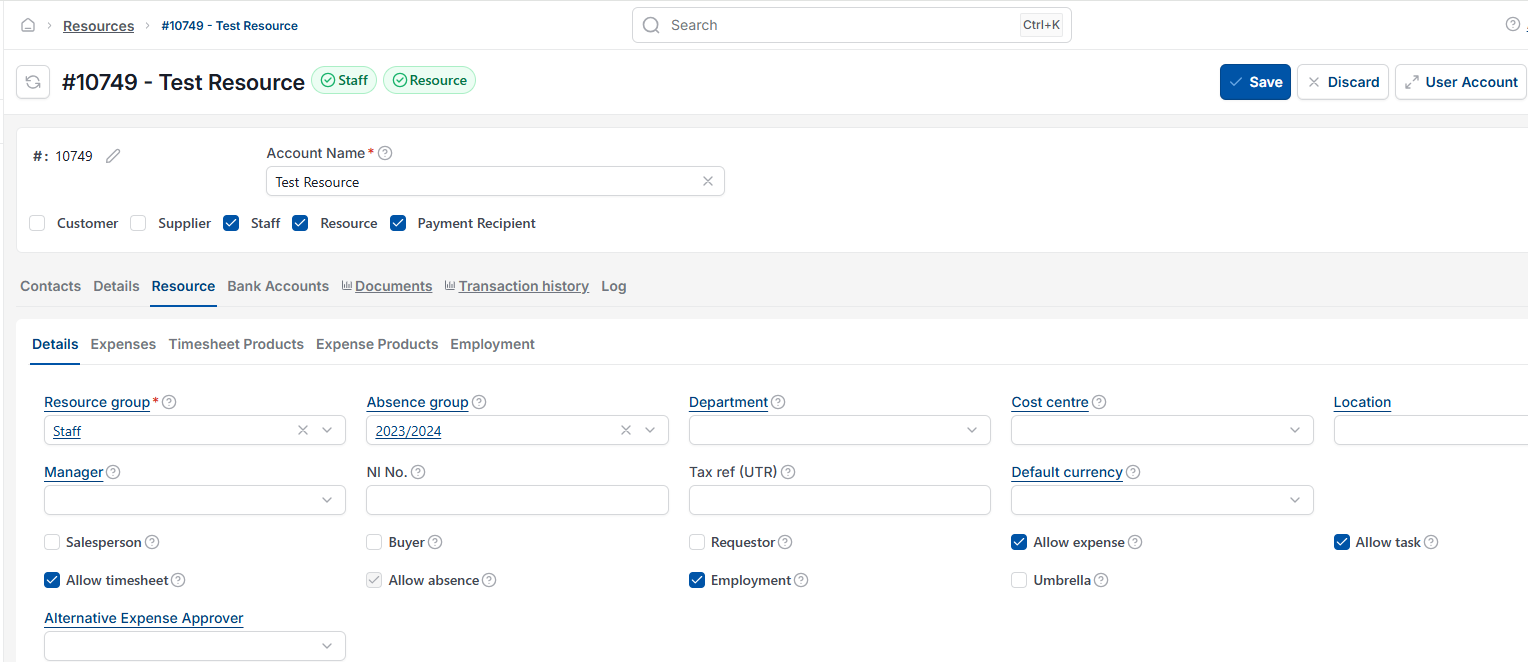
Assigning an expense product to a resource record
Follow these steps to assign an expense product to an employee's resource record.
- Go to HR > Resources and open the employee's resource record
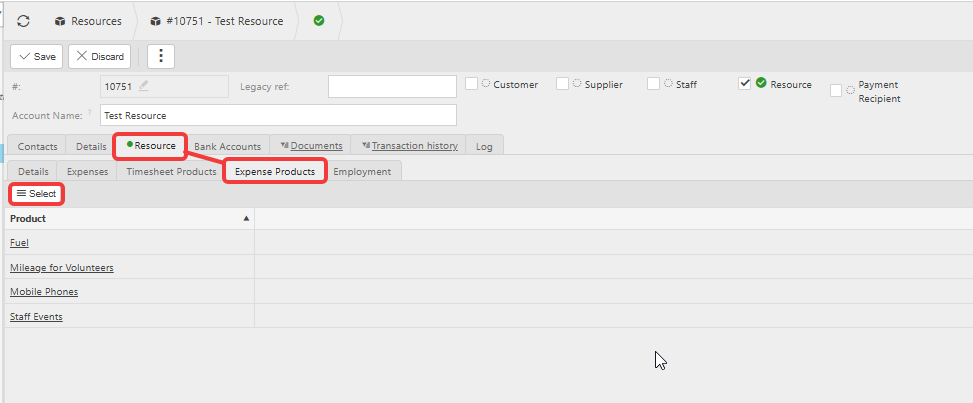
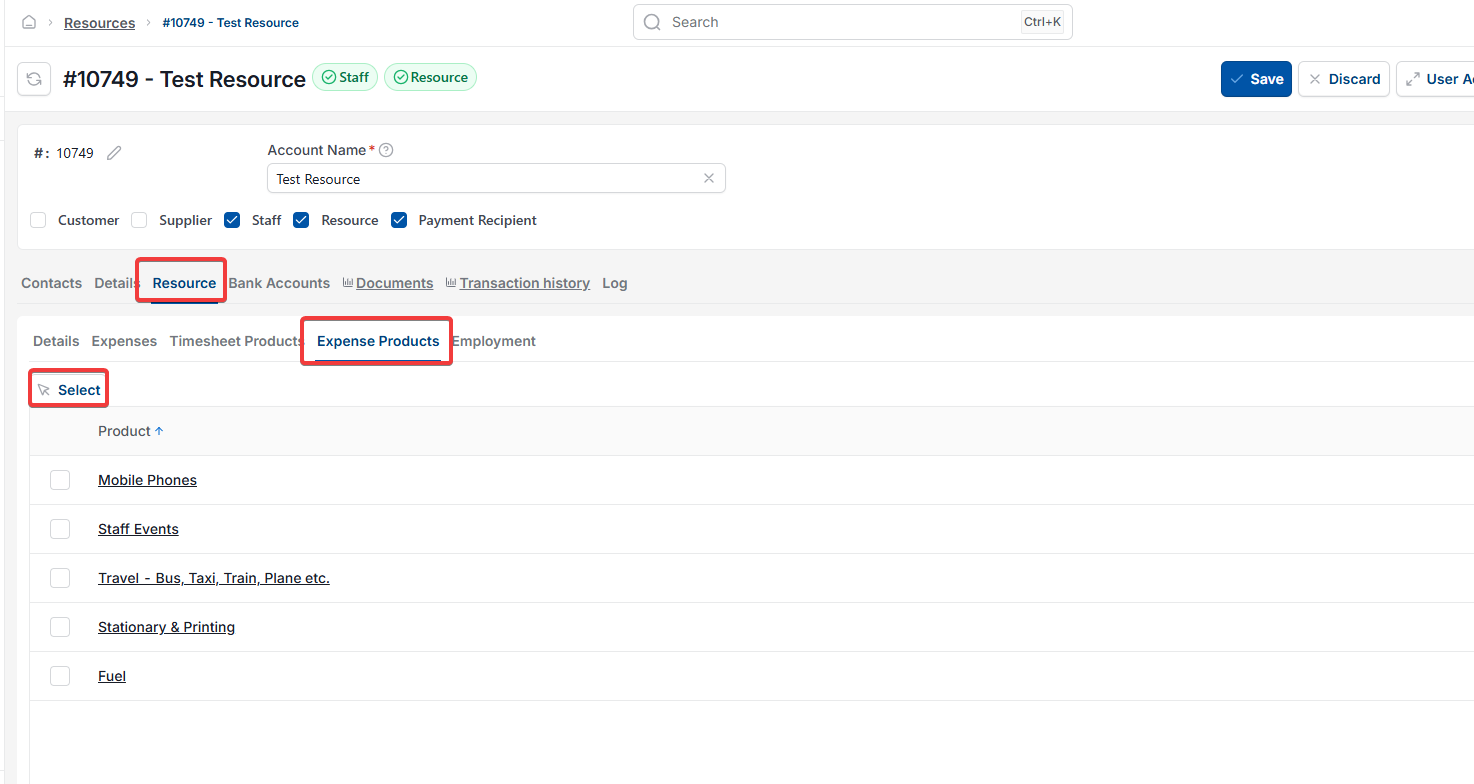
- Open the 'Expense products' section on the record
- Use the select button to choose the expense product from the list
- Save the resource record
- Reload the page or module so the change takes effect.
The product is now available for that employee to select when they create an expense claim. Use the same steps if only one or two products are missing rather than all of them.
Expense product missing
No products available expense
Can't select product expense
Assign product to expense
Add expense product to employee
Expense product not showing
Resource record expense product