

This article covers linking a new Legal Entity to Data Access Control (DAC) in iplicit. DAC controls which users can see or work with a Legal Entity – this is different from Data Entry Control, which controls whether they can post to it. See 'Data Access Control - User Guide' for full set up. If you already have a DAC rule set up, skip to step four to add the new Legal Entity to it.
Setting up Data Access Control for a new Legal Entity
- Go to 'Environment Defaults' and tick 'Data Access Control', if it isn't already enabled, then select 'Save'
- Refresh the screen to activate the feature
- Search for 'Data Access Control'
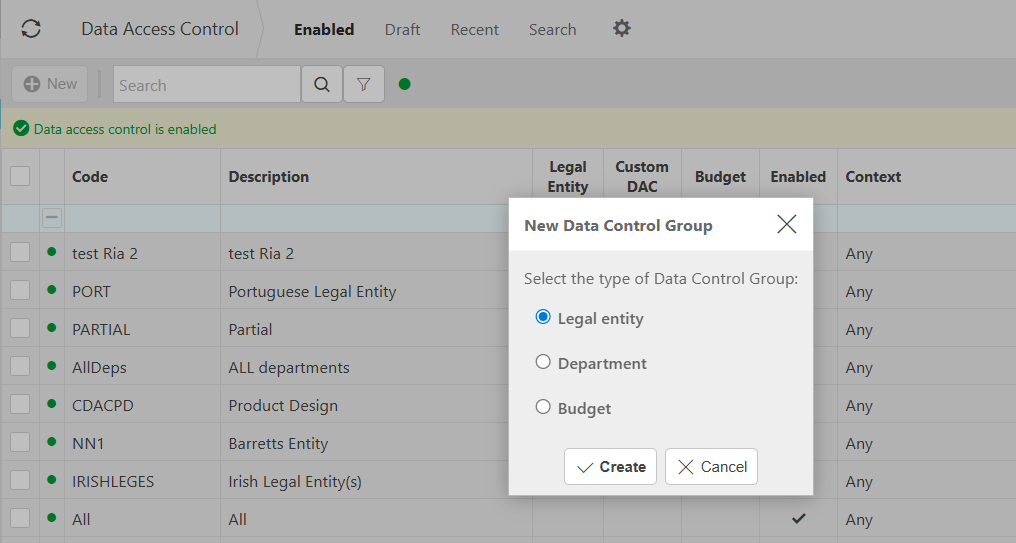
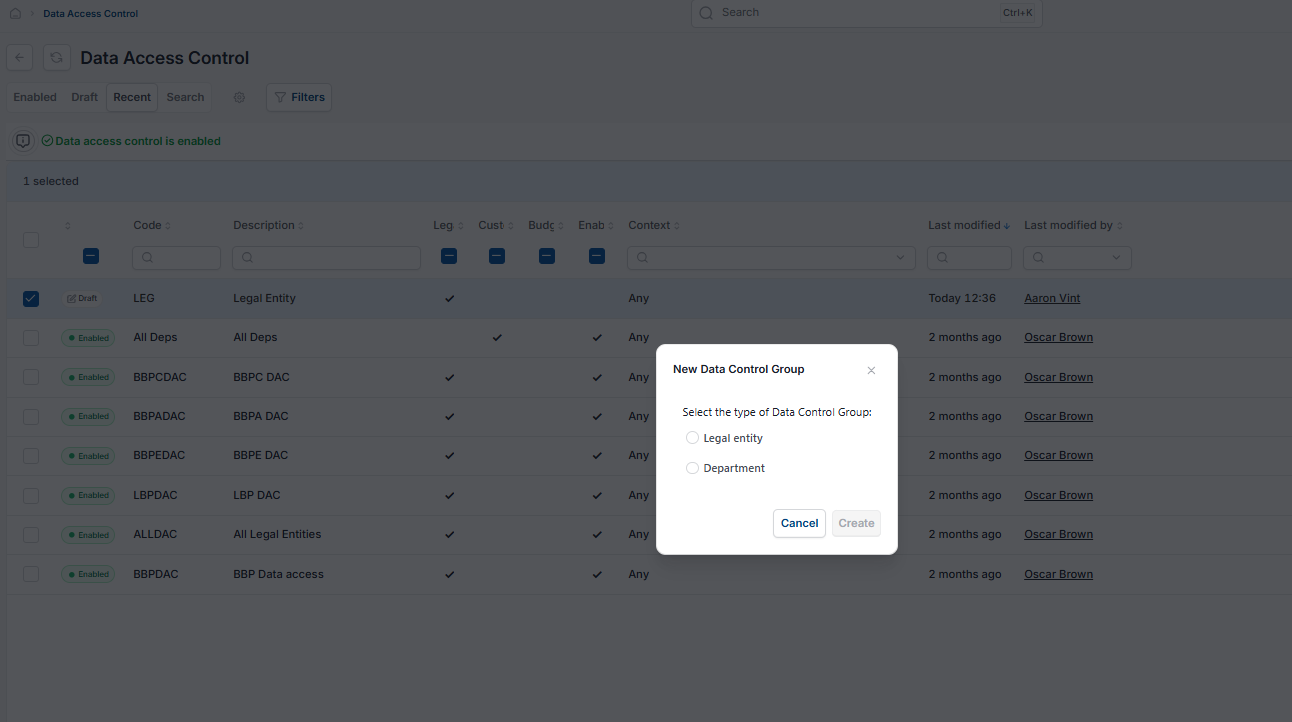
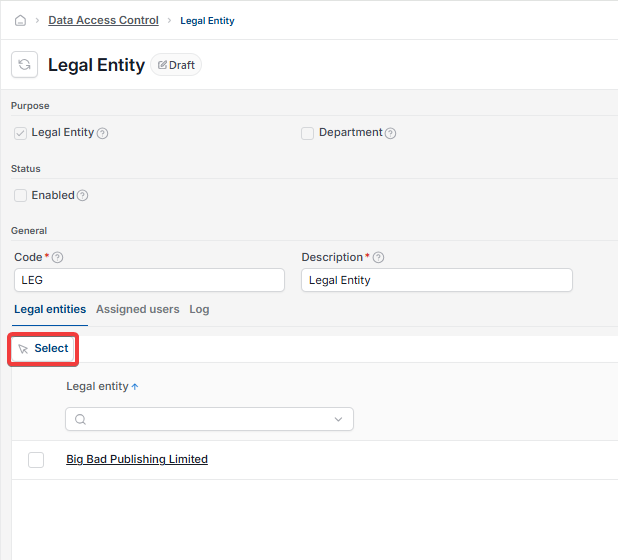
- Select 'New', then select 'Legal Entity'
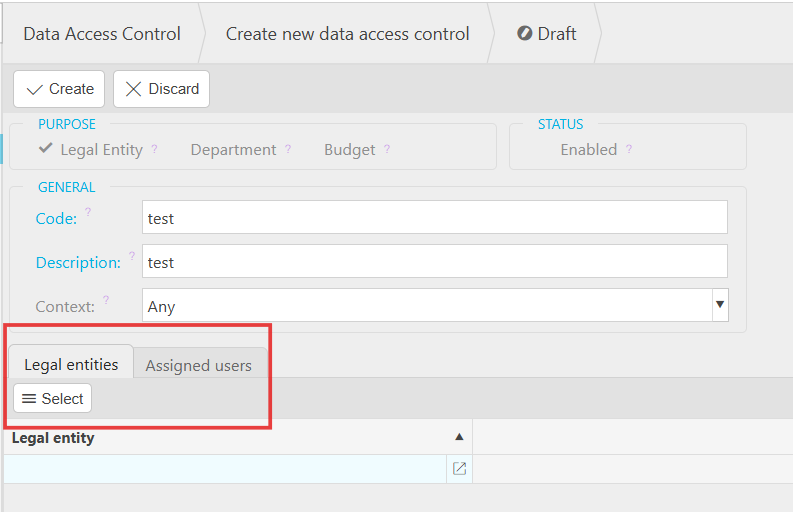
- Select the Legal Entities to include, for example the one you have just created
- Assign the users who should have access to it
- Select 'Create'.
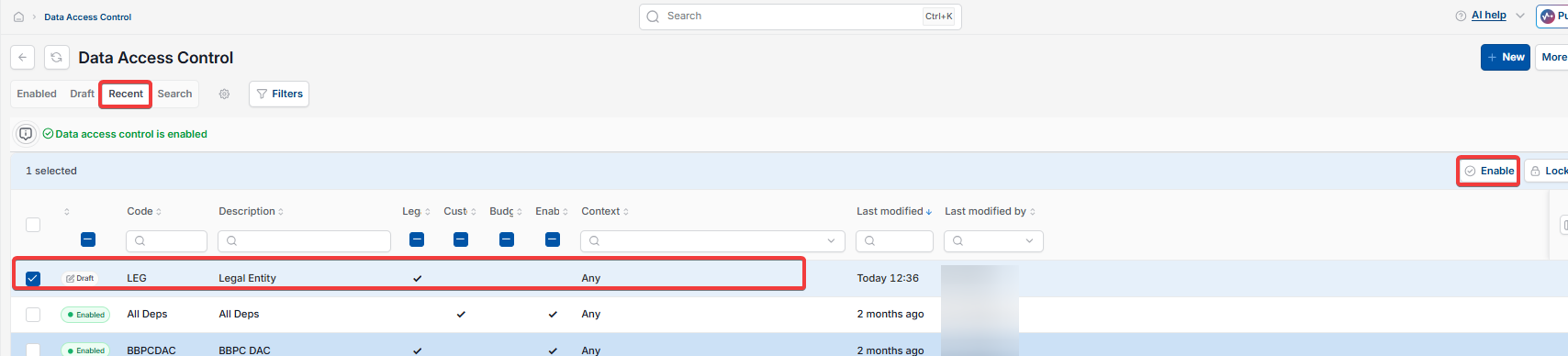
The rule saves as a draft.
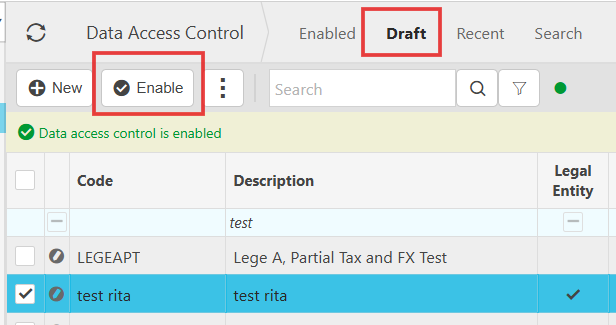
- Go to the 'Draft' section and enable it to apply the change to your system.
Data Access Control is all-or-nothing – any Legal Entity left out of a Data Access Control group is invisible to every user, even ones who should see it. Once enabled, users only see the Legal Entities they've been granted access to.
Data access control legal entity
DAC setup
Legal entity not visible
Can't see legal entity
Restrict legal entity access