

This article covers managing bank accounts held on a supplier record – adding a new one, editing an existing one, removing one, or changing which account is set as Default. This is separate from setting up a legal entity's own bank account; for that, see 'How to set up a new bank account'.
Viewing a supplier's bank accounts
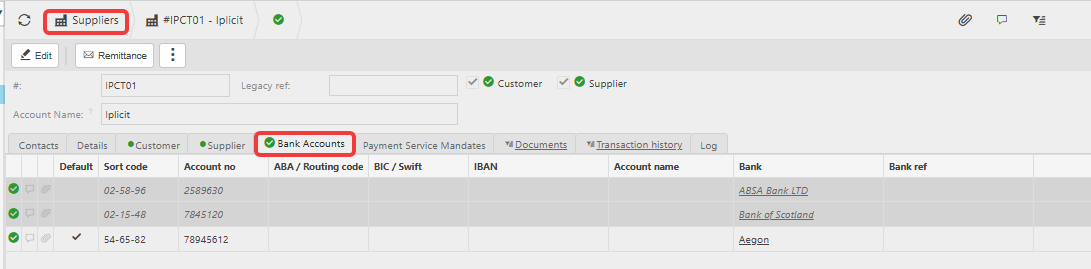
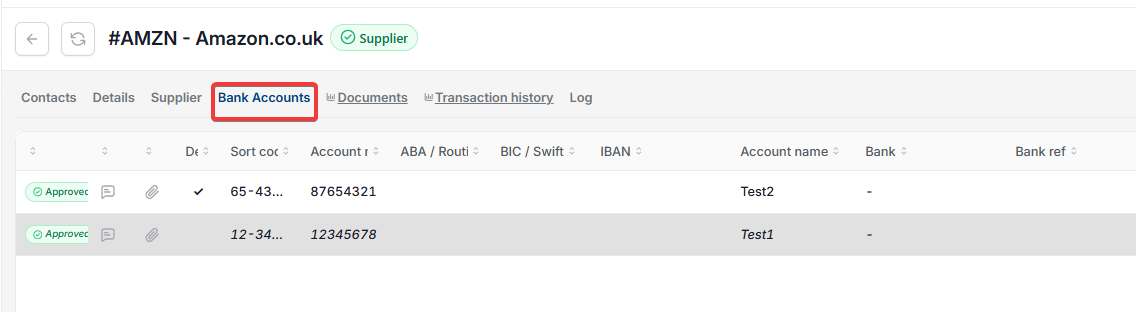
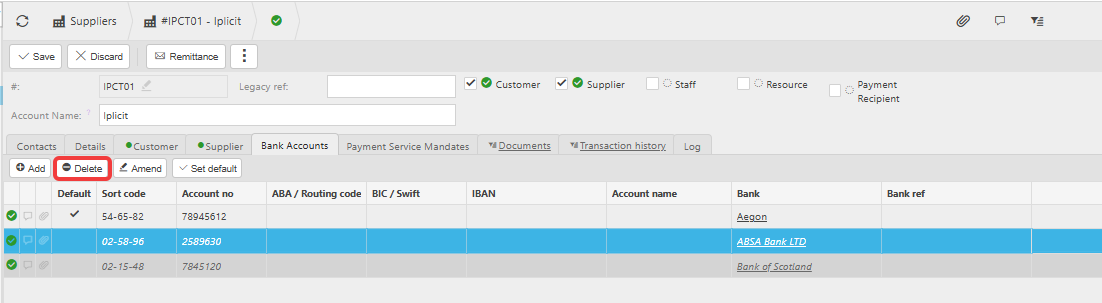
Open the supplier record and select the 'Bank Accounts' tab. This lists every bank account held for that supplier, showing sort code, account number, bank name and a tick against whichever account is currently set as Default. A supplier can hold more than one bank account at a time – this is common where a supplier pays into different accounts for different purposes.
Adding a new bank account to a supplier
- Open the supplier record and select the 'Bank Accounts' tab
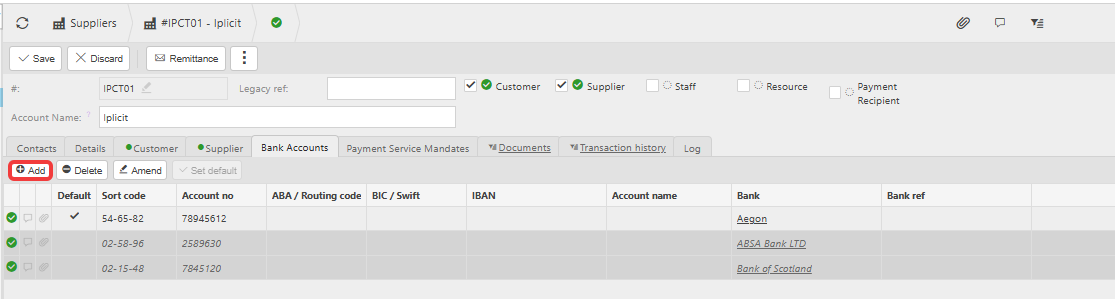
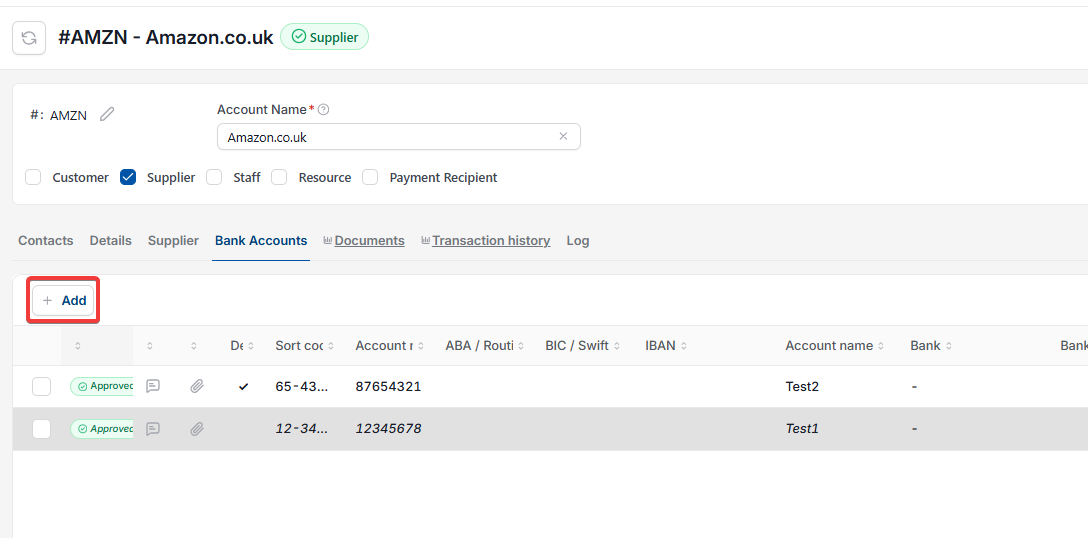
- Select 'Edit' at the top of the record
- Select 'Add'
- Enter the sort code, account number and bank name
- Select 'Save'.
Amending an existing supplier bank account
- Open the supplier record and select the 'Bank Accounts' tab
- Select 'Edit'
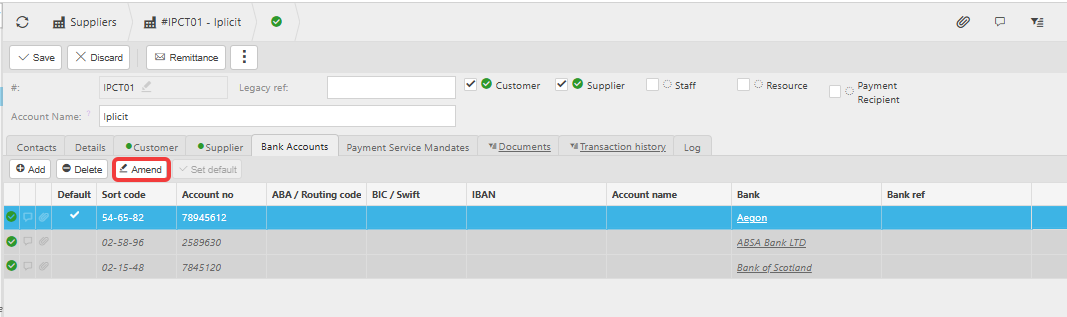
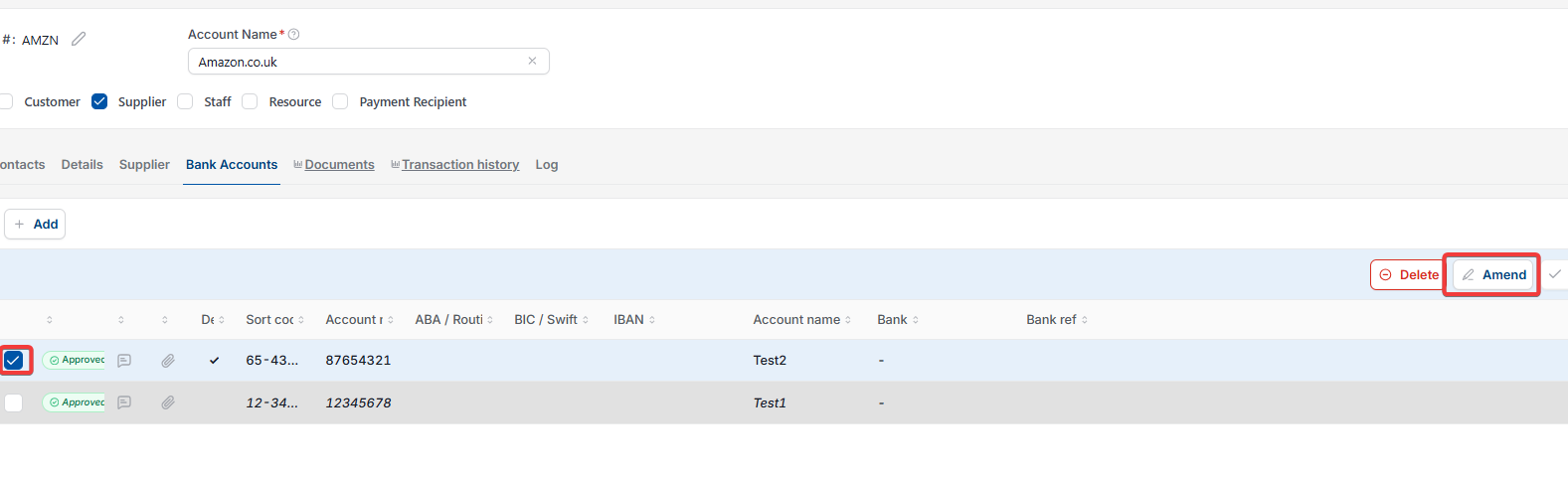
- Select the bank account you want to change, then select 'Amend'
- Update the required fields
- Select 'Save'.
Setting which supplier bank account is used as Default
The Default account is the one iplicit uses automatically wherever a supplier's bank account is needed – including on a Bulk Payment. See 'Can I change which supplier bank account is used on a Bulk Payment?' for how this affects payment runs specifically.
- Open the supplier record and select the 'Bank Accounts' tab
- Select 'Edit'
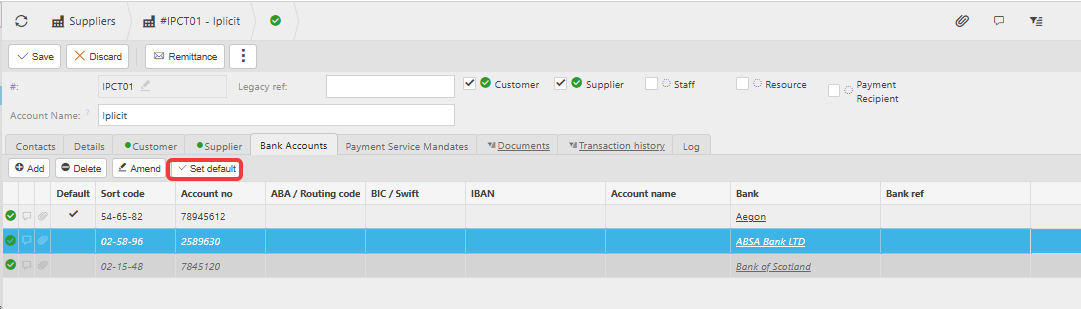
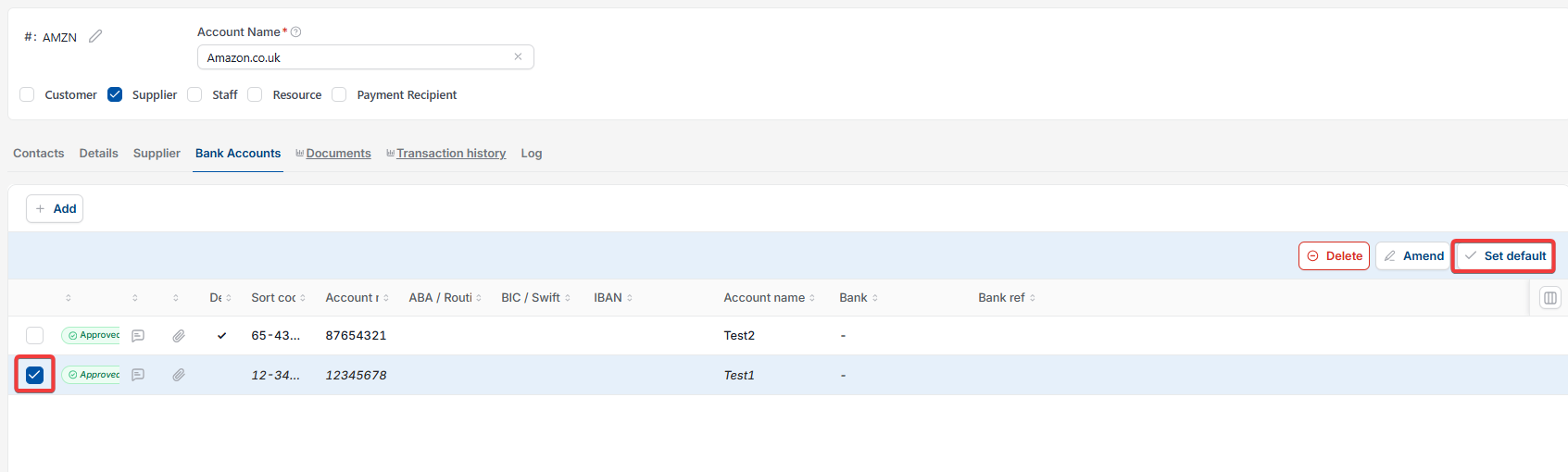
- Select the account you want to use, then select 'Set default'
- Select 'Save'.
Deleting a supplier bank account
- Open the supplier record and select the 'Bank Accounts' tab
- Select 'Edit'
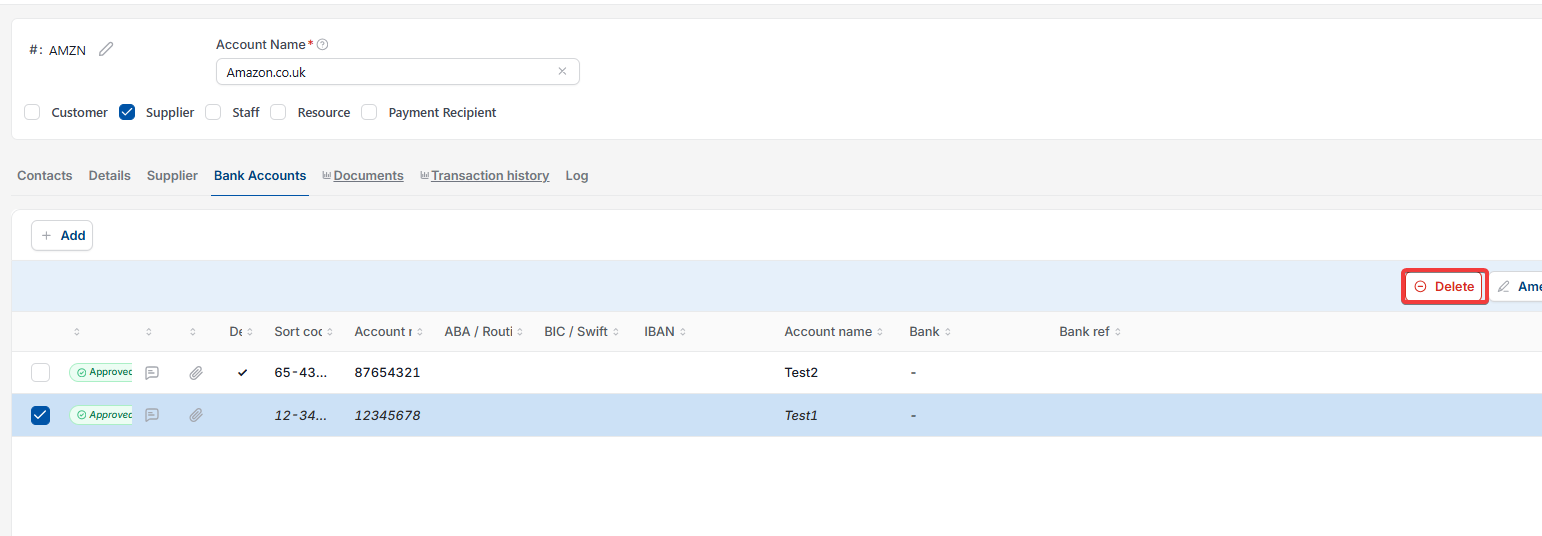
- Select the account, then select 'Delete'
- Select 'Save'.
Amend supplier bank account
Add bank account to supplier
Delete supplier bank account
Change supplier bank details
Set default supplier bank account
Edit supplier sort code account number