

This article covers Dynamic Account Structures, specifically how to apply an existing one within an enquiry. This applies to any enquiry where the pivot table is grouped by account, such as Profit and Loss, Trial Balance or Balance Sheet. To create a Dynamic Account Structure first, see 'How to create a Dynamic Account Structure'.
Applying the structure to a pivot table
- Open the enquiry you want to apply the structure to, for example Profit and Loss, Trial Balance or Balance Sheet
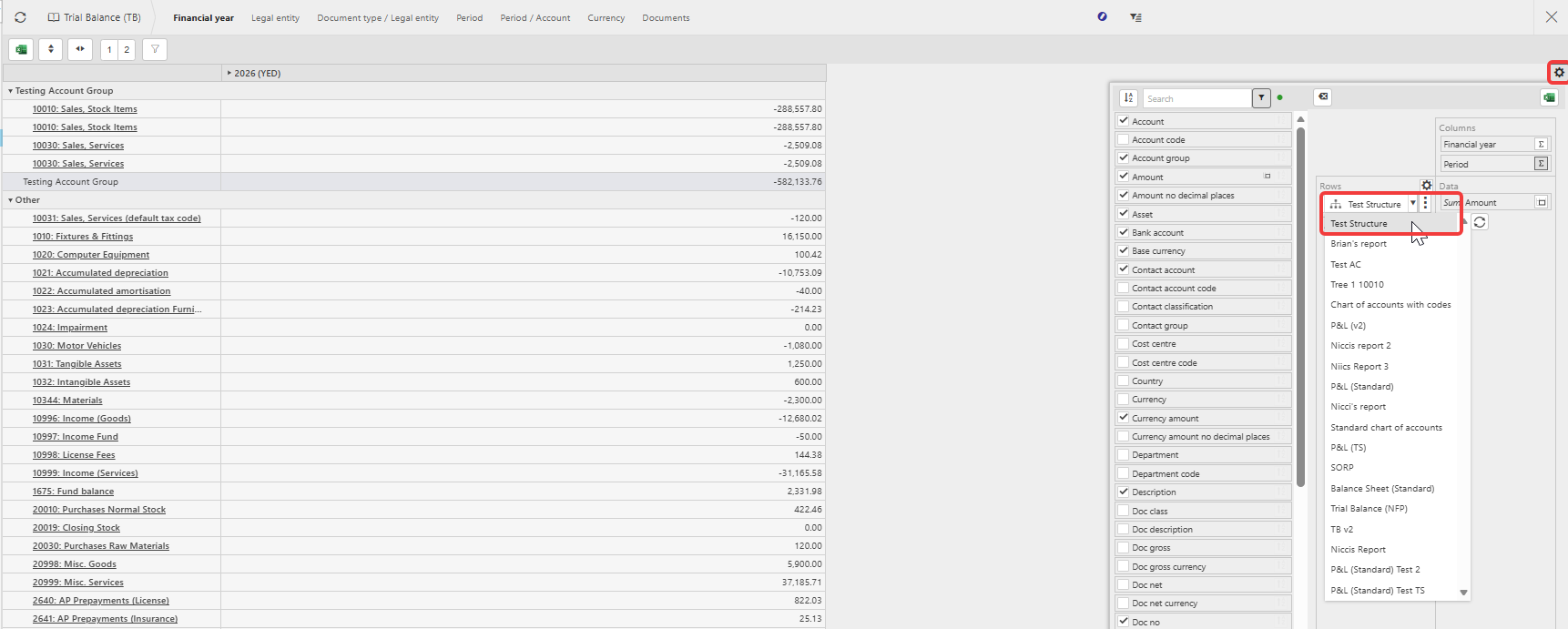
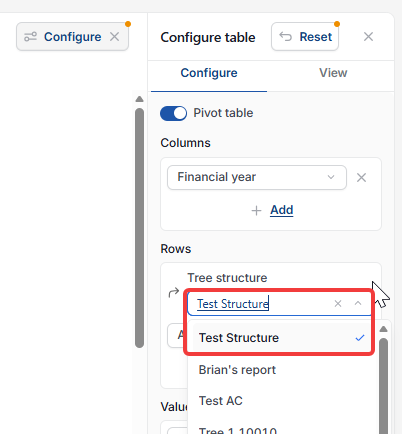
- Select the configuration icon in the top right of the pivot table. This will either be a cog or the word 'Configure', depending on your screen
- In the 'Rows' section of the pivot fields, select the 'Tree' dropdown and choose the Dynamic Account Structure
- The structure now appears in the pivot, along with the calculated value for each group.
Hiding the 'Other' line on a Dynamic Account Structure
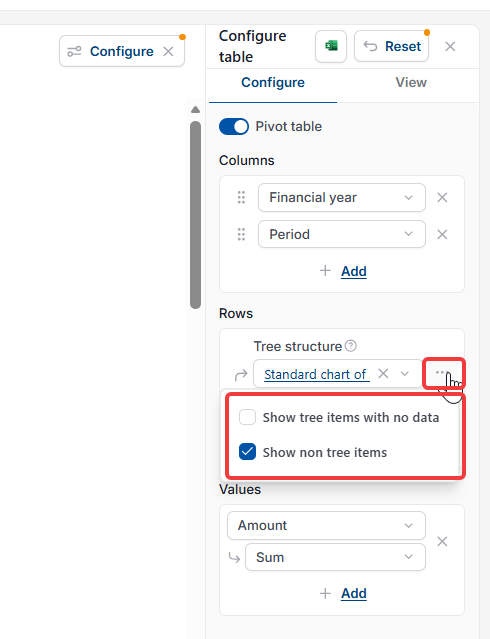
An 'Other' line appears above the total, showing values for any accounts not included in the structure. To hide it:
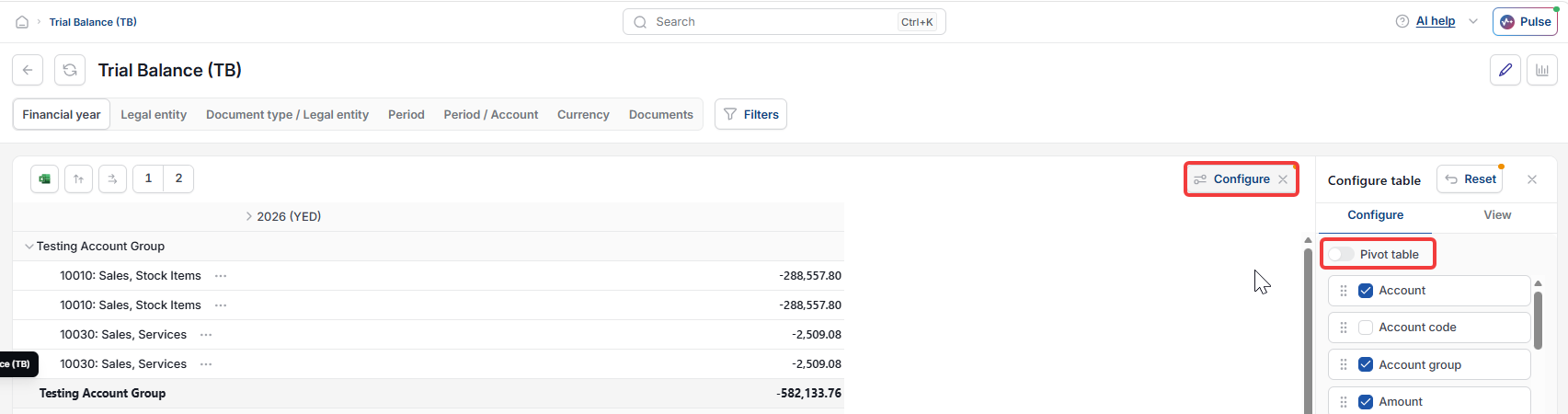
- Select the configuration icon in the top right of the pivot table. This will either be a cog or the word 'Configure', depending on your screen
- If you have the 'Configure' button, you will need to toggle 'Pivot table'
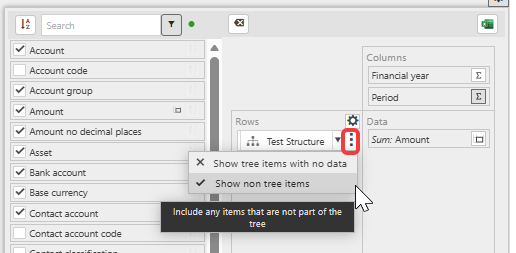
- Select the three dots next to the 'Tree' dropdown
- Select 'Show non tree items' to turn it off.
Once this is set, the 'Other' line no longer appears, and only the accounts linked to the Dynamic Account Structure are shown.
Dynamic account structure enquiry
Add tree to pivot table
Custom grouping trial balance
Hide other line pivot
Show non tree items