

This article covers the iplicit Excel add-in specifically – not other integrations or exports. If you can open iplicit normally but Excel won't refresh or display your data, this is almost always a missing user permission, not a fault.
Excel add-in permission requirement
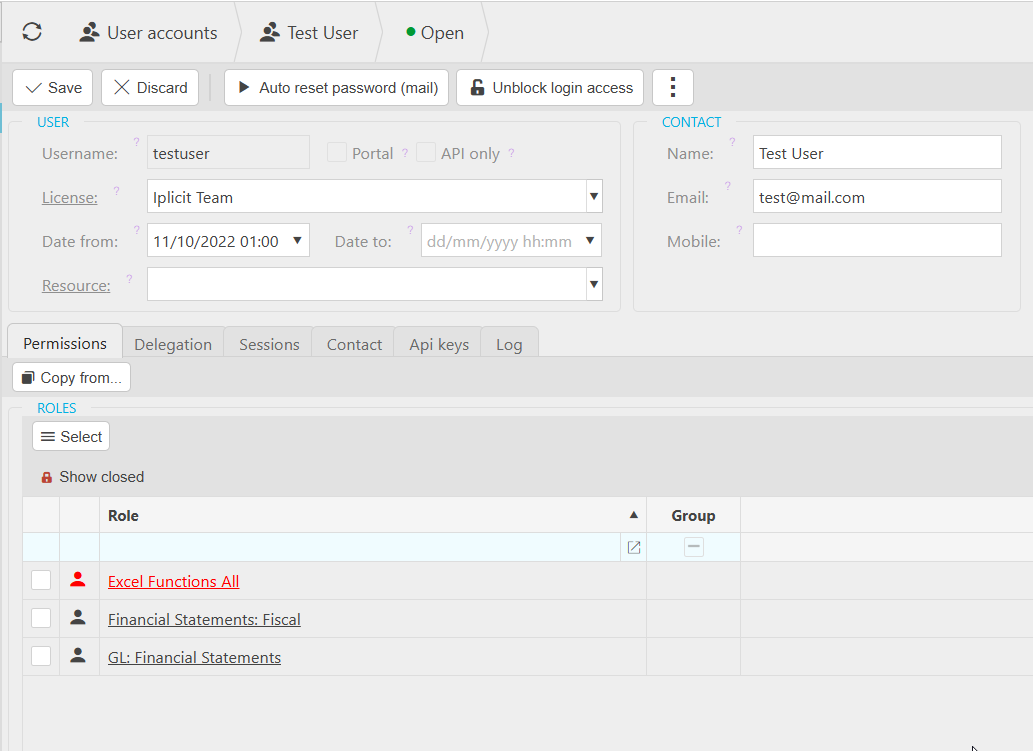
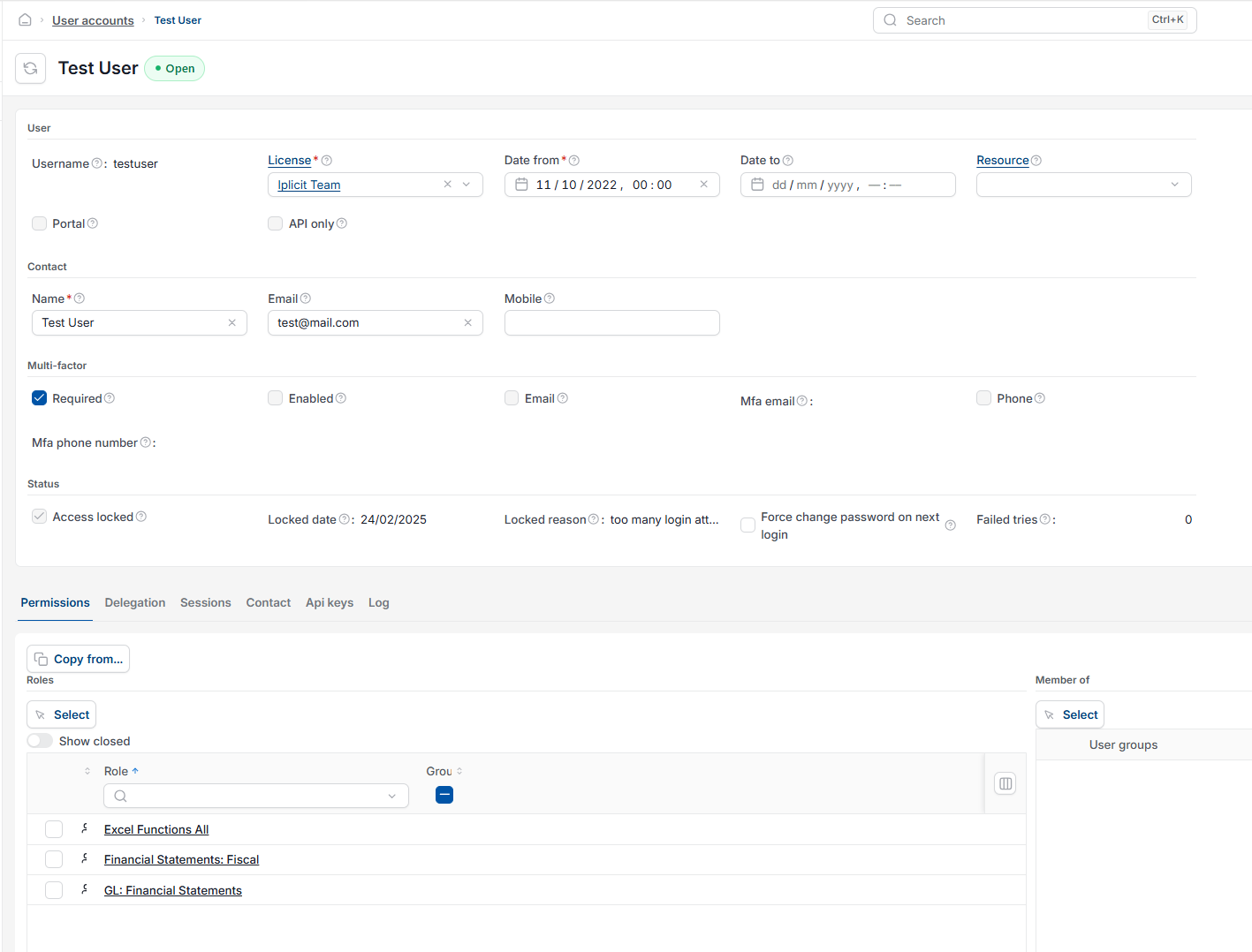
To refresh or view iplicit data through the Excel add-in, your user account needs the Excel Functions All role. Without it, the Excel add-in will not pull data through, no matter what else is set up correctly.
Two roles already include this permission automatically, so if you have either of these you don't need to do anything further:
- GL: Financial Statements
- Financial Statements: Fiscal
If you have one of these roles and still can't refresh iplicit data in Excel, the fault lies elsewhere – contact support rather than reassigning roles.
The error message you'll see
If your user account doesn't have the right permission, attempting to refresh iplicit Excel functions displays this message:
'You do not have permission to use iplicit Excel functions.'
If you see this exact message, the fix below applies. If you see a different error while using the Excel add-in, this article won't resolve it – search for the specific error text instead.
How to fix Excel add-in permission errors
You'll need admin access to user roles in iplicit to complete this. If you don't have that access, ask your iplicit administrator to do the following:
- Go to the user's account in iplicit
- Assign the 'Excel Functions All' role
- Save the changes
- Ask the user to reopen Excel and refresh the iplicit add-in.
The user should now be able to see and refresh their data in Excel without the permission error appearing again.
Excel add-in permission
Can't see my data on Excel
Excel functions not working
You do not have permission to use iplicit Excel functions
Excel Functions All role