

This article covers requesting and setting up an Amazon Business Punchout integration in iplicit. Punchout lets you order from Amazon Business' own catalogue while the order still comes back into iplicit as a Purchase Order. Setting this up starts with a request to the Support Team, including details from both Amazon and your own iplicit configuration.
What punchout means for Amazon Business orders
Punchout (sometimes written as "punch out" or "punch-out") is a connection between iplicit and a supplier's own website. Instead of building a catalogue inside iplicit, you go to the Amazon Business site, choose your items there, and iplicit picks the order back up as a Purchase Order once you've finished shopping. Setting up Amazon Business punchout needs details from two places: Amazon and your own iplicit configuration.
Details to obtain from Amazon Business
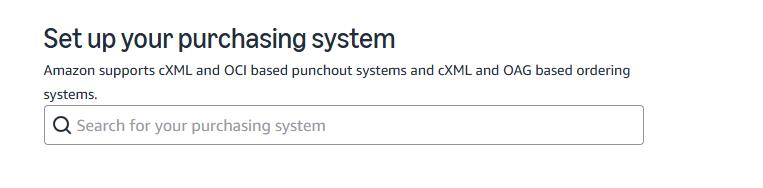
You will set up your Amazon group within Amazon Business, then within system integrations you can then configure your purchasing system to obtain the following details:
- Punchout URL – the Amazon Business punchout endpoint address
- Purchase order request URL – the address Amazon gives iplicit to send approved purchase orders back to Amazon Business
You will be asked for the name of the purchasing system when obtaining the above information, you will need to enter 'Other' as iplicit is not an available option currently.
Details your iplicit administrator needs to confirm
Alongside the Amazon details, we need your team to confirm the following for the Amazon Business punchout setup:
- Supplier record – which supplier record in iplicit punchout orders should be raised against
- Default purchase order document type – the document type applied to purchase orders generated through Amazon Business punchout
- Delivery charge account (optional) – if delivery charges should post to a specific account, provide the account details
- Group accounts (if applicable) – whether you need multiple sub-accounts under one Amazon Business account, for example separate schools within a trust, departments or cost centres. If so, Amazon may need to issue separate account references or punchout URLs for each group
Requesting a new punchout supplier
To set up punchout for a new supplier, including Amazon Business, contact the Support Team by raising a ticket including the requested information outlined above.
Once support has both the Amazon Business punchout details and your iplicit configuration confirmations, the punchout integration can be configured against your account.
Going live with Amazon Business Punchout
Once you've tested your punchout setup and are ready to move to production, complete the following:
- Within the group(s) in your Amazon Business account, go to System Integrations > Purchasing system, locate the punchout configuration and switch to Active Mode
- In iplicit, repeat the same punchout setup steps in your live environment as you used in the test environment
- Change the punchout URL from https://abintegrations.amazon.co.uk/punchout/test to https://abintegrations.amazon.co.uk/punchout/
For further information on how to set up Punchout in your environment, please see our user guide that covers the permissions and environment set up in more detail here: Purchase Orders | iplicit
Punchout
Punch out
Amazon punchout
Amazon business integration
Punchout setup
Supplier catalogue integration
New punchout supplier
