

This article covers splitting a VAT return across multiple legal entities in iplicit, using the Manual Journal Interco Tax automation. It applies when a VAT return represents a Tax group covering more than one legal entity, and iplicit needs to allocate the input and output VAT to each legal entity involved.
Before you start
The Interco Tax automation works by creating a manual journal that reallocates VAT between legal entities, using a dedicated General Ledger (GL) account as a temporary posting point. This account should never hold a balance once the journals are complete.
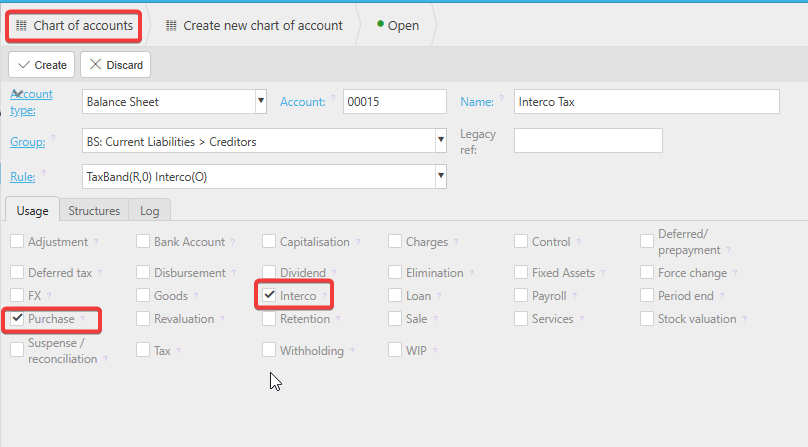
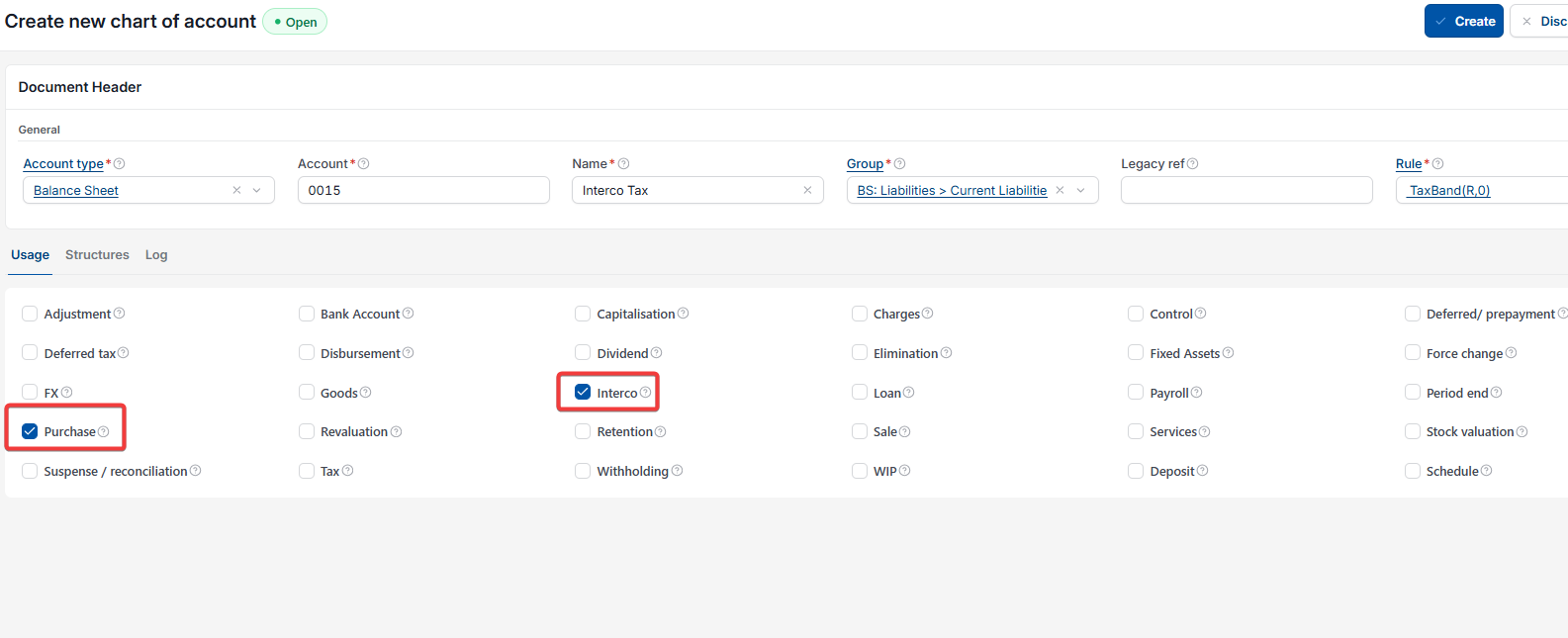
Step one: create an Intercompany Tax GL account
Set up a new GL account to use solely for intercompany tax postings related to the VAT return split. This account is a temporary posting point only, and should not hold a balance once all journals are completed.
Step two: add the account to Account Defaults
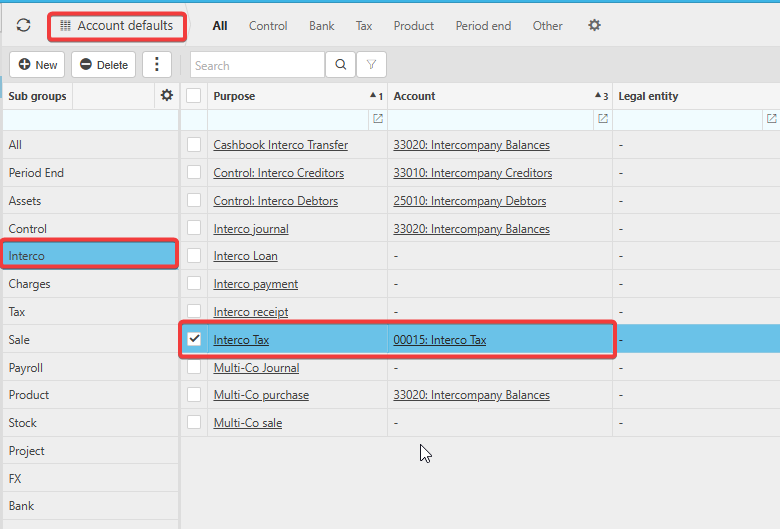
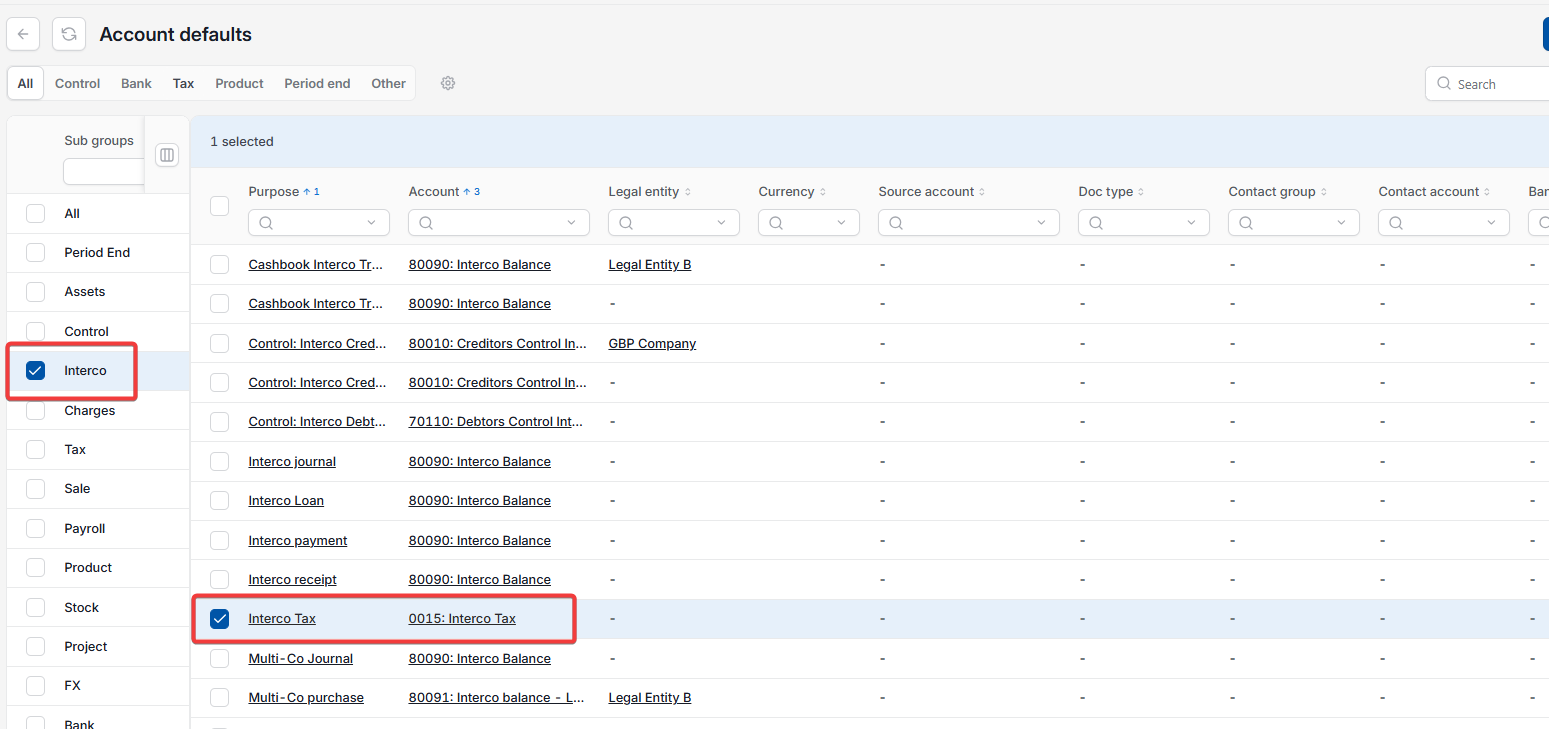
Once the Intercompany Tax GL account exists, add it to Account Defaults so iplicit knows which account to use when generating the Interco Tax journal.
- Navigate to Account Defaults
- Find the 'Interco' section
- Locate the 'Interco Tax' purpose
- Select the GL account you created and assign it to this purpose.
This ensures the VAT return automation posts to the correct account when the Interco Tax journal is generated.
Step three: unlock the Manual journal interco tax document type
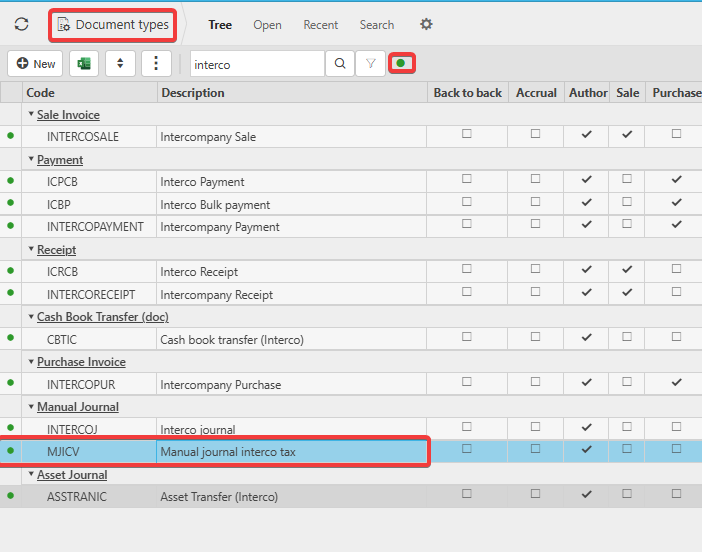
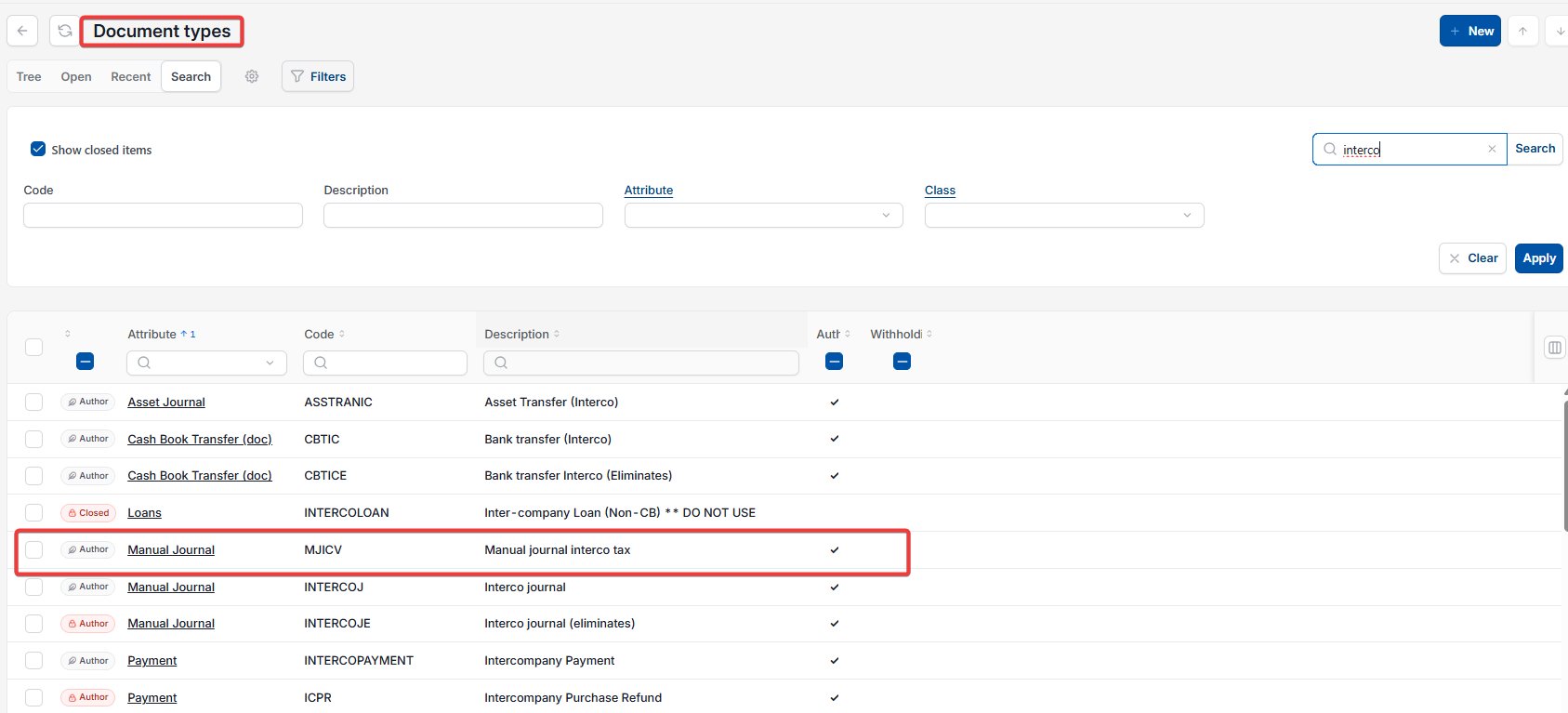
- Navigate to Document Types and locate 'Manual journal interco tax'
- If the document type is locked, click the green dot to expose locked documents
- Unlock the document type so the automation can use it.
Step four: check the document series
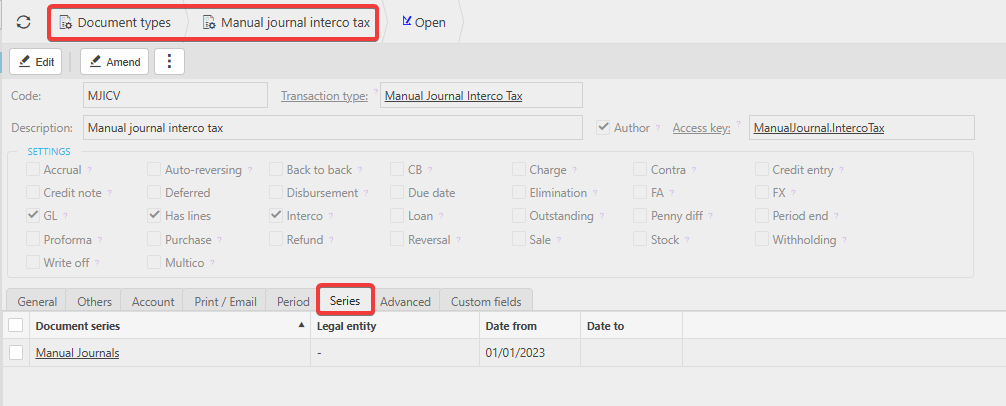
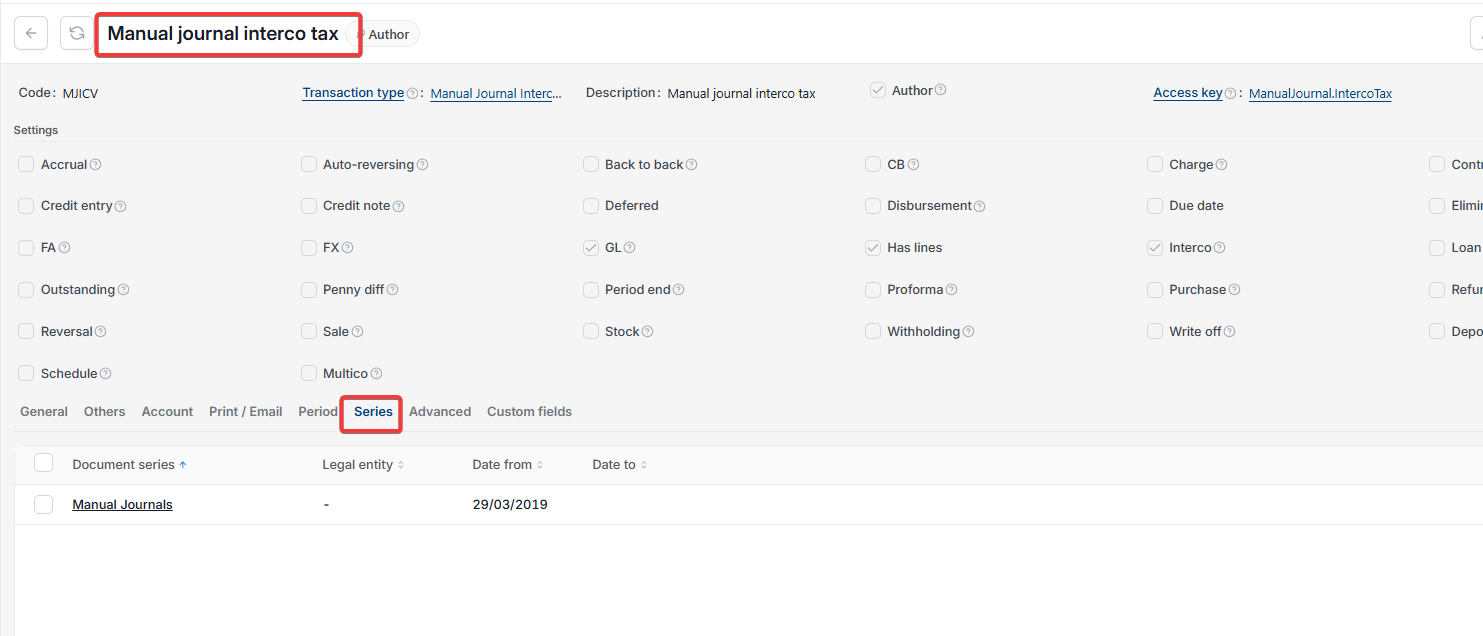
While still in the 'Manual journal interco tax' document type, open the 'Series' tab.
- If a document series is already assigned, no further action is needed
- If it's blank, choose an existing series or create a new one and assign it
This ensures iplicit can generate the journal when the VAT return automation runs.
Step five: create the Interco Tax automation
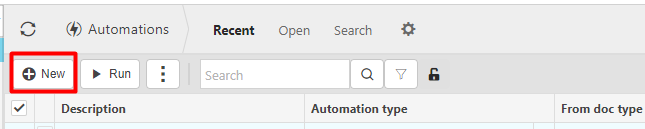
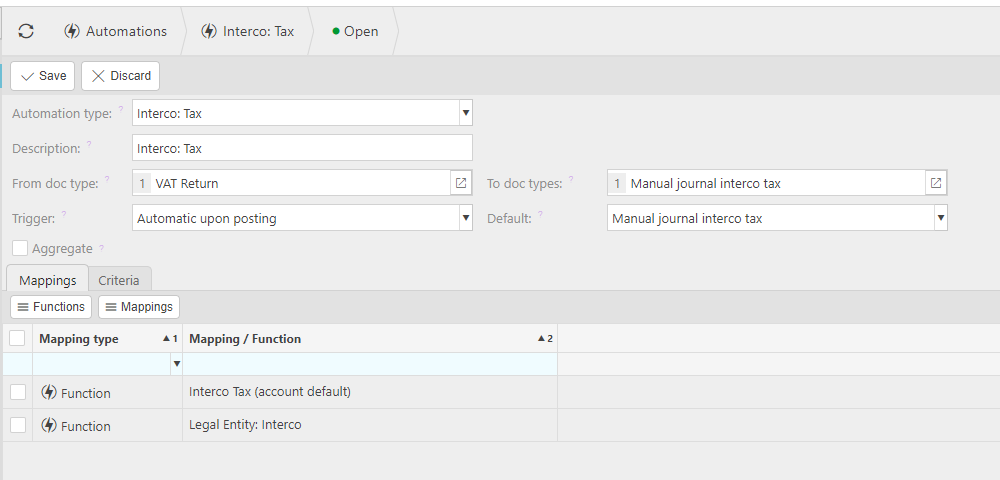
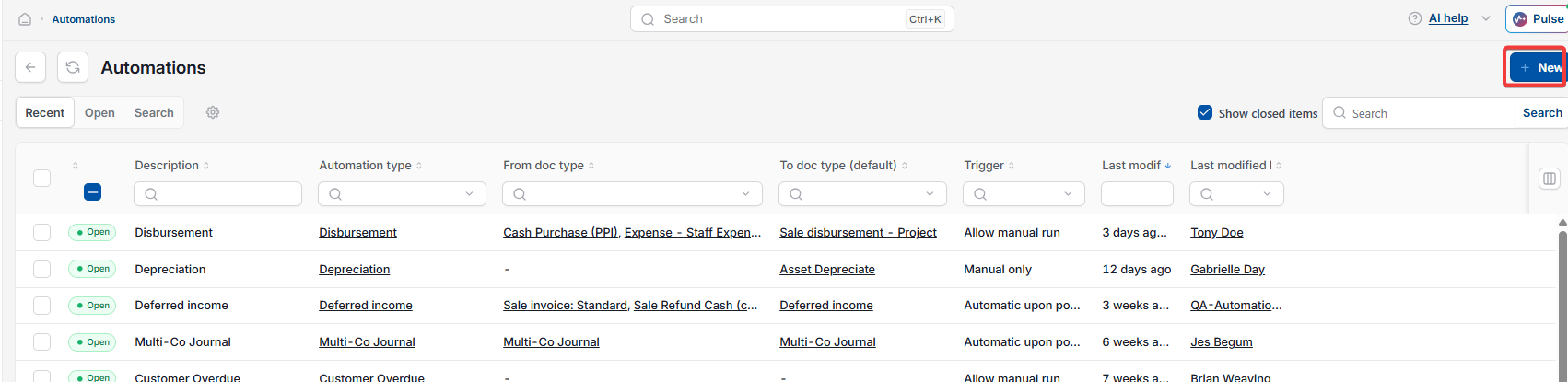
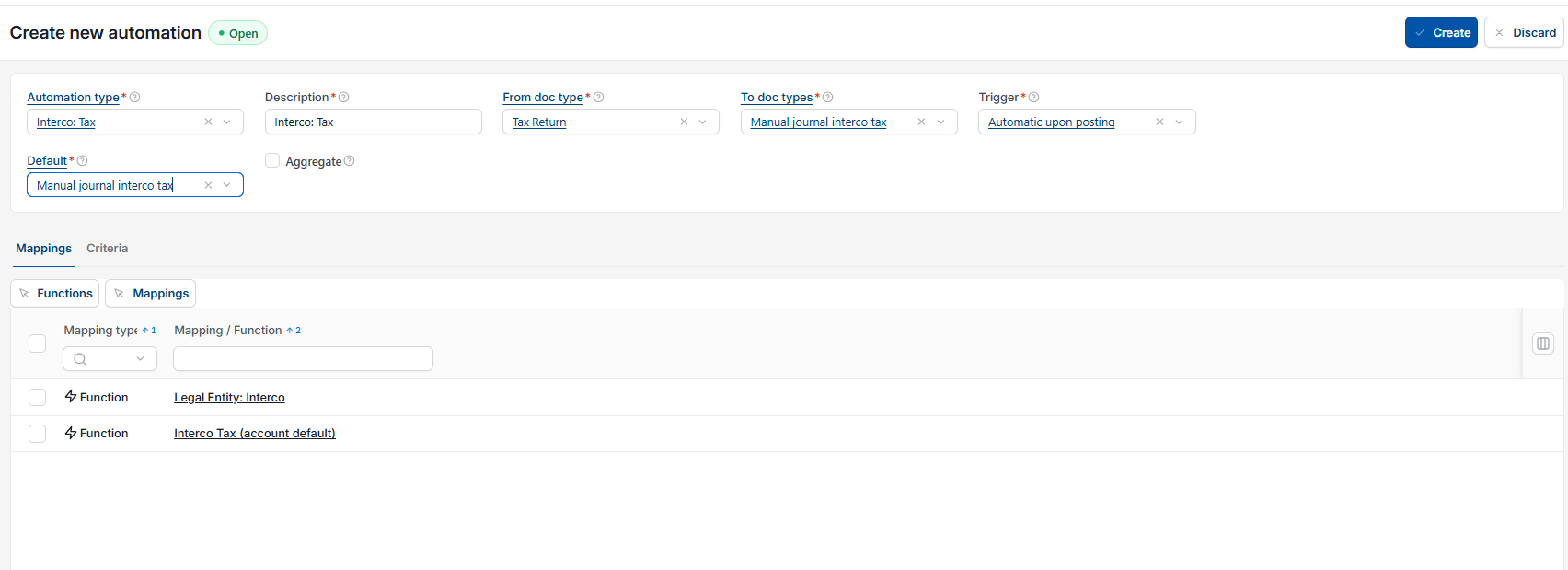
- Navigate to Automations and locate or create the Interco Tax automation
- Choose 'VAT Return' as the document type the automation runs from
- Choose 'Manual journal interco tax' as the document type it creates
- Select the trigger: 'Automatic upon posting' runs the journal automatically when the VAT return is posted; 'Manual' runs it only when you choose to
- On the 'Criteria' tab, add any filters needed, for example legal entity or tax period
- Tick 'Submit' if the journal should be automatically submitted for authorisation, rather than left in draft.
For a full explanation of each Criteria field, see 'Interco Tax Automation' in the iplicit user guide.
Once set up, the automation creates the Interco Tax manual journal each time a VAT return is posted, splitting the VAT correctly across the legal entities in the Tax group.
Split VAT return legal entities
VAT group multiple legal entities
Interco tax automation
VAT return multiple companies
Manual journal interco tax
Shared VAT registration legal entities