

This article covers the GL Reconciliation module, specifically why the 'Period from', 'Period to' and 'Date to' fields sometimes appear greyed out (disabled) when creating a new GL Reconciliation. Which fields are available, and whether they're required, depends on the 'Range' setting on the GL Reconciliation Rule linked to the reconciliation, not on the GL Reconciliation itself.
Why the fields are greyed out on a GL Reconciliation
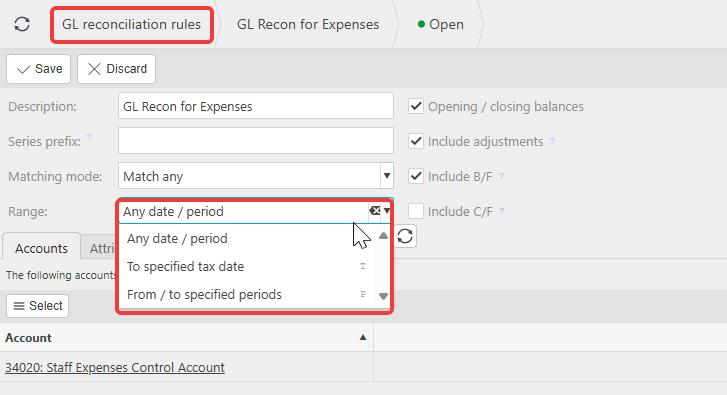
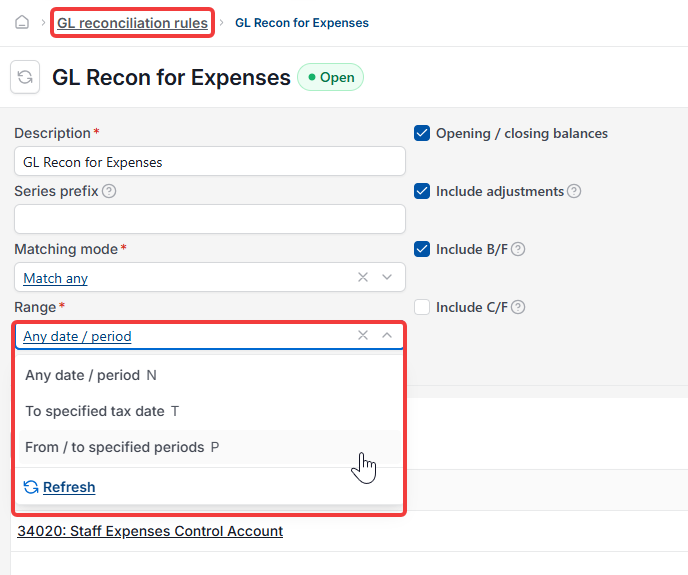
Every GL Reconciliation is linked to a GL Reconciliation Rule, and that rule has a 'Range' field. The Range setting on the GL Reconciliation Rule decides which fields the GL Reconciliation uses, and whether a value is required:
- If 'Any date / period' is selected on the rule, 'Period from', 'Period to' and 'Date to' are all greyed out – the GL Reconciliation runs with no period or date filter at all
- If 'To specified tax date' is selected, 'Period from' and 'Period to' stay greyed out, and 'Date to' becomes available and required
- If 'From / to specified periods' is selected, 'Period from' and 'Period to' become available and required, and 'Date to' stays greyed out.
Only one of these three states applies to a GL Reconciliation at a time, because the Range setting on the linked GL Reconciliation Rule decides it – not anything on the GL Reconciliation screen itself.
How to allow period selection on a GL Reconciliation
- Navigate to 'GL Reconciliation Rules'
- Open the rule linked to the GL Reconciliation, for example 'GL Recon for Expenses'
- Select the 'Range' dropdown
- Select 'From / to specified periods'
- Select 'Save'.
Any new GL Reconciliation created using this rule now shows 'Period from' and 'Period to' as active, required fields, with 'Date to' greyed out instead.
Existing GL Reconciliations already created under the old rule setting keep the Range they were created with.
GL Reconciliation period greyed out
GL Reconciliation date greyed out
Period from period to disabled
GL Reconciliation Rule range
GL recon date options
Why is date to disabled on GL reconciliation