

This article covers where the 'Your ref' field on a 'Remittance Advice' report gets its value from. It's pulled from the 'Their ref' field on the 'Details' tab of the relevant supplier's account, not entered directly on the report itself.
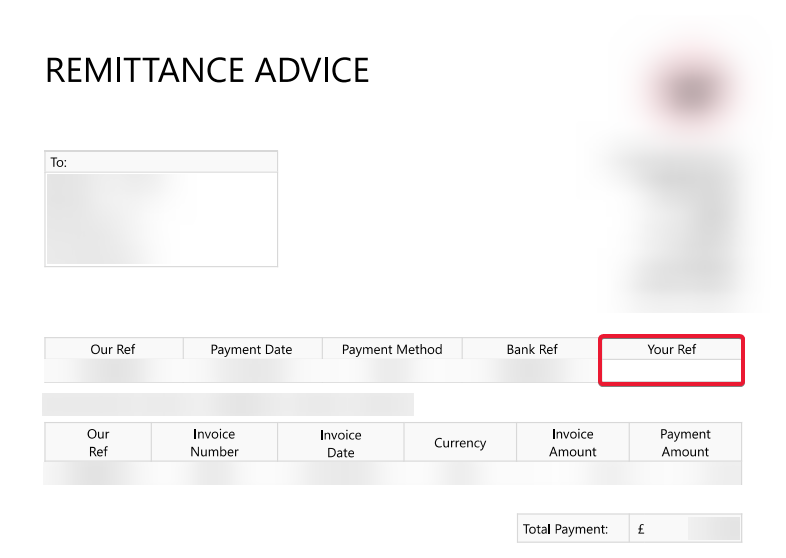
Setting the reference that appears as 'Your ref' on the Remittance Advice report
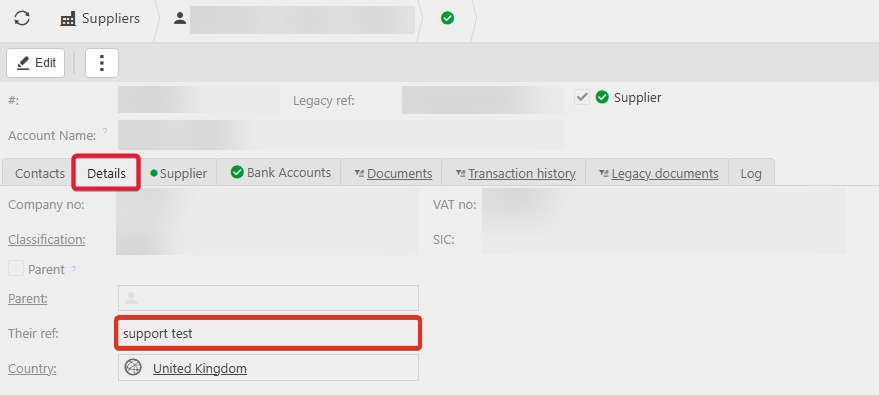
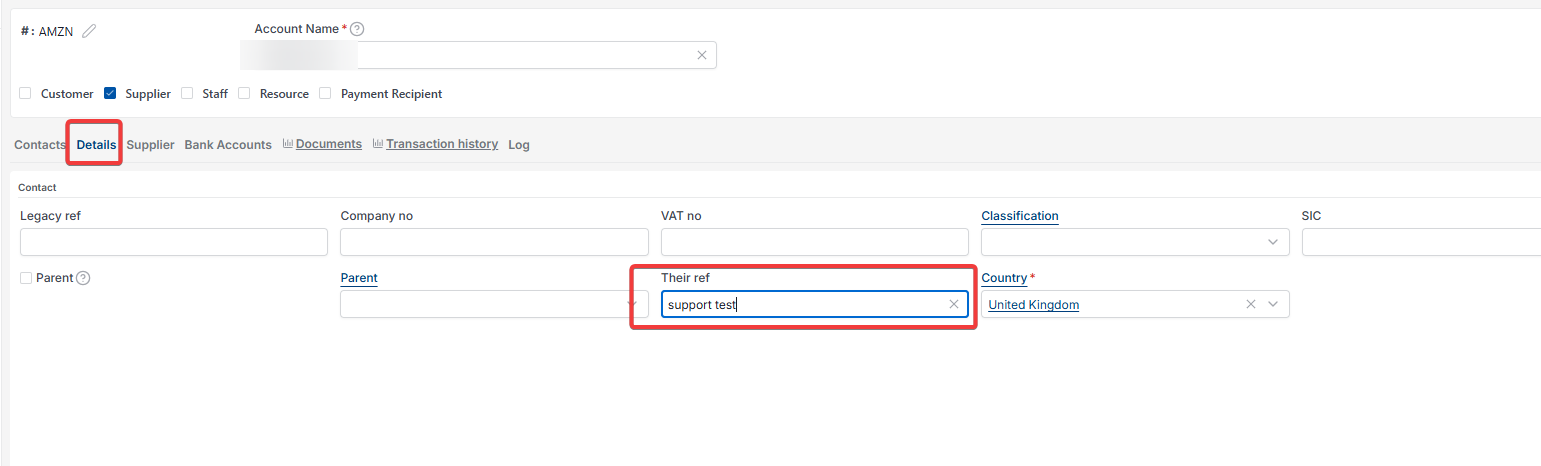
- Navigate to 'Suppliers' and open the relevant supplier
- Select the 'Details' tab
- In 'Their ref', enter the reference you want to appear on the report – for example, your organisation's account number with that supplier
- Select 'Save'.
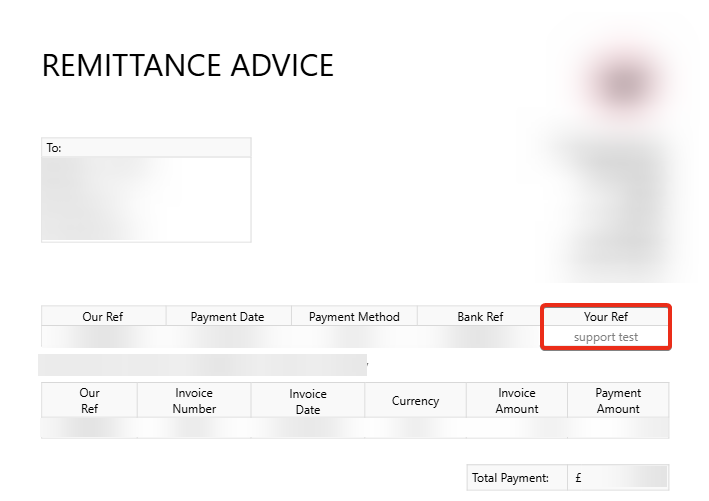
Once saved, this value populates the 'Your ref' field automatically the next time a 'Remittance Advice' report is generated for that supplier.
Screenshots for Legacy UI (before October 2026)
Screenshots for New UI (post October 2026)
Customer search terms
Your ref field remittance advice
Remittance advice reference blank
Where does Your Ref come from
Supplier account number on remittance