

This article covers how to reverse a posted revaluation in the Revaluations screen and replace it with a correct one. Unlike most iplicit document types, a posted revaluation cannot be unposted – reversing it is the only way to remove its accounting impact.
Why a revaluation has to be reversed, not unposted
Posted revaluations behave differently to other iplicit documents. Once the accounting period is locked, a posted revaluation cannot be unposted. If a revaluation has gone through with incorrect details, reversing it is the only way to remove its accounting impact before you create a correct replacement.
You may need to reverse a revaluation if:
- It was posted with incorrect details
- The wrong exchange rate was used
- It was processed against the wrong data.
Reversing a posted revaluation
Do this in the Revaluations screen:
- Open the Revaluations screen
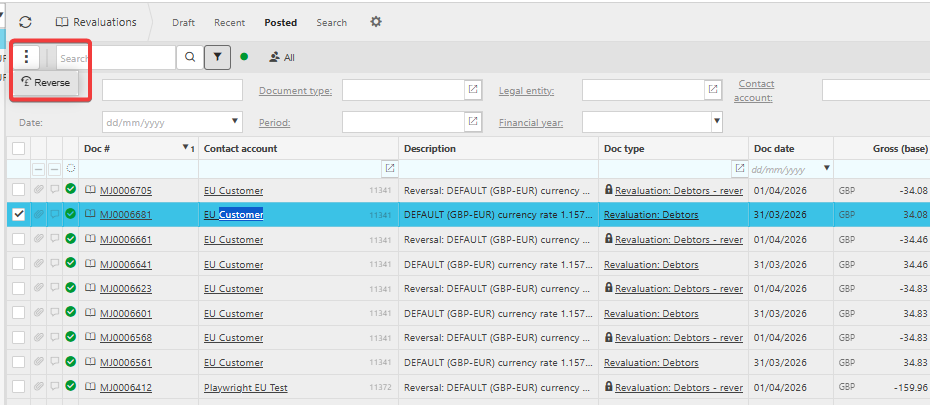
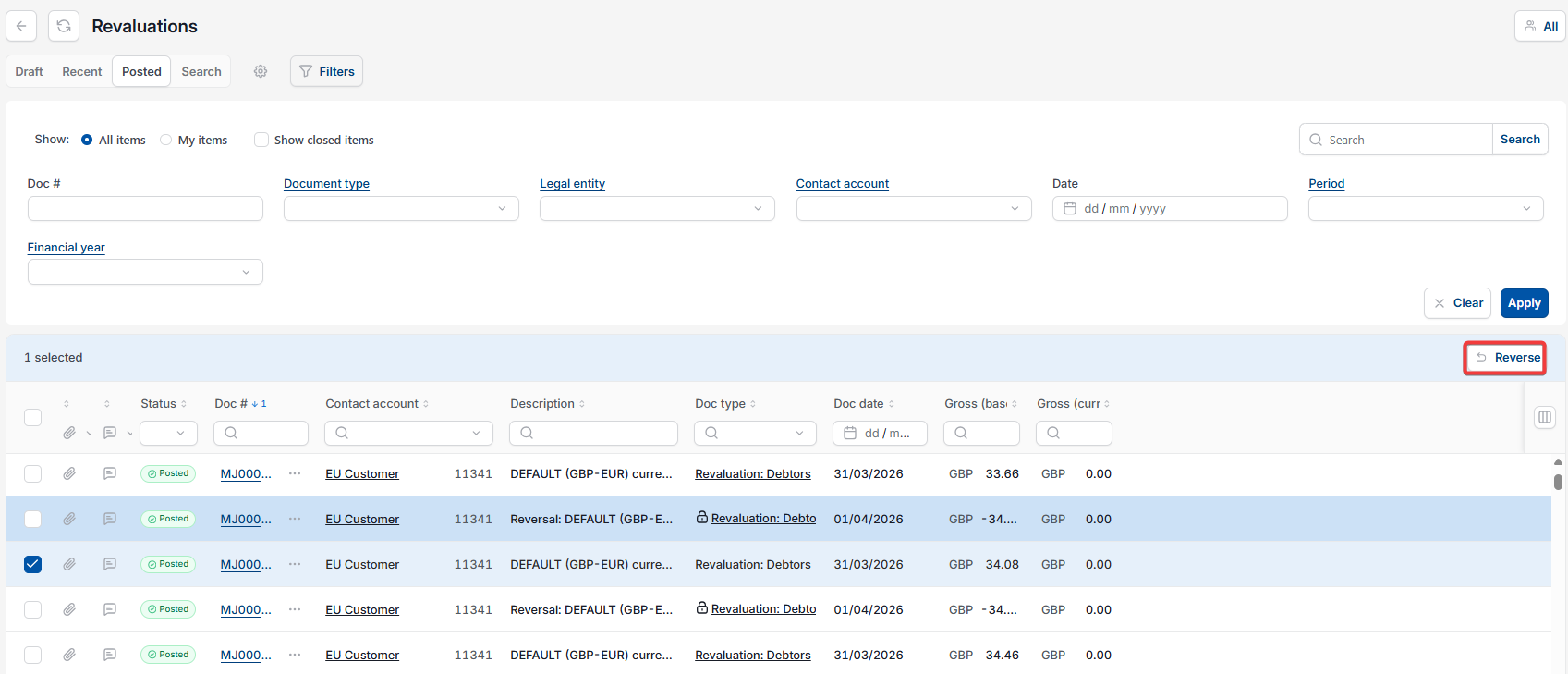
- Go to the Posted section
- Find the revaluation you want to reverse
- Open the revaluation and select 'Reverse', or highlight it and select 'Reverse' from the available options
- A confirmation message appears, warning that any linked documents will also be reversed
- Select 'Continue'.
The revaluation is now reversed.
What happens when a revaluation is reversed
Reversing a posted revaluation removes its accounting impact and reverses any documents linked to it. Once this is done, you can create a new revaluation with the correct details.
Creating a corrected revaluation after reversal
Once the reversal has completed, create a new revaluation with the correct exchange rate, posting period, or other details. Check these carefully before submitting, since the same reverse-and-replace process would be needed again if another mistake is made.
Reverse a posted revaluation
Undo a revaluation
Correct a revaluation
Revaluation posted with wrong exchange rate
Create a replacement revaluation
Revaluation reversal confirmation