

This article covers changing the currency on a purchase invoice or a sale invoice. Both document types use the same currency field, so the steps below apply to either one. You set the currency while the invoice is still being created, or in edit mode if no matches are against it.
How to change the currency on a purchase or sale invoice
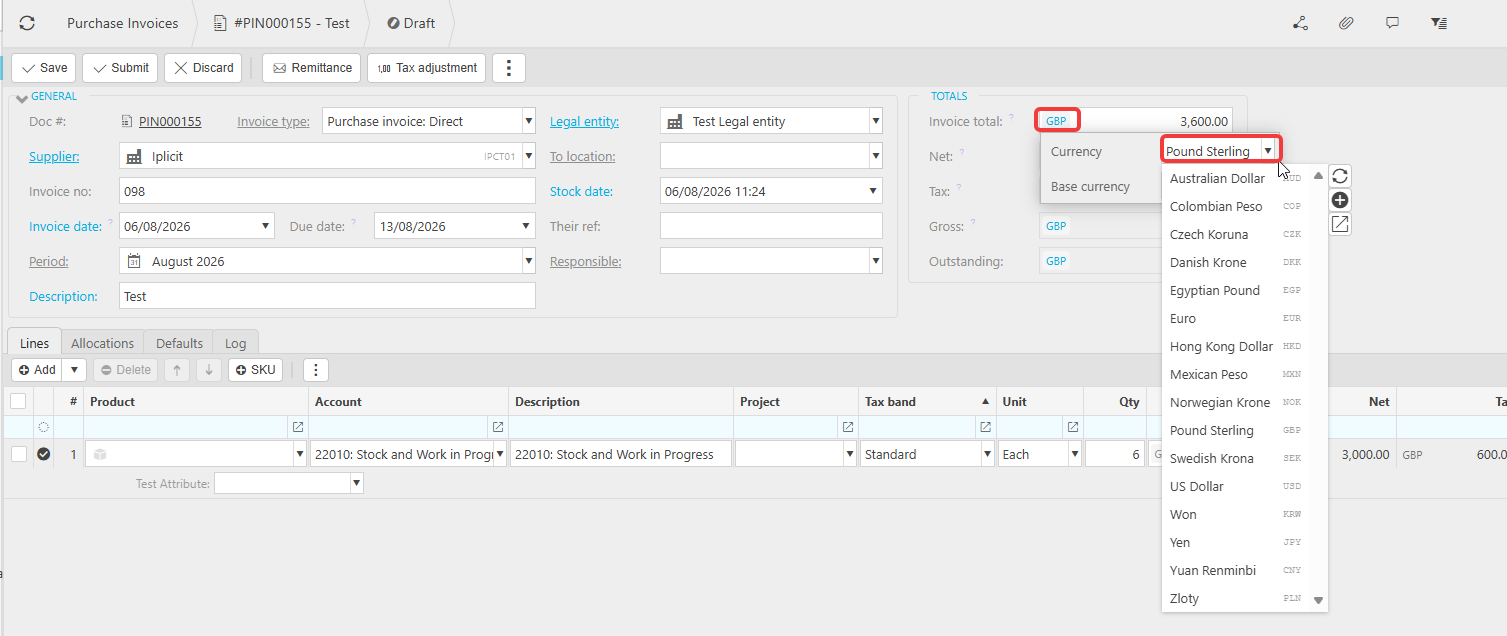
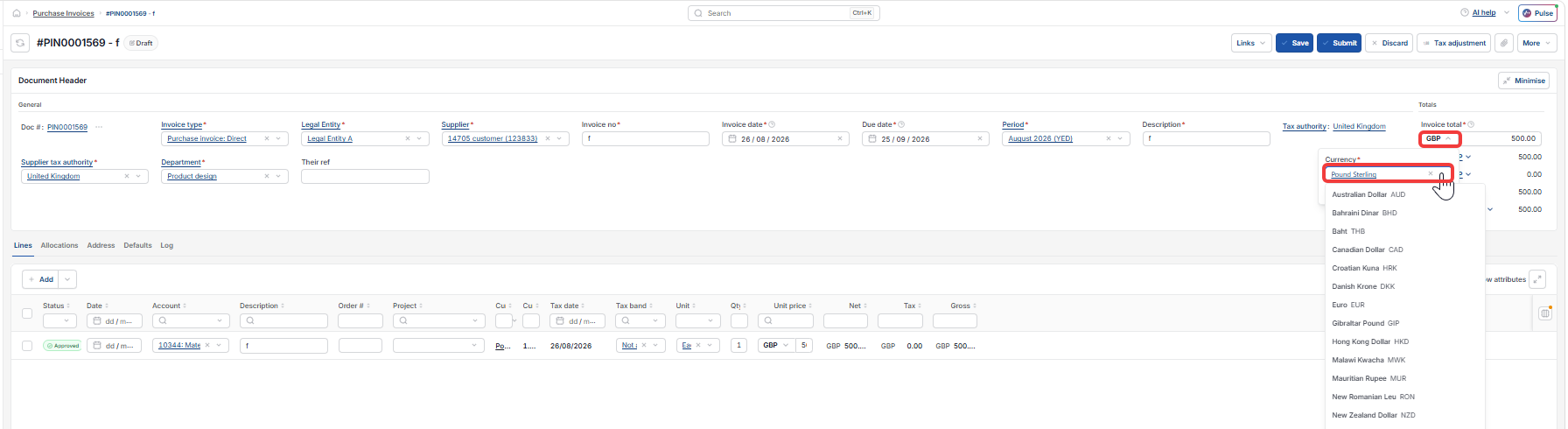
When you create a new purchase invoice or sale invoice, look at the Totals section on the right of the screen. iplicit shows a currency code there – for example GBP for Pound Sterling. This currency code is a dropdown, sometimes called a currency selector or currency field.
- Select the currency code shown in the Totals section of the purchase invoice or sale invoice
- A list of available currencies opens, showing each currency's full name and its three-letter code, such as Euro (EUR) or US Dollar (USD)
- Select the currency you want to use for this invoice
- iplicit updates the invoice's figures to reflect the currency you selected.
Once you choose a currency, all the values on that purchase invoice or sale invoice – including the invoice total – are calculated in that currency.
Manual journals work differently. Currency there is set per line rather than once for the whole document – see 'How to change the currency on a manual journal'.
Change invoice currency
Purchase invoice currency
Sale invoice currency
Foreign currency invoice
Convert invoice currency
Edit currency on invoice
GBP to USD invoice
Currency dropdown