

This article covers authorisation workflows in iplicit that send a document to more than one approver (sometimes called two-person, multi-person or multi-level approval). It also covers adding a temporary stand-in approver (sometimes called a deputy or cover approver) to an authorisation workflow step. The example uses a Purchase Order (PO), but the same rules work on any document type with an authorisation workflow.
Example multi-person authorisation workflow for a Purchase Order
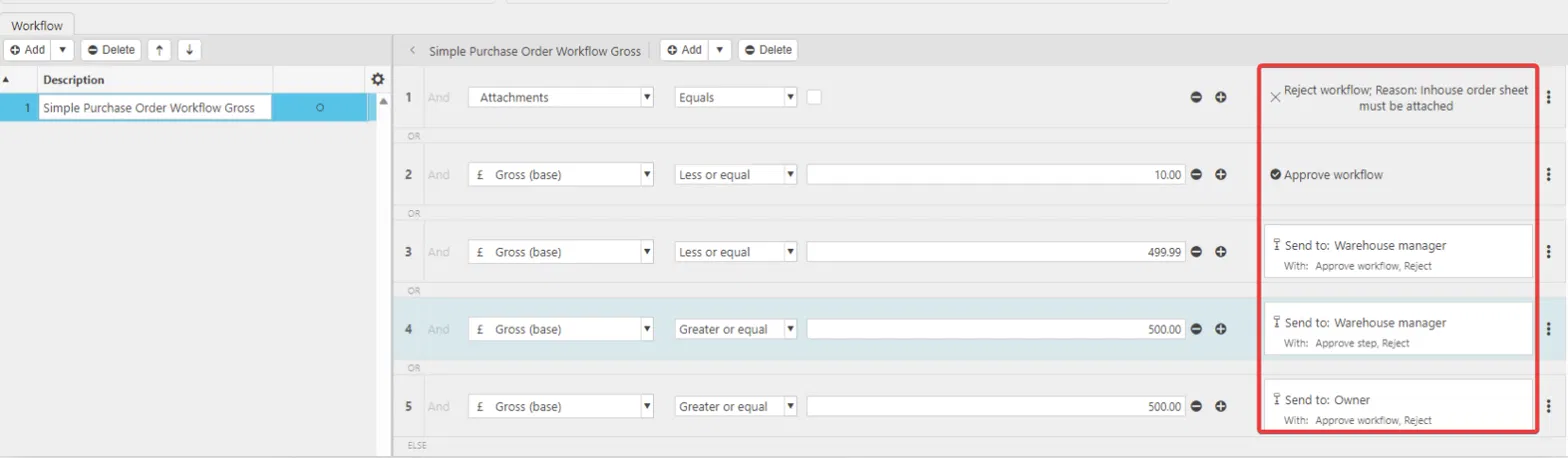
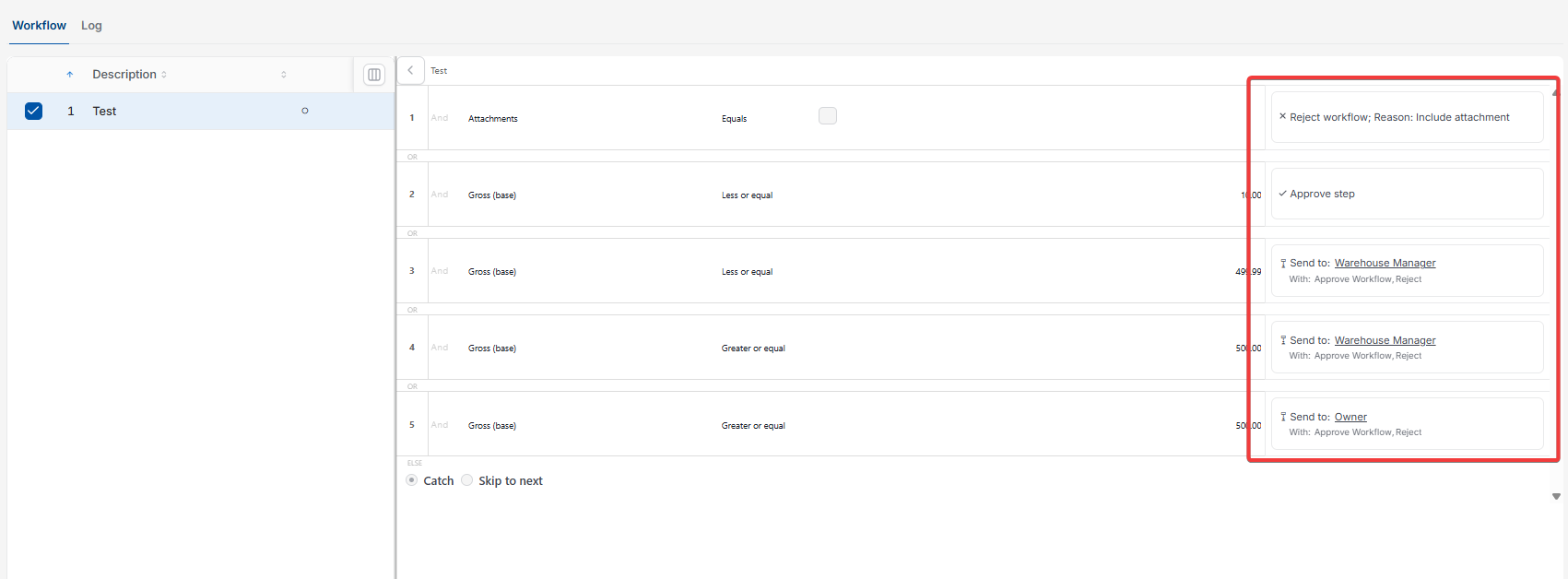
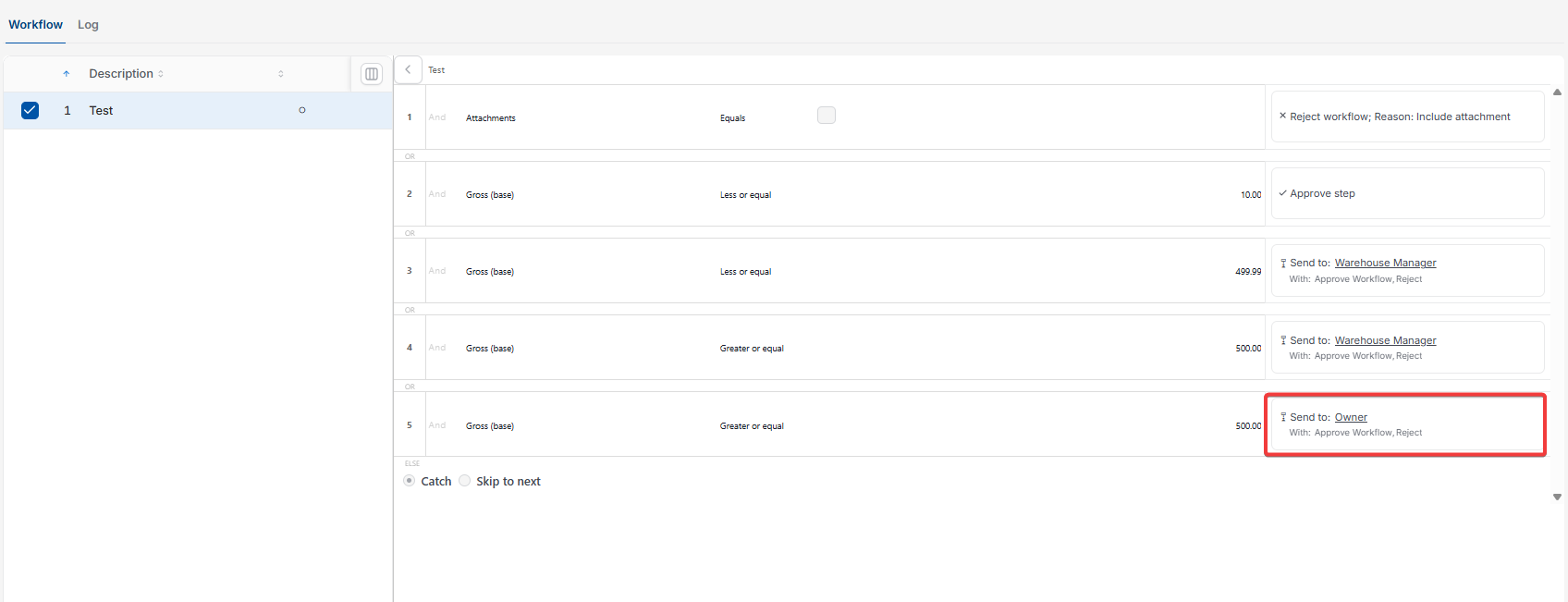
This example uses three roles: a Warehouse Worker who raises the PO, a Warehouse Manager who approves first and an Owner who gives final approval. The authorisation workflow applies different rules based on the PO's value and whether it has an attachment:
- No attachment: the PO is rejected, and the person who submitted it receives an email saying the in-house order sheet must be attached
- Attachment and under £10: the PO is approved automatically
- Attachment and between £10 and £499.99: the PO goes to the Warehouse Manager
- Attachment and £500 or more: the PO goes to the Warehouse Manager first, then to the Owner for final approval.
Adding a temporary stand-in approver to an authorisation workflow step
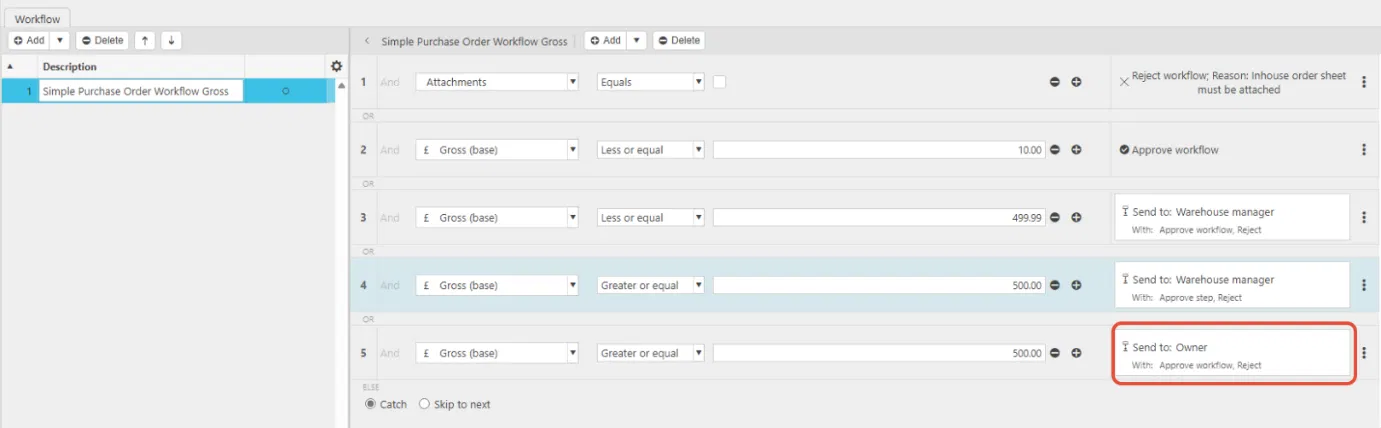
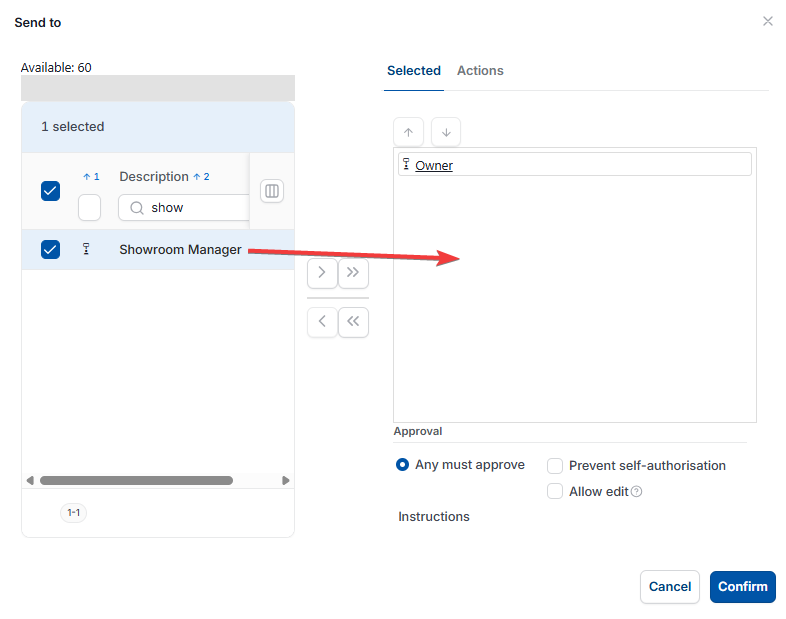
If the usual approver on an authorisation workflow step is away, add a stand-in approver alongside them. For example, someone could cover the Owner on the £500-and-above step. You don't need to remove the usual approver.
- Open the authorisation workflow and select 'Revision' – this creates a new numbered version of the workflow, so the current version isn't changed
- Select the approval step the usual approver is assigned to
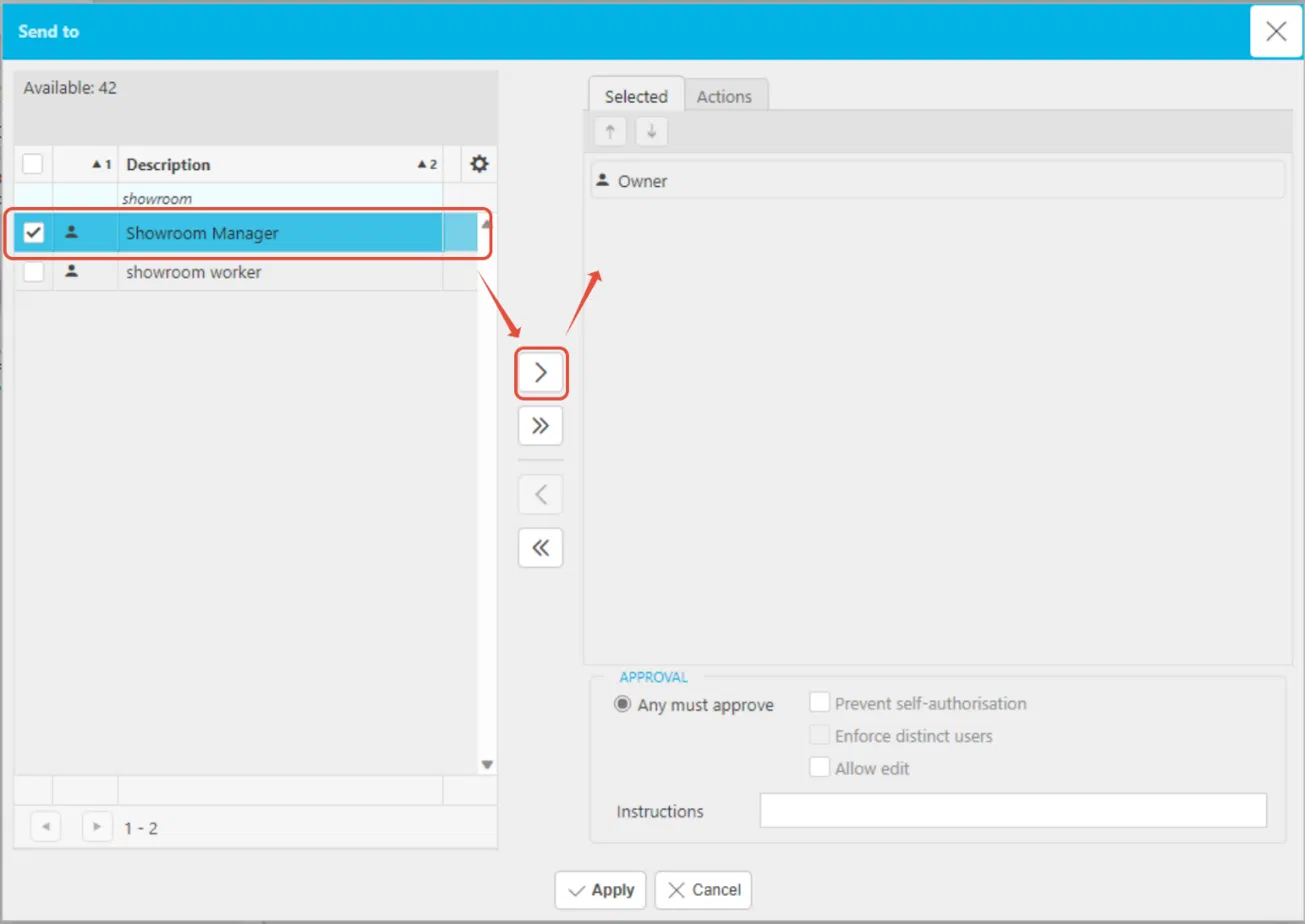
- In the 'Send to' window, search for the stand-in approver, for example 'Showroom Manager'
- Tick the stand-in approver, then select the arrow button to move them into the 'Selected' list
- Select 'Apply'.
Once both people are listed on the authorisation workflow step, either one can approve it.
Removing a stand-in approver from an authorisation workflow step
When the usual approver returns, select 'Revision' on the authorisation workflow again. Open the same approval step, remove the stand-in approver from the 'Selected' list and select 'Apply'.
Two person approval workflow
Multi-level approval
Multiple approvers workflow
Approval based on value
Reject PO without attachment
Stand-in approver
Cover approver on holiday
Deputy approver workflow
Authorization workflow multiple approvers