

This article covers creating and managing a budget for a new financial year in the Budgets module – from setting up the structure through to importing forecast figures. The Budget Type shapes the budget's structure, and that structure cannot be changed once a forecast exists against it.
Creating a budget structure for a new financial year
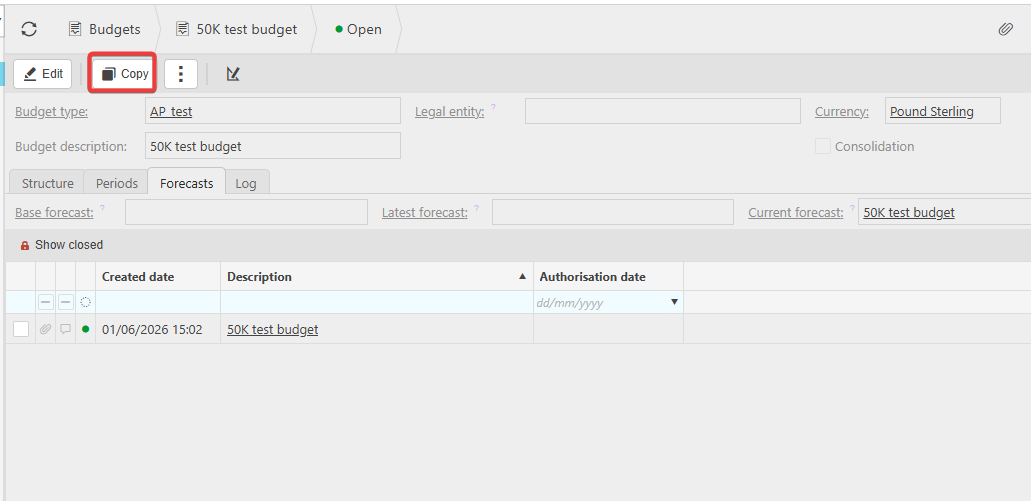
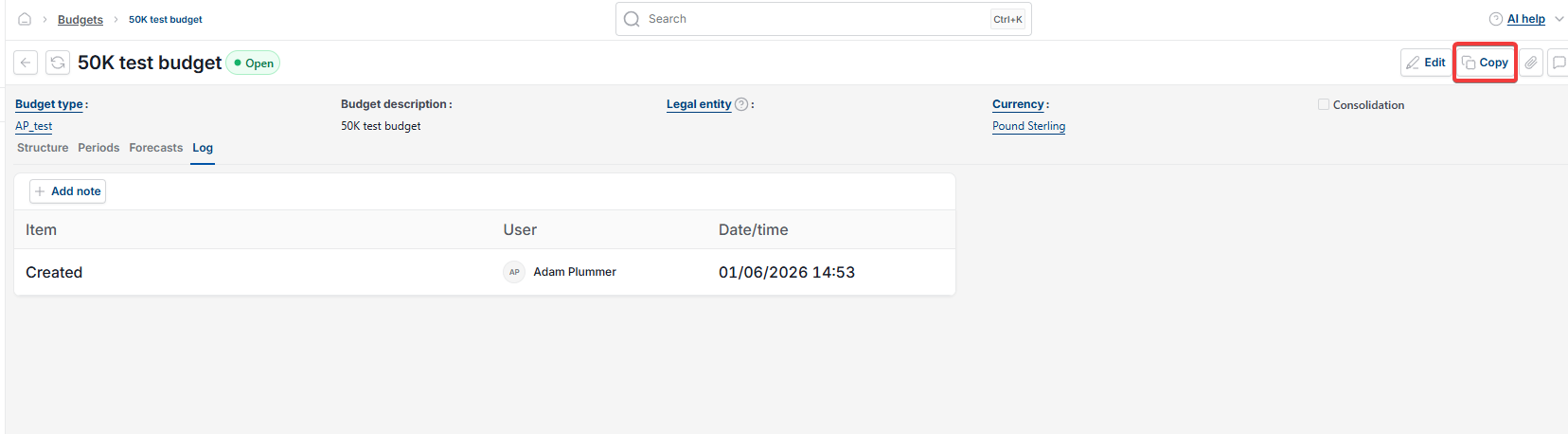
The simplest way to create a new budget is to copy the structure from a previous one:
- Navigate to 'Budgets' and open the previous budget
- Select 'Copy'
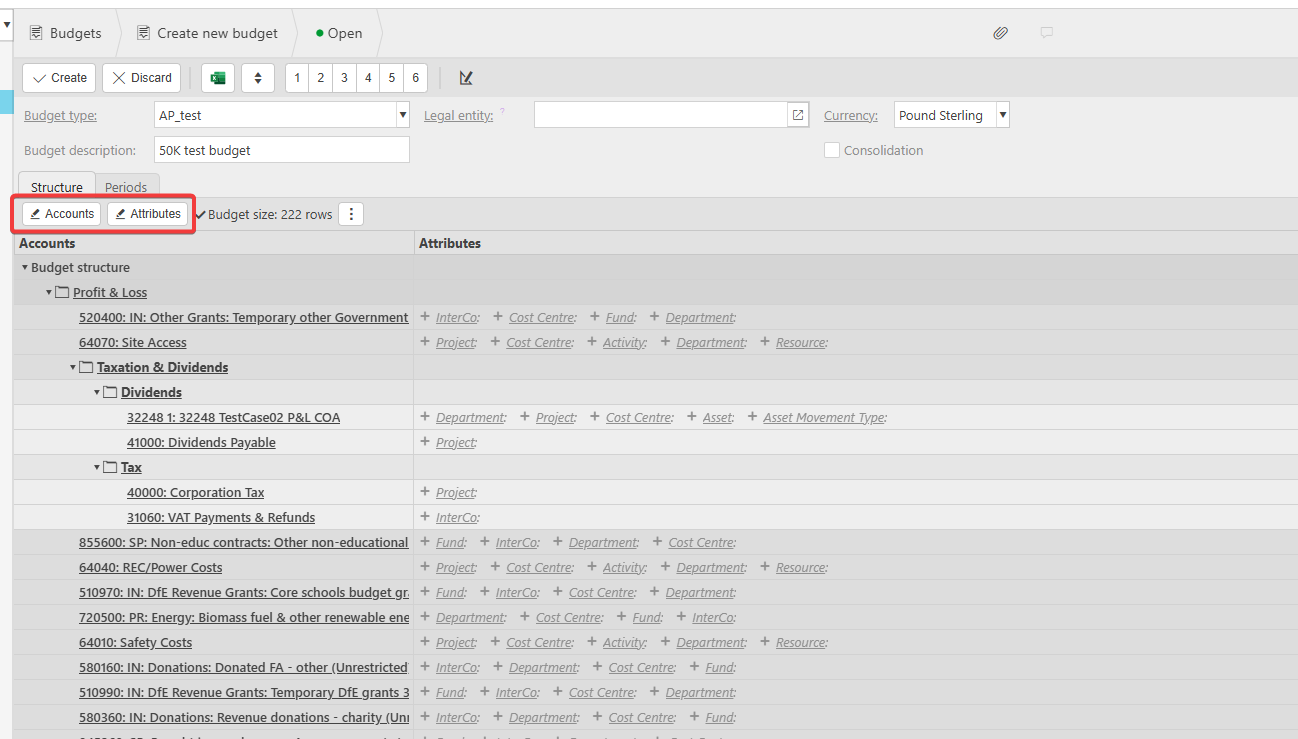
- Rename the budget – the same name cannot be used twice.
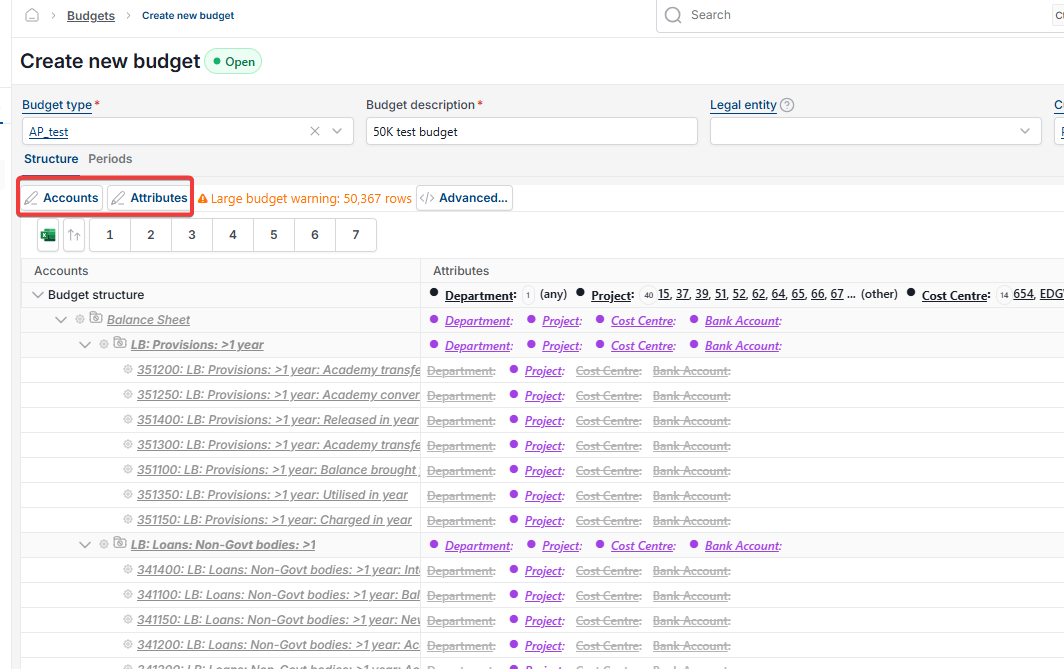
Choose the accounts and attributes needed for the budget and its forecast, since a forecast can only include accounts chosen in the budget structure. If the structure doesn't allow new accounts or attributes to be added, create a new budget type instead, or copy a more relevant structure.
To start from scratch instead, navigate to 'Budget type', select 'New', then use 'Accounts' or 'Attributes' to build the structure.
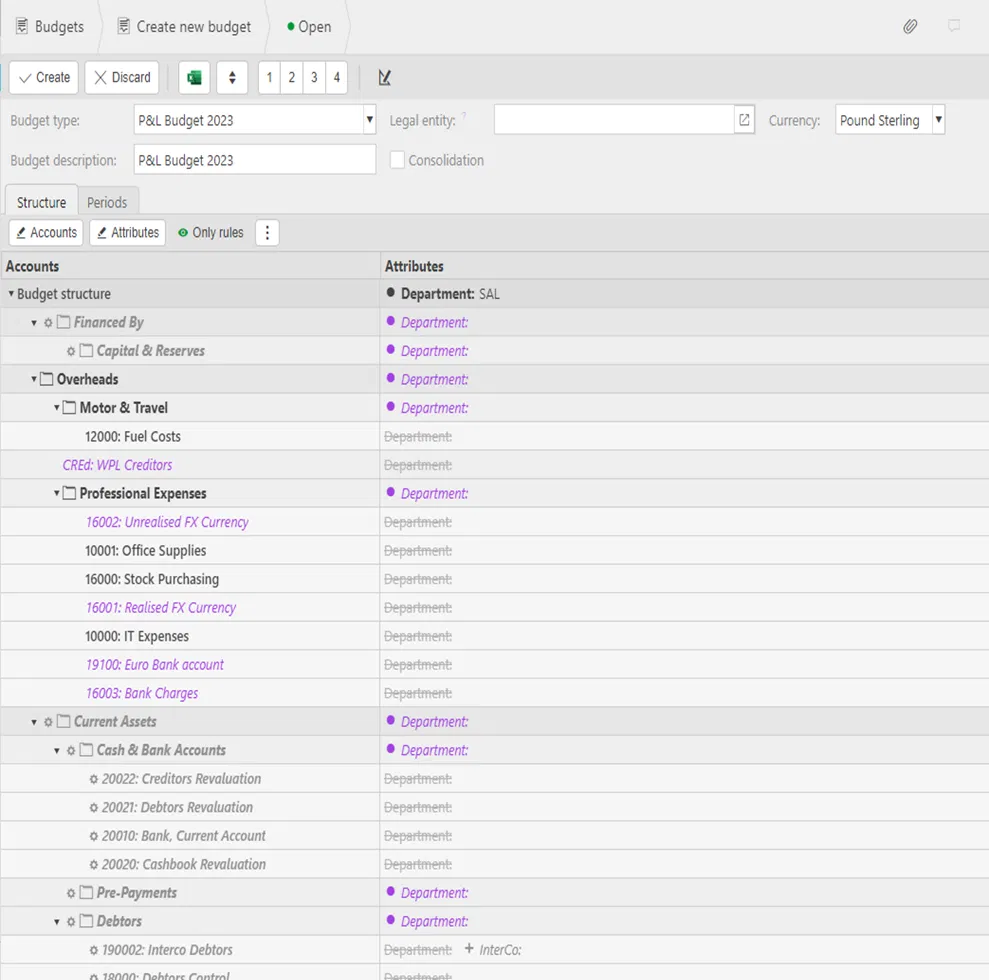
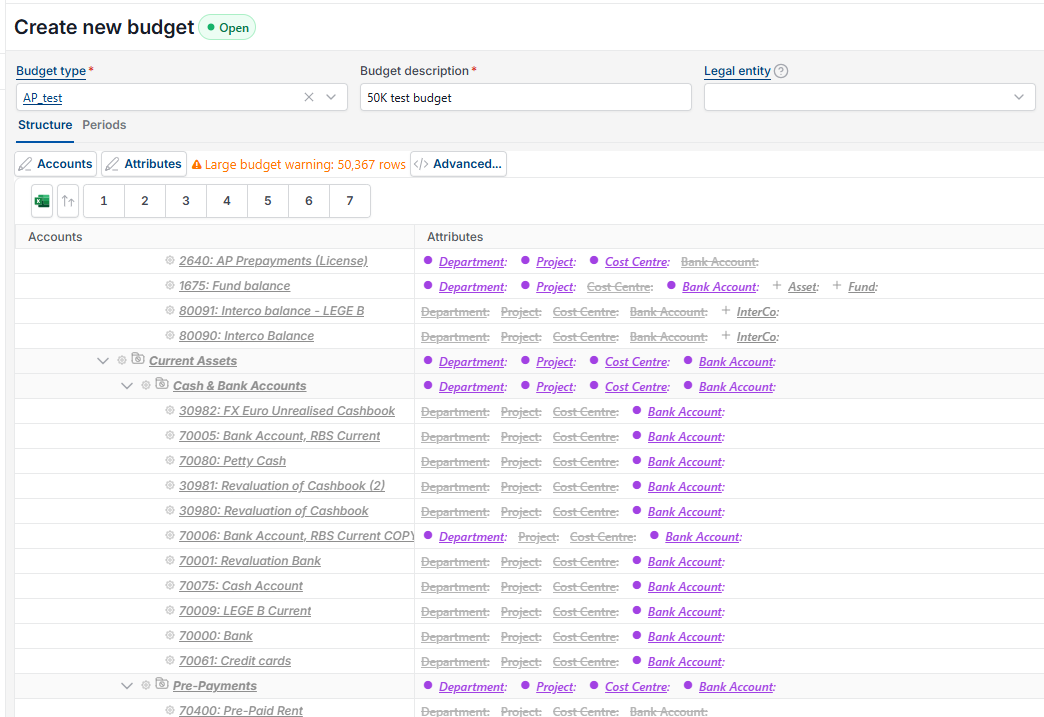
Understanding purple values on the budget structure
A value appears in purple when it wasn't previously included in the Chart of Accounts (COA) structure, or when it's been inserted as a field in a header row, which then affects the rows beneath it. Create a new budget category to properly incorporate the account or attribute, rather than leaving it against the header row.
Updating budget periods for the new financial year
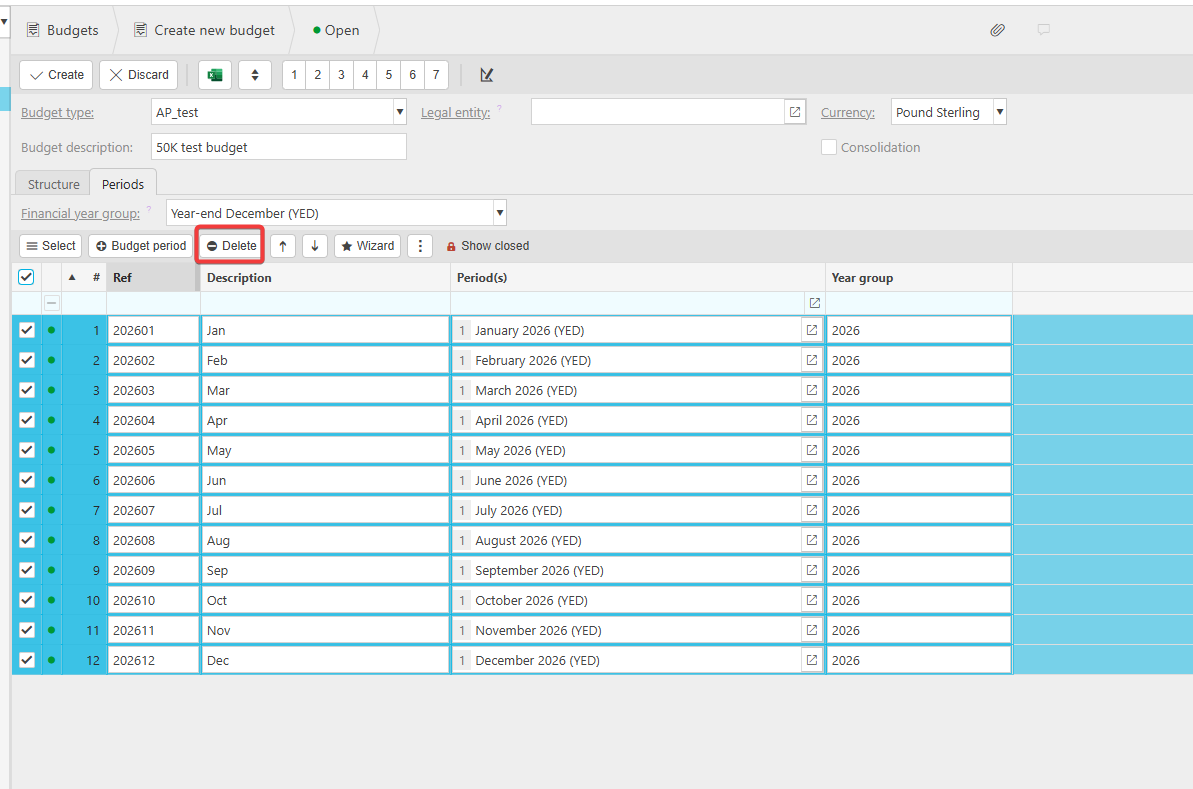
If you've copied a budget, its periods still belong to the year you copied from. Left unchanged, figures post against the wrong year.
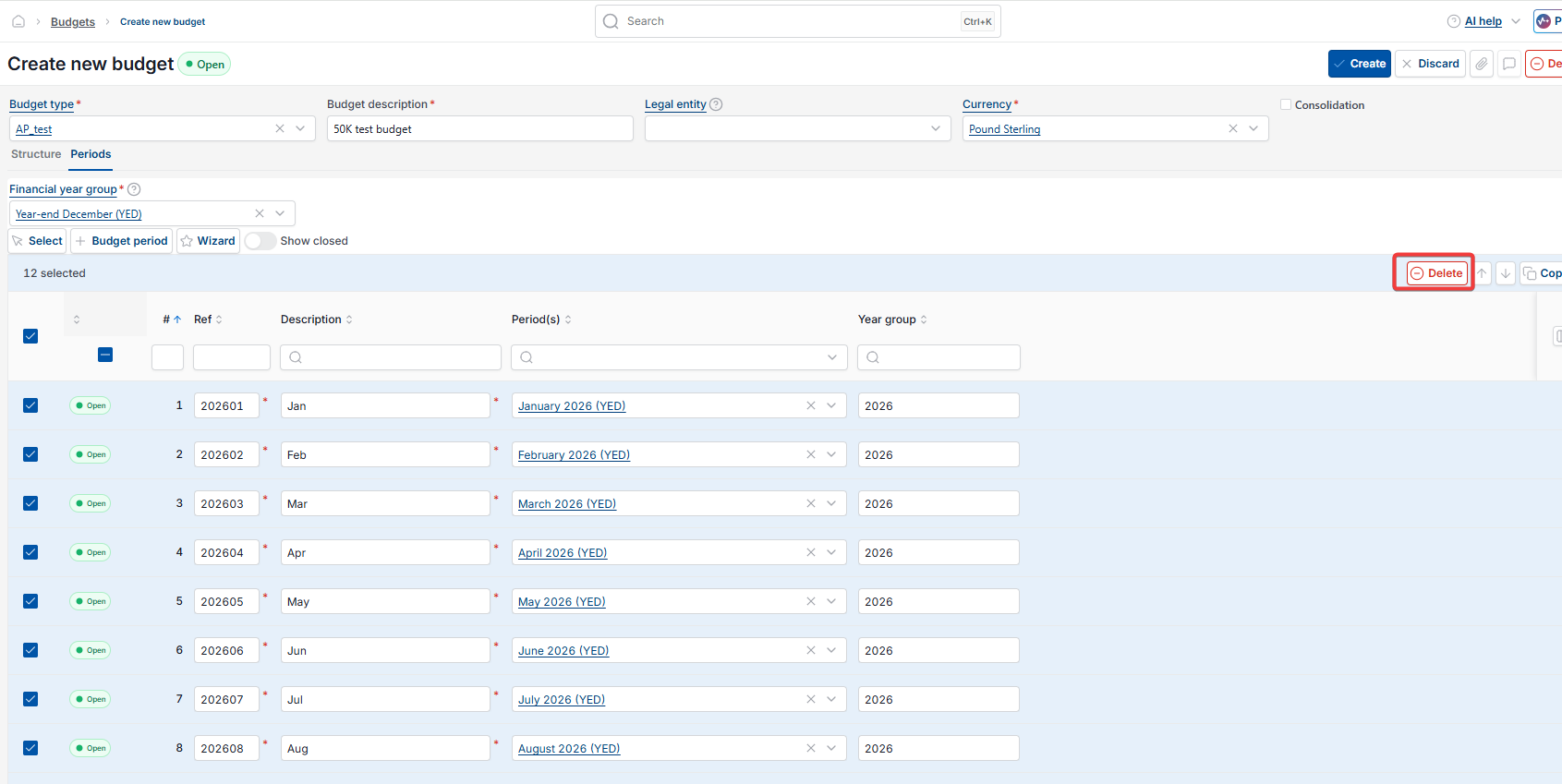
- Open the 'Periods' tab, select all existing periods, and select 'Delete'
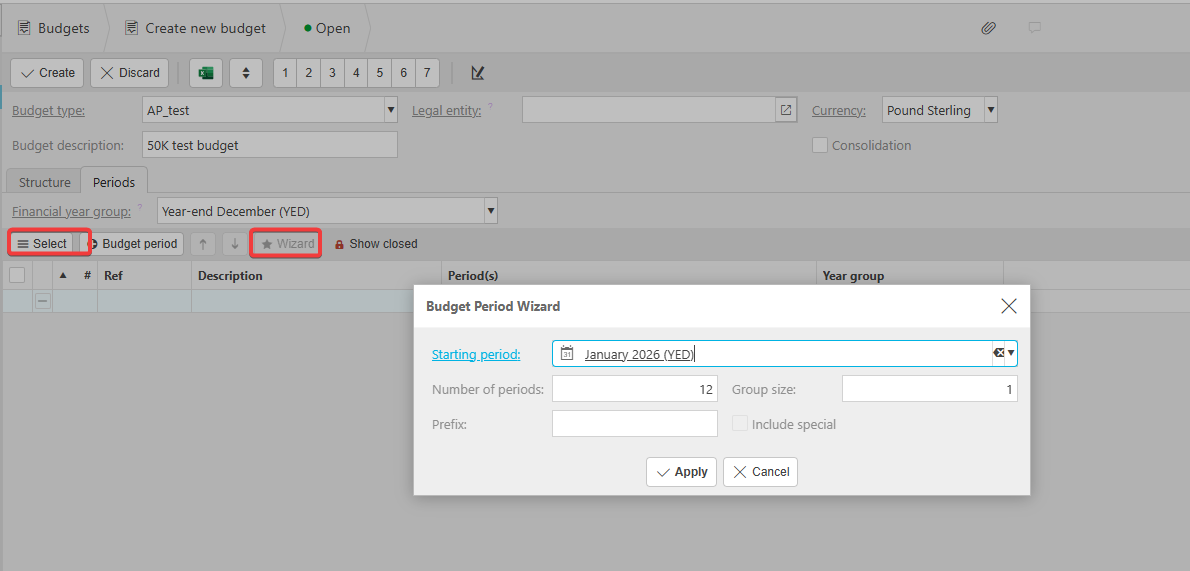
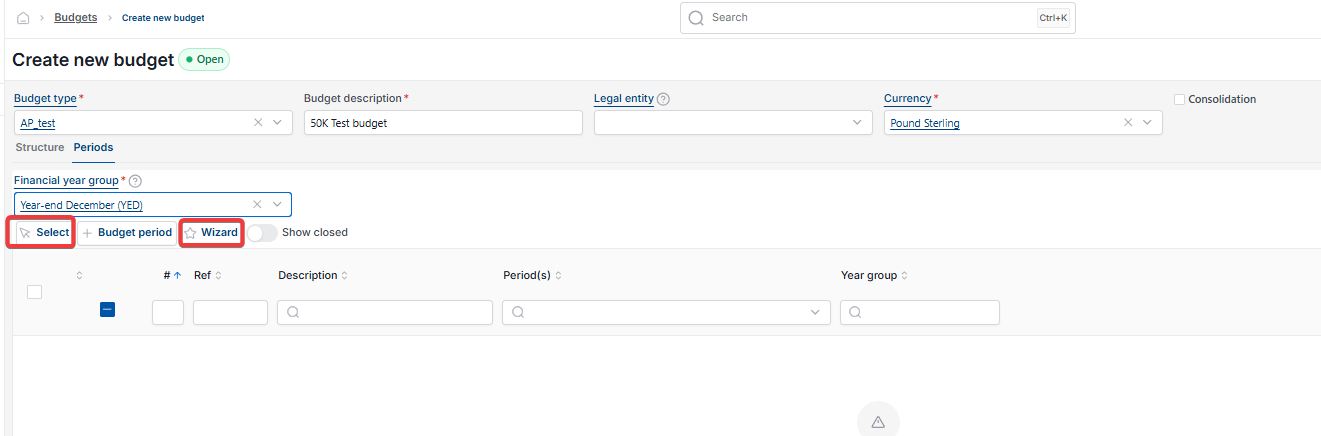
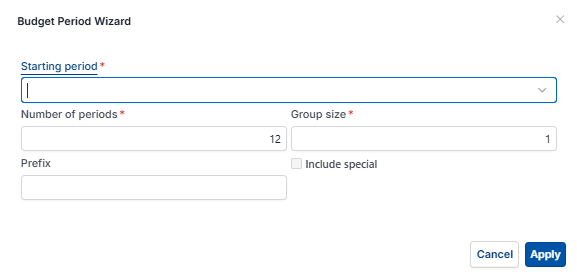
- Rebuild the periods either by selecting 'Wizard' and setting the starting period, number of periods and group size, or by selecting 'Select' to choose the financial year directly, if it's already open
- Select 'Create'.
Creating a budget forecast
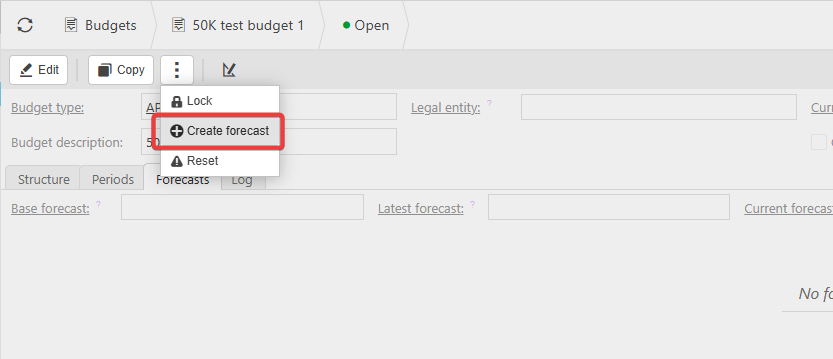
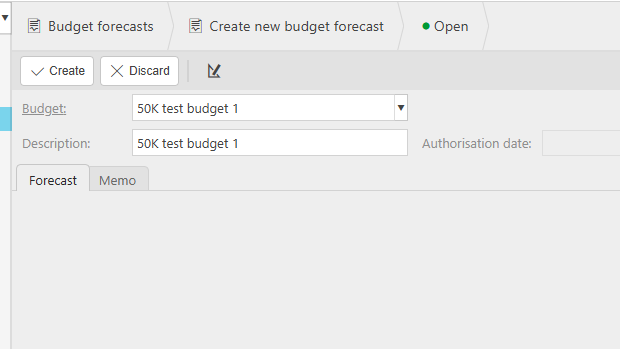
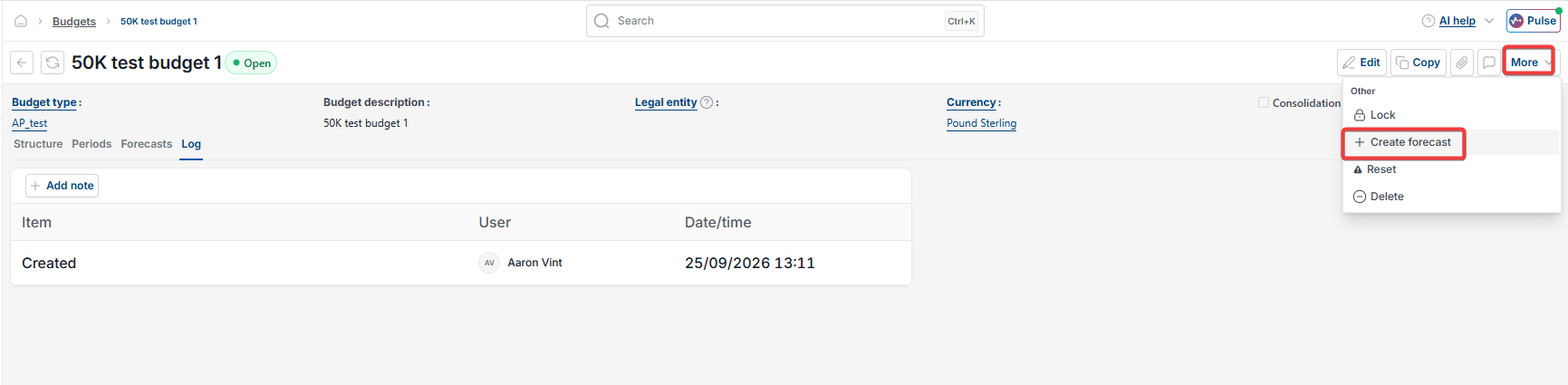
- Open the budget. Depending on your screen, select the three-dot menu or the 'More' drop-down
- Select 'Create forecast'
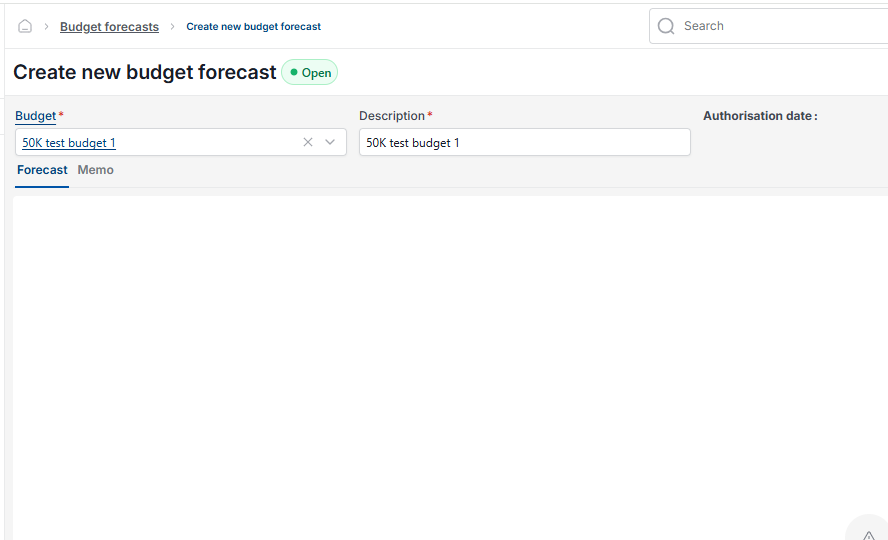
- Edit the description, or leave it as-is if this will be the only forecast under the budget
- Select 'Create'.
Importing figures into a budget forecast
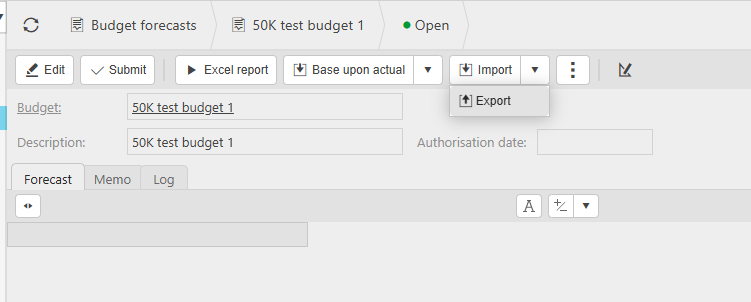
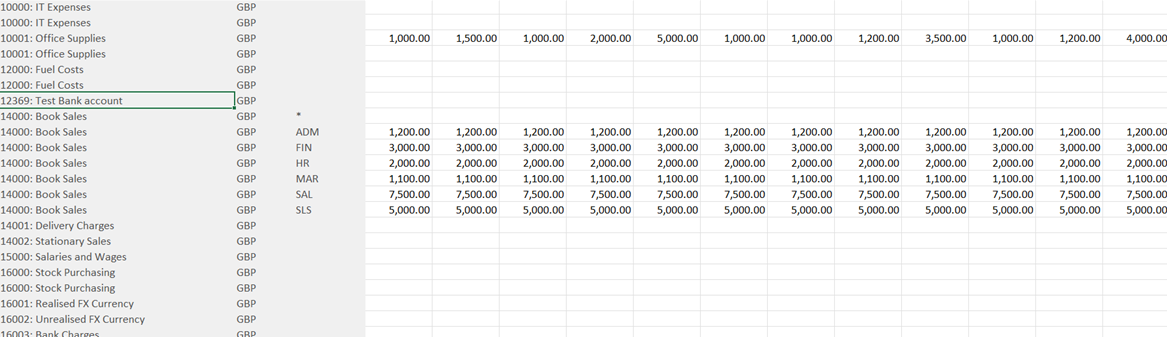
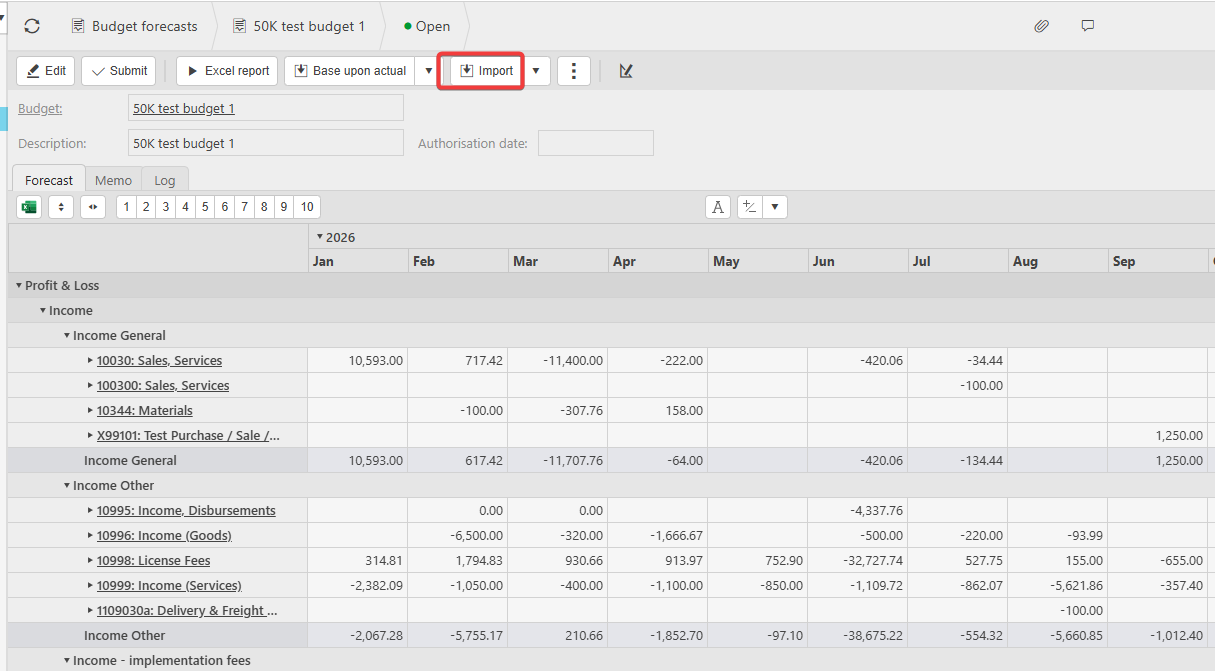
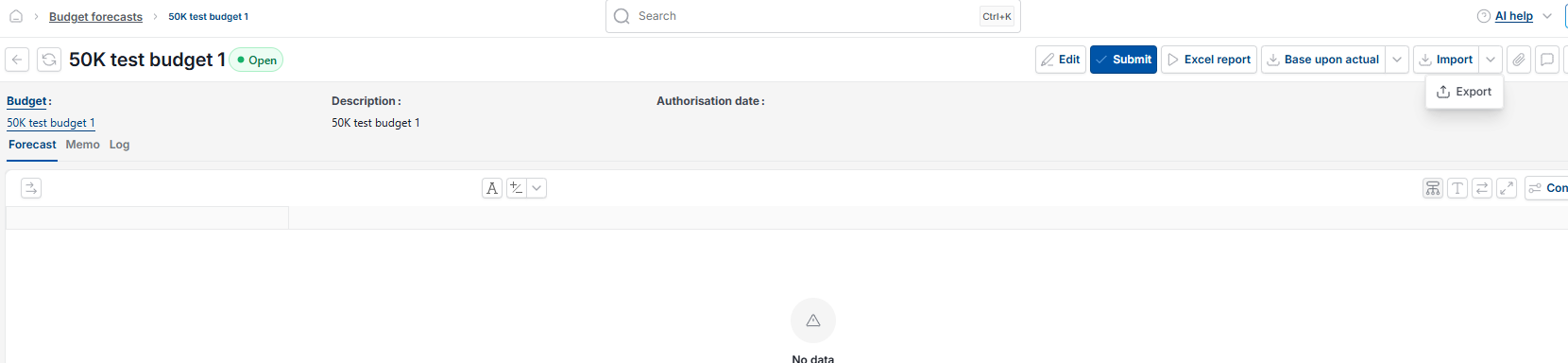
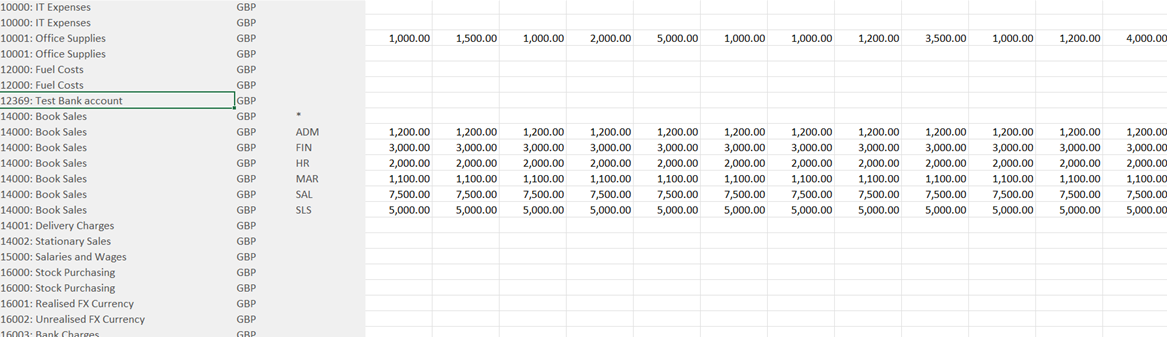
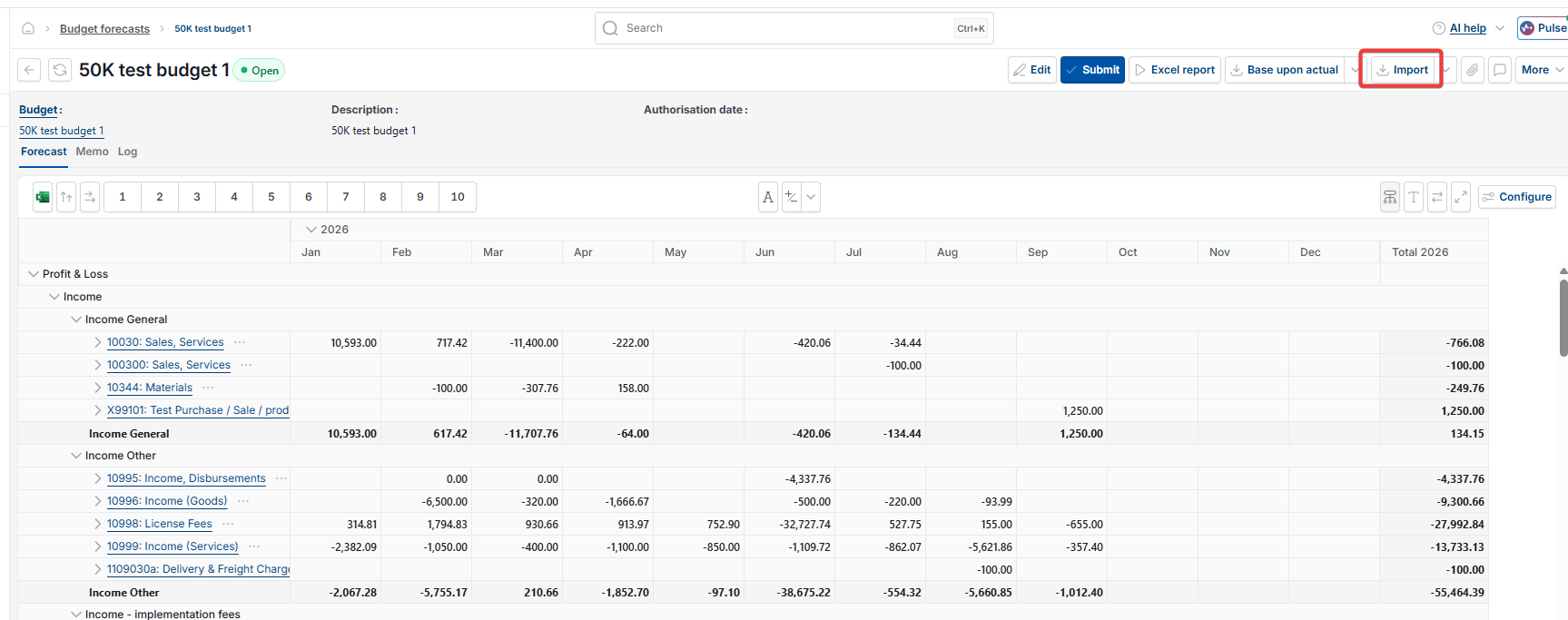
- On the forecast, select the drop-down next to 'Import' and select 'Export' to produce a spreadsheet unique to that forecast. Reveal hidden columns from 'E' onwards to see any account attributes
- Add only the figures you need – don't edit the spreadsheet's structure, and don't enter zeros where a value isn't needed, as this makes the budget harder to read and slows loading
- Select 'Import' and choose the completed file – a preview shows before it's applied, so you can check the figures are correct
- Select 'Apply' to complete the import.
Each export is unique to its forecast. Using a file exported from a different budget or forecast will not work, even with matching accounts and attributes. If the import doesn't apply cleanly, export a fresh template from the correct forecast and reimport.
If you may want to edit the forecast later, don't select 'Submit' – this locks the figures in and cannot be undone. A forecast left in 'Open' status still works with reporting.
Showing or hiding empty rows on a budget forecast
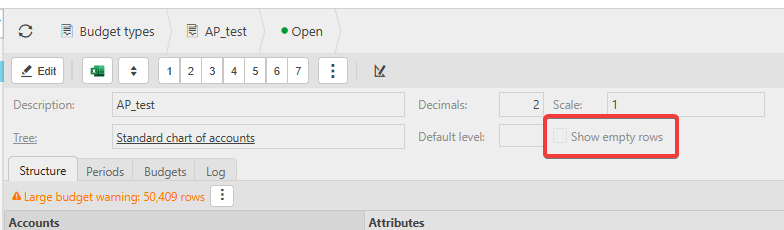
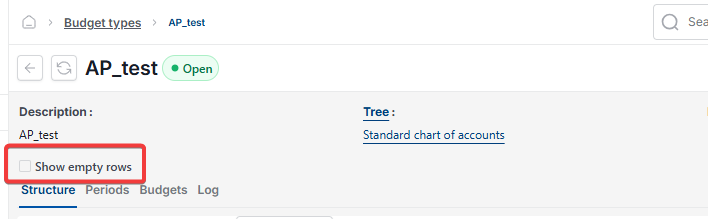
A forecast can display blank rows for accounts with no values entered. To toggle this, open the Budget Type and amend 'Show empty rows' under 'Structure'. This only affects rows with genuinely no value – it doesn't hide rows where zero has been entered.
Create a new budget
Renew budget for new year
Copy a budget
Import budget figures
Budget forecast error
Purple values on budget