

This article covers setting up and unlocking a new financial year within iplicit. Before you can raise documents or process the year-end rollover against a new financial year, both the financial year itself and the required periods must be unlocked. Unlock the financial year before opening any periods.
Step one – unlock the financial year
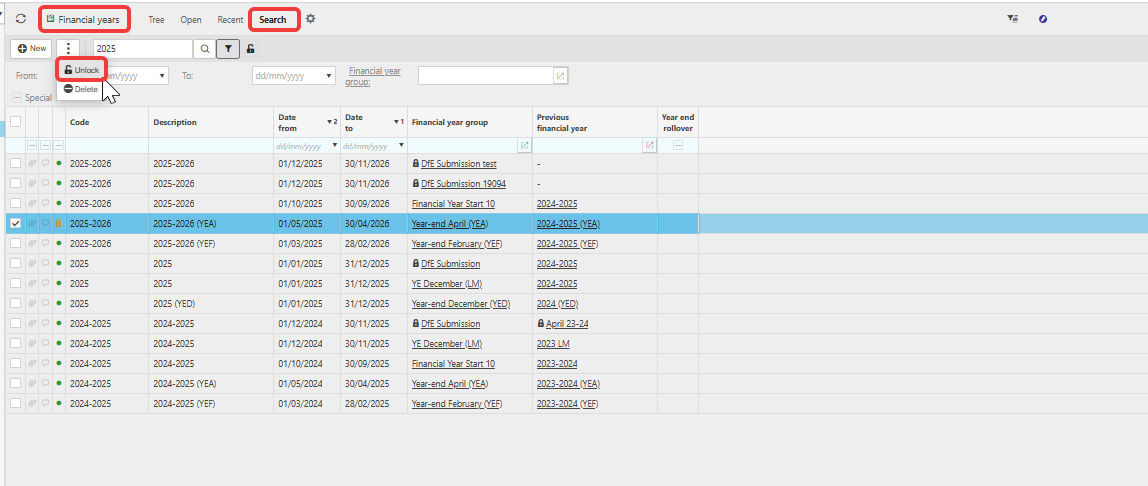
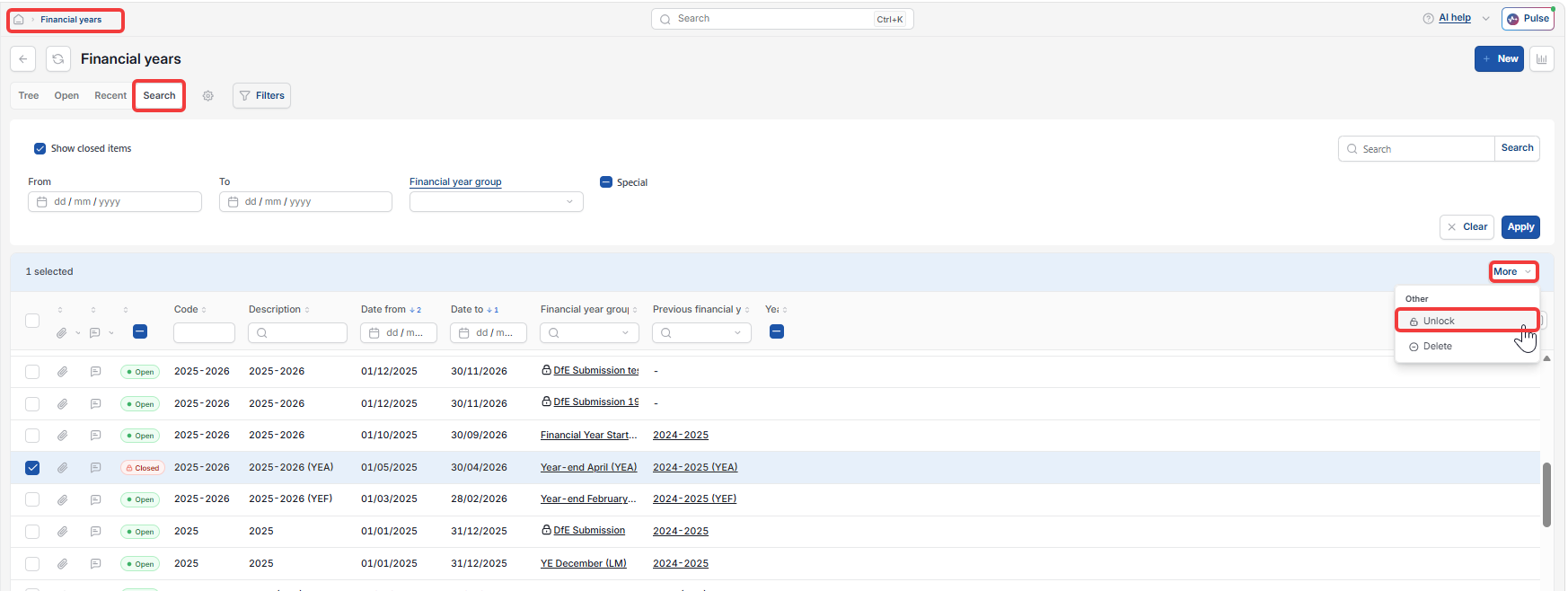
- Navigate to the Financial Year screen
- Use the 'Search' tab to locate the financial year you need to unlock
- Highlight the year, select the three-dot menu or click the more button and choose 'Unlock'
Step two – unlock the required periods
- Navigate to the Period screen
- Use the 'Search' tab to locate the periods you need
- For each period, select it, click the three-dot menu or the more button and choose 'Unlock'
- Ensure the brought-forward (b/f) period is unlocked if you are running the year-end rollover.
See 'How to unlock a period in iplicit' for more information.
Important
Certain functions within iplicit – including Attribute Corrections and the year-end rollover – require the financial year to be open before they can run. Always unlock the financial year first.
How to unlock financial year
Open new financial year in iplicit
Unlock accounting periods
Year end rollover not working
Financial year locked / cannot post